Choose a monitor that lets you arrange your timeline and preview clearly at your preferred scaling. For colour decisions, its colour mode should match your output format. If you’re using a laptop, you’ll also need compatible display and charging connections. A larger or higher-resolution monitor won’t speed up large project files: that depends on factors such as fast storage and, where appropriate, proxies.
Which monitor features matter to you?
Editing with long timelines
If you’re arranging lots of clips, audio tracks and tools at once, you need a workspace where your editing interface remains easy to read at your chosen scaling. ASUS and BenQ’s model specifications show a range of screen sizes and resolutions for this kind of setup.
Colour-critical video output
If you’re assessing colour and tonal values for a specific output format, your monitor settings need to work with your colour-management setup. Adobe explains the colour-management settings in Premiere, while EIZO lists the CS2740 for video editing and colour grading.
Editing with a connected laptop
If you want to handle display output, peripherals and possibly power through your monitor, check the connections and power specifications for the exact model. BenQ and Dell list these kinds of connectivity features on selected monitors.
What to look for when buying a monitor
First, check that the screen size and resolution suit your editing interface. Then consider your colour workflow, laptop connections and whether large files are actually being held back by the monitor or something else.
| What to consider |
What to look for |
Who is this most important to? |
| Easy-to-read timeline and preview |
Compare screen size, native resolution and desk space, and check how readable your software will be at your planned scaling. |
If I want to see my timeline, tools and preview at the same time while editing long walking clips, I need a workspace that suits the job. Around 36% of consumers prioritise a clear timeline and preview. |
| Colour control suited to your output |
Decide whether you’re delivering in SDR or HDR first, then check for suitable colour modes and a compatible colour-management and calibration workflow. |
If I need to assess colour for a specific output format, having the right workflow matters more to me than any one colour-gamut figure. Around 29% of consumers prioritise colour control suited to their output. |
| Laptop connectivity and workspace |
Check your laptop’s output, cable, required resolution and refresh rate, and charging needs against the specifications for the exact monitor model. |
If I want to connect my laptop to a monitor and peripherals, I want to know beforehand whether the display signal and, if needed, charging will work together. Around 21% of consumers put compatible laptop connectivity first. |
| Large project files |
Assess your computer, media and cache storage, and any potential proxy workflow separately from your choice of monitor. |
If large files are slowing down my editing, I need to find the actual bottleneck rather than expect a monitor to process them faster. Around 14% of consumers are mainly looking for a solution to handling large files. |
Common misconceptions when buying a monitor
-
A new monitor will fix lagging on large projects
Adobe identifies fast media and cache storage, as well as proxies, as separate factors in video editing. A higher-resolution monitor won’t automatically fix these bottlenecks.
Before you buy, distinguish display issues from playback or file-related bottlenecks. Check your storage and computer performance separately, and consider using a proxy workflow for demanding footage.
-
Colour-gamut coverage or an HDR label proves colour accuracy
Manufacturer details about colour modes and gamut coverage describe a model’s features; they don’t automatically prove the colour accuracy of your particular unit or its suitability for every HDR approval workflow. Adobe also explains the settings needed for a colour workflow.
Decide on your output format and check that the colour mode and software workflow match it, rather than simply choosing the highest percentage figure.
Checking your output format and colour-management setup may take extra time to configure.
-
A connection label guarantees a one-cable setup
A USB-C or Thunderbolt connection alone doesn’t prove that your laptop, cable and monitor support the display output and charging power you need.
Before you buy, compare the full connection specifications for both devices, including display resolution and charging requirements.
Depending on your setup, you may need a different cable, a dock or a separate charger.
Monitor brands to consider
ASUS
The ProArt range includes the PA279CRV, an option for a 27-inch 4K editing setup with selectable colour modes.
- ASUS lists a resolution of 3840 × 2160 pixels, a Rec.709 mode and 99% DCI-P3 for the PA279CRV.
- These are manufacturer specifications for this model, not an independent measurement of the individual unit. Check how readable your interface is at your preferred scaling.
BenQ
The Creative Pro PD3225U is designed for editing setups where a larger screen, video colour modes and Thunderbolt are important.
- BenQ lists a 31.5-inch screen, a Rec.709 mode and Thunderbolt 3 with 85 W Power Delivery for the PD3225U.
- Its connectivity needs to be compatible with your laptop and cable. The manufacturer’s specifications don’t automatically prove that it’s suitable for every HDR approval workflow.
EIZO
The ColorEdge range is an option for an editing setup with a stronger focus on colour management; EIZO lists the CS2740 for video editing and colour grading.
- EIZO lists a 27-inch screen and 3840 × 2160 pixels for the CS2740.
- A graphics monitor doesn’t replace the right settings in your editing software or a properly matched calibration process. Adobe explains the importance of colour management in Premiere.
Dell
The UltraSharp U2725QE is a 27-inch 4K option if a Thunderbolt hub is important for your editing setup.
- Dell lists a Thunderbolt hub for this model.
- Check that your computer and connection support the display output you need. A hub alone doesn’t make the monitor a suitable reference display for every colour or HDR workflow.
LG
The UltraFine evo 32U990A-S is a 32-inch 6K option if your computer and editing workflow can make practical use of the extra resolution and Thunderbolt 5.
- LG lists a resolution of 6144 × 3456 pixels and a typical value of 98% DCI-P3 for this model.
- These are manufacturer specifications for this model. A higher resolution won’t make your computer faster or speed up access to large project files.
Joybuy monitors for your timeline and preview
The models below mainly offer larger workspaces for your timeline and preview, along with a portable FHD option. If you want to inspect UHD footage in detail, check the native resolution of the model you’re considering.
 No image available
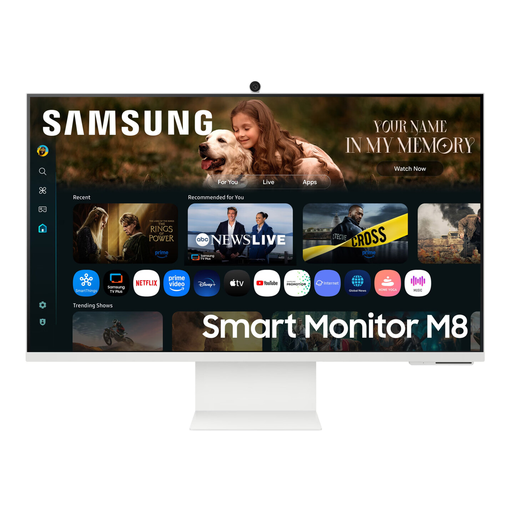
Samsung M8 M80F (2025), 32-inch 4K UHD
An option if you want a large 4K workspace for your timeline and preview, with a suitable laptop connection.
Joybuy lists a 32-inch screen, 3840 × 2160 pixels, 60 Hz, a VA panel, a webcam and HDR10+. It also lists 99% sRGB, USB-C with 65 W Power Delivery, and a height-adjustable, tilting stand. Colour-gamut figures alone don’t prove the colour accuracy of the individual unit.
The product description notes that displaying static images for a long time may cause temporary image retention.
View at Joybuy
 No image available
ASUS ROG Swift OLED PG32UCDMR, 32-inch 4K UHD
An option if you want a large 4K area for image previews and its listed colour and connectivity features suit your workflow.
Joybuy lists a 32-inch screen and 3840 × 2160 pixels. The product specifications also include 99% DCI-P3, 10-bit colour depth and USB-C with 90 W Power Delivery. These details don’t replace checking your colour workflow and laptop compatibility.
View at Joybuy
 No image available
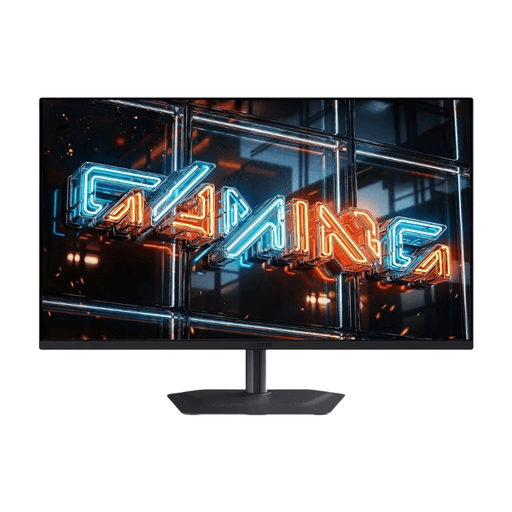
GIGABYTE MO32U24 OLED, 32-inch 4K UHD
An option for a large editing workspace with 4K resolution. If you want to use USB-C, check that its power delivery suits your laptop.
Joybuy lists a 31.5-inch visible screen size and 3840 × 2160 pixels. The product specifications also include 99% DCI-P3, 10-bit colour depth and USB-C with 18 W Power Delivery. The colour specifications aren’t an independent measurement of colour accuracy.
View at Joybuy
 No image available
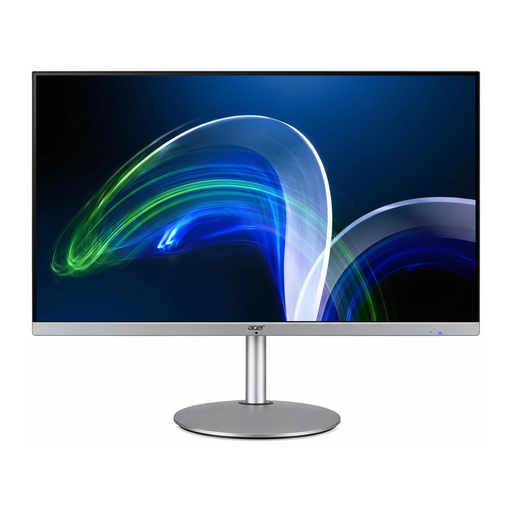
Acer Vero CB322QUEsmiiprx, 31.5-inch QHD
An option if you want a larger screen and connections for peripherals, but don’t need UHD resolution for detailed inspection.
Joybuy lists a resolution of 2560 × 1440 pixels, a USB 3.0 hub and two HDMI inputs. The product description also lists a height-adjustable stand and a matte screen. Its resolution isn’t UHD, so it isn’t suited to inspecting 4K footage in detail.
View at Joybuy
 No image available
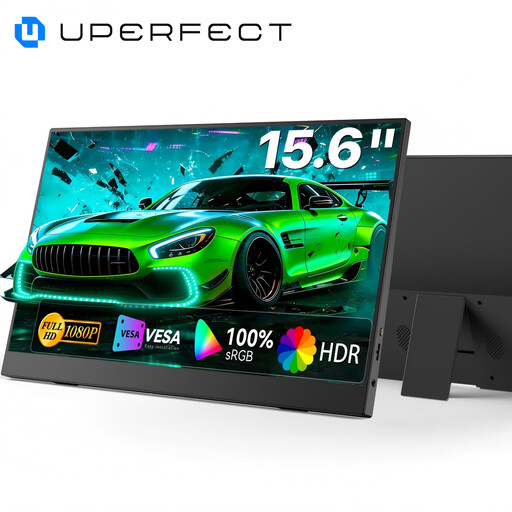
UPERFECT Portable Monitor, 15.6-inch FHD
A portable second-screen option if you’re looking for an extra display you can set up easily. It’s much smaller than the large UHD models, so it’s less suited to viewing a long timeline and preview side by side.
Joybuy lists a 15.6-inch screen, 1920 × 1080 pixels and 100% sRGB. The product specifications also include an integrated adjustable stand, USB-C and Mini-HDMI. The colour-gamut figure isn’t independent proof of colour accuracy.
View at Joybuy
Frequently asked questions about monitors for video editing
Does my monitor need 6K resolution for large project files?
No. Extra monitor pixels won’t speed up access to media files. Adobe recommends fast SSD or NVMe storage for video production and describes proxies as editing copies for demanding footage.
Which colour mode should I check for SDR video?
Start by checking the output colour space for your sequence. Adobe describes Rec.709 as an SDR workflow. A Rec.709 mode on your monitor may suit it, but it doesn’t replace the correct software and colour-management settings.
Is a Thunderbolt connection enough to connect and charge my laptop?
Not without checking your specific laptop and cable. BenQ lists Thunderbolt 3 with 85 W Power Delivery for the PD3225U. Check that your computer supports the required charging power and display output.
Which energy information is relevant when buying a monitor in Germany?
The European Commission generally places electronic displays under EU energy labelling and ecodesign rules. Check the product information for the specific model to compare the details that apply to it.
What are my rights when buying a monitor online?
For goods ordered online, you generally have a 14-day right to cancel. The Verbraucherzentrale states that the period starts when the contract is concluded or when you receive the goods. Your statutory rights against the seller if goods are faulty are separate from any voluntary manufacturer’s guarantee. For purchases made from 31 July 2026, the Verbraucherzentrale also describes a possible extension of the statutory liability period to three years if, when a defect arises within the first two years, you choose a repair instead of a replacement. The relevant conditions depend on the individual case.


