When working with code, browser previews and developer tools, first consider screen space, readable scaling and the room available on your desk. A 27-inch QHD monitor could be a good fit, but it isn’t essential. A USB-C hub is worth considering if both your laptop and monitor support the video connection and power delivery you need. A 4K model may be useful for assessing small graphical details. Saving the game locally is a browser and application feature, not a monitor function: MDN Web Docs explains that localStorage is associated with a website’s origin in the browser.
Who are the different monitors suited to?
Developers working with live previews
You want to arrange your code, browser view and tools clearly while developing the game. Compare the resolution, readability at your chosen scaling and the space available. Dell Germany lists the P2725D as a 27-inch monitor with a resolution of 2560 × 1440 pixels.
People who code for long stretches
You want to adjust the screen to suit your sitting position and account for reflections in your workspace. Check the adjustment options on the specific model and the lighting conditions, rather than relying on a blanket promise of eye comfort.
Developers using a laptop
You want to connect a compatible laptop and peripherals as easily as possible. Check that your laptop’s video output and charging requirements match the monitor’s ports and features.
What should you look for when choosing?
When developing a vocabulary game, the main things to consider are your workspace, an adjustable setup, laptop connectivity and how you’ll assess the game’s graphics.
QHD work monitor
A good fit if: you want to arrange code, previews and tools on one screen, and have room for a 27-inch monitor on your desk. Dell Germany lists the P2725D as a QHD example with a resolution of 2560 × 1440 pixels.
The trade-off: QHD has fewer native pixels than the 4K models mentioned here. That doesn’t mean it includes USB-C docking or particularly accurate colour reproduction.
QHD monitor with USB-C hub
A good fit if: you want to connect a compatible laptop and peripherals through the monitor, and possibly charge your laptop too. The Dell P2725DE is a documented QHD model with a hub.
The trade-off: Check your laptop’s video output, charging requirements and cable. Hub features you don’t need won’t add anything to your workflow.
27-inch 4K monitor
A good fit if: you want to inspect small graphical details or the game interface more closely, and text and controls remain readable at your chosen scaling. The ASUS PA279CRV and LG 27UP850K-W are examples with this size and resolution.
The trade-off: More native pixels don’t guarantee a more comfortable picture at every scaling setting. ASUS’s colour figures are manufacturer specifications for the relevant model.
Large coding monitor with arm
A good fit if: you want to use several work areas on a large screen and have room for the setup on your desk. BenQ lists the RD320UA as a 31.5-inch 4K monitor with coding modes and a flexible arm.
The trade-off: According to BenQ, the setup is 714,6 mm wide and 477,6 mm deep. Measure your available desk space before buying.
| What matters |
What to check before buying |
Who is it important to? |
| Workspace for code and previews |
Screen size and native resolution; readability at your preferred scaling. |
If I want to see my editor, browser preview and tools at the same time, I need to be able to arrange the windows to suit me. Around 38% of consumers put workspace at the top of their list. |
| Adjustable setup |
Adjustment options and desk space; lighting and reflections in your workspace. |
For long sessions, I want to be able to adjust the screen to suit my sitting position and the light in my workspace. Around 23% of consumers prioritise an adjustable workspace. |
| Laptop connectivity and peripherals |
USB-C video signal and your laptop’s charging requirements; hub ports you can actually use. |
If I work on a laptop, the video signal and charging function need to be compatible with my device. Around 23% of consumers put laptop docking at the top of their list. |
| Checking game graphics |
Resolution and readable scaling; a colour mode that suits your output target. |
For small icons and colourful game interfaces, I want to be able to assess a suitable preview. Around 16% of consumers prioritise checking game graphics. |
Which assumptions should you avoid?
-
Confusing local game storage with monitor storage
localStorage is associated with a website’s origin in the browser. Private browsing and browser settings can affect whether saved data remains available.
Plan your storage, and any export or backup features you may need, independently of your monitor choice. MDN Web Docs also describes how browser storage limits and deletion mechanisms vary.
-
Assuming a monitor’s USB-C port guarantees one-cable docking
For video and power to work as intended, the features of the monitor, cable and specific laptop all need to be compatible.
Check the supported video output, charging requirements and hub ports you need against the specifications for both devices.
-
Assuming 4K or a coding mode is automatically the right choice
More native pixels may mean you need to adjust text scaling. Advertised coding modes don’t prove that a monitor will make you more productive.
Choose based on your window layout, readability and space requirements. Check any extra modes on the specific model rather than assuming they’re an advantage for everyone.
Relevant brands to consider
Dell
The documented P2725D and P2725DE models are 27-inch QHD monitors. The P2725DE is the USB-C hub variant. These model specifications are from Dell Germany.
- Comparing the two models can help you decide whether you need a USB-C hub.
- Don’t assume the P2725DE’s features are also available on the P2725D or other Dell monitors.
BenQ
BenQ describes the RD320UA as a 31.5-inch 4K coding monitor with an arm and coding modes.
- The large workspace and connectivity may be useful if you want to work across several areas at once.
- It takes up a considerable amount of space. BenQ’s claims about its coding modes don’t prove that they increase productivity.
ASUS
The German specifications for the ProArt PA279CRV list a 27-inch 4K screen, colour modes and an adjustable stand.
- One option to consider if you want to assess digital design as well as code.
- Colour gamut and accuracy figures are manufacturer specifications for this model. Extra colour options aren’t necessary for every text-focused project.
LG
LG lists the 27UP850K-W as a 27-inch 4K IPS monitor with USB-C and an adjustable stand.
- It can serve as an example of a 4K screen for visual previews.
- The model specifications alone don’t prove independent colour accuracy or compatibility with your laptop.
EIZO
The FlexScan EV2740X specifications list a 27-inch 4K screen, USB-C docking and other office connectivity.
- Worth considering if you want to use several connectivity features on your monitor.
- The EV2740X specifications don’t automatically apply to other FlexScan models. Check your actual docking requirements before buying.
Joybuy products for your development setup
The Joybuy products below cover a 27-inch 4K screen for previews and a more compact Full HD workspace.
 No image available
INNOCN CB27U1 27-inch 4K UHD monitor
For working with code and game previews on a 27-inch screen. Check that the text scaling you want to use is easy for you to read.
3840 × 2160 pixels, IPS display and USB-C with 90 W PD. The stand supports 150 mm height adjustment, tilt, swivel and pivot.
USB-C video and charging require a compatible laptop.
View at Joybuy
 No image available
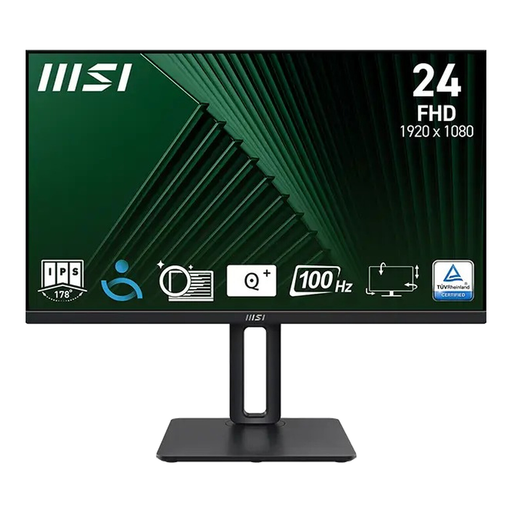
MSI PRO MP245PG 23.8-inch Full HD business monitor
For a more compact development setup with code and browser previews. Consider how many windows you want to see at once.
23.8 inches, 1920 × 1080 pixels and an IPS display. Ports: HDMI, DisplayPort and VGA. The stand supports height adjustment, tilt, swivel and pivot.
Its native resolution offers less workspace than the 27-inch QHD and 4K examples reviewed here.
View at Joybuy
Frequently asked questions
Does a monitor store the game’s vocabulary locally?
No. The monitor specifications covered here relate to the display and connectivity. If your web game uses localStorage, its storage area is associated with the website’s origin in the browser. Private browsing or browser settings can affect whether data is available. Plan for storage, and any export or backup features you need, in the application or on the device you use.
How should you set up your monitor for longer development sessions?
Check that your screen position, seating and lighting work well together, and use the adjustment features on your specific model. Germany’s ASR A6 covers screen-based workstations within its defined scope; it isn’t a blanket purchasing requirement for personal hobby projects.
What running costs and entitlements should you consider when buying?
Compare the energy information for the specific display and check whether your laptop needs extra cables or adapters. When you buy from a business seller in the EU, you’re generally entitled to a minimum two-year legal guarantee from the date you receive the goods. This is separate from a manufacturer’s warranty.
Which EU rules generally apply to monitors?
The European Commission generally classifies computer monitors as electronic displays, which are covered by energy labelling and ecodesign requirements. The specific rules include exceptions. Check the information for the model you’re considering rather than assuming you’ll need an additional licence or registration.


