People explaining games with large boards
You want to show the board, player areas and your moves continuously from a stable viewpoint.


Position the camera so the game board, player areas and your explaining hands are all in shot, then check whether small cards are legible from your actual recording distance. A monitor-mounted desk view may work for the occasional close-up; for a consistent angle, a separately mounted camera gives you more flexibility. Plan your audio and framing carefully to avoid accidentally recording anyone you share the room with.
You want to show the board, player areas and your moves continuously from a stable viewpoint.
You need to show small print, so you check the framing and focusing distance together.
You need to control what’s in shot and make sure your speech is clear, without unnecessarily capturing anyone else.
A good fit if: You want to switch between showing your face and an occasional view of the table while explaining, and your monitor allows for a suitable angle. Logitech describes Show Mode on the Brio 500; Insta360 lists DeskView for the Link 2 and Link 2 Pro, among other models.
Trade-off: The angle depends on your monitor’s position. Insta360 distinguishes DeskView from a separate overhead mount.
A good fit if: You film longer explanations from a consistent position and can fit a secure mount on or above the table. Elgato lists a 1/4-inch thread for the Facecam MK.2.
Trade-off: You’ll need to plan for the mount and, if necessary, a separate microphone. Elgato gives the Facecam MK.2 a fixed-focus range of 30–120 cm.
A good fit if: You also want to film yourself and switch between views. Insta360 lists DeskView for the Link 2 Pro; OBSBOT describes the Tiny 2 as having autofocus and tracking.
Trade-off: Tracking alone doesn’t guarantee that the whole board will be in shot or that cards will be legible. Check whether you can set up the desk view and keep it steady while recording.
When explaining a board game in a shared bedroom, the main thing is to prioritise your most important requirement. The percentages refer to consumers filming in this situation.
| Priority | What to check before buying | Who particularly values this? |
|---|---|---|
| Fit the whole playing area in shot | Check the largest game you plan to film from the intended camera position; compare the monitor view with the space available for a separate mount. | If I want to show the board, player areas and hands together, the framing needs to work from the planned camera position. Around 28% of consumers prioritise capturing the whole playing area. |
| Show cards clearly | Measure the distance from the lens to the cards; review a test recording at the planned output size. | For small card text, I want to check in advance whether the focusing distance works with my setup. Around 22% of consumers say clearly legible card details are their main priority. |
| Speech and privacy | Check the area in shot and the microphone you’ve selected; listen to a short test recording and speak to anyone recognisable in it before publishing. | In a shared room, I want to record my explanation without unnecessarily capturing other people’s voices or images. Around 22% of consumers prioritise sound and privacy. |
| Setting up in a small space | Measure the available desk edge and space above the board; check that the monitor position works with the mount. | When the desk, monitor and game all compete for the same space, I need a setup that can be positioned securely. Around 17% of consumers prioritise a space-saving setup. |
| Connection and recording on a PC | Check that the specific model’s connection is compatible with your computer; select the camera and microphone in OBS and make a test recording. | I want to be able to set up video and audio reliably with my existing computer before recording the full explanation. Around 11% of consumers see connectivity and PC recording as their most important buying priority. |
The desk view depends on the camera and monitor positions. Insta360 specifically distinguishes DeskView from a separate overhead mount.
Set up the whole game and check the preview to see whether the board, player areas and hands are visible from the intended position.
Depending on the angle you want, you may need a separate mount or a different camera setup.
Elgato lists a fixed-focus range of 30–120 cm for the Facecam MK.2. The distance and framing affect whether small details are clear in your recording.
Measure the distance from the lens to the cards and assess a short recording at the planned output size.
Other people’s voices may be audible in a shared room. Elgato says the Facecam MK.2 has no built-in microphone; manufacturers’ microphone specifications don’t guarantee a particular level of speech clarity in your room.
Listen to a test recording under your usual room conditions and decide which microphone you’ll use.
You’ll need a separate recording device, such as a microphone, to record speech with the Facecam MK.2.
The Brio 500 is an option if you want to switch between a face-to-camera view and occasionally showing objects on the table, using your monitor.
The Facecam MK.2 is worth considering if you want a fixed camera position and plan to record audio separately.
The Link 2 and Link 2 Pro are options if you want to switch between a view of yourself and a desk view.
The Tiny 2 is a pan-and-tilt webcam for setups where you also want to film the person explaining the game.
This Joybuy selection includes webcams for explaining board games, with models offering a desk view, autofocus or built-in microphones. Check the actual framing, card legibility and sound with your setup.
 No image available
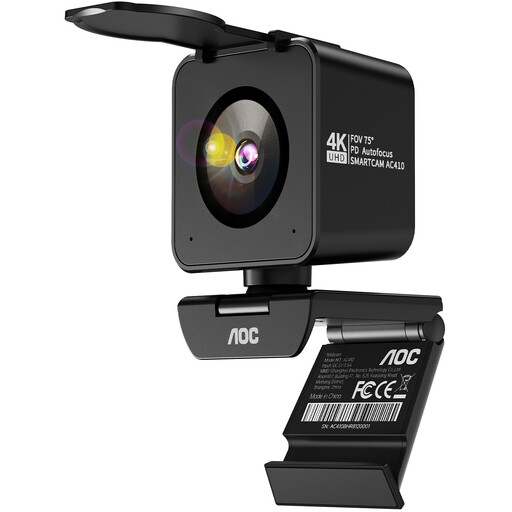
PDAF autofocus is useful for changing subjects; check whether cards are legible from your actual recording distance.
4K; Sony IMX363; PDAF autofocus; two microphones; 75° field of view; lens cover; USB-A/USB-C.
 No image available
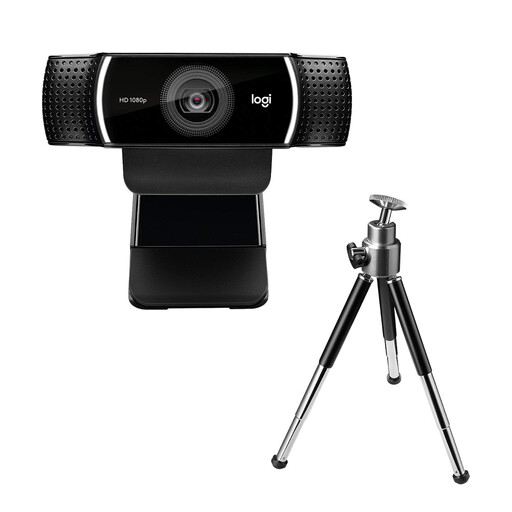
If you’re looking for a Logitech webcam for recording on a PC, check the framing and audio with your game setup first.
USB connection.
 No image available
If you’re looking for a webcam with a microphone to record a spoken explanation, test how clear your voice sounds in the shared room.
2K QHD; noise-reducing microphone; clip-on mount; EU version; silver.
 No image available
For an explanation featuring different subjects, check whether the autofocus and monitor mount suit your planned setup.
4K UHD; autofocus; two microphones; privacy cover; EU version; black.
 No image available
Insta360 lists DeskView as a desk-view mode for the Link 2C; it isn’t the same as a separate overhead mount.
4K; 1/2-inch sensor; auto-framing; HDR; gesture control; microphone; Graphite Black.
No. Insta360 describes DeskView as a desk view that doesn’t require a separate overhead mount, and distinguishes it from a separate overhead setup. What matters is whether you can keep the whole game in shot from the position available to you.
Add the webcam as a video capture source in OBS, check which microphone is selected in the audio mixer, then record a few minutes to test everything before explaining the game.
Check whether you’ll need a separate mount for the camera position you want. Elgato also says you’ll need a separate microphone to record speech with the Facecam MK.2.
The consumer advice centre Verbraucherzentrale says that online purchases generally come with a 14-day right to cancel; when the period starts and whether any exceptions apply depend on the contract. The right to cancel because you’ve changed your mind is separate from the process for dealing with faulty goods. Check the information provided by the specific seller.
Under Section 22 of the German KunstUrhG (Art Copyright Act), images of people may generally only be distributed or displayed publicly with their consent; any statutory exceptions need to be considered separately. The German Data Protection Conference also notes that the GDPR’s household exemption does not automatically apply to recordings and their sharing beyond purely personal or family activities. Keep the shot limited to the area you need wherever possible.