What should you look for when buying?
First, work out who needs to be seen and heard. Then check whether you need to show a physical object or whiteboard, and how the camera will connect to the presentation laptop.
| What matters |
What to check before buying |
Who it matters most to |
| Everyone in the picture |
Compare the field of view and mounting position; check whether people sitting at the sides will be in shot from the planned camera angle. |
If I want to include everyone around the table, the field of view matters more than a tight shot of one person. Around 33% of consumers put group coverage first. |
| Clear room audio |
Test speech from the seats people will actually use; check the microphone, speaker and audio settings in your meeting software. |
If several people will be asking questions, I want their contributions to come across clearly, even when they’re not sitting by the laptop. Around 33% of consumers prioritise room audio. |
| Whiteboard and movement |
Decide whether you need to film a physical whiteboard or objects; check which camera software you’ll need. |
If I’ll be moving around during the update or want to show a whiteboard, I need a suitable feature and compatible software setup. Around 17% of consumers prioritise this type of presentation. |
| Laptop setup |
Check the USB connection and power requirements, and consider which room PC or laptop you’ll be using. |
If I want to use the camera with the presentation laptop I already have, a straightforward connection is important. Around 17% of consumers prioritise an easy laptop setup. |
Joybuy products for project updates
This selection of Joybuy products includes webcams for solo presentations and a conference camera for small groups.
 No image available
Full HD 1080p USB webcam with microphone
Described as a webcam for video calls and presentations by one person.
1080p video, built-in microphone and plug-and-play functionality are listed in the product name.
Joybuy
 No image available
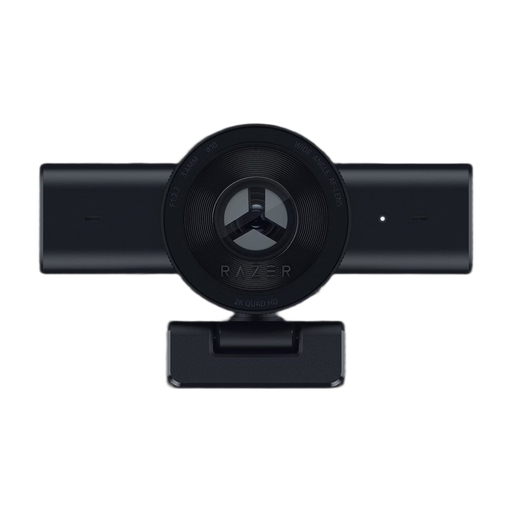
Razer Kiyo V2 X Full HD webcam, 1080p, 60 FPS, black
A webcam option for project updates where the main priority is showing one presenter.
1080p, 60 FPS and black are listed in the product name.
Joybuy
 No image available
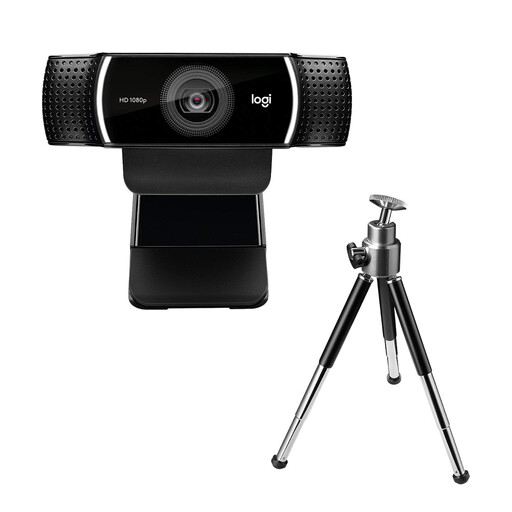
Logitech C922 Pro Stream webcam
Described as a USB webcam for video calls, making it an option for a presentation by one person.
USB connection is listed in the product name.
Joybuy
 No image available
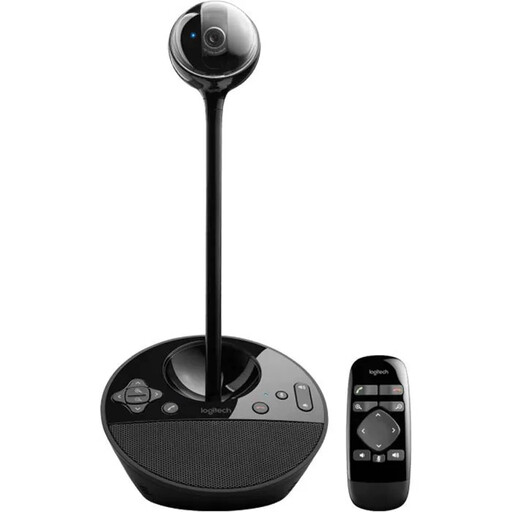
Logitech ConferenceCam, 10,4 × 15 × 15,4 cm
Described as a conference camera for small groups, making it an option when several people are taking part in the update.
The stated microphone range is 2,40 m; according to the product description, the device should be positioned within this range.
Joybuy
 No image available
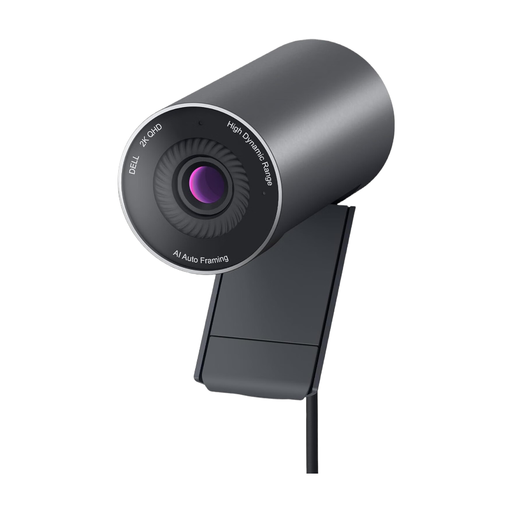
Dell Pro WB5023 2K webcam, USB 2.0
A webcam option for one person presenting a project update from a computer or laptop.
2K webcam and USB 2.0 are listed in the product name.
Joybuy
Frequently asked questions about webcams for project updates
Do I need a 4K webcam for digital project slides?
No, not just for the slides: Microsoft Teams lets you share your screen, a window or PowerPoint content directly. Choose a camera based on the people you need to show, and check the sharing features of other meeting platforms separately.
How do I set up the sound if the update includes a video?
In Microsoft Teams, you need to include your computer’s sound when sharing content if you want others to hear the video. Check the microphone and speakers before the meeting. Microsoft notes that notification sounds may also be transmitted when you share.
What do I need for Smart Whiteboard with the Insta360 Link 2 Pro?
According to Insta360, you need to select the Insta360 Virtual Camera as the video stream in third-party software. Also check that the presentation laptop meets the system requirements for the advanced features you want to use.
Who can help if the camera develops a fault after purchase?
For consumer purchases in Germany, statutory consumer rights against the seller are separate from a voluntary guarantee. The Verbraucherzentrale generally describes a two-year statutory warranty; if you’re buying for business use, check the specific contract terms.
Can I simply record a project meeting with the camera?
Buying a camera doesn’t give you permission to record. The Datenschutzkonferenz points out that video conferences involve processing personal image and audio data, and may also involve content data. The BfDI states that users are responsible under data protection law for the content they determine. Before recording, clarify the purpose, legal basis and organisational requirements.


