If you’re working through an equation on paper, step by step, a document camera is an obvious choice for an overhead view. Check the image clarity, focus and connection on the screen or projector you’ll actually be using. If you mainly want to show the teacher or a board that’s already been written on, a suitably positioned webcam may be a better option, but its field of view alone won’t guarantee that the writing is legible. To use a camera without a computer, you’ll need a compatible direct output. For video conferences, you’ll also need to check your school’s data protection requirements.
Which cameras are best suited to different needs?
Teachers working through problems on paper
If you work through equations on paper in real time, look for a stable overhead view, continuous autofocus and a clear image on the display you have available. SchuleundComputer and co.Tec outline these requirements for document cameras.
Teachers explaining things at the board
If the focus is on the teacher or a board that’s already been written on, the framing and legibility from the camera’s actual position are key. SchuleundComputer and Logitech cover this type of recording setup.
Teachers with pupils joining remotely
For a video conference, the camera connection and audio need to work with the solution you’re using. You’ll also need to follow your school’s rules for transmitting video and audio. This is highlighted by the Data Protection Conference and the data protection authorities in Hesse and Rhineland-Palatinate.
What should you consider when choosing?
First decide whether you want to focus on paper, the board or the teacher. Then check that the connection you need works with your existing display and planned teaching setup.
| What matters |
What to look for when buying |
Who will find this especially important? |
| Legibility on paper |
Try an equation of your own at different page heights, checking focus, lighting and framing on the display you’ll actually use. |
If I’m showing small indices, fraction bars and minus signs on paper in real time, I want pupils at the back to be able to tell them apart. Around 36% of consumers prioritise legible working on paper. |
| Board or teacher view |
At the intended mounting position, check that the area you need to show and any small writing are clear on the classroom display. |
If I’m filming the teacher or a board that’s already in use, I need the right framing without making the writing too small. For around 29% of consumers, a board or teacher view comes first. |
| Streaming to remote participants |
Check camera recognition, the transmitted image, audio setup and the school-approved conferencing platform. |
If pupils joining remotely need to see the working, I want to use the camera with the intended conferencing solution and agree the video and audio setup with the school. Around 21% of consumers prioritise hybrid streaming. |
| Connections in the classroom |
Check that the camera output, display input and power supply are compatible with the mode of operation you’ve chosen. |
If I want to connect the camera to the equipment already in the room, I need to know in advance whether I’ll need a computer and an additional power supply. Around 14% of consumers prioritise easy integration with the classroom. |
Which buying mistakes should you avoid?
-
Choosing based on “4K” or megapixels alone
What matters in the classroom is whether the writing is legible on the display you’ll actually use. The maximum output specified by the manufacturer for the IPEVO VZ-R also differs between USB and HDMI.
Try a real equation using the connection you intend to use, and check focus and framing before comparing resolution figures.
-
Assuming USB means you can connect directly to a projector
A USB camera feed won’t automatically work through an HDMI input. For HDMI use of the IPEVO VZ-R, the manufacturer also specifies a power source.
Before buying, check the camera outputs, the display inputs and the power supply you’ll need.
Depending on the connections available, you may also need a computer or a suitable adapter. Otherwise, you may need to consider a different camera.
-
Taking scanner rankings as proof of a good live teaching camera
A book or document scanner may appear alongside document cameras. Scan resolution and speed don’t prove that working projected live will be easy to read.
For models designed primarily for scanning, check specifically for a live mode, its output and how easy the camera is to use while writing.
-
Accidentally filming people or personal documents when moving the camera
During video conferences, personal information on documents shown to the camera may be captured along with video and audio. The relevant school requirements depend on how the camera is being used.
Keep the frame focused on the working you need to show, and check with the school about streaming and any recording.
Which brands are worth considering?
IPEVO
IPEVO offers document cameras for overhead viewing. For the VZ-R, the manufacturer lists direct HDMI output and USB operation; the DO-CAM can also be used as a webcam, according to the manufacturer.
- IPEVO says the VZ-R needs an additional power source when used over HDMI.
- The DO-CAM’s webcam functionality doesn’t apply to the VZ-R.
ELMO
ELMO describes the MX-P3 as a portable document camera with USB, HDMI and RGB outputs.
- ELMO specifies a 13-megapixel sensor, One-Push Autofocus and a five-year manufacturer’s warranty for the MX-P3.
- These model specifications aren’t an independent legibility test and don’t automatically apply to other ELMO devices.
Logitech
The Brio 4K is a traditional webcam setup for filming the teacher or the room.
- Logitech specifies selectable 65° and 78° fields of view for the Brio 4K, along with microphones with a stated range of up to one metre.
- These specifications don’t prove that small writing on a board will be legible. An overhead view of paper isn’t part of the standard setup described.
CZUR
CZUR describes the Fancy S Pro as an adjustable document camera that can also be used as a webcam. The ET16 Plus and Aura X Pro-A are more focused on scanning.
- CZUR specifies 12 megapixels for the Fancy S Pro and a maximum of 15 frames per second for the 4K video option.
- CZUR says that the Aura X Pro has been discontinued. For models designed primarily for scanning, scan resolution doesn’t tell you what to expect from the live output.
INSWAN
INSWAN describes the INS-2 as a USB document camera for larger materials that can also be positioned for use as a webcam.
- The manufacturer specifies A3 capture, two autofocus modes and additional lighting for the INS-2.
- This doesn’t independently confirm whether small steps in an equation will be clear on the projector you have.
Joybuy products for teaching and showing working
The Joybuy products below include webcams for filming the teacher or board, as well as a webcam with a DeskView mode that may offer an overhead view of your working. Before choosing, check that the connection, positioning and framing suit your teaching setup.
 No image available
Full HD 1080p webcam with microphone
Designed for filming the teacher or board; check the framing from the position where you plan to set it up.
Full HD 1080p; USB connection; built-in microphone.
Joybuy
 No image available
AOC webcam with 99° field of view
For filming the teacher or board; check that the framing covers the area you need and keeps the writing clear.
99° field of view; tilts 180° and rotates 360°; microphone; privacy cover.
Joybuy
 No image available
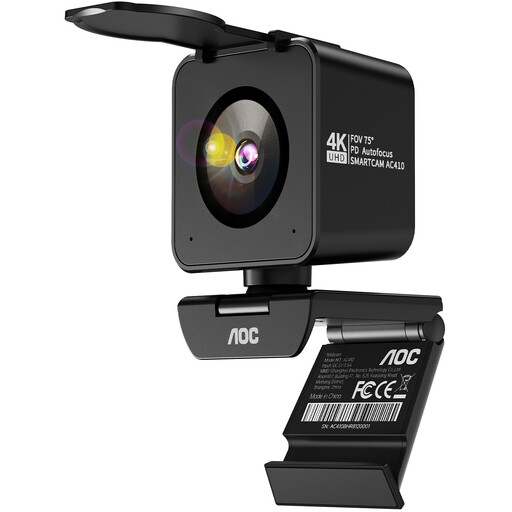
AOC 4K PRO webcam with Sony IMX363 sensor
For webcam use in lessons or meetings; check that the connections and viewing angle you want are compatible with your equipment.
PDAF autofocus; 75° viewing angle; dual microphones; USB-A/USB-C.
Joybuy
 No image available
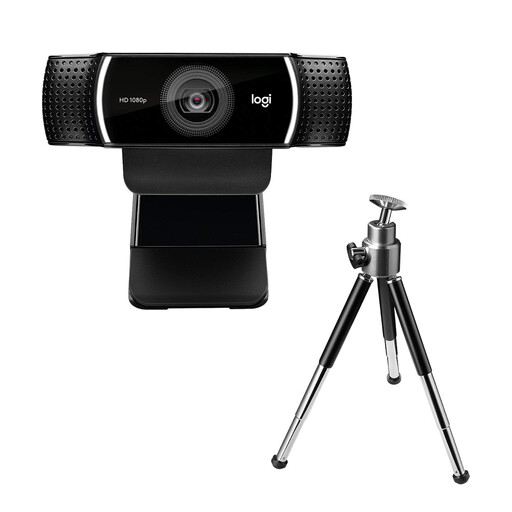
Logitech C922 Pro Stream webcam
A USB webcam for filming the teacher or board; check that your chosen position gives you the framing you need.
USB connection.
Joybuy
 No image available
Insta360 Link 2C Standard Bundle Graphite Black
The DeskView mode may be useful for an overhead view of paper. Before buying, check that the software is compatible with your computer.
4K webcam; auto-framing; DeskView and Whiteboard modes; USB-A/USB-C.
According to the product description, it is currently not compatible with ARM-based Windows systems.
Joybuy
Frequently asked questions
Can I connect a document camera directly to a projector without a laptop?
Only if the camera and projector have compatible direct output and input connections. IPEVO specifies an HDMI mode for the VZ-R, which also requires a power source; ELMO lists HDMI for the MX-P3. Check the connections on the specific devices you have.
How should I set up a camera to show an equation?
Try writing some small characters, position the camera and paper, then check the focus, lighting and projected image from a seat at the back of the room. This lets you test legibility in your actual setup, rather than relying on a resolution figure alone.
Do I always need consent to stream camera footage during lessons?
Whether consent is required depends on the state and the specific school procedures. In its published guidance for schools, the Hesse data protection authority requires consent for the video conference participation it covers. The data protection authority in Rhineland-Palatinate describes a legal basis without prior consent for certain digital teaching and learning resources introduced on a compulsory basis. Check with your school which requirements apply to streaming people, voices and personal information.
What should I know about warranties and complaints?
A voluntary manufacturer’s warranty is different from your statutory rights against the seller. For consumer purchases, the Verbraucherzentrale generally describes a two-year legal guarantee. For contracts from 31 July 2026, it explains that under certain conditions you may receive a one-off 12-month extension if you choose a repair. Check who is buying the device and which terms apply to that purchase.


