If the mixing area is the focus throughout your demonstration, an adjustable document camera is a natural place to start: its capture area and focus distance need to suit your containers and hand movements. If you mainly present and only show the table from time to time, a downward-tilting webcam may be more flexible, but it won’t necessarily provide a straight-down view. In either case, test the lighting, white balance and the image that’s actually transmitted using a colour sample beforehand.
Which camera is right for you?
Presenters who demonstrate at the table throughout
If you want the mixing area, containers and hand movements to stay in shot for extended periods, you’ll need a suitable overhead view. IPEVO gives the V4K PRO a maximum capture area of 34.2 × 25.5 cm and a focus range starting at 10 cm; check that both suit your planned setup.
Presenters who switch between speaking and demonstrating
If you mainly speak to the group and only show occasional steps at the table, it’s important to be able to change perspective easily. Logitech describes a Show Mode for the MX Brio, where the webcam is tilted downwards.
Presenters who need to compare colours carefully
If you need to compare several mixing stages side by side, test the image under the room lighting you’ll use for the demonstration. Logitech describes adjustable white balance and exposure; these manufacturer specifications don’t prove measured colour accuracy for pigments.
What to look for when buying
First, check that the camera can capture the mixing area from the intended position. Then test colour comparison and transmission with your actual group setup.
Adjustable document camera
Best for: showing the mixing area, hands and containers from above for most of the time.
Trade-off: To show the presenter, you’ll need to reposition the camera or use another one.
Webcam with table mode
Best for: when you mainly present and only want to show the table for occasional mixing steps.
Trade-off: Logitech describes the MX Brio’s Show Mode as a downward-tilted view of the table; it doesn’t guarantee a straight-down view.
Webcam on a separate mount
Best for: positioning the webcam above the mixing area, independently of your monitor.
Trade-off: OBSBOT lists a 1/4-20 thread for the Meet 2; an overhead mount isn’t included in the listed standard package.
| What you need |
What to check before buying |
Who it matters most to |
| Continuous view of the table |
Measure the area you need to show, then compare the capture area and focus distance with your planned setup. |
If I don’t want containers or hands to move out of shot while mixing, the right framing matters most. Around 36% of consumers prioritise a continuous view of the table. |
| Spotting colour differences |
Test a known colour sample under consistent lighting; check the white balance and exposure if the specific model offers these settings. |
If I want to compare several mixing stages clearly, I test them under the lighting in the demonstration room. Around 29% of consumers prioritise being able to compare colours reliably. |
| Switching between your face and the table |
Check where the camera can be pointed from its intended position, and whether your hands and the mixing area stay in shot. |
If I want to switch between showing myself and giving brief views of the table as I explain, the available angles are key. Around 21% of consumers place particular importance on this flexibility. |
| Using it in a group meeting |
Test the USB connection, software preview, audio source and the image received on a second device. |
If I want to get started with the computer and group platform I already have, without any extra steps, the complete setup matters most. Around 14% of consumers prioritise ease of use in group meetings. |
Common misconceptions
-
A 4K rating automatically means the group sees a 4K image
The camera’s resolution alone doesn’t determine the quality of the image received by participants. Zoom’s HD availability in group meetings depends on account, device and transmission settings.
Before buying, test a mixing step with someone receiving the call and check the image on their device.
-
Table mode automatically gives you a straight-down view
Logitech describes the MX Brio’s Show Mode as a webcam tilted downwards. The angle you can achieve depends on your setup, and may not match the overhead view you want.
Arrange the mixing area and containers at the planned camera position and check that your hands and work area remain visible.
-
Automatic image adjustment is enough for comparing colours
Lighting and image settings affect how colours appear. Manufacturer claims about image quality don’t prove that pigment colours will look accurate in your room.
Test your demonstration lighting and a colour sample beforehand. Only plan to adjust settings such as white balance or exposure if your specific model offers them.
Key brands at a glance
IPEVO
Document cameras for demonstrations where the table is the main focus.
- IPEVO lists a movable camera setup, autofocus, a focus range starting at 10 cm and a maximum capture area of 34.2 × 25.5 cm for the V4K PRO.
- These specifications don’t prove colour accuracy or suitability for every container. To show your face, you’ll need to reposition or supplement the camera.
Logitech
Webcams for presenting with occasional views of the table, including the MX Brio with Show Mode.
- Logitech describes tilting the MX Brio downwards, as well as settings for white balance and exposure.
- The actual view of the table depends on your setup. Specifications for face image quality aren’t an independent measurement of how accurately pigments are shown.
Insta360
Link webcams for demonstrations where showing the presenter and automatic framing are important.
- According to Insta360, the Link 2 physically pans to track you using a gimbal, while the Link 2C adjusts the framing.
- These features alone don’t prove that the camera can provide a suitable, continuous overhead view of the mixing area.
OBSBOT
A mountable webcam that could work as an alternative for a separate table setup; the Meet 2 is the model featured here.
- OBSBOT lists a 1/4-20 thread for the Meet 2, as well as automatic or manual focus from 10 cm.
- An overhead mount isn’t included in the listed standard package; the specifications don’t prove measured colour accuracy.
Joybuy products
The Joybuy products below are webcams designed for use with a computer. Before choosing one, check that its framing and position will work for your mixing area.
 No image available
Full HD 1080P webcam with microphone, USB plug and play
For demonstrations with audio on a computer; the product title specifies USB plug and play and a built-in microphone.
Specification in the product name: Full HD 1080P.
Joybuy
 No image available
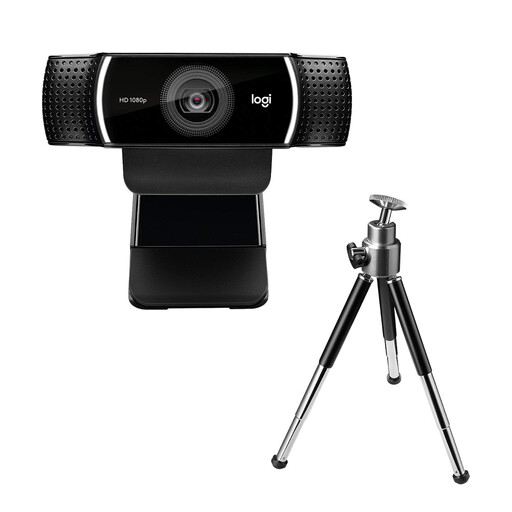
Logitech C922 Pro Stream webcam
For a setup using a USB webcam with a computer. Before your demonstration, check the desired angle of the table and the framing from the planned camera position.
Specification in the product name: USB.
Joybuy
 No image available
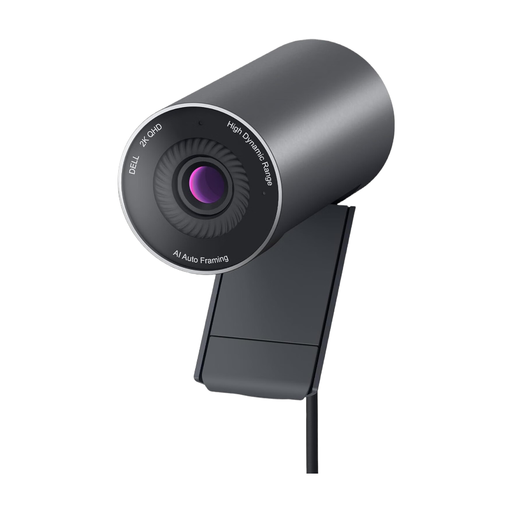
DELL Pro WB5023 2K webcam
For a webcam demonstration on a computer; check beforehand that the clip fits your intended monitor or laptop.
Specifications in the product name: 2K, USB 2.0 and audio.
Joybuy
 No image available
Philips 2K QHD webcam SPL6308S/00, EU version, silver
For demonstrations with audio; test the microphone and framing in your room before using the webcam to compare colours.
Specifications in the product name: 2K QHD and a noise-reducing microphone.
Joybuy
 No image available
Philips 4K UHD webcam 4000 Series SPL6408BT/00, EU version, black
For demonstrations with audio; test the image actually received by the group rather than assuming the camera’s resolution rating determines transmission quality.
Specifications in the product name: 4K UHD and autofocus. The product title also lists two built-in microphones.
Joybuy
Frequently asked questions
Is a 4K webcam automatically good enough to show colour mixing clearly in a group meeting?
No. The image received by the group also depends on the meeting settings. Zoom lists account, access and bandwidth requirements for HD and 1080p, so test a mixing step on a second device receiving the stream.
How do I set up the camera to compare mixing stages reliably?
Light the work surface as evenly as possible and check a colour sample in the camera preview before you start. Check the white balance, exposure and focus under the lighting you’ll use, if your specific model offers these settings. Logitech documents these controls for supported webcams, but not every make.
Who should I contact first if a camera I bought for personal use develops a fault?
For statutory warranty claims against a business seller in Germany, you should contact the seller. A voluntary manufacturer’s guarantee is separate, so check its terms independently.
Can a group event with identifiable participants be recorded without further ado?
No, having a camera doesn’t in itself give you permission to record. In its guidance dated 23 October 2020, Germany’s Data Protection Conference describes images and audio of identifiable people as personal data; its checklist dated 11 November 2020 says you should check the legal basis for recording and inform participants. Whether a particular event can be recorded depends on how it is organised. If you don’t need to film people, film only the mixing area wherever possible.


