Explaining with paper and tools
If you mainly draw with a ruler or compass, you need a desk-level view that keeps the paper and your drawing movements in shot. co.Tec, IPEVO DE and INSWAN provide information about adjustable stands.


If you want to show lines, angles and drawing techniques on paper, a document camera that can be positioned overhead is usually the better starting point. However, the paper, tools and your hands must all fit within its frame. A webcam with a desk mode may be enough if conversations with you on camera are the priority and you only show sketches occasionally. If you need to switch regularly between your face and the paper, consider a document camera with a switchable view. Check the frame rate and resolution available in the same video mode, as well as the space it takes up and its compatibility with your software.
If you mainly draw with a ruler or compass, you need a desk-level view that keeps the paper and your drawing movements in shot. co.Tec, IPEVO DE and INSWAN provide information about adjustable stands.
If you want to show your face and individual construction steps in turn, it’s important to know how easily you can switch perspectives. IPEVO DE explains how to do this with the DO-CAM, while Logitech Germany describes a downward-facing Show Mode for notes and sketches.
If you’re setting up the camera on a shared desk, its frame, footprint and connections need to suit the space and the computer you have. INSWAN and ELMO Europe SAS are among the brands that provide information about capture areas and connections.
A good fit if: You want to show lines, angles and drawing movements on the page as you work. Compare the capture area with the size of the workspace you need; INSWAN lists 420 × 315 mm for the INS-2.
Keep in mind: The arm and base take up space, and the highest resolution may not be available at the highest frame rate. IPEVO DE lists up to 30 fps in Full HD and up to 15 fps at 3264 × 2448 pixels for the V4K.
A good fit if: You want to switch regularly between your face and your construction during a conversation. IPEVO describes the DO-CAM as having a rotating camera head.
Keep in mind: According to IPEVO, whether the DO-CAM appears as an external camera depends on whether the software you’re using recognises external cameras.
A good fit if: Conversations with you on camera are still the main priority, and you only want to show notes or sketches occasionally. Logitech Germany describes this feature for the MX Brio.
Keep in mind: The mode doesn’t guarantee a particular frame or that fine lines will be legible from every mounting position. Check the viewing angle on your desk.
| Priority | What to check when buying | Who is this important to? |
|---|---|---|
| Show the whole page and all the tools | Measure the area you need, including the paper, ruler and room to move. Compare it with the stated capture area from a camera position that works at your desk. | If I want to show the whole construction along with the tools, the frame must not cut off the page or my hands. This is a priority for around 33% of consumers. |
| See fine lines and drawing movements clearly | Check the focus distance, resolution and frame rate available in the same live mode; assess legibility on the screen you’ll use. For the V4K, IPEVO DE lists 30 fps in Full HD and 15 fps at 3264 × 2448 pixels. | If I want to show small markings and demonstrate drawing steps at the same time, I look for a sharp image and smooth motion in the live view. Around 27% of consumers share this priority. |
| Switch between your face and the desk | Check whether you can point the camera at the page from the position you have in mind, and whether your video-conferencing software recognises it as a video source. | If I want to switch between speaking to people directly and showing the desk while explaining, I need a practical way to change the view. Around 20% of consumers prioritise this. |
| Set up and connect a camera at a shared desk | Check the footprint, cable routing and connection against your desk and computer. If your computer doesn’t have USB-A, check whether the model you choose needs an adapter. | If I need to set up the camera in a shared workspace, the space available and the connections I have need to work together. Around 20% of consumers prioritise ease of setup. |
Resolution and frame rate can vary between video modes. According to the manufacturer, the IPEVO V4K offers 30 fps in Full HD and 15 fps at 3264 × 2448 pixels. ELMO also lists frame rates separately by output and resolution.
For your planned video call, always compare the resolution, frame rate and output you’ll be using together.
For the MX Brio, Logitech Germany describes tilting the camera down to show notes. That doesn’t mean you’ll be able to see a whole construction sheet or every fine line from any monitor position.
From the mounting position you have in mind, check the desk view you can achieve, including the paper, tools and your hands.
A suitable frame is no help if the base gets in the way or your computer doesn’t have the right connection. INSWAN lists USB-A for the INS-2; you may need an adapter if your computer doesn’t have this connection.
Before you buy, check the connections, cable routing and available desk space against the equipment you’ll be using.
Depending on the connection, you may need an additional adapter. You’ll also need to make sure there’s a suitable space for the camera on the shared desk.
The manufacturer’s German-language pages describe the V4K as a USB document camera for live presentations and the DO-CAM as a model that switches between document and face views.
JOURIST describes the DC530 as suitable for showing documents on a computer and using with video-conferencing software.
INSWAN describes the INS-2 as a USB document camera with an adjustable arm and a stated capture area of 420 × 315 mm.
ELMO’s specification sheet describes the MX-P3 as a foldable document camera for presentations using a computer or other video outputs.
Logitech Germany describes the MX Brio as a webcam for calls, with a Show Mode that can also display notes and sketches on your desk.
The products below are webcams. They’re best suited to situations where video calls are the priority. Whether they can show a construction sheet clearly depends on the viewing angle and camera position.
 No image available
This model may be suitable for video calls as a webcam for PC and laptop. If you’re using it for geometric constructions, check whether the viewing angle and position capture the whole page.
The product name lists Full HD 1080P, a microphone and USB Plug & Play.
 No image available
This model may be suitable for calls as a PC webcam. If you want to use it for a view of your desk, check the frame from the mounting position you have in mind.
The product name lists 4K, a 99° field of view and a privacy cover.
 No image available
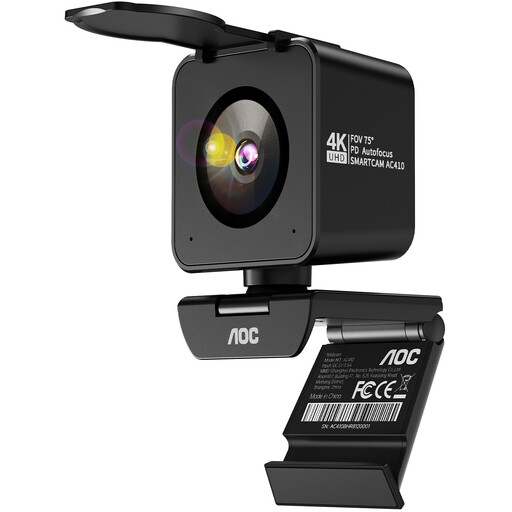
This model is described as a webcam for PC, meetings and streaming. Check which of the listed connections is available on your computer.
The product name lists a Sony IMX363 sensor, PDAF autofocus, a 75° viewing angle and USB-A/USB-C.
 No image available
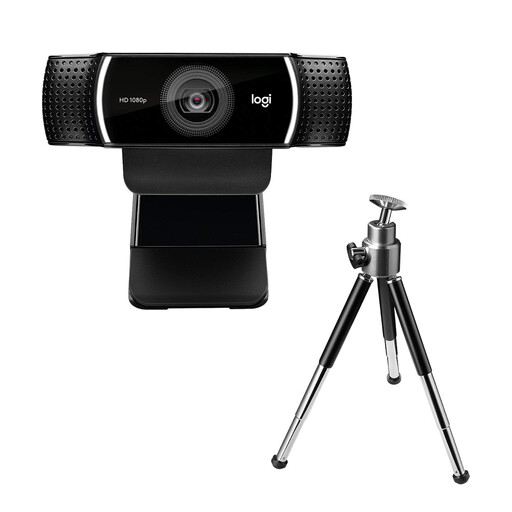
This model may be suitable for video calls as a webcam. Before choosing it for construction drawings, check whether you can point the camera at the page as needed.
The product name lists USB.
 No image available
This webcam may be worth considering for video calls. If you want to show geometric constructions, check whether the clip mount gives you the desk view you need.
The product name lists 2K QHD and a clip-on mount.
Put the paper and tools where you plan to use them, point the camera at them, then check the frame and focus on the display you’ll be using. An adjustable arm can make it easier to position the camera, but the stated capture area doesn’t replace checking it on your desk.
No. Resolution alone isn’t enough to judge this. Also compare the frame rate and focus in the same live mode and at your working distance; manufacturers may list a lower frame rate for the highest resolution.
You may need an adapter if your computer doesn’t have USB-A: INSWAN lists a USB-A connection for the INS-2 and recommends a USB-C-to-USB-A adapter for use with USB-C. Check your computer’s connections and what’s included before buying.
A voluntary manufacturer’s warranty is separate from your statutory rights against the seller. The Verbraucherzentrale explains that, for faulty goods, you can claim a remedy from the seller for up to two years after purchase. For your particular purchase, also check who the seller is and the warranty terms.
You can’t assume that you have permission to do so. Germany’s data protection authorities point out that video conferences can also involve processing personal data in documents shown on screen and in the surroundings of participants. If people, names or their work can be identified, or if you plan to make a recording, check with the relevant authority in advance and follow the data protection rules that apply to your situation. Specific school regulations may vary by federal state and use case.