Explain your working live
If you write on paper while tutoring or helping with homework, you’ll benefit from positioning the page beneath the camera and keeping each step of your working in view.


If you mainly want to show handwritten working, a document camera that you can position above the page is a natural place to start. If you often switch between showing your face and the paper, a swivelling webcam or a camera designed for both views may be more practical. Check how clearly the writing appears with your paper, your actual lighting and the video service you use – resolution alone doesn’t tell you how legible it will be on screen.
If you write on paper while tutoring or helping with homework, you’ll benefit from positioning the page beneath the camera and keeping each step of your working in view.
If you usually show your face during video calls but sometimes want to present sketches or problems, you’ll need a camera view that can be adjusted to suit each part of the conversation.
If you have little room to spare, make sure the stand or monitor mount, cable and computer connection suit your workspace. Logitech lists a monitor mount and USB-C connection for the Brio 500.
First decide whether the paper should stay in view most of the time, or whether you’ll regularly switch between showing your face and the page. Then check the space available, connection, focus and field of view to make sure they suit your workspace.
A good fit if: you want the page to stay in view for most of your explanation and to position the camera head precisely above it.
Things to consider: the stand or arm takes up space, and legibility also depends on focus, lighting and how the video service transmits the image.
A good fit if: you’re usually on screen during calls and only occasionally want to show a sketch on your desk.
Things to consider: how much of the page you can show depends on your monitor height and camera position, so check the view from the intended mounting point.
A good fit if: you regularly switch between talking and demonstrating your working by hand, and want to use one camera for both. CZUR describes the Fancy series as having an adjustable arm and rotatable views.
Things to consider: features vary by model, so check the full variant name and how much desk space it needs.
| What matters | What to check when buying | Who will value this? |
|---|---|---|
| Making handwriting easy to read | Test your page size and the smallest handwriting you usually use in a real video call; check the focus, camera height and lighting. | If I want to show individual rearrangements clearly, what matters to me is how the writing looks in the transmitted image, not just seeing the whole page. Around 42% of consumers would put handwriting legibility first. |
| Switching between your face and the paper | Check whether the camera can reach your writing area from its intended mounting point and how you can change the view. | If I want to explain something and then demonstrate a problem, I need to be able to change the camera angle to suit the conversation. Around 25% of consumers would prioritise switching between face and paper. |
| Setup and connection | Check the USB connection, cable routing and space needed for the specific model against your own workspace. | If my desk is short on space, I want to know where the camera and cable will go and whether the connection will work with my computer. Around 17% of consumers would consider easy setup particularly important. |
| Lighting and what’s in view | Test with the paper and room lighting you normally use; before sharing, check which personal details are visible. | If I’m sharing a worksheet, I want the writing to be clear while keeping control of what’s in view. Around 16% of consumers would prioritise lighting and framing. |
Manufacturer specifications for camera capture don’t show how clearly small writing will appear after positioning the camera and transmitting the image through a video service.
Test your smallest usual handwriting using the lighting and video service you actually plan to use.
A monitor webcam is positioned according to where it is mounted; a document camera can be placed on the desk. Whether it captures the page depends on your particular setup.
Before deciding, check your monitor height, the distance to the page and how much writing space you need to show.
Manufacturers offer variants such as the IPEVO V4K and V4K PRO, and the CZUR Fancy Pro and Fancy S Pro, with different features. Specifications for one variant don’t automatically apply to another.
Check the full model name and the features of the specific product on offer.
The Brio 500 is a monitor webcam with a swivelling desk view that may be useful for showing the occasional sketch.
The V4K and V4K PRO are USB document cameras designed to show paper from above.
The HUE HD Pro is a compact USB document camera for desk use and remote learning.
The Fancy Pro and Fancy S Pro are adjustable cameras for showing documents and faces.
AVer describes the AVerVision M5 as a foldable USB document camera for remote learning.
The Joybuy products below are webcams for computer video calls. If you also want to use one to show maths problems, check before buying that you can position it over the page at your workspace.
 No image available
For video calls on a PC or laptop; the product description mentions a built-in microphone.
USB plug and play; the product description mentions a rotating lens and flexible desk stand.
 No image available
For video calls on a PC; the product title mentions a built-in microphone.
The product title lists 4K and a 99° field of view. The description says the camera can be tilted and rotated, and mounted on a monitor, desk or tripod.
 No image available
For video calls; the product title mentions dual microphones.
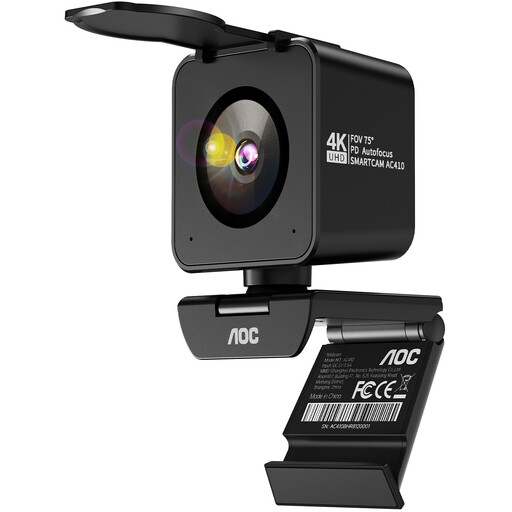
The title lists PDAF autofocus, a 75° viewing angle and USB-A/USB-C. The description says a desk stand is included.
 No image available
For video calls; the product description mentions a built-in stereo microphone.
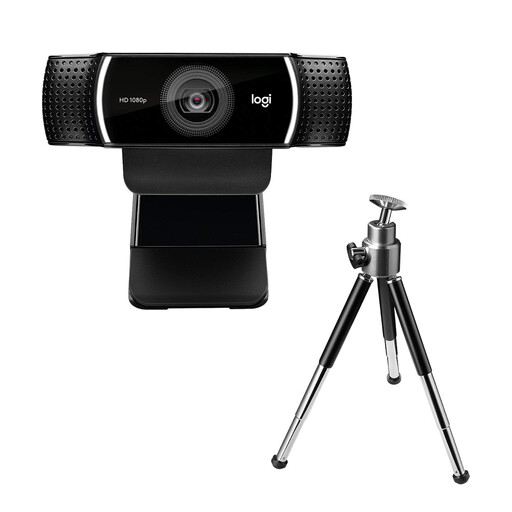
Features listed include autofocus, an adjustable desk stand and a tripod.
Place the page in the camera’s capture area, position the camera head above it and focus on the writing. Check the image in the video service you use. If your camera has manual focus, as the HUE HD Pro does, refocus after moving it.
Logitech’s instructions specify USB-C and describe mounting the camera on a monitor with a mount. Check that the connection works with your computer and that you can point the camera at the page from its intended position.
For a consumer purchase made at a distance, you generally have a right to cancel, usually within 14 days; you should check when the period starts and what statutory exceptions apply. A fault is a separate matter: your statutory rights for faulty goods are against the seller, while an additional guarantee is voluntary. Germany’s consumer advice centre explains the difference.
Not in every case. The Data Protection Conference notes that video conferences can involve processing personal information in images, audio and documents shown on screen, and that a legal basis must be checked before making recordings. Whether a particular school use or recording is permitted also depends on who is responsible and the relevant education law; this does not amount to general permission.