For a continuous overhead view
If you want the item you’re working on and both hands to stay in view, an adjustable camera positioned beside the desk could be a good solution. IPEVO describes the DO-CAM as adjustable in height and angle.


If you want to keep the item you’re repairing and your hands in view from above throughout the job, an adjustable document camera is a good place to start. If you’ll mainly be talking, with only the occasional view of your desk, a tilting webcam could be a better fit. Before buying, check the focus distance and field of view at your own workstation, along with the connection, desk space and video quality in your video-calling service. A high camera resolution alone won’t guarantee that small components will be clear on a call.
If you want the item you’re working on and both hands to stay in view, an adjustable camera positioned beside the desk could be a good solution. IPEVO describes the DO-CAM as adjustable in height and angle.
When you’re working on small parts, focus distance and field of view matter more than the resolution figure alone. IPEVO lists a minimum focus distance of 10 cm for the V4K PRO, while OBSBOT gives the Meet 2 a focus distance of 10 cm to infinity.
If you’ll mainly be talking to the camera and only occasionally showing your desk, a tilting webcam could work well. Logitech describes the Brio 500 as having a Show Mode, while the MX Brio camera can be tilted downwards.
A good fit if: You’ll mainly show the repair from above and can position the camera beside the item you’re working on.
Things to consider: The base and your hands mustn’t block the view, and the setup needs desk space.
A good fit if: You’ll mostly be talking and want to show your desk from time to time.
Things to consider: The position on your monitor needs to capture your work area; presentation mode doesn’t guarantee a suitable close-focus distance.
A good fit if: You have little desk space and can point the camera directly at an item close by.
Things to consider: You may need a suitable mount, and the stated focus range won’t tell you how much of your desk will be in the frame.
| What you need | What to check before buying | Who is it important to? |
|---|---|---|
| Show the item and your hands | Compare the camera position, clear view of the repair area and desk space required. | If you want to show both hands and the item at the same time, you’ll need an unobstructed overhead view. Around 36% of consumers put this requirement first. |
| Focus on small details | Check the focus range and working distance, then view the smallest relevant detail in the video-calling service you use. | If you need to show small components, check focus and field of view together. Around 29% of consumers say close-up detail is their top priority. |
| Switch between your face and desk | Test on your own monitor whether your desk is in frame when you tilt the camera down. | If you’ll mainly be talking and only occasionally demonstrating a repair, being able to switch views may matter more than a continuous overhead view. Around 21% of consumers prioritise this flexibility. |
| Set up in a small space | Consider the connection, cable routing, mounting options and the space needed while the camera is in use. | If you have a small desk, you’ll want to position the camera without a complicated setup. Around 14% of consumers prioritise a simple, space-saving setup. |
Your video-calling service may limit the resolution being transmitted. Zoom Support lists additional requirements for Full HD video in meetings, including account and settings criteria.
Compare focus and field of view on the item you’re repairing, and check the requirements of your video-calling service.
A webcam tilted down from a monitor and an adjustable document camera show your desk from different positions. Your hands or the angle of your monitor could block the repair area.
Try out the planned camera position and the item you’re working on at your desk before you buy.
Depending on where you position it, you may need an additional mount or a different type of camera.
Models may use different USB connections and mounting options, and a camera base takes up desk space.
For the specific model, check that you have a free port, a suitable cable route, the right monitor position and enough room to set it up.
Document cameras that provide an adjustable overhead view, making them worth considering if you want the item and your hands to stay in shot for longer.
Webcams for calls where you want to show your desk from time to time.
Compact webcams that can be positioned to focus on a nearby repair area.
Webcams for calls, such as the PowerConf C300, if you’d prefer to use a webcam rather than a document camera.
The products below are webcams for video calls. Depending on the model, using one for a small repair will come down to positioning, focus and the space you have available on your desk.
 No image available
Could be worth considering if you want to position the camera at your repair station.
1080p at 30 fps; 120° lens with 360° rotation and integrated tripod; 5-foot USB cable.
 No image available
An option if you want to adjust the viewing angle on your monitor or a mount.
4K; 99° field of view; tilts by 180° and rotates by 360°. Mounts to a monitor, desk or tripod; USB-A to USB-C adapter. Built-in microphone with noise cancellation.
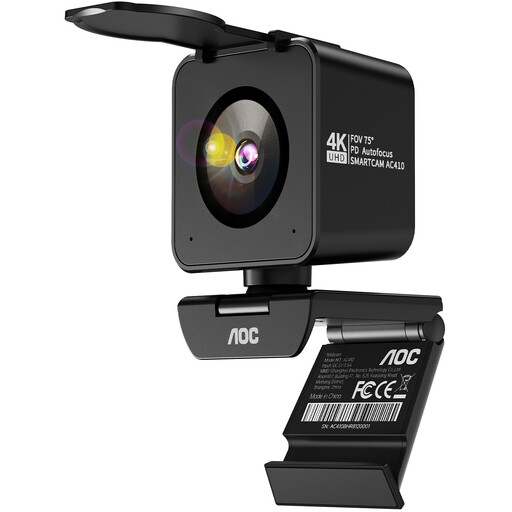 No image available
Could suit you if you’re looking for a webcam with a desktop tripod for switching between views. Test the field of view at your repair station.
4K; 1080p at 60 fps; PDAF autofocus; 75° viewing angle. USB-A/USB-C and desktop tripod.
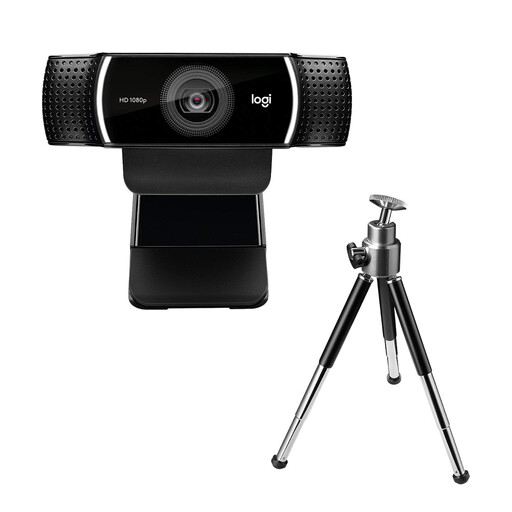 No image available
A possible choice if you want to adjust the camera position at your repair station.
1080p at 30 fps or 720p at 60 fps; 78° field of view and HD autofocus. Adjustable stand that extends to 18,5 cm, with tripod; 1.5 m USB cable.
 No image available
Could be worth considering if you want to attach the webcam to a laptop, monitor or tripod.
Full HD at 1080p and 30 fps; mounting clip for a laptop, monitor or tripod; plug and play. Automatic light correction and microphone with noise cancellation.
Not necessarily. Check the focus and field of view on the item you’re working on, as well as the output of the service you use. Zoom Support lists additional requirements for Full HD video in meetings, including account and settings criteria. So the camera’s resolution doesn’t guarantee the same resolution on your call.
First, check that you have a free, compatible USB port: Logitech specifies USB-C for the Brio 500, while the IPEVO V4K PRO uses USB-A-UVC. Select the camera in your calling software, then check the field of view, focus and position of your hands using the actual item you’re working on.
Check the focus and camera position again if you move the item or camera. If you’re having network or processor problems, Zoom Support recommends disabling HD video if necessary.
According to Your Europe, goods bought in the EU are covered by at least two years of legal guarantee from the date you receive them. The seller is responsible for this. Any additional manufacturer’s guarantee doesn’t replace these rights.
There isn’t a straightforward answer without knowing more about the call and its context. The German Federal Commissioner for Data Protection and Freedom of Information notes that responsibilities can relate both to the service and to the content of the conversation. Before recording, clarify the purpose, who will be affected and the applicable legal basis.