On your own at a noisy desk
If you regularly speak during your language lessons, check whether you can position the microphone to suit where you sit. Directional recording is worth trying, but it can’t guarantee clear sound without background noise.


If you’re taking a language lesson on your own from a noisy office, a personal USB webcam with a microphone directed towards you is a sensible place to start. A room camera is more suitable if several people will be joining in together. The key is to make a test call from your usual workspace: check the microphone, headphones, framing and lesson software separately, as noise cancellation and higher resolution don’t guarantee clear speech or suitable privacy.
If you regularly speak during your language lessons, check whether you can position the microphone to suit where you sit. Directional recording is worth trying, but it can’t guarantee clear sound without background noise.
If office noise makes it hard to understand your teacher, consider the audio output separately from the camera image. Zoom Support lists microphone quality, distance from the sound source and background noise as some of the factors that affect audio transmission.
If you don’t want to capture the whole office, check the framing and camera position. The German Data Protection Conference points out that video calls can also transmit images and sound from your surroundings.
First, check whether your voice comes across clearly from your desk. Then consider audio output, framing and setup.
The percentages reflect the main concern of consumers choosing a webcam for language lessons in a noisy office.
| Priority | What to check when buying | Who will find this most important? |
|---|---|---|
| Your voice | Microphone mode and seating position; test the sound amid typical office noise. | If I’m speaking during a lesson, I want to be understood despite conversations at the next desk. Around 36% of consumers prioritise how clearly their own voice comes across. |
| Understanding your teacher | Test the audio output on a call; select the input and output devices separately. | If I struggle to understand my teacher in the office, I want to be able to hear them clearly, not just see a good camera image. Around 29% of consumers prioritise being able to hear clearly. |
| Framing | Position the camera at your workspace; check the field of view and cover. | If colleagues are working nearby, I only want to show the area needed for my lesson. Around 21% of consumers prioritise keeping the frame limited. |
| Setup | Check the connection, camera permissions, device selection and any additional software required. | If I want to use the camera with my existing computer, I want to know in advance whether it’s compatible with the connection and lesson software. Around 14% of consumers prioritise ease of setup. |
The microphone’s pick-up pattern and software processing may help in some situations, but they can also affect your own voice. Microphone distance and background noise still matter.
Test a spoken contribution from your usual seat, with the office at its normal noise level.
A camera designed to capture several people may pick up more of the office, both visually and in sound, than you need for a lesson at an individual desk.
First decide whether it’ll just be you or a group joining from a room designed for that purpose.
The camera’s resolution won’t make your surroundings any quieter for you.
Test the lesson audio output first, then check the camera and audio device separately if needed.
According to AnkerWork, the personal PowerConf C200 offers adjustable microphone pick-up patterns.
According to Logitech, the personal Brio 500 combines Full HD video with noise-reducing microphones and optional software features.
According to the manufacturer, Link 2 and Link 2C are designed for personal video calls and offer a choice of audio modes.
According to HP, the personal Studio P5 combines a directional microphone with a physical camera cover.
Jabra positions the PanaCast 20 as a personal 4K conference camera with built-in microphones.
This product selection includes personal USB webcams and a conference camera for small meeting rooms. If you’ll be joining on your own, compare the field of view, microphone features and the intended use to make sure they suit your needs.
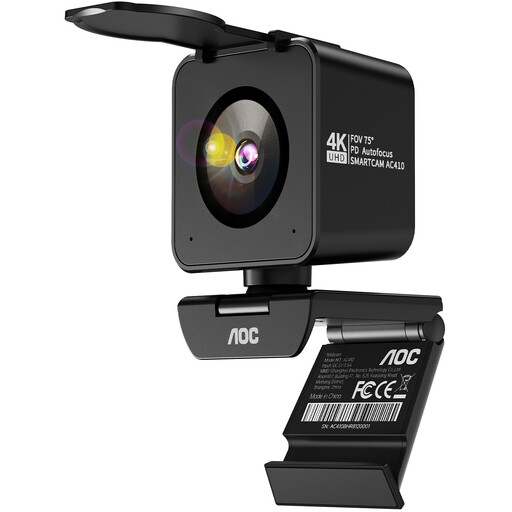 No image available
For use at your own desk, the product title lists two microphones with noise cancellation. Test how clearly your voice comes across from your actual workspace.
The title also lists PDAF autofocus, a 75° field of view, a lens cover, and USB-A and USB-C.
 No image available
For video calls, the product description lists a built-in microphone with AI noise cancellation. This isn’t a measured guarantee of performance at your own desk.
The description also lists auto-framing, HDR, gesture control and a physical privacy switch. Check which features you’ll actually use.
 No image available
For video calls on your own computer, the product description lists a built-in omnidirectional microphone with noise cancellation. Check how clearly your voice comes across at your workspace.
The product title lists Full HD, a 120° field of view and USB plug-and-play. The wide field of view may show more of the office, so check the framing before your lesson.
 No image available
For video calls on your own computer, the product title lists a microphone with noise cancellation. Test how clearly your voice comes across from your own workspace.
The title lists a 99° field of view and a 4K camera. The description lists plug-and-play, compatibility with Windows and macOS, and an integrated sliding cover. Check that the framing suits your workspace.
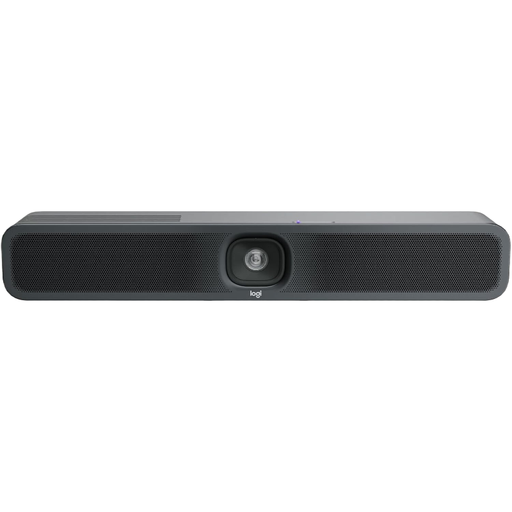 No image available
According to the product description, this conference camera is designed for small meeting rooms and huddle spaces. Its intended use may be broader than you need if you’re joining on your own from a desk.
The description lists a built-in microphone and speaker, USB, and AI video and audio features. Check whether you really need a room-based setup for your lesson.
No. 4K refers to the possible video resolution, not how clearly your voice comes across. Check the microphone position, background noise and audio settings by making a test recording from the place you’ll be using it.
Connect the webcam to a suitable port, grant the lesson app camera access if needed, then select your camera and microphone in the settings. AnkerWork gives these steps for the PowerConf C200; ports and menus may vary on other models.
Not necessarily. Zoom uses noise cancellation and echo cancellation by default; Original Sound mode turns off noise cancellation. If your lesson uses Zoom, test how your voice sounds with the available settings.
Buying a camera doesn’t automatically give you permission to do so. The German Data Protection Conference points out that video calls can also process images and sound of people nearby who aren’t taking part, and that the organisation responsible needs a legal basis to do this. Keep the frame as limited as possible and check the rules on recordings and workplace policies in advance. The legal position depends on the specific lesson and workplace.
For devices covered by relevant EU harmonisation legislation, the required CE marking is important. When monitoring electrical and electronic products, the German Federal Network Agency lists marking, traceability and manufacturer details among the points it checks. CE marking alone doesn’t prove any particular level of microphone performance.