What should you look for when buying?
If you’ll mainly be listening, start with your headphones or speakers and the audio settings in your conferencing service. If you’ll be speaking, also consider whether the webcam microphone picks up your voice clearly from your intended position, or whether a separate audio solution would work better for you.
| What you need |
What to check before buying |
Who is this important for? |
| Be heard clearly when speaking |
Compare the webcam microphone with a separate audio solution, and test it from your intended position. Microsoft Support explains noise suppression in Teams. |
If I want to ask questions, I need my voice to come across clearly despite office conversations; around 36% of consumers put being heard clearly first. |
| Hear the talk clearly |
Test your existing headphones or speakers, as well as the audio output in your conferencing service. Teams and Zoom explain their settings and audio tests. |
If I’m mainly listening, I need suitable audio output, not necessarily a more powerful webcam microphone; around 29% of consumers prioritise listening without interruptions. |
| Be visible on camera |
Check the exposure, framing and, where applicable, privacy cover on the specific model. Choose any additional image features to suit your workspace and lighting. |
If I switch my camera on, I want to be clearly visible in my office lighting; around 21% of consumers prioritise a clear camera image. |
| Connection and control over the image |
Check your computer’s connection, the mounting option, framing and physical lens cover. A lens cover controls the image, not the microphone. |
If I want to set up the camera without surprises and cover it during breaks, the connection and controls matter; around 14% of consumers prioritise simple, easy-to-control use. |
Webcams at Joybuy
This selection includes webcams with built-in microphones for video talks from the office. Compare the listed image and connection features with your workspace, and test how clearly your voice comes across before relying on noise cancellation.
 No image available
Full HD 1080P webcam with microphone
An option if you’re looking for a webcam with a built-in microphone and physical lens cover.
1080p; built-in omnidirectional microphone with advertised noise cancellation; USB plug-and-play for PC and laptop; automatic light correction.
View at Joybuy
 No image available
AOC webcam with microphone, 4K
A good fit if you’re looking for adjustable framing and a built-in microphone.
4K; 99° field of view; 180° tilt and 360° swivel; built-in microphone with advertised noise cancellation; plug-and-play with Windows and macOS, according to the description.
View at Joybuy
 No image available
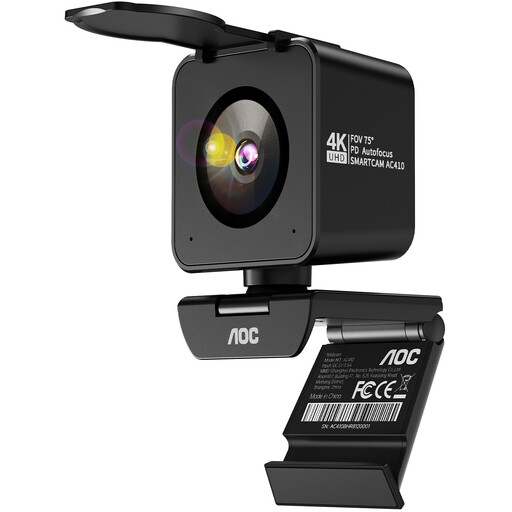
AOC 4K PRO webcam with Sony IMX363 sensor
An option if a narrower field of view and a built-in microphone suit your set-up.
4K; PDAF autofocus; two microphones with advertised noise cancellation; lens cover; 75° field of view; USB-A/USB-C.
View at Joybuy
 No image available
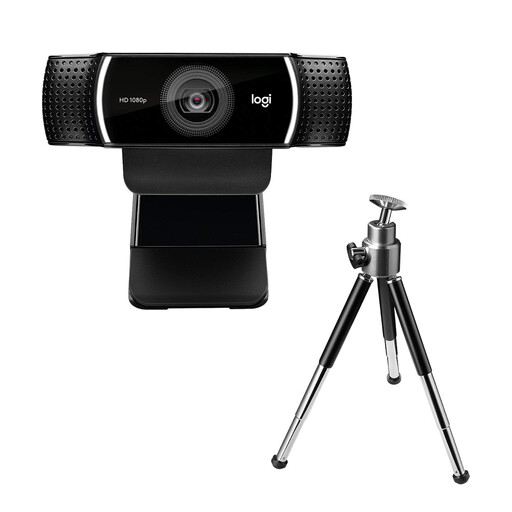
Logitech C922 Pro Stream webcam
Worth considering for a fixed workstation if autofocus and a built-in stereo microphone are among the features you want.
1080p at 30 fps; autofocus; exposure correction; built-in stereo microphone; USB connection. Usable with Windows and Mac OS, according to the description.
View at Joybuy
 No image available
Insta360 Link 2C Standard Bundle Graphite Black
An option if you’re considering Auto-Framing and a built-in microphone with advertised AI noise cancellation.
4K; HDR; autofocus; Auto-Framing; microphone with AI noise cancellation. Not compatible with ARM-based Windows systems, according to the description.
View at Joybuy
Frequently asked questions
Do I need a webcam with a particularly good microphone for listening?
Not if you’re only listening: first check your headphones or speakers and test the audio output. If you want to ask questions, also test your microphone in the conditions you’ll have at your office workstation.
How do I set up the picture and sound before the talk?
Select your camera, microphone and audio output device in the service you’re using, then test them before joining. Microsoft Support explains how to select audio sources in Teams before and during meetings; Zoom Support explains how to test your speaker and microphone. Also check that the webcam connection is compatible with your computer.
What can I do if background noise is picked up when I speak?
If you use Teams, you can check and adjust its noise suppression settings; Microsoft Support explains how this feature works. Test how clearly your voice comes across, and mute your microphone when you’re not speaking.
What are my rights if a webcam is faulty or I want to return it?
For faulty goods, your statutory rights against the seller are separate from any voluntary guarantee, as the Verbraucherzentrale explains. For online contracts, consumers generally have a 14-day right to cancel; check when the cancellation period starts and whether any exceptions apply to your purchase.
Can I simply record the talk or other participants?
Buying a webcam doesn’t give you permission to make a recording. The German Data Protection Conference treats recordings as a form of data processing that needs to be considered separately. Check with the organiser in advance whether a recording is permitted and on what basis. Its guidance dates from 2020 and doesn’t replace an assessment of the specific talk.


