Family in front of the screen
If several people are sitting side by side and want everyone to be seen and heard, consider the field of view and microphone coverage from every seat.


For a family call in a small meeting room, a personal webcam should be enough if only one or a few people are sitting close to the computer. If several people will be sitting in front of the screen, a front-facing video bar may be a better option. For a family gathered around a table, a 360° table camera could suit the seating arrangement better. What matters is framing everyone in shot and making sure voices are clear from the usual seats. Test both with the call service you actually use, and check your computer, connections and power supply beforehand.
If several people are sitting side by side and want everyone to be seen and heard, consider the field of view and microphone coverage from every seat.
When people are sitting in different directions, consider whether a front-mounted camera will do the job or whether a camera in the centre of the table would suit the layout better.
If you sit alone or with a small group close to the computer and don’t want a permanent room installation, a webcam is worth considering. You can also use your existing speakers as part of the setup.
| What matters | What to check before buying | Who will value it most |
|---|---|---|
| Clear voices | Check the microphone arrangement and where the camera will sit in the room. Make a test call with people in their usual seats. | If I want to hear relatives clearly, even when they’re sitting further away or speaking quietly, I’ll test the sound in the room rather than relying on the specifications alone. Around 31 % of consumers put clear voices first. |
| Everyone in shot | Decide on the seating arrangement and camera position, then check the seats at either end in the preview. | If we’re sitting far apart or off to the side, I’ll want to check in advance that everyone fits in the frame. Around 25 % of consumers prioritise coverage of every seat. |
| Easy setup | Check the connections, power supply and included accessories against your computer. Select the camera and audio devices in your calling service. | If I want to make calls without the hassle of switching between devices, I’ll look for a setup that works with my computer. Around 19 % of consumers prioritise straightforward setup. |
| Keeping things simple | Take existing devices and any accessories you’ll need into account, rather than comparing individual features in isolation. | For occasional family calls, I only want to pay for the features I actually need. Around 13 % of consumers prioritise keeping costs and setup manageable. |
| Control over the frame | Balance the room coverage you want against the risk of showing more than intended, and check the frame before the call. | If the room is shared, I’ll want to choose carefully what the camera shows. Around 12 % of consumers prioritise control over the frame. |
Camera and microphone specifications describe different features. A high resolution doesn’t tell you how voices will sound from the far end of the table in your room.
Test the camera and sound with your usual seating arrangement and normal speaking volume.
Logitech describes a notebook connection for the MeetUp 2 using two standard cables. The optional active USB cable is required for the advertised single-cable BYOD connection.
Before buying, check that the connection method you want is covered by what’s included.
You’ll need to factor in the optional active USB cable for the single-cable BYOD connection.
These devices are designed for different camera positions and seating arrangements. A wider angle doesn’t guarantee larger faces on screen or clearer audio.
First decide where people will sit and where the camera will go, then check the framing in the calling service you use.
MeetUp 2 is a front-mountable USB video bar for small rooms with a room PC or notebook.
The Studio R30 is a USB video bar for a group sitting in front of the camera in a small room.
The PanaCast 50 is a front-facing panoramic video bar for people sitting well off to the sides of the camera.
The Meeting Owl 3 is designed to sit in the centre of a table, with people seated around it in different directions.
The PowerConf C200 is a personal webcam for occasional calls close to your computer, not necessarily a solution for every seat in a meeting room.
The Joybuy products below include personal USB webcams and a ConferenceCam for calls at your computer or with small groups.
 No image available
For video calls on a PC or laptop; the product title specifies USB plug-and-play and a microphone.
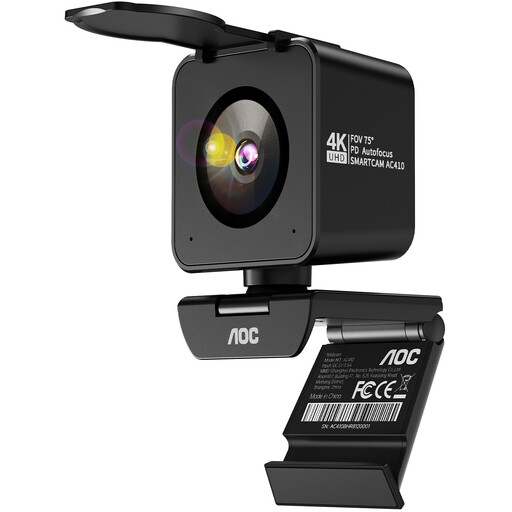 No image available
For video calls on a PC or laptop; the product title specifies PDAF autofocus, two microphones, a lens cover and a 75° field of view.
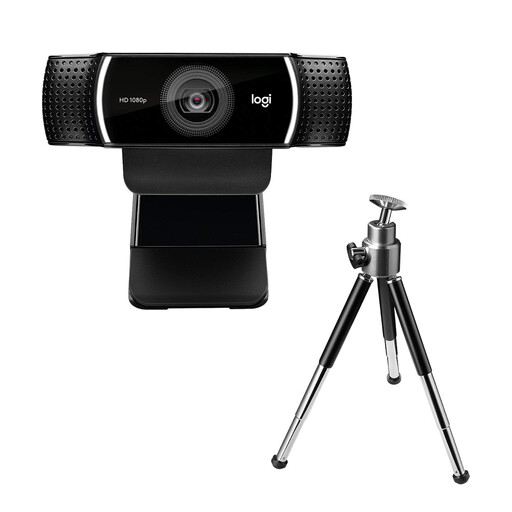 No image available
A USB webcam for video calls on your computer; the product title identifies it as the C922 Pro Stream.
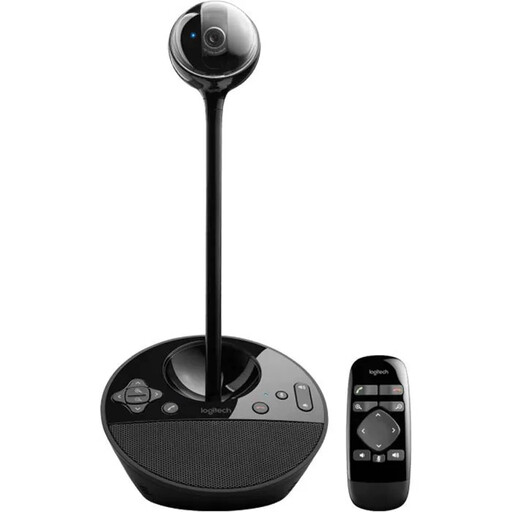 No image available
The product title describes it as a ConferenceCam for a meeting room or office and lists its dimensions as 10.4 × 15 × 15.4 cm.
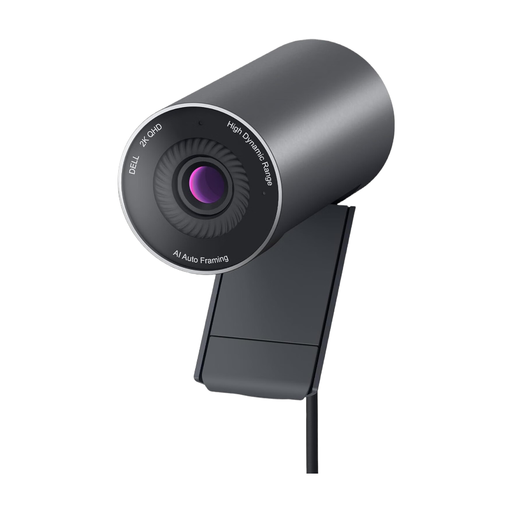 No image available
For USB-based video calls on your computer; the product title specifies USB 2.0 and audio.
Before joining a Google Meet call, select your camera, microphone and speakers, then test the microphone. Also ask someone to speak from their usual seat so you can check how well the room is covered.
Yes, for the USB setups described here. Logitech specifies a room PC or connected notebook for the MeetUp 2; HP describes connecting a PC to the Studio R30 via USB and powering it with an adapter. Check the connection method for the specific model before buying.
AnkerWork recommends keeping the PowerConf C200’s firmware and software up to date. According to the manufacturer, you can use them to adjust the framing and microphone pickup. This recommendation applies to this model and isn’t a general requirement for all cameras.
When you buy as a consumer in the EU, you generally have a minimum two-year legal guarantee from the seller, as explained by Your Europe. Any additional manufacturer’s guarantee is separate. Check its terms, while bearing in mind that it doesn’t limit your statutory rights.
The guidance from the German Data Protection Conference is aimed at businesses, public authorities and other organisations. It doesn’t automatically require a particular registration or approval for a private family call. If the room or call is managed by one of these organisations, check its rules for handling images, sound and any recordings.