What to look for when choosing
First, check the framing and sound in the room where you’ll actually be using it. If you want to show paper, also test the desk view in the workshop app.
The Data Protection Conference notes that people in your household may be seen or heard during a video conference. The checks below will help you set up the camera for your space and workshop.
| What matters |
What to look for when buying |
Who this matters most to |
| Keeping the frame private |
Check the preview from where you’ll be sitting, the adjustable fields of view and the lens cover. It only protects your privacy when the lens is covered. |
I want the camera to show as little as possible of the shared space around my desk. Around 29% of consumers prioritise keeping the frame private. |
| Clear speech |
Test the webcam microphone and any headset you already have separately, with typical background noise. Select your preferred audio source in the conferencing software. |
When my flatmates are nearby, I want to speak clearly when getting feedback on my writing. Around 29% of consumers put clear speech first. |
| Showing handwritten text |
Place a typical manuscript page where you plan to use it, then check the distance, angle and readability in the preview. |
I want to show handwritten drafts during a conversation and check beforehand whether others will be able to read them. Around 24% of consumers give a clear view of paper particular importance. |
| Set-up and compatibility |
Check that you have a free port and that the webcam is compatible with your operating system and workshop platform. Test the picture and sound before your first session. |
If I want to join without a complicated set-up, I need to be able to test the camera and sound directly on my own computer. Around 18% of consumers say an easy set-up is their top priority. |
Webcams for your desk
This selection from Joybuy includes webcams for video calls at your desk, including models with adjustable framing, built-in microphones or a desk view.
 No image available
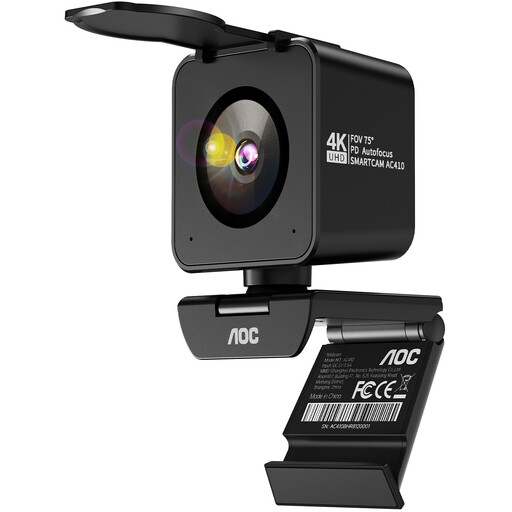
AOC 4K PRO webcam with Sony IMX363 sensor
For a fixed position at your computer where you want to control the framing.
The webcam features autofocus, two microphones, a lens cover and a 75° field of view.
According to the description, auto-framing and other advanced features require Dell Peripheral Manager.
Joybuy
 No image available
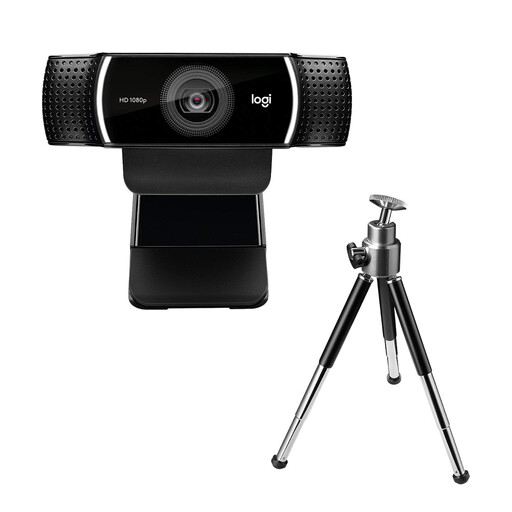
Logitech C922 Pro Stream webcam
For video calls at your desk when you want an adjustable position and a built-in microphone.
Specifications include 1080p at 30 fps, a built-in stereo microphone, a 78° field of view and UVC compatibility.
The adjustable stand includes a tabletop tripod.
Joybuy
 No image available
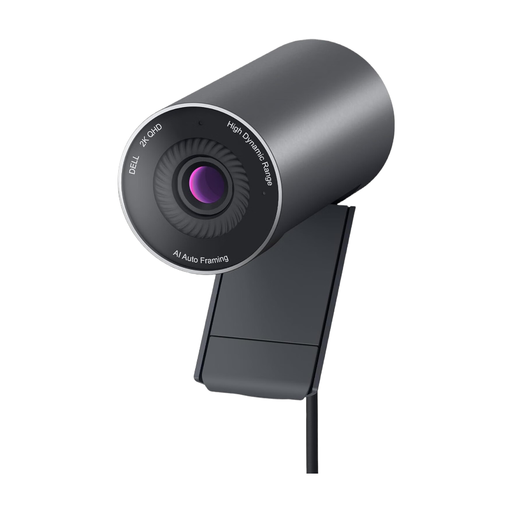
DELL Pro WB5023 2K webcam
For your own desk, where you want to adjust the field of view and framing.
The webcam has USB 2.0, a built-in microphone and a 78° horizontal field of view.
According to the description, field-of-view settings and other advanced features require Dell Peripheral Manager.
Joybuy
 No image available
Philips 4K UHD Webcam 4000 Series SPL6408BT/00
For video calls on your own computer when a built-in microphone and manual privacy cover matter to you.
The webcam features autofocus, two microphones and USB-A plug-and-play. Zoom and Microsoft Teams are listed as compatible applications.
Joybuy
 No image available
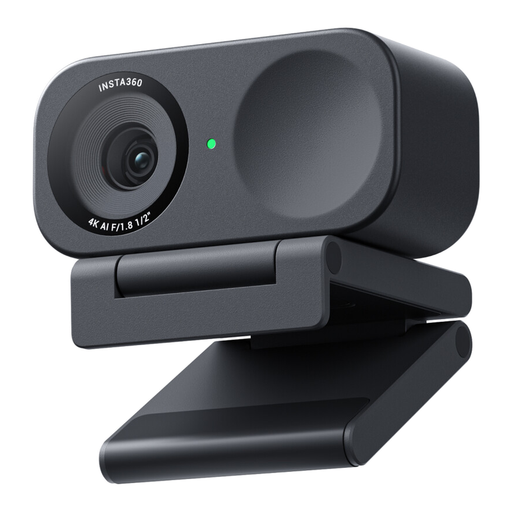
Insta360 Link 2C Standard Bundle, Graphite Black
For workshops where you sometimes want a desk view of paper or other objects.
The 4K webcam has a 1/2-inch sensor, auto-framing, HDR, a microphone and a physical privacy cover.
According to the description, this model is currently not compatible with ARM-based Windows systems.
Joybuy
Frequently asked questions
Do I need to buy a 4K webcam for a writing workshop?
Not just for the resolution. Start by checking the framing and sound, and whether a manuscript page is legible if you plan to show one. If the workshop uses Zoom, even streaming at 1080p in group meetings depends on additional account, device and settings requirements.
How should I set up my webcam before the first session?
Place it at your actual workstation and test the picture and sound in the workshop app. If you use Zoom, you can select and test your camera, microphone and speakers there before the meeting. Also check which areas of your home are visible.
How can I protect my flatmates’ privacy?
Point the camera towards your own space as far as possible, and check the picture and sound preview before the workshop. In its 2020 guidance on video conferencing systems, the Data Protection Conference notes that people in your household may be seen or heard during a video conference. A lens cover only protects your privacy when the lens is covered; check that the microphone is muted separately in the conferencing app.
Does a lens cover also mute the microphone?
A lens cover blocks the camera lens, but that doesn’t mean the microphone is muted. Check the audio source and mute setting separately in your conferencing software.


