If you’re joining from your own computer, a webcam designed for individual use, with a suitable field of view, is a good place to start. For several people around a table, a room camera with a group view is likely to be a better fit. If you want to show handwritten drafts, plan to use a desk view or screen sharing too: a higher resolution alone won’t do the job. For groups, seating arrangements, microphone distance and your video conferencing software settings all matter too.
Which webcam is right for you?
Writing groups joining together
If several people are sitting in a small meeting room, the camera’s field of view and audio should be suited to the group around the table. Logitech describes the MeetUp 2 as offering a group view; EMEET describes the Meeting Capsule as a 360° room solution with eight microphones and a speaker.
Workshop participants joining individually
If you’re joining from your own computer, you can frame the shot around yourself without automatically showing the whole room. Logitech gives the C920s a fixed diagonal field of view of 78°; AnkerWork lists selectable fields of view of 65°, 78° or 95° for the PowerConf C200.
Participants with handwritten drafts
If you need to show sketches or notes during a discussion, a suitable desk view is important. Logitech describes features for showing notes on the Brio 500 and MX Brio. Check that the chosen view makes your writing legible in your particular setup.
What to look for when choosing
First decide whether you’ll be joining on your own or with other people. Then consider whether you also need to show handwritten work.
| Requirement |
What to check before buying |
Who it matters most to |
| Fit everyone around the table in shot |
Check the seating, camera position and field of view together; don’t assume a wide view will capture the whole room. |
If I’m joining with several people around a table, I want everyone in shot. Around 40% of consumers put capturing the group first. |
| Make sure everyone around the table can be heard clearly |
Test the microphone position and speaker in your video conferencing software, with someone speaking from each seat you plan to use. |
When we’re having a group discussion, I want to understand everyone, even if they’re not sitting right next to the computer. Around 30% of consumers prioritise clear speech. |
| Show notes and drafts |
Check in advance that the page is legible within the planned frame; use screen sharing if needed. |
When I’m discussing handwritten drafts, I want everyone else to be able to see them clearly. Around 20% of consumers prioritise a view of their notes. |
| Bring one person into the call without showing too much of the room |
Check the viewing angle, lens cover and USB connection on your computer. |
If I’m joining on my own, I mainly want to show myself, not more of the room than necessary. Around 10% of consumers prioritise a view focused on one person. |
Common buying mistakes
-
Assuming a wide camera view means everyone will be heard clearly
An adjustable field of view affects what you see, not how clearly you’ll hear everyone around the table. Logitech describes the MeetUp 2 as having room-focused audio features, while the PowerConf C200’s listed features relate to its selectable viewing angles.
Test the picture and sound separately from each seat you plan to use.
A separate room audio solution may require extra setup.
-
Thinking high resolution is the most important thing
Resolution, a group view and a notes view each serve different purposes. Logitech describes separate Show Mode and group view features for its models.
First decide whether you need to show faces, the group around the table or handwritten work. Then compare the features that matter for your needs.
-
Using a room camera without checking what documents are visible
During a video call, personal data may appear not only in the picture and sound, but also in the surroundings and any documents shown. Germany’s Conference of Independent Data Protection Authorities highlights these potential sources of personal data.
Check the camera view and any documents before the call. If you plan to record, consider the purpose and relevant data protection requirements separately.
A look at the leading brands
Logitech
The Logitech models featured here cover webcams for individual use, views for showing notes and video conferencing solutions for small rooms.
- According to Logitech, the C920s has a fixed diagonal field of view of 78°. The manufacturer lists features for showing notes on the Brio 500 and MX Brio.
- The MeetUp 2’s group view and room audio features aren’t the same as the fixed field of view of a webcam designed for individual use. Logitech says Logi Tune is required for the Brio 500’s extended Auto-Framing.
AnkerWork
The PowerConf C200 is a webcam for individual use, with a field of view that can be selected in the software.
- AnkerWork lists fields of view of 65°, 78° and 95°, as well as two microphones.
- The selectable viewing angles don’t guarantee that the camera will capture the whole room or pick up speech evenly from every seat.
EMEET
The products featured here include the C960 webcam for individual use and the differently designed Meeting Capsule, which offers a central 360° view.
- EMEET lists a 90° field of view and two microphones for the C960. For the Meeting Capsule, the manufacturer lists eight microphones and a speaker.
- These specifications relate to different models and aren’t an independent comparison of their audio performance.
OBSBOT
The Meet 2 is a compact webcam that automatically adjusts the camera frame.
- OBSBOT lists Auto-Framing for one person or a group, as well as built-in dual microphones.
- These features alone don’t guarantee that the microphones will pick up everyone clearly in a particular meeting room.
Joybuy products for individual use and meeting rooms
This selection includes webcams for individuals and conference cameras for groups joining together from a small room.
 No image available
Full HD 1080P webcam with microphone, USB Plug & Play
For video calls on your computer. The stated 120° lens may be useful if you need a wider view, but you should still check that it covers the seats you want to include.
USB connection, built-in omnidirectional microphone and physical lens cover.
View at Joybuy
 No image available
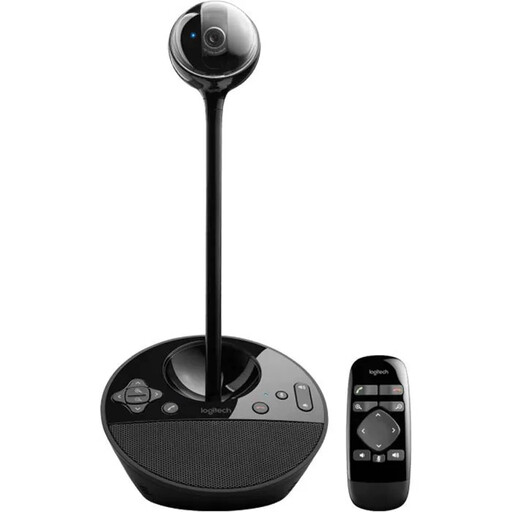
Logitech ConferenceCam (10,4 × 15 × 15,4 cm)
Described as suitable for small groups and meeting rooms. Check that the connection and microphone position work for your planned setup.
The product description lists a full-duplex speakerphone and a microphone range of up to 2,4 m.
View at Joybuy
 No image available
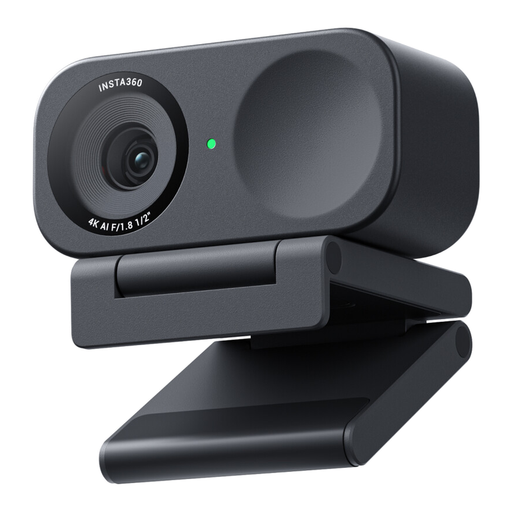
Insta360 Link 2C Standard Bundle Graphite Black, 4K
For workshops where you need to switch between a view of the people and a desk view. Check how it displays your notes from your usual seating position.
The product name specifies a 1/2" sensor. The description lists DeskView, Whiteboard Mode, automatic framing and a physical privacy switch.
View at Joybuy
 No image available
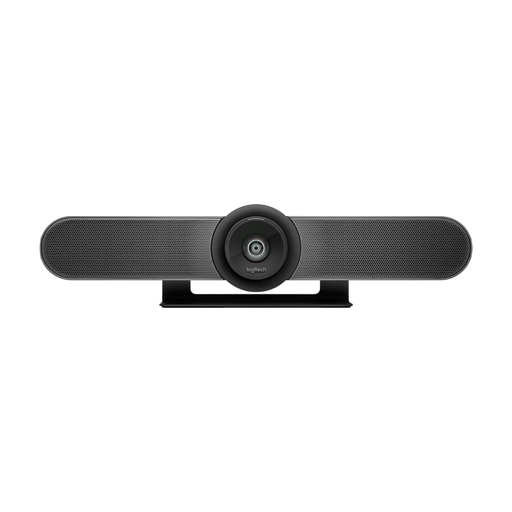
Logitech MeetUp All-in-One 4K conference camera
Described as suitable for huddle rooms and small meeting rooms. Before using it, make sure the mounting position and seating arrangement work with the camera’s field of view.
The product description lists a 120° field of view, motorised pan and tilt, 5× digital zoom, built-in microphones and a speaker.
View at Joybuy
 No image available
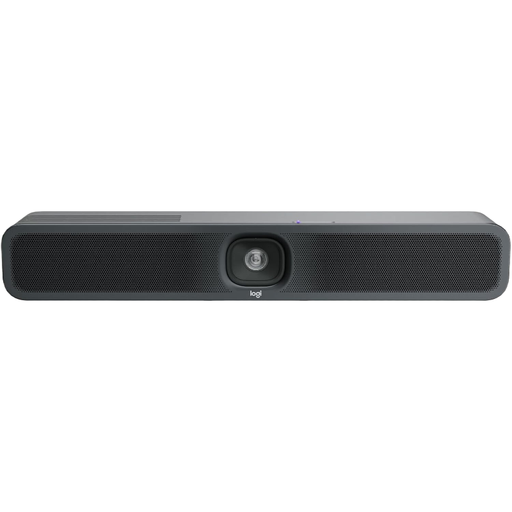
Logitech MeetUp 2, 4K all-in-one conference camera
Described as suitable for groups joining together from small meeting rooms. Make sure the mounting position, BYOD use and setup suit the room.
The product description lists a built-in camera, microphone and speaker, as well as a USB connection.
View at Joybuy
Frequently asked questions
Is a standard laptop webcam good enough for several people?
It depends on whether the camera’s field of view and audio cover all the seats you need. Logitech specifically describes the MeetUp 2 as designed for small meeting rooms, with a group view and voice optimisation. Even so, test how clearly everyone can be heard in your room.
How should I set up the camera and microphone before the workshop?
Select the camera and microphone in your video conferencing software, and check your operating system’s permissions. AnkerWork’s C200 guide gives a practical example of this setup; connections and steps may vary for other models.
What are my rights in Germany if the product develops a fault after purchase?
If you buy as a consumer from a trader, you generally have statutory rights against the seller if the product is faulty. The European Union’s consumer information states that the minimum period is two years from receipt. A voluntary guarantee doesn’t replace these rights. Different rules may apply to other types of contract.
Can I simply record the writing workshop?
Not just because a webcam is connected. Germany’s Conference of Independent Data Protection Authorities notes that images, sound and any visible documents may contain personal data, and that those responsible for processing need a lawful basis. Whether a particular recording is permitted depends, among other things, on its purpose, who is responsible and the lawful basis for processing.


