First, choose an audio setup that keeps your voice clear over office noise. Then find a webcam that shows you well in the lighting at your desk. In a moderately noisy office, a built-in microphone may be enough if a test call confirms that you’re easy to understand. If conversations at the next desk are clearly audible, playing it safe means using a webcam with a properly set up headset. Also check the connection, framing and background: a lens cover protects your camera image, but it won’t mute the microphone.
Which webcam is right for you?
Learning at a noisy desk
If you speak often during lessons, it’s more important for your voice to come through clearly over conversations and keyboard noise than to have a higher image resolution. Zoom Support recommends adjusting your audio settings for a noisy office environment.
Learning in tricky lighting
If you sit beside a window or in a darker part of the office, check that your face is clearly visible on camera and that the frame doesn’t show more of the room than necessary. Anker lists three selectable fields of view for the PowerConf C200: 65°, 78° and 95°.
Learning in a shared office
If colleagues or work-related information are nearby, you’ll want to control what the camera shows and what the microphone picks up. The Data Protection Conference points out that video calls can also capture the image and sound of people nearby.
What should you look for when buying?
Webcam with a built-in microphone
A good fit if: Your workspace is only moderately noisy and a test call confirms that your voice remains clear.
The trade-off: A manufacturer’s claim about noise reduction doesn’t guarantee that conversations nearby won’t disrupt your lesson.
Webcam plus a separate headset microphone
A good fit if: Conversations at the next desk regularly carry into your lessons, and you can test a headset microphone in your course software.
The trade-off: It means adding another device. Zoom notes that Bluetooth headphones can affect the microphone quality heard by other participants.
When choosing a webcam for a noisy office, focus on four priorities: clear audio, a face that’s easy to see, control over what can be seen and heard, and compatibility with your existing computer.
| Priority |
What to check before buying |
Who it matters to |
| Clear voice |
Check the microphone input and noise reduction. Make a test call in your course software with typical office noise in the background. |
If you speak often during lessons, you’ll want to be understood over office noise. This is the top priority for around 36% of consumers. |
| Face clearly visible |
Record a test video at your actual desk and check the exposure, focus and framing you need. |
In changeable lighting, you’ll want your teacher and fellow learners to see your expressions. This is the main image-related priority for around 29% of consumers. |
| Control over your office surroundings |
Position the camera to show a suitable background. Check for a lens cover and a separate microphone mute function. |
If other people or work-related information are nearby, you’ll want to control what’s transmitted through the camera and microphone. This protection is the top priority for around 21% of consumers. |
| Set-up with your office computer |
Check that the USB connection and operating system are compatible. Before your lesson, test the camera, microphone and speakers in the software you use. |
If you want to use the webcam with your existing computer, you’ll want a straightforward connection and audio set-up. Set-up is the top priority for around 14% of consumers. |
Common buying mistakes
-
Assuming ‘noise reduction’ guarantees clear speech
In n-tv’s practical test, the microphones on the Anker PowerConf C200 only reduced background noise to a limited extent. So a feature with this name alone doesn’t tell you how clearly your voice will come through during a language lesson at your desk.
Test the webcam with typical conversations in the background, not just in a quiet room. If your voice is hard to understand, compare it with a separate headset microphone.
-
Focusing only on resolution and overlooking lighting and sound
A higher resolution won’t automatically fix backlighting or a quiet or unclear voice recording. The picture and sound features that matter vary from model to model.
First, record a test video and audio sample at your desk. Then check what resolution and framing you need for your lessons.
-
Assuming a closed camera shutter provides complete privacy
A lens cover blocks the camera image, but an active microphone can still transmit office conversations. The Data Protection Conference points out that video calls can also affect people nearby.
Point the camera at a suitable background. Before your lesson, check which microphone is active and how to mute it.
Webcam brands to consider
Logitech
The Brio 500 combines Full HD video with automatic light correction and built-in microphones.
- Logitech lists RightLight and noise-cancelling microphones among the Brio 500’s features.
- These manufacturer claims don’t prove that your voice will stay clear in a noisy open-plan office. Test results for the separately tested MX Brio can’t be applied to other Logitech models across the board.
Hama
The C-600 Pro is a Full HD webcam with USB-A, autofocus and a built-in stereo microphone, making it suitable for a compatible desk set-up.
- Hama says the model supports UVC, so no additional driver is needed.
- CHIP described the C-600 Pro’s voice recording as very quiet in its test. If you speak often during lessons, check the volume beforehand.
AnkerWork
According to Anker, the PowerConf C200 offers adjustable fields of view and a built-in microphone with AI noise reduction.
- Anker lists fields of view of 65°, 78° and 95°, so you can adjust the framing to suit your workspace.
- In n-tv’s practical test, the microphones only reduced background noise to a limited extent. Anker’s product page lists both 2K and Full HD 1080p in different places, so check the specific resolution stated before buying.
Trust
According to Trust, the Taxon QHD combines 1440p, autofocus, two microphones and a built-in privacy shutter.
- The privacy shutter can cover the camera when you’re not in a lesson.
- Trust describes the microphones as able to pick up sound from different directions. That doesn’t mean they’ll block out conversations at the next desk.
Webcams for language lessons in the office
This Joybuy selection includes webcams with built-in microphones for language lessons on an office computer. Even so, test the audio quality at your own desk before relying on the built-in microphone.
 No image available
Full HD 1080p webcam with microphone
For lessons where you want picture and sound to come through one device. Test how clearly your voice comes through against the usual office noise.
Full HD 1080p, 120° field of view, built-in microphone with noise reduction, automatic light correction, physical lens cover and USB plug and play.
The lens cover blocks the camera image, but it doesn’t mute the microphone.
View at Joybuy
 No image available
AOC 4K webcam with microphone and cover
The stated field of view and cover can help you choose your framing and cover the lens when you’re not in a lesson. Test the audio recording at your own desk.
4K, 99° field of view, built-in microphone with noise reduction, automatic light correction and lens cover.
The description lists plug and play, compatibility with Windows and macOS, and a USB-A to USB-C adapter.
View at Joybuy
 No image available
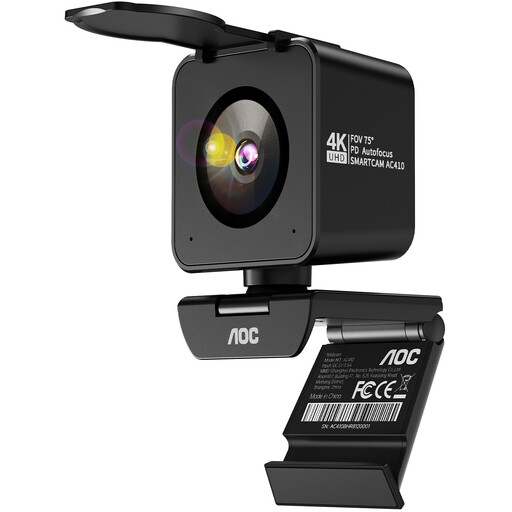
AOC 4K PRO webcam with Sony IMX363 sensor
The two microphones and automatic light correction may be useful features to consider. Test how clearly your voice comes through in a noisy office.
4K video, Sony IMX363 sensor, PDAF autofocus, two microphones with noise reduction, 75° field of view and automatic light correction.
The description lists USB-A and USB-C, as well as a desk stand in the box. A lens cover doesn’t replace a separate microphone mute function.
View at Joybuy
 No image available
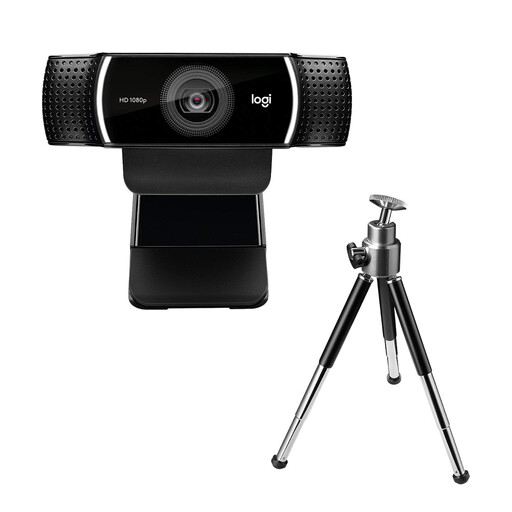
Logitech C922 Pro Stream webcam
The built-in stereo microphone may suit lessons where you want picture and sound to come through one device. Test the voice recording at your actual desk.
1080p at 30 fps or 720p at 60 fps, 78° field of view, autofocus and exposure correction.
The description lists UVC compatibility, a 1.5 m USB cable and a desk stand.
View at Joybuy
 No image available
Insta360 Link 2C Standard Bundle Graphite Black
For changing light and flexible framing, the description lists HDR, low-light performance and automatic framing. Test the microphone separately at your own desk.
4K, 1/2" sensor, HDR, automatic framing, built-in microphone with AI noise reduction and physical privacy switch.
According to the product description, this model is not compatible with ARM-based Windows systems.
View at Joybuy
Frequently asked questions
Is a webcam with a built-in microphone enough for language practice in an open-plan office?
A claim about noise reduction alone isn’t enough to tell. Test your voice with typical office noise in the background. If conversations at the next desk are a problem, compare it with a separate headset microphone.
How can I check the picture and sound before my first lesson?
Set up the camera at your actual desk and use the audio test or test call in your course software. Zoom Support explains how to select and test the speakers and microphone separately. If you use other software, check its own settings.
Might I need extra accessories to use a webcam?
Yes. Depending on your workspace, you may need a headset for audio or a suitable adapter for your computer’s connection. Before buying, check the connections and what’s included with the specific model.
Can I simply record my language lesson from the office?
Buying a webcam doesn’t give you permission to record. The Data Protection Conference addresses recordings separately and points out that the image and sound of people nearby may also be captured. Check with your course provider and the relevant people at work before planning a recording. The requirements will depend on the specific circumstances.


