If you want to keep your model-making workspace in view, a document camera with an adjustable arm is an obvious choice. If you switch between showing your face and the workbench, a webcam with a desk mode may suit your workflow better. A separately mounted webcam is another option, but you’ll need a suitable mount. Before buying, check the focus distance, field of view, mounting options and frame rate at your chosen resolution.
Which camera suits you?
Model makers with a permanent workbench
If you mainly want to show components and assembly steps from a fixed position above the workbench, look for an adjustable arm and a field of view that captures your workspace. IPEVO describes the V4K as a document camera with an articulated stand.
Presenters who switch between views
If you switch between speaking to the camera and demonstrating work at the table, check whether a desk mode works with your monitor’s position and angle. Logitech describes the Show Mode on the MX Brio, while Insta360 lists DeskView as a feature of the Link 2, among other models.
Streamers with a separate camera mount
If you want to set the distance and field of view using a separate mount, check the thread and focus range of the specific model. OBSBOT lists a 1/4-20 thread and focus from 10 cm for the Meet 2; Elgato gives the Facecam MK.2 a fixed-focus range of 30–120 cm.
What to look for when buying
Document camera with arm
Best if: you want your model-making workspace to stay in view and prefer an integrated, adjustable camera position.
Keep in mind: IPEVO lists the V4K at up to 30 FPS in Full HD, but up to 15 FPS at 3264 × 2448 pixels. Also check that the arm height and coverage suit your table.
Webcam with desk mode
Best if: you want to switch between showing your face and occasionally demonstrating something on the table, and your monitor gives you a suitable viewing angle.
Keep in mind: A view of the table from your monitor is not the same as a freely positioned camera directly above your work.
Separately mounted webcam
Best if: you want to position the camera independently of your monitor and have a suitable mount in mind.
Keep in mind: Compare the actual distance to your subject with the focus range. The Elgato Facecam MK.2 has a stated fixed-focus range of 30–120 cm.
| What you need |
What to check |
Who it matters most to |
| Overhead view and workspace |
Measure the area you want to show on your table, then check the arm height, adjustability and stated coverage of the specific model. |
If you want your workbench to stay in view, you’ll need a suitable angle that shows the work surface, your hands and the piece you’re working on. Around 36% of consumers put a fixed overhead view first. |
| Focusing on small parts |
Compare the distance between the lens and your work with the stated focus range. Also check whether autofocus or manual focus is available. |
If you move components around as you work and need them to stay clear on camera, the right focus distance is essential. Around 29% of consumers prioritise sharp images of moving parts. |
| Switching between views |
Check that desk mode is available on the exact model you’re considering, and that your monitor position and camera angle capture your work. |
If you want to switch between showing yourself and your work during a stream, the desk view should fit your workflow. Around 21% of consumers put switching between views first. |
| Recording and frame rate |
Compare the resolution and FPS modes that are explicitly listed together, as well as the available recording settings. |
If you want your model-making videos to look consistent, check the combination of resolution and frame rate rather than just the highest pixel count. Around 14% of consumers prioritise consistent recording settings. |
Common misconceptions
-
4K doesn’t automatically mean a high frame rate
With the models described here, the highest resolution and highest frame rate aren’t necessarily available at the same time.
Compare the resolution and FPS modes that the manufacturer explicitly lists together with the settings you plan to record in.
-
Desk mode isn’t the same as an overhead camera
With a view of the table from your monitor, the framing depends on the monitor’s position and angle.
Check the field of view at your workstation, and plan for a separate mount if you need a different camera position.
-
Don’t choose fixed focus without checking the working distance
Elgato gives the Facecam MK.2 a fixed-focus range of 30–120 cm.
Measure the distance from the lens to your components and compare it with the focus range of the model you’re considering.
A guide to the brands
IPEVO
IPEVO describes the V4K as a USB document camera for demonstrations at the table.
- IPEVO lists an articulated stand and autofocus. For the V4K, the manufacturer specifies up to 30 FPS in Full HD and up to 15 FPS at 3264 × 2448 pixels.
- Check that the arm height and coverage suit your workspace.
Logitech
Logitech describes the MX Brio as offering a standard webcam view and Show Mode for content on the table.
- Logitech lists 4K at 30 FPS or 1080p at 60 FPS, along with settings for adjusting image parameters.
- Check that the area of the table within reach of your monitor suits your setup. Features for improving faces don’t necessarily mean small components will look better.
Insta360
Insta360 describes a DeskView mode on its Link range, including the Link 2, for occasional demonstrations at the table.
- According to Insta360, DeskView can be used at your monitor without a separate overhead mount.
- Insta360 distinguishes this temporary viewing angle from recording with a dedicated overhead mount.
OBSBOT
The OBSBOT Meet 2 is a separately mountable webcam for setting a predictable close-up distance from your work.
- OBSBOT lists AF/MF, focus from 10 cm and a 1/4-20 thread.
- The thread alone doesn’t guarantee that a particular overhead mount will suit your table setup.
Elgato
According to Elgato, the Facecam MK.2 is designed for a fixed recording position and separate 1/4-inch mounting.
- Elgato lists fixed focus from 30–120 cm and, with USB 3.0, uncompressed 1080p60, among other options.
- The stated focus range doesn’t confirm suitability for components less than 30 cm from the lens.
Webcams at Joybuy
This selection includes webcams whose product details mention flexible positioning, autofocus or a tabletop setup. If you want an overhead view of your work, check the mounting options and field of view at your workstation.
 No image available
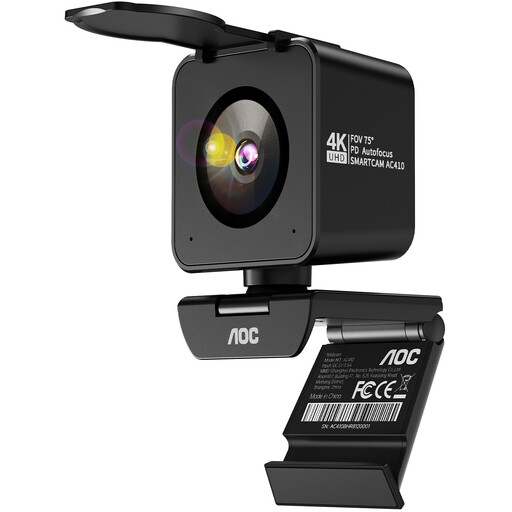
AOC 4K webcam for PC with microphone
If you want to position the camera on your monitor, on the table or on a tripod, the product description lists several mounting options.
4K video at 30 FPS; 99° field of view; tilts 180° and swivels 360°.
View at Joybuy
 No image available
AOC 4K PRO webcam with Sony IMX363 sensor
If you’re looking for a positionable camera with autofocus, the product description lists PDAF autofocus and a tabletop tripod.
The title lists 4K; the description lists 1080p at 60 FPS. 75° field of view.
View at Joybuy
 No image available
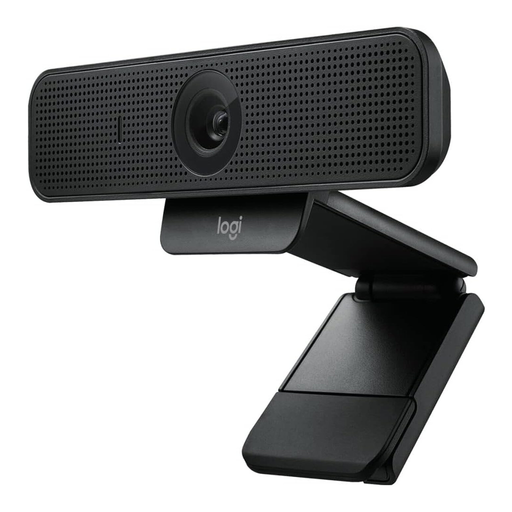
Logitech C925e Business Webcam
If the distance between the camera and your work changes, the product description lists autofocus.
Full HD 1080p; 78° field of view; clip mount for a monitor, laptop or desktop.
View at Joybuy
 No image available
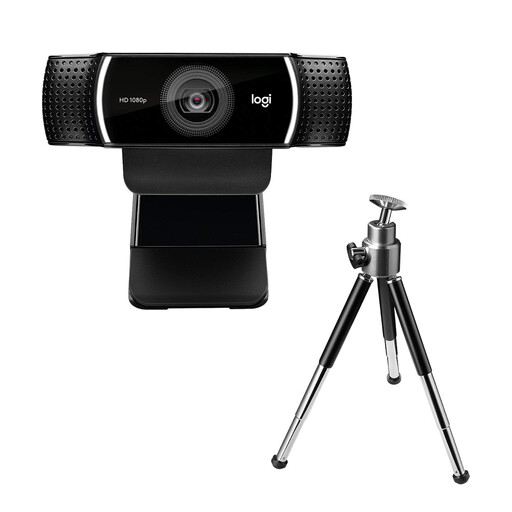
Logitech C922 Pro Stream Webcam
If you want to position the camera for different views of your table, the product description lists an adjustable tabletop stand and a tripod.
1080p at 30 FPS or 720p at 60 FPS; the tabletop stand extends to 18.5 cm.
View at Joybuy
 No image available
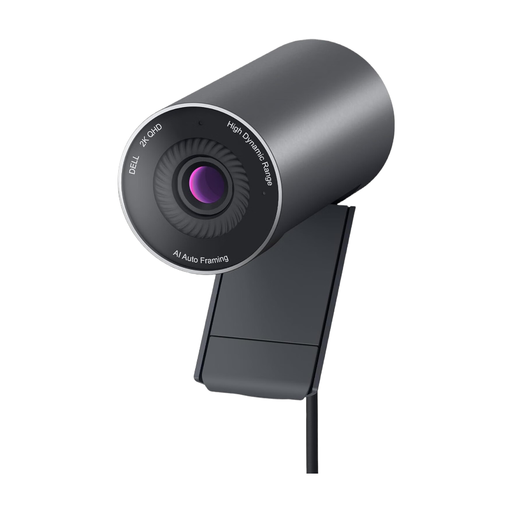
Dell Pro WB5023 2K webcam
If autofocus and an adjustable field of view matter for your setup, the product description lists both.
2560 × 1440 (2K QHD), up to 60 FPS; three field-of-view presets; clip for attaching to a monitor or laptop.
View at Joybuy
Frequently asked questions
Is a 4K label enough to show small components clearly?
No, the 4K label alone isn’t enough. First check the distance from the lens and the area captured. For the IPEVO V4K, the manufacturer lists up to 15 FPS at the highest resolution and up to 30 FPS in Full HD.
How do I add the camera to an OBS scene?
In OBS, you can add a source called “Video Capture Device”. You can then position and scale the camera image in your scene. Also check the compatibility details for the specific model and your computer.
What should I do if my webcam is faulty after purchase?
Your statutory rights against the seller are separate from any voluntary guarantee. The Verbraucherzentrale explains the difference; if you have an additional manufacturer’s guarantee, check its specific terms and conditions.
Do I need to consider data protection when showing my model-making videos publicly?
If other identifiable people are recorded, a lawful basis under the GDPR may be required. The Federal Commissioner for Data Protection and Freedom of Information lists consent as one possible lawful basis, not as a solution that is always required. What applies depends on the recording and how it is shared; this does not mean that consent is generally required when filming your own components.


