If you mainly review and sort wedding photos, then prepare them for an online gallery, start with a clear 4K workspace, the right connections and a monitor that fits your desk. If you regularly edit prints or albums, documented colour gamut coverage and a suitable calibration process become more important. Adobe recommends using a colorimeter for objective colour settings, and a wide colour gamut alone won’t guarantee the right print result.
Which workflow is right for you?
Reviewing and sorting wedding photos
If you’re selecting lots of shots and mainly preparing a digital gallery, a clear view of your images and easy-to-read controls are important. fotoMAGAZIN describes a monitor as a preview for different output destinations, including online galleries and prints.
Editing prints and albums
If you regularly prepare wedding photos for print, a controllable colour workflow matters more than vivid screen colours. Adobe recommends using a colorimeter for objective colour settings.
Using a laptop at your home office desk
If you switch between your laptop and desk, make sure the monitor’s image connections, charging power and other ports suit your device. Specifications vary by model, so check compatibility with your laptop.
What should you look for when buying?
First, decide whether you’ll mainly be organising a digital gallery or regularly adjusting colours for prints. Then make sure the laptop connection and the monitor’s footprint suit your home office setup.
| Buying priority |
What to check before buying |
Who will find this especially important? |
| Reviewing lots of photos clearly |
Check the resolution of the specific model and whether its scaling is easy to read. ASUS, BenQ and EIZO list a resolution of 3840 × 2160 pixels for the 4K models mentioned here. |
When I’m selecting lots of wedding photos, I want to keep the preview and controls clearly in view. Around 36% of consumers give clear image selection their top priority. |
| Checking colours for prints |
Check your intended output, as well as the colour modes and calibration options available on the specific model. |
When I’m preparing prints or an album, I want to make colour decisions with confidence. Around 21% of consumers put colour checking for prints first. |
| Connecting a laptop and accessories |
Check that the video output and monitor input match, along with the required charging power and cables. |
When switching between my laptop and desk, I want suitable connections for the image signal and, if needed, charging. Around 29% of consumers prioritise laptop connectivity. |
| Fitting a monitor on your desk |
Check the width and depth, including the stand; if you’re using a monitor arm, check the VESA size too. |
If my home office desk is short on space, the monitor needs to fit the available work area. Around 14% of consumers prioritise footprint and positioning. |
Common buying mistakes
-
Assuming 4K means reliable print colours
Resolution describes the number of pixels, not whether a monitor is suitable for a colour-managed print workflow. Unsuitable monitor settings can affect your colour decisions.
If prints matter, look beyond 4K and check the calibration options and the entire colour-management workflow. Adobe recommends using a colorimeter for objective colour settings.
You may need to budget for additional equipment and time to set up colour management.
-
Assuming USB-C guarantees video and enough charging power
A USB-C port alone doesn’t tell you whether your laptop can output video through it or be charged at the required power.
Check your laptop’s video output, the monitor’s inputs and the required charging power against the specifications for the exact model. Also make sure your existing cables are suitable.
Depending on your setup, you may also need a suitable cable or a separate power supply.
-
Choosing by screen size alone, rather than footprint
The stand and adjustment options affect how much desk space is left. BenQ lists a depth of 274 mm, including the stand, for the SW272U.
Measure the space available on your desk and compare it with the dimensions of the exact model variant. If you’re using a monitor arm, check the VESA size too.
Key brands at a glance
ASUS
The ProArt PA279CRV is a documented 27-inch 4K example for image selection, editing and home office connectivity.
- ASUS lists 99% Adobe RGB, an sRGB mode and 96 W USB-C Power Delivery for this model.
- Check that the charging power and colour workflow suit your laptop and intended output; manufacturer specifications are not independent measurements.
BenQ
The SW272U and PD2732U are model-specific examples for photo editing and creative work with Thunderbolt 4 connectivity.
- BenQ lists 99% Adobe RGB and 4K for both models; the SW272U also offers hardware calibration, while the PD2732U has Thunderbolt 4 with 90 W Power Delivery.
- Check compatibility with your computer and whether you need the connection and calibration features on offer.
EIZO
The ColorEdge CS2740 is a documented 27-inch 4K example for photo editing with controllable colour reproduction.
- EIZO specifies more than 99% Adobe RGB, hardware calibration and uniformity correction.
- EIZO lists a maximum power supply of 60 W over USB-C. Check whether that’s enough for your laptop.
LG
The 27UP850K-W is a documented 27-inch 4K model with USB-C and an adjustable stand.
- LG lists typical DCI-P3 coverage of 95% for this model.
- This DCI-P3 figure doesn’t tell you its Adobe RGB coverage or whether it supports colour-critical print work; check both specifically.
Dell
The UltraSharp U2725QE is described as a monitor with a Thunderbolt hub and height-adjustable stand.
- The hub may be useful for a home office setup with several devices.
- These features alone don’t prove it’s suitable for colour-critical wedding prints. For that, check the colour and calibration features of the specific model.
4K monitors at Joybuy
The Joybuy options below include 4K models for reviewing images at a fixed desk, as well as a portable laptop monitor. If you’re preparing colour-critical prints, check the colour gamut specifications and calibration requirements for each specific model.
 No image available
MSI MAG 274UPDFDE E16M, 27 inches, UHD 160 Hz/FHD 320 Hz, Mini-LED
For reviewing images at your desk, the 27-inch 4K format could be an option if you want to use the stated resolution and dual mode.
The product specifications list 3840 × 2160 pixels, 100% Adobe RGB, Mini-LED with 1,152 dimming zones and a height-adjustable stand. In dual mode, the listed refresh rates are UHD 160 Hz and FHD 320 Hz.
View at Joybuy
 No image available
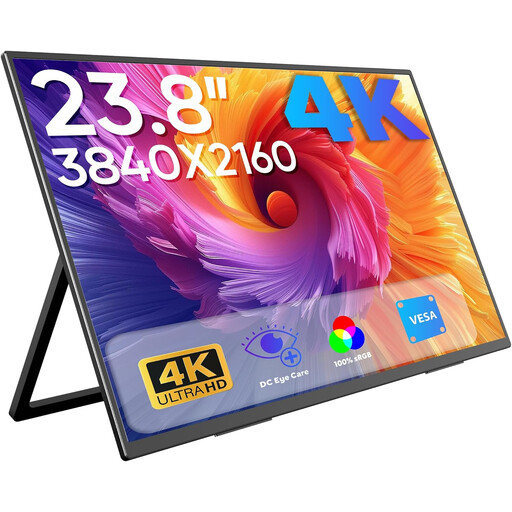
Portable 23.8-inch 4K monitor, 60 Hz
If you want to expand your laptop workspace flexibly, this portable model could suit your desk setup.
The product specifications list 3840 × 2160 pixels, 60 Hz, 100% sRGB, an integrated stand, and USB-C and Mini-HDMI inputs.
View at Joybuy
 No image available
MSI PRO MP273UPDE E6, 27 inches, 4K UHD
The 27-inch format could work well if you want to organise wedding photos and controls on a height-adjustable desk monitor.
The product description lists an IPS panel, matt finish, 3840 × 2160 pixels, 60 Hz and 10-bit colour depth. It also specifies HDMI and DisplayPort inputs, plus a height-adjustable, swivel and tilt stand with pivot function.
View at Joybuy
 No image available
INNOCN CB27U1, 27 inches, 4K UHD
This model could be worth considering for reviewing images at your desk if its stated USB-C charging power suits your laptop.
The product specifications list an IPS panel, 3840 × 2160 pixels, 120 Hz, 99% Adobe RGB and USB-C with 90 W Power Delivery. An adjustable design is also specified.
View at Joybuy
 No image available
MSI MPG 322URXDE QD-OLED, 32 inches, 4K UHD
The 32-inch format could be right for you if you want a larger screen at your home office desk and would find an integrated KVM switch useful.
The product specifications list 3840 × 2160 pixels, 98% Adobe RGB, USB-C with 98 W Power Delivery and a height-adjustable stand.
View at Joybuy
Frequently asked questions
Do I need an Adobe RGB photo monitor to select photos for a wedding gallery?
No, not just for selecting images. Start by looking for an easy-to-use 4K workspace and a suitable connection. Documented wide colour gamut coverage and calibration options become more important if you regularly prepare colour-critical prints.
How do I set up the colour for photo work?
Set up the monitor for your intended output and check whether you need a controlled calibration process. Adobe recommends using a colorimeter for objective colour settings; wide colour gamut coverage is no substitute for this check.
How can I tell whether a USB-C monitor can charge my laptop?
Compare your laptop’s video output and power requirements with the monitor input and Power Delivery specification. Manufacturers list different figures: ASUS specifies 96 W for the PA279CRV, BenQ 90 W for the PD2732U and EIZO a maximum of 60 W for the CS2740.
What running costs and post-purchase rights should I check?
Check the EU energy label for the specific monitor model; the European Commission uses a scale from A to G for electronic displays. The Verbraucherzentrale notes that statutory rights and a voluntary guarantee are different things. If you’re buying the monitor for a photography business, clarify your contractual status before assuming that consumer rights apply to the purchase.
Do you have a right to cancel when buying online in Germany?
For a distance contract with a consumer, there is generally a right to cancel under § 312g BGB, subject to statutory exceptions. § 355 BGB generally provides a 14-day period. The rules set out by the Federal Ministry of Justice don’t automatically apply to every home office purchase: whether you’re acting as a consumer or on behalf of your business depends on the specific contract.


