Planners with a small desk
You organise shot lists, appointments and references in a student room, and need to fit the screen and stand on the space you have.


If you mainly organise appointments, shot lists and references, choose a monitor based first on its footprint, a workspace that’s easy to read and the right connections for your laptop. For digital image editing, an appropriate sRGB workflow matters; for more demanding print preparation, you’ll also need to consider a suitable colour space, calibration and output profiles. A larger monitor, or one designed more specifically for photo editing, isn’t automatically the right choice for a small desk.
You organise shot lists, appointments and references in a student room, and need to fit the screen and stand on the space you have.
You review or edit images for digital delivery and want to use an appropriate sRGB workflow.
You also prepare prints or an album for a specific print process, so you need to consider the monitor, calibration and output profile together.
First, decide whether the monitor is mainly there to make planning and communication easier, or whether it also needs to support image editing and print preparation. Then check the space available, the connections and the colour workflow you’ll actually use.
| What matters | What to check | Who it matters most to |
|---|---|---|
| Space and placement | Check the monitor’s width, stand depth and adjustment options against your desk. | If I need to fit the monitor alongside my other work essentials, every centimetre counts. Around 36% of consumers are likely to put space requirements at the top of their list. |
| Colour for digital images | Check for an sRGB mode and options for profiling; don’t assume that colour-space coverage means every individual unit is accurate. | If I’m editing wedding photos for an online gallery, I want to assess colour using an appropriate display workflow. Around 29% of consumers are likely to prioritise colour for digital images. |
| Workspace for planning | Compare screen size and resolution separately, and check that shot lists, communications and references are readable at your preferred text size. | If I need to see several planning views at once, a clear, readable workspace matters more to me than extra photo features. Around 21% of consumers are likely to give the highest priority to an overview of their plans. |
| Colour workflow for prints | Confirm the output target and print profile; consider colour space, calibration method and any measuring device you may need together. | If I’m preparing prints or an album myself for a defined print process, I need to consider the monitor and output workflow together. Around 14% of consumers are likely to put print preparation at the top of their list. |
Screen size doesn’t tell you how much desk space the monitor and stand will take up, or whether your preferred window layout will be easy to read.
Measure your desk and compare the dimensions of the monitor and stand for the specific model.
A wide colour gamut doesn’t replace calibration or suitable profiles. Conversely, calibration can’t simply expand a limited colour gamut.
Decide on your output target first, then consider the monitor’s colour gamut, calibration and print profile together.
Setting up your own colour-management workflow may also require a measuring device and time for setup and profiling.
Whether video and power work depends on the specific monitor and laptop.
Before buying, check the laptop’s video output, the monitor’s input and the power delivery required, one by one.
The UltraSharp U2424H is a documented example for planning and reviewing images in a limited workspace.
The DesignVue PD2705Q and Creative Pro PD2732U are designed for different image-focused workflows.
The ColorEdge CS2400S is worth considering if photo editing and print preparation justify the extra colour-management work.
The ProArt PA279CRV is a 27-inch 4K option for viewing images and planning side by side, provided it fits on your desk.
The UltraFine 27UP850K-W is a 27-inch 4K option for general image viewing and organisation.
These Joybuy products are described as portable secondary screens for planning, references and reviewing digital images. For the compact models, pay particular attention to the desk space available and whether the connections are compatible with your laptop.
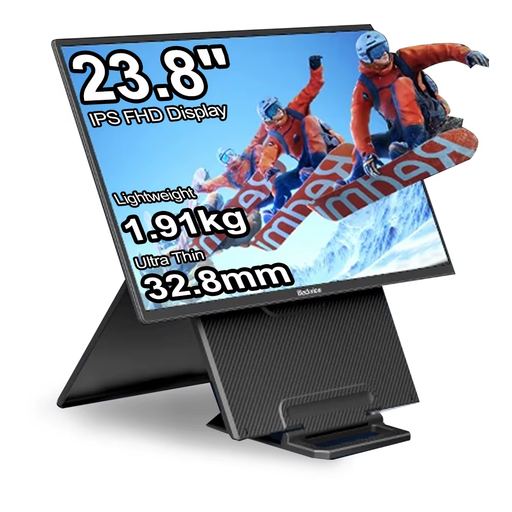 No image available
For planning and reviewing digital images in a limited workspace; the product description lists IPS and 100% sRGB.
23.8 inches; 1920 × 1200 pixels; IPS; 100% sRGB.
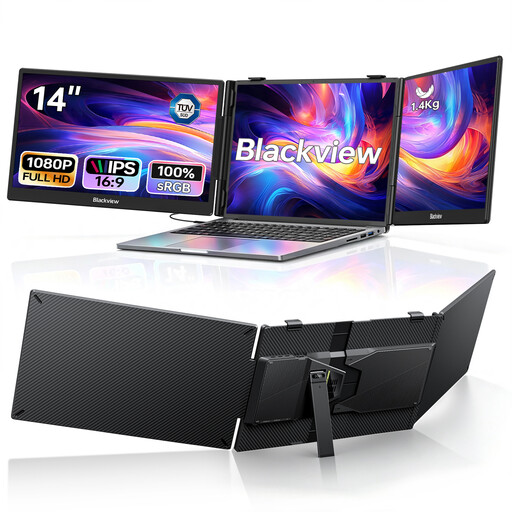 No image available
The two screens are an option if you want to keep shot lists, communications and references visible at the same time.
Two 1080p IPS screens; USB-C; 100 W PD passthrough; foldable; specified for laptops from 13 to 17.3 inches.
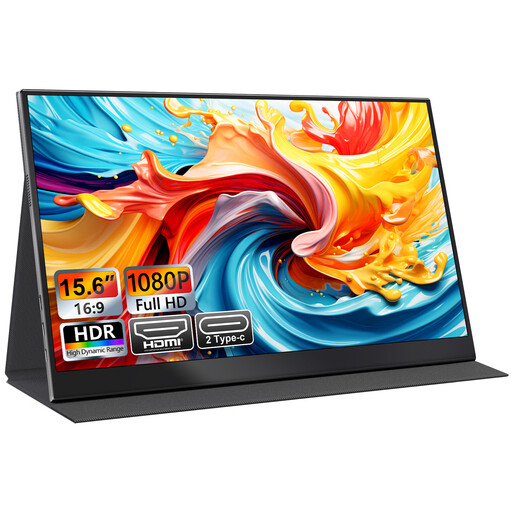 No image available
Described as an extra screen for a laptop, MacBook or mini PC; check that the connections are compatible with your device.
15.6 inches; Full HD 1080p; IPS; USB-C and HDMI; smart-cover stand; VESA-mountable.
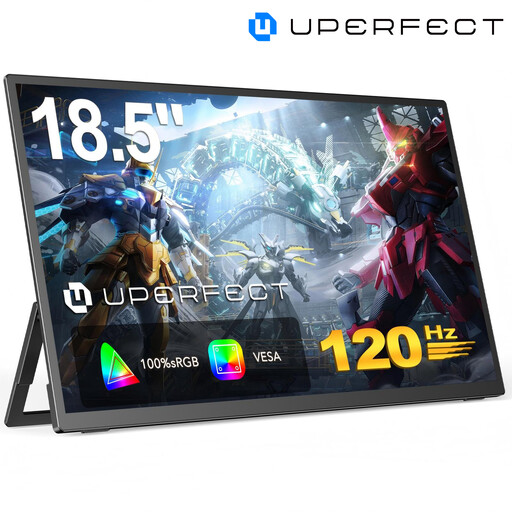 No image available
A portable option for extra planning content; check in advance that you can use the connections and set it up as intended.
18.5 inches; 1920 × 1080 pixels; matte IPS panel; USB-C; Mini-HDMI; VESA-compatible.
 No image available
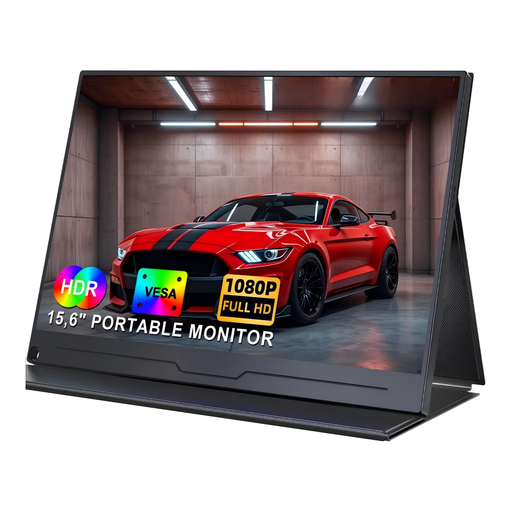
Described as an extra screen for a laptop, PC or phone; VESA compatibility may be useful if you want flexible mounting options.
15.6 inches; 1920 × 1080 pixels; IPS; USB-C; VESA-mountable.
No, planning alone doesn’t call for one. Colour space and colour management become relevant when you’re assessing images for a specific output; for demanding print preparation, a wide colour gamut on its own isn’t enough.
Only if both the monitor and laptop support the video connection you need, and the power delivery is sufficient for your laptop. ASUS lists USB-C with 96 W Power Delivery for the PA279CRV; that doesn’t guarantee compatibility with every laptop.
You’ll need suitable monitor settings, calibration or profiling, and profiles for the rest of the output workflow. EIZO distinguishes between adjusting a device and creating its profile.
Check the energy label for the specific monitor; the European Commission rates electronic displays such as computer monitors on an efficiency scale from A to G. If you want to calibrate the monitor yourself, also check what measuring hardware your intended workflow requires.