A wireless repeater is a good option if you can find a spot between your router and home office where it still gets a decent connection to the router; FRITZ! and Telekom both highlight the importance of placement. If the wireless signal is too weak through the walls, an access point connected via Ethernet may be a better choice. Powerline is another option if you can test the connection using the sockets you plan to use. None of these network connections replaces a backup plan with a tested recovery process, as described by the German Federal Office for Information Security.
Which solution is right for you?
A home office behind thick walls
If you’re considering a wireless repeater, first check whether there’s a spot between your router and workspace with a decent signal. Telekom recommends moving the repeater closer to the router if the connection is weak. A quoted maximum data rate doesn’t tell you how fast backups will be at your desk.
Regular document backups
For regular backups, test the network connection at your actual workspace and check that you can restore the files you’ve backed up. The German Federal Office for Information Security treats creating and restoring backups as parts of a data backup plan.
Extending an existing router system
If you want to connect an additional device to your router, check the requirements for the specific mesh feature. FRITZ! explains how to extend a FRITZ! mesh network, while TP-Link states that EasyMesh requires an EasyMesh-compatible router.
What should you look for when buying?
Wireless Wi-Fi repeater
A good choice if: you can find a spot with a decent connection to the router and don’t want to run an Ethernet cable.
The trade-off: The repeater needs to receive a decent signal itself; a high quoted wireless data rate doesn’t show how well backups will perform at their destination.
Ethernet with an access point
A good choice if: you can run an Ethernet cable to your workspace and the wireless signal through the walls is unreliable.
The trade-off: Plan for the cable, the Ethernet connection you’ll need, and either access point or Ethernet bridge mode.
Powerline
A good choice if: there’s no suitable spot for a repeater and running an Ethernet cable isn’t practical, and you can test the sockets at your destination.
The trade-off: Electrical devices and the specific wiring can affect data transmission; devolo also describes possible interference in certain VDSL setups.
| Buying priority |
What to check |
Who should pay particular attention? |
| A decent wireless connection |
Check possible locations between the router and home office, along with the connection indicator; then test the backup process at its destination. |
If I want to work through the walls without a cable, I need a spot where the repeater still gets a decent connection to the router. Customers who prioritise wireless coverage are likely to account for around 36% of those interested. |
| Reliable backups |
Back up to the intended storage destination and test a restore; with powerline, use the sockets you plan to use. |
If regular document backups need to work as part of my working day, I also want to know that I can restore my files. Customers whose main priority is backup reliability are likely to account for around 29% of those interested. |
| Router compatibility |
Check your router model against the mesh feature you want, and confirm the requirements for that specific combination. |
If I want to extend my existing router system, I need to know whether it works with the mesh feature I want. Customers who prioritise router integration are likely to account for around 21% of those interested. |
| Secure operation |
Check the Wi-Fi encryption supported and the available updates; follow your organisation’s requirements for the backup destination. |
When I back up work documents, I want to check network security and recovery separately. Customers who put secure operation first are likely to account for around 14% of those interested. |
Common buying and usage mistakes
-
Placing the repeater in the dead zone
A repeater extends the wireless network it receives. If it’s placed behind a signal-blocking wall where it can’t get a decent connection to the router, it won’t solve the problem.
Check possible spots between the router and home office, and keep an eye on the connection indicator. If you can’t get a decent wireless connection there, consider Ethernet or a powerline connection you’ve tested.
-
Assuming general Wi-Fi compatibility means mesh compatibility
The requirements for mesh features may differ from those for general Wi-Fi extension. TP-Link says EasyMesh requires a compatible router, while FRITZ! and Telekom each describe compatible device combinations.
Make a note of your router model and check it against the requirements for the specific mesh feature you want before buying.
-
Treating powerline as an interference-free alternative to a cable
Data transmission over your mains wiring depends on the specific installation. devolo notes that electrical devices can affect performance, and that interference may occur with certain VDSL setups.
Test the sockets you plan to use with your backup process, and consider another connection if you run into problems.
Trying other sockets and troubleshooting can add time to the setup.
-
Assuming that a transferred file means your backup is verified
A working network connection doesn’t show whether you’ll be able to restore a backup when you need it.
Test the restore process separately, keep the firmware up to date and follow your organisation’s requirements for work documents.
Notable brands and product ranges
FRITZ!
The FRITZ!Repeater 1200 AX and 3000 AX are options for an existing FRITZ! mesh network. They differ in areas including wireless configuration and Ethernet connections.
- FRITZ! describes both models as extensions to the FRITZ! mesh network. The 1200 AX has one Gigabit LAN port, while the 3000 AX has two.
- The quoted wireless data rates don’t tell you what backup performance you can expect through your particular walls. Placement and connection requirements still matter.
TP-Link
The RE705X is a dual-band Wi-Fi 6 option with Gigabit Ethernet and an access point mode.
- TP-Link says it can extend Wi-Fi coverage with routers from different manufacturers.
- For EasyMesh, your router must also support EasyMesh. Quoted wireless data rates aren’t a measure of backup performance in your home.
devolo
devolo offers Wi-Fi repeaters and powerline devices as different ways to connect a workspace.
- The WiFi 6 Repeater 5400 datasheet lists two Gigabit Ethernet ports and an Ethernet access point mode.
- A repeater needs a suitable wireless connection to the router, while powerline performance depends on your electrical installation. The datasheet lists guest Wi-Fi for access point mode.
Telekom
Speed Home WLAN is a mesh option for compatible Telekom routers; the specific combination and setup depend on your Speedport model.
- Telekom lists Wi-Fi and Ethernet as connection options.
- For app setup with Speedport 7 or later, Telekom describes some additional requirements. These don’t apply universally to every router or operating mode.
Joybuy products for wireless and Ethernet connections
The Joybuy products below include wireless repeaters and devices for a wired access point. The best connection for your home office depends on whether you can find a suitable spot for a repeater or run an Ethernet cable.
 No image available
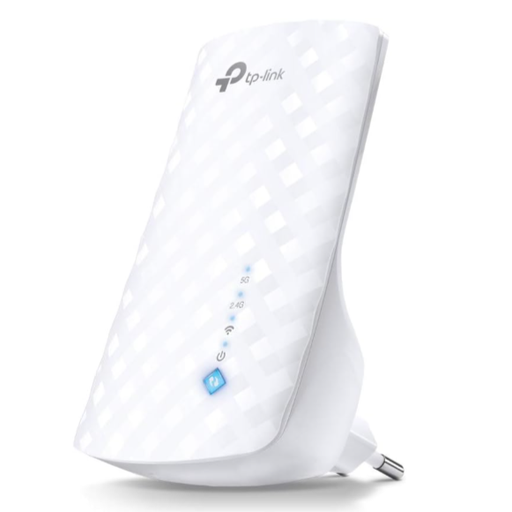
TP-Link RE190 AC750 Wireless Repeater, 433 Mbps
Could be worth considering for wireless extension if you can place the repeater somewhere it can receive a signal from your router.
The product name lists AC750 and 433 Mbps; the description mentions a signal strength indicator to help you choose where to place it. These figures don’t guarantee backup speeds.
View at Joybuy
 No image available
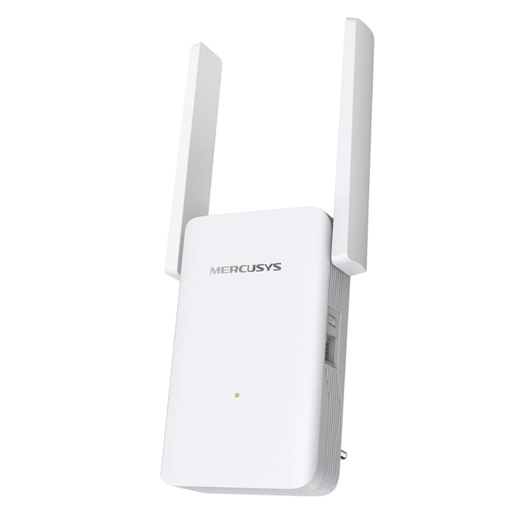
MERCUSYS ME80X Wi-Fi 6 Range Extender
AP mode could be useful if you can run an Ethernet cable to your workspace. Check that this connection option suits your router and setup.
The product title lists dual-band, AX3000, 574 Mbps at 2.4 GHz, 2402 Mbps at 5 GHz, a Gigabit port and AP mode. The description also mentions a signal strength indicator. The wireless data rates aren’t backup speeds.
View at Joybuy
 No image available
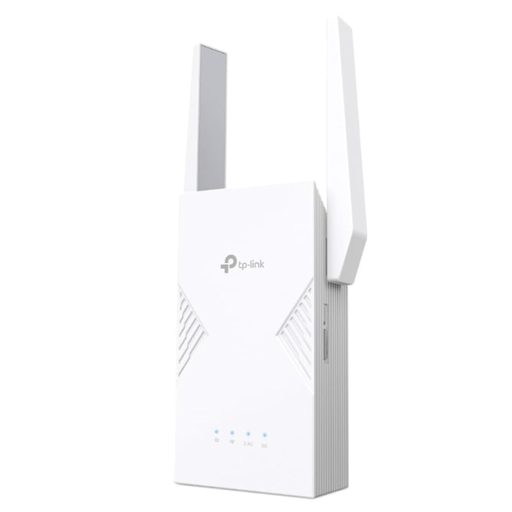
TP-Link RE235BE BE3600 Dual-Band Wi-Fi 7 Range Extender
This model could work as a wireless range extender if it can still connect to your router from the spot where you plan to place it.
The product title lists a 2.5 Gigabit port, MLO, Smart Roaming and EasyMesh compatibility. Check your router’s requirements for the mesh feature you want; the listed wireless features don’t guarantee specific backup performance.
View at Joybuy
 No image available
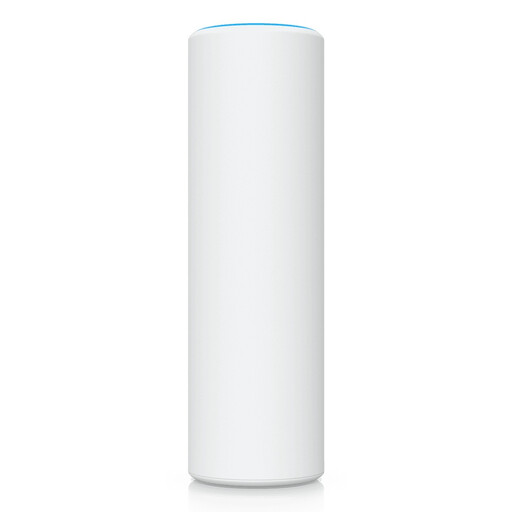
Ubiquiti U7 Mesh
An access point with an Ethernet uplink could be a good fit if you can run an Ethernet cable to your workspace.
The description lists Wi-Fi 7, a 2.5 Gigabit Ethernet port and PoE. It says you’ll need a compatible PoE injector or a PoE-enabled network switch to use it.
View at Joybuy
 No image available
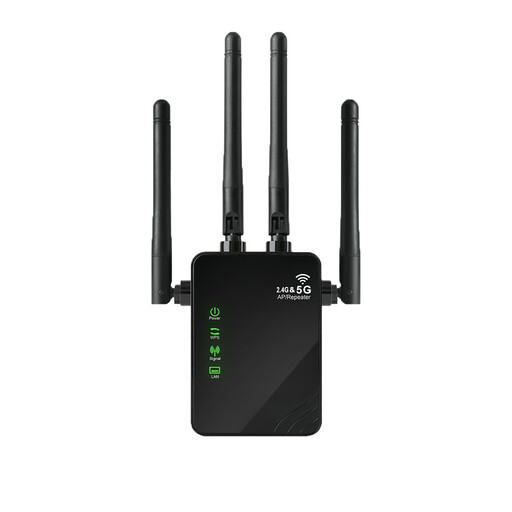
Wi-Fi Repeater, 1200 Mbit/s, 5 GHz
The description lists repeater and access point modes; before buying, check that the connection option you want suits your setup.
It lists two RJ45 ports, each with 10/100 Mbit/s, rather than Gigabit ports, as well as WPA/WPA2-PSK. The description also mentions a plug-and-play setup.
View at Joybuy
Frequently asked questions
Where should you place a wireless repeater?
Place it somewhere it can still connect reliably to the router, rather than where the Wi-Fi signal has already dropped out. Telekom’s guide explains the indicators for a weak or missing connection to the router; then test the backup process at your workspace.
Does a high Wi-Fi data rate guarantee fast backups?
No. Quoted wireless data rates don’t guarantee backup speeds. These also depend on the connection between the router and additional device, the walls and the actual backup process to your chosen storage destination.
What else do you need for a reliable backup?
A backup needs a suitable storage destination and a tested restore process. The German Federal Office for Information Security specifically treats creating and restoring backups as parts of a data backup plan. If you’re backing up work documents, you should also follow your organisation’s requirements.
What should you check for mesh compatibility?
Check your router model against the requirements for the specific mesh feature. TP-Link says EasyMesh requires a router that also supports EasyMesh; general Wi-Fi compatibility doesn’t automatically mean that this mesh feature is available.


