A Wi-Fi repeater is only suitable if it still has a reliable connection to your router at the planned location; being close to the computer you’re backing up isn’t enough. For regular, larger backups, a LAN bridge makes sense if you can run an Ethernet cable. If you can’t, Powerline may be worth trying, although results depend on your home’s electrical wiring. For cloud backups, your internet connection’s upload speed matters too, and better Wi-Fi is no substitute for a backup you can verify.
Which connection option is right for you?
Backup workstation behind thick walls
If you regularly back up work documents in a room with a weak router signal, first check the connection between the router and the planned repeater location. TP-Link recommends placing the repeater within range of the router.
Home with the option to run an Ethernet cable
If you can run a cable to your workspace, you can avoid relying on a wireless backhaul. FRITZ! documents how to connect the Repeater 2700 to a FRITZ!Box home network via LAN.
Workspace with no cable route
If running a cable isn’t an option and the wireless connection through the walls is weak, you can try a suitable repeater location or a Powerline kit using the intended sockets. devolo recommends plugging Powerline adapters directly into wall sockets.
What should you look for when buying?
Wi-Fi repeater
A good fit if: There’s a spot between the router and your study where the router signal is strong enough.
Trade-off: An extra wireless hop can reduce throughput. TP-Link notes that additional wireless hops may affect speeds.
LAN bridge or access point
A good fit if: You can run an Ethernet cable close to your workspace and want to avoid a wireless backhaul for regular backups.
Trade-off: You’ll need a suitable cable route and compatible ports. Mesh features depend on the specific devices and their software.
Powerline
A good fit if: Running a cable isn’t practical, the wireless connection remains weak and you can test adapters in suitable sockets.
Trade-off: Electrical interference and socket locations can affect the connection. Advertised speeds aren’t guaranteed for your home’s wiring.
Multiple coordinated access points
A good fit if: You want to cover several rooms and your router and additional access points work together to support the mesh features you need.
Trade-off: The term ‘mesh’ doesn’t guarantee compatibility or a sufficiently fast connection between devices.
The percentages below show the main consumer priorities for this backup scenario. The practical checks are based, among other things, on recommendations from TP-Link, FRITZ!, devolo and the German Federal Office for Information Security (BSI).
| Priority |
What to check before buying |
Who is this particularly important to? |
| Reliable connection through thick walls |
Check the router signal at the planned repeater location. If the wireless backhaul is weak, consider a LAN bridge or Powerline. |
If the signal in my study is weak, I want to know whether the repeater itself can still reach the router. For around 36% of consumers, a reliable connection through thick walls is the main priority. |
| Usable backup throughput |
Decide whether you’re backing up to a local destination or the cloud, then compare the transfer speed you actually get at your workspace. For cloud backups, your internet upload speed matters too. |
For regular, larger backups, I want to know what speed reaches my work computer. Around 29% of consumers prioritise usable backup throughput. |
| Secure, compatible setup |
Check that both devices support mesh, install updates and choose a suitable WPA2 or WPA3 configuration. The BSI explains Wi-Fi security considerations. |
When connecting work devices to an extended Wi-Fi network, I want to check router compatibility and security. Around 21% of consumers pay particular attention to a secure, compatible setup. |
| Setup effort and equipment needed |
Check the cable route, sockets, number of adapters and ports on the specific model. devolo recommends plugging Powerline adapters directly into wall sockets. |
Before buying, I want to know whether I can run a cable and how many devices I’ll need. Around 14% of consumers place particular importance on setup effort and the equipment required. |
Which buying pitfalls should you avoid?
-
Plugging in the repeater beyond the thickest wall
The repeater needs a strong enough connection to the router itself. A good signal at the computer you’re backing up tells you nothing about that backhaul.
Test the planned location before deciding to rely on Wi-Fi alone.
You may need to try a different location or use an additional connection method.
-
Assuming advertised speeds equal backup throughput
Extra wireless hops, building materials and electrical interference can all affect the transfer speed you actually get.
Compare transfer speeds at your workspace and distinguish between local and cloud backups.
-
Assuming ‘mesh’ or data backup from the product name alone
Mesh requires compatible devices, and a network connection doesn’t prove that backed-up files can be restored. The BSI includes recovery as part of a complete backup plan.
Check compatibility with your router and test a restore separately from the repeater.
Useful brands to consider
FRITZ!
Worth considering if you want to explore a LAN bridge in a FRITZ!Box home network.
- FRITZ! documents how to connect the Repeater 2700 to a FRITZ!Box home network via LAN.
- This doesn’t guarantee a particular transfer speed through a wall or the same mesh features with every other router.
TP-Link
The range includes Wi-Fi repeaters and Powerline kits, offering different ways to connect.
- TP-Link explains why repeater placement matters and notes that additional wireless hops may affect speeds.
- The advertised Powerline speed for the TL-WPA1000 KIT isn’t a measured speed for any particular home.
devolo
Powerline may be an option if thick walls make Wi-Fi difficult and you don’t want to run an Ethernet cable.
- devolo recommends plugging Powerline adapters directly into a wall socket.
- Nearby electrical devices can cause interference. Whether the connection is fast enough for backups depends on your home’s wiring.
ASUS
The RP-AX50 is an example of a repeater with access point mode and a Gigabit LAN port.
- The German datasheet lists repeater and access point modes, as well as WPA2/WPA3-Personal, for this model.
- ASUS notes that throughput and coverage depend on factors including building materials. These details apply to the model named here.
Joybuy products for backing up through thick walls
This selection includes Wi-Fi repeaters and mesh devices for studies with weak reception, as well as a Powerline kit for a wired connection to your destination device. Before buying, check that the connection option suits your router, cable route and backup computer.
 No image available
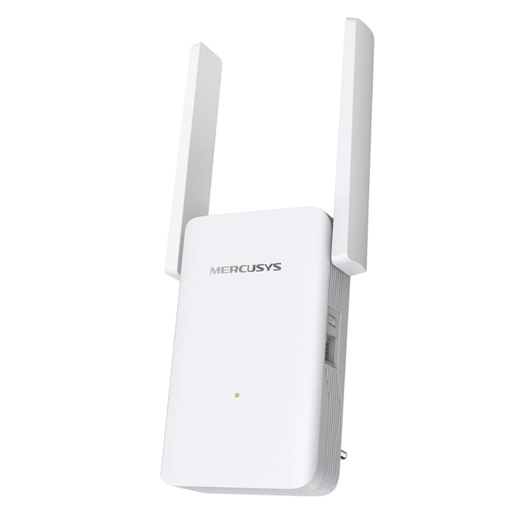
MERCUSYS ME80X Wi-Fi 6 Range Extender, AX3000 Dual Band
For wireless use in a location where the repeater can still get a strong enough signal from the router.
Dual-band: 574 Mbps at 2.4 GHz and 2402 Mbps at 5 GHz; Gigabit port, access point mode and signal strength indicator.
View at Joybuy
 No image available
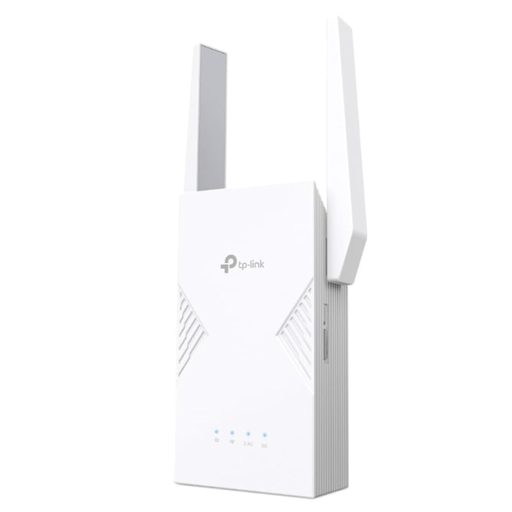
TP-Link RE235BE BE3600 Dual-Band Wi-Fi 7 Range Extender
For extending your Wi-Fi network. An Ethernet port also allows a wired connection at your workspace.
Features a 2.5G Multi-Gigabit port, MLO, Smart Roaming and EasyMesh compatibility. EasyMesh features require a compatible EasyMesh router or repeater.
View at Joybuy
 No image available
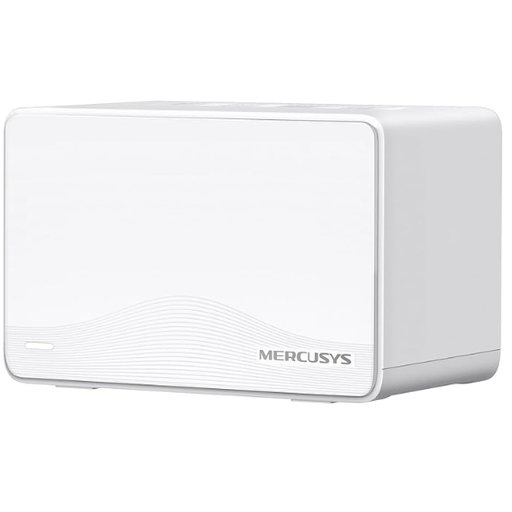
MERCUSYS Halo H25BE Mesh Wi-Fi Set (2-Pack), Wi-Fi 7 BE3600
For multiple coordinated access points, if a mesh setup suits your existing devices and workspace.
Three Gigabit ports per unit and WPA3. The product description says the units connect over the mains; the second unit should be placed within range of the first.
View at Joybuy
 No image available
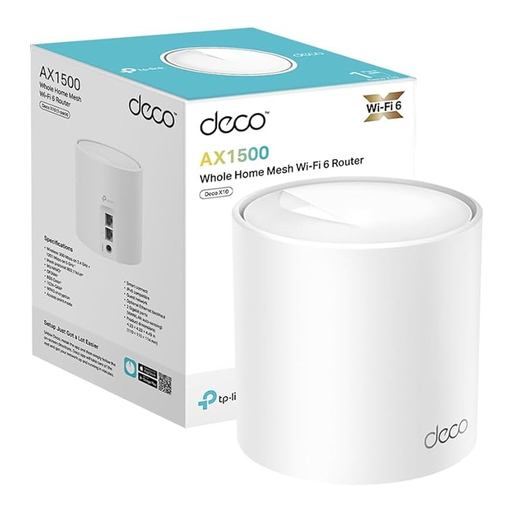
TP-Link Deco X10 Mesh Wi-Fi Set (1 Pack), Wi-Fi 6 AX1500
Described as an additional unit for an existing TP-Link Deco mesh system. Check that you already use a compatible Deco network.
Two Gigabit Ethernet ports and WPA3.
View at Joybuy
 No image available
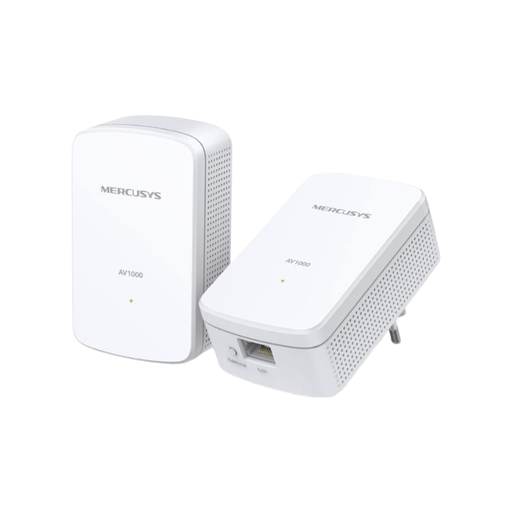
MERCUSYS Powerline Adapter MP500 Kit, 1000 Mbps HomePlug AV2
For a wired backup computer if there’s no suitable wireless backhaul and you have two suitable sockets.
The kit connects your router and destination device over your home’s electrical wiring and includes a Gigabit Ethernet port. According to the product description, it doesn’t provide Wi-Fi, so the destination device must be connected via Ethernet. Plug the adapters directly into wall sockets, not extension leads.
View at Joybuy
Frequently asked questions
Where should you place a Wi-Fi repeater?
Choose a spot between the router and the Wi-Fi dead zone where the repeater can still get a strong signal from the router. TP-Link recommends placing it within the router’s range. A socket right next to your backup computer isn’t automatically the best choice.
Does a repeater turn file syncing into a backup?
No. A repeater extends your network connection but doesn’t back up your data automatically. The BSI includes recovery as part of a backup plan, so check which files are being backed up and whether you can restore them.
What should you check after setting up Powerline?
Test the connection using the wall sockets you plan to use, and look out for possible sources of interference such as power supplies or dimmer switches. devolo recommends plugging adapters directly into wall sockets rather than extension leads. If the connection is poor, it may be worth trying a different socket.
What costs and service terms should you check before buying?
Check whether you need just a repeater, an additional cable or a pair of Powerline adapters. For a private consumer purchase in Germany, statutory warranty rights and a voluntary manufacturer’s guarantee are different things, as explained by the Verbraucherzentrale.
Can you use a Wi-Fi repeater without an individual frequency allocation?
According to the German Federal Network Agency, Wi-Fi devices operating on generally allocated frequencies don’t need an individual application or formal authorisation. This doesn’t confirm that a particular device meets the relevant product requirements; check the labelling and required accompanying documents for the device on offer.


