What should you look for when buying?
First, check the network route between the workstation and the backup destination. You can then decide whether existing Ethernet cables can be used for mesh nodes or access points, or whether a wireless connection is needed.
| What matters |
What to check before buying |
Who should pay particular attention? |
| Wi-Fi on every floor |
Check the connection at the actual workstation and at the planned locations for the nodes; consider whether they can be connected via Ethernet. |
If I’m backing up files at remote workstations, the connection needs to reach them. Around 28% of consumers say coverage across floors is their main concern. |
| A stable transfer route |
Check whether the workstation, backup destination and nodes can be connected via Ethernet; check the ports available on the specific model. |
Anyone who regularly backs up documents across multiple floors will want to plan a reliable route to the backup destination. Around 22% of consumers prioritise stable data transfer. |
| Backups you can restore |
Choose a backup destination and routine separately from the router, and schedule a test restore. |
If important documents need to be available again after they’re lost, simply connecting a storage device isn’t enough. Around 22% of consumers put the ability to restore files first. |
| Protecting work documents |
Check for available security updates, Wi-Fi encryption and access to the administration interface. If you handle personal data, consider the entire backup process too. |
Anyone managing work documents on a network will want to limit unauthorised access and keep devices up to date. Around 17% of consumers prioritise network and data protection. |
| Compatibility with your existing network |
Check your connection type and existing devices; confirm whether the specific model is designed to work as a router, mesh extension or access point. |
If I want to keep my existing connection and router, any additions need to integrate properly. Around 11% of consumers prioritise compatibility with their existing network. |
Joybuy products for Wi-Fi across multiple floors
These products include mesh systems for Wi-Fi across multiple locations and access points for wired coverage. With mesh kits, check the connection between the units; with access points, make sure you have compatible Ethernet and PoE+ power.
 No image available
TP-Link Deco BE22 (2-pack), Wi-Fi 7 mesh system
This set of two mesh units is worth considering if you want to provide Wi-Fi to several workstations.
Each unit has two Gigabit WAN/LAN ports, and router and access point modes are available.
Joybuy
 No image available
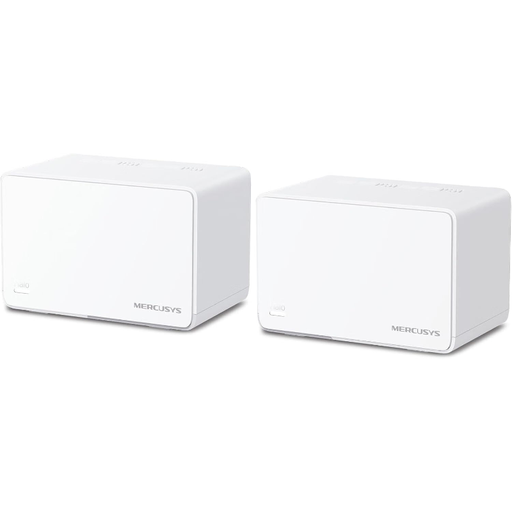
MERCUSYS Halo H3000X (2-pack), Wi-Fi 6 mesh system
This two-unit mesh kit is an option for workstations in separate areas if you want to set up a shared Wi-Fi network.
The product specifications list three Gigabit ports per unit and WPA3.
Joybuy
 No image available
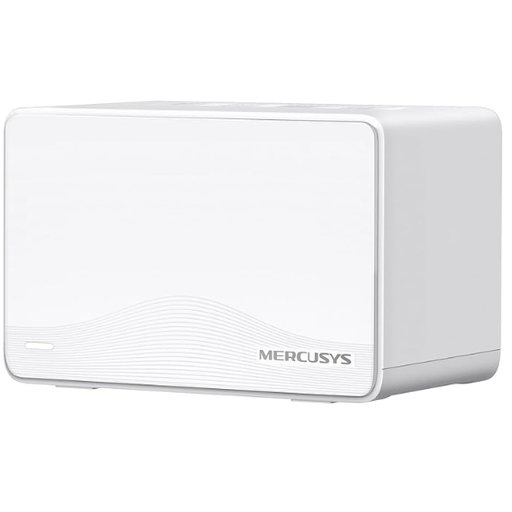
MERCUSYS Halo H25BE (2-pack), Wi-Fi 7 mesh system
This two-unit mesh kit is an option for providing Wi-Fi to several workstations. For use across multiple floors, the connection between the units matters too.
The specifications list Wi-Fi 7 BE3600, three Gigabit ports per unit and WPA3.
Joybuy
 No image available
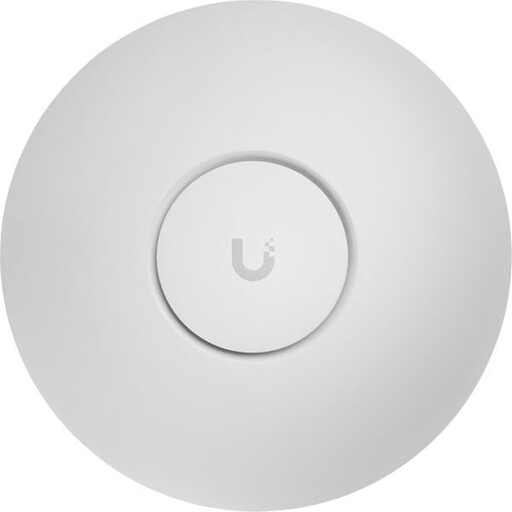
Ubiquiti UniFi U7 Pro XG, Wi-Fi 7 access point
This standalone access point is worth considering if Ethernet is available at the installation location and you’re planning wired Wi-Fi coverage.
Specifications include tri-band, 10GbE and PoE+. You may need additional access points for multiple floors. Plan for a compatible PoE+ switch or PoE+ injector, which the product information says is not included.
Joybuy
 No image available
Ubiquiti UniFi U7 Pro, Wi-Fi 7 access point
This standalone access point is an option if you’re planning wired coverage at the installation location.
The product specifications list tri-band, 2.5GbE and PoE+. You may need additional devices for multiple floors; plan for a compatible PoE+ supply via a switch or injector.
Joybuy
Frequently asked questions
Is a particularly fast router enough for backups across multiple floors?
Not necessarily. The BSI points out that Wi-Fi coverage can be problematic in multi-storey buildings, and that LAN connections are more stable. Check the actual network route to each workstation and the backup destination rather than relying on the advertised wireless speed alone.
Where should I place additional mesh nodes?
Position them to provide coverage to the workstations concerned, and check the connection between the nodes too. If you have Ethernet cabling, models with wired backhaul may be suitable. With a wireless connection only, ceilings and walls can still interfere with the signal.
Does connecting USB storage to my router give me a complete backup?
No. A storage connection is no substitute for a defined backup routine or a tested recovery process. Choose a separate backup destination and check that you can restore important documents.
What additional equipment and work should I plan for?
Depending on the network route, you may need Ethernet cabling, PoE+ power or a separate backup destination. Also check what’s included, how many nodes you’ll need, and the update and warranty terms for the specific version.
Does German data protection law require a particular Wi-Fi router for work documents?
No. The official guidance consulted doesn’t set a blanket requirement to use a particular router brand or Wi-Fi standard. When personal data is processed, controllers and processors must take appropriate technical and organisational measures to ensure an appropriate level of security under Article 32 of the GDPR. This applies to the way data is handled as a whole, not just to the router. The Federal Commissioner for Data Protection and Freedom of Information explains these requirements.


