What should you look for when buying?
First, check whether the router provides a stable signal at a potential location for the extender. Then decide between a wireless connection and a wired access point, and check that the mesh features are compatible with your existing router model.
| Buying consideration |
What to look for |
Who it matters most to |
| Streaming in a distant room |
Check reception at a potential midway point and by the TV. Netflix recommends 5 Mbit/s for Full HD and 15 Mbit/s for 4K UHD; these guidelines apply to Netflix. |
If I want to watch a documentary in a room further away, reception by the TV matters most to me. Around 29% of consumers put streaming reception first. |
| Reliable video calls |
Check upload and download speeds on the video-call device while streaming. Zoom recommends around 2,6 Mbit/s upload and 1,8 Mbit/s download for a 720p group call; requirements vary by service and quality. |
I want my call to remain reliable while streaming, so I pay particular attention to upload speed. Around 29% of consumers prioritise reliable video calls. |
| Connection between the router and extender |
Check where the power sockets are and whether there are obstacles in the way. If there’s no location with a stable router signal, check whether access point mode and a wired connection are possible. |
If the wireless link to the area I want to reach is unreliable, I’d also consider using a cable. Around 24% of consumers focus on the connection to the extender. |
| Router compatibility and set-up |
Check that your router model and supported mesh standard are compatible with the specific extender. Also make sure the extender or access point mode you plan to use is suitable for your set-up. |
If I want to keep using my existing router system, I first check which features work together. Around 18% of consumers prioritise router compatibility. |
Joybuy products for extending your Wi-Fi
This selection includes Wi-Fi boosters and repeaters for extending an existing Wi-Fi network. For streaming and making calls at the same time, the key thing is whether the connection to the router is stable at the intended location.
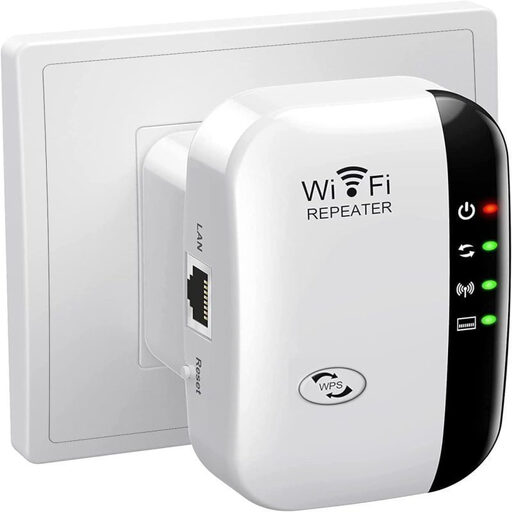 Image unavailable
Compact Wi-Fi booster
Could be suitable for extending an existing Wi-Fi network; first check the connection at the midway point and by the TV.
View at Joybuy
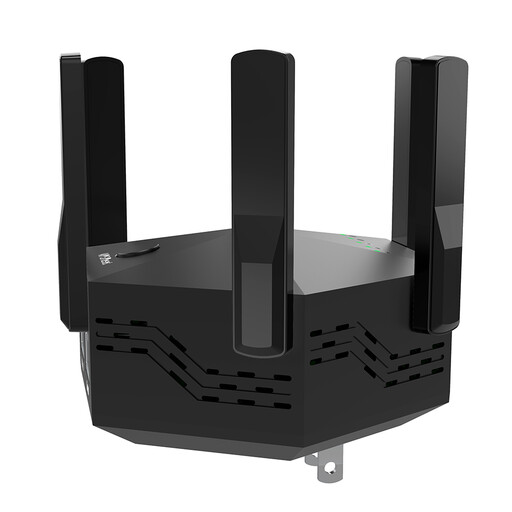 Image unavailable
Dual-band Wi-Fi booster 1200 Mbps with 6 adjustable antennas
Could be suitable for extending an existing Wi-Fi network; test the router signal at the planned location.
Dual-band; advertised Wi-Fi data rate of 1200 Mbps; 6 adjustable external antennas; EU plug.
View at Joybuy
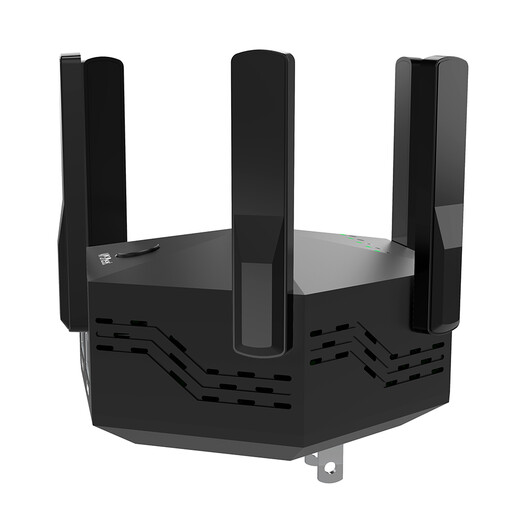 Image unavailable
Dual-band signal booster 1200 Mbps with 6 adjustable antennas
Could be suitable for extending an existing Wi-Fi network; check whether there’s still a stable connection to the router at the midway point.
Dual-band; advertised Wi-Fi data rate of 1200 Mbps; 6 adjustable antennas; specified for indoor use.
View at Joybuy
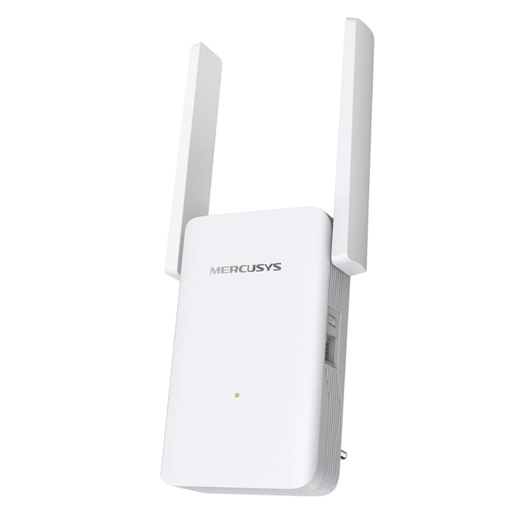 Image unavailable
MERCUSYS ME80X Wi-Fi 6 Range Extender AX3000
Could be suitable for extending Wi-Fi or, with a possible wired connection, for use as an access point. Check whether you can run a cable to the router.
Dual-band: 574 Mbps at 2,4 GHz and 2402 Mbps at 5 GHz; Gigabit port; signal strength indicator; app control; access point mode.
View at Joybuy
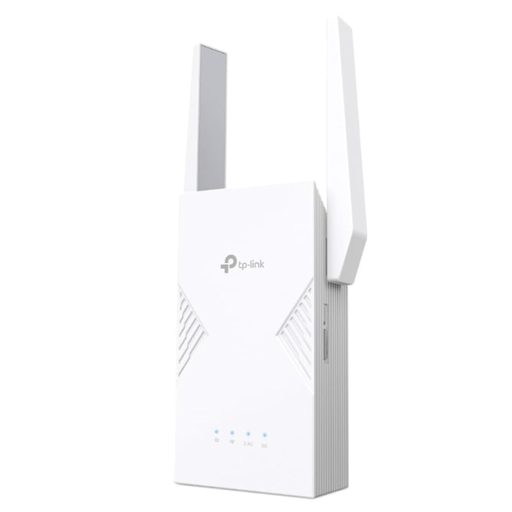 Image unavailable
TP-Link RE235BE BE3600 Dual-Band Wi-Fi 7 Range Extender
Could be suitable for extending an existing Wi-Fi network; the manufacturer recommends placing it within the router’s range. Check compatibility before choosing it.
Dual-band; 2,5-Gigabit Ethernet port; MLO; Smart Roaming; EasyMesh compatible.
View at Joybuy
Frequently asked questions
Can an extender guarantee 4K streaming and video calls at the same time?
No, an extender can’t guarantee that. Netflix recommends at least 15 Mbit/s for 4K UHD; Zoom recommends around 2,6 Mbit/s upload and 1,8 Mbit/s download for a 720p group call. These guidelines vary by service and quality, and don’t guarantee the performance of your entire network. Check how your devices perform when they’re in use at the same time.
Where should I place a wirelessly connected extender?
Choose a midway point where the extender still gets a good signal from the router and can reach your devices, rather than placing it deep in a Wi-Fi dead spot. A signal indicator and a test during your usual simultaneous use can help you find the right spot.
What should I bear in mind when setting it up and using it?
Choose the extender or access point mode that suits your router, and keep an eye out for available firmware updates. Telekom notes that missed updates for its Speed Home devices can lead to malfunctions and security vulnerabilities.
What should I consider when installing and maintaining it?
Check whether an access point will need a LAN cable running to its intended location, and whether you can install one. Also compare the update requirements for the specific device and your existing router.
What should I check when buying a Wi-Fi extender for use in Germany?
The Bundesnetzagentur lists the CE marking, product identification and required accompanying documents, including German-language instructions and safety information, among the things it checks when monitoring the market. The CE marking is a declaration made by the manufacturer, not an independent product test.


