A wireless Wi-Fi extender is suitable for lessons on another floor only if it still has a good connection to the router where it is placed. If the signal is too weak through the floors and you have an Ethernet cable available, a device with Access Point or LAN bridge mode may be a better fit. For video calls, your internet connection and the requirements of the video-conferencing software you use also matter – not just the advertised Wi-Fi data rate.
Which Wi-Fi extender is right for you?
For learners with a Wi-Fi dead zone
If you attend lessons on another floor, a wireless extender needs to be placed somewhere it can still get a good signal from the router. TP-Link recommends finding a spot between the router and the area with poor coverage where the router’s signal is still strong.
For homes with an Ethernet cable
If an Ethernet cable reaches the floor you want to cover, you can connect an extender with Access Point mode there using a wired connection. According to devolo, Access Point mode requires an Ethernet cable to the router or a network socket.
For homes with multiple Wi-Fi zones
If you need to cover several areas, it’s worth checking where to place additional access points and how they work with your existing router. Mesh features depend on the specific combination of supported devices.
What should you look for when buying?
| Priority |
What to check |
Who should particularly consider it |
| Wireless connection between floors |
Check possible intermediate socket locations and the signal strength where the extender will be placed. |
If I have lessons on another floor, the extender needs to be able to reach the router from where it’s placed. Around 36% of consumers put a reliable wireless connection first. |
| Wired connection |
Check the available cable route and make sure the device explicitly supports Access Point or LAN bridge mode. |
If there’s an Ethernet cable on the floor I want to cover, I’d like to avoid a weak wireless connection to the router. Around 29% of consumers prioritise a usable LAN connection. |
| Router and mesh compatibility |
Check the router model, mesh support and requirements for the specific operating mode. |
If I want to connect several Wi-Fi zones, the mesh feature I need must be compatible with my router. Around 21% of consumers prioritise compatibility with their router and other Wi-Fi zones. |
| Video lessons while other devices are online |
Check the requirements of the video-conferencing software you use and test the connection at your study area under typical conditions. |
If other devices at home are online during lessons, I’d like to test the connection in exactly those conditions. Around 14% of consumers prioritise video use alongside other online activity. |
Avoid common buying mistakes
-
Plugging the extender in only once you reach the dead zone
A wirelessly connected extender needs a reliable connection to the router itself. TP-Link recommends placing it somewhere in between where the router’s signal is still strong.
First, check possible locations between the router and your study area. If the wireless connection is still weak there, check whether an Ethernet cable reaches the floor you want to cover.
-
Assuming Wi-Fi compatibility means mesh compatibility
An extender can boost your Wi-Fi without offering the mesh features you want with every router. For example, TP-Link requires an EasyMesh-compatible router to use EasyMesh with the RE705X. Deutsche Telekom says that Speed Home WLAN can operate as an extender without mesh when used with a router that doesn’t support mesh.
Before buying, check your router model, extender model and the requirements of the operating mode you want to use.
-
Assuming the advertised Wi-Fi data rate guarantees good video quality
A nominal Wi-Fi data rate doesn’t tell you what connection will actually be available where you study, or what upload speed your internet connection provides.
Check the requirements of the video-conferencing software you use and test the connection with a practice call while your household is online as usual.
Key brands at a glance
FRITZ!
Extenders for boosting your Wi-Fi; with compatible devices, a wired connection is also possible.
- FRITZ! lists a Gigabit LAN port for the FRITZ!Repeater 1200 AX, and three Wi-Fi bands plus two Gigabit LAN ports for the FRITZ!Repeater 3000 AX.
- Mesh features depend on the router and device combination. The specifications listed don’t prove that a wireless connection can pass through several concrete floors.
TP-Link
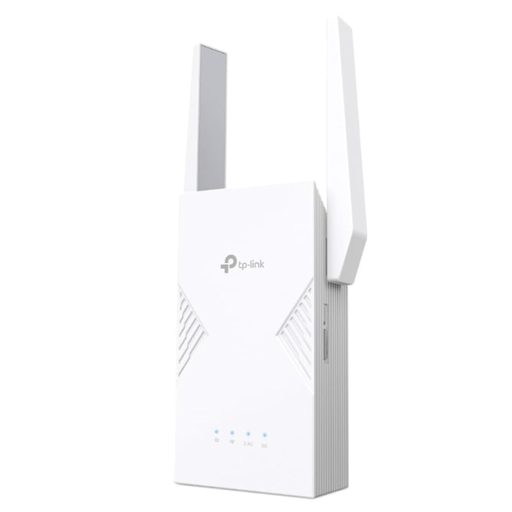
The RE705X is an example of a dual-band extender with Access Point mode and EasyMesh support.
- TP-Link lists a Gigabit Ethernet port and Access Point mode.
- EasyMesh features require an EasyMesh-compatible router; general extender compatibility doesn’t automatically mean mesh compatibility.
devolo
The WiFi 6 Repeater 5400 is an option if you’re considering a device that can be placed flexibly or an access point with a LAN connection.
- devolo lists a four-stage signal indicator to help you choose where to place the device.
- According to devolo, Access Point mode requires an Ethernet cable. The advertised maximum data rate isn’t a measurement of performance at your study area.
Telekom
Check whether Speed Home WLAN is right for you by looking at your specific router and the mesh features you need.
- Deutsche Telekom provides instructions for setting it up with WPS, including with a FRITZ!Box.
- According to Telekom, Speed Home WLAN can be set up as an extender without mesh when used with a router that doesn’t support mesh. Router settings apply to the WPS method described.
NETGEAR
The EAX15 is another option: a dual-band Wi-Fi 6 extender with an Ethernet port.
- NETGEAR lists a Gigabit Ethernet port and an advertised Wi-Fi data rate of up to 1.8 Gbit/s.
- These manufacturer specifications don’t confirm wireless performance across your specific floors or whether a particular socket is suitable.
Wi-Fi extenders and access points at Joybuy
This selection includes Wi-Fi extenders for wireless coverage, as well as the MERCUSYS ME80X, which has Access Point mode for use with an existing LAN connection.
 No image available
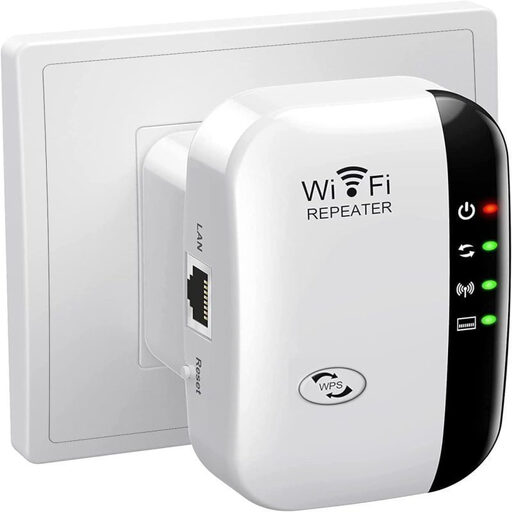
Compact Wi-Fi booster
For extending an existing Wi-Fi network to other rooms; the product description highlights its compact design and easy set-up.
View at Joybuy
 No image available
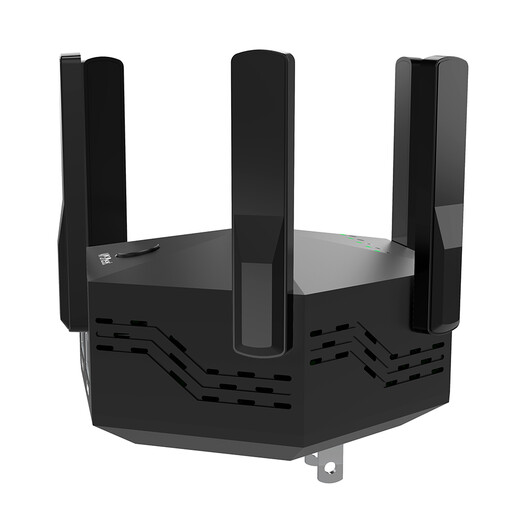
Dual-band Wi-Fi extender, up to 1200 Mbit/s, 6 adjustable antennas
For extending an existing Wi-Fi network wirelessly; the product description recommends connecting near the router when setting up with WPS.
Dual-band; up to 1200 Mbit/s; 6 adjustable antennas; black, EU plug.
View at Joybuy
 No image available
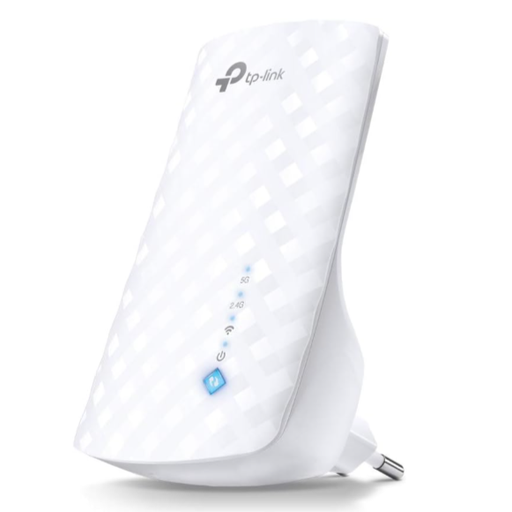
TP-Link RE190 AC750 Wi-Fi extender, 433 Mbps
For extending your Wi-Fi wirelessly when the router’s signal still reaches the extender’s location; according to the product description, the signal indicator helps you choose where to place it.
Dual-band; 433 Mbps; WPS set-up; signal indicator; white.
View at Joybuy
 No image available
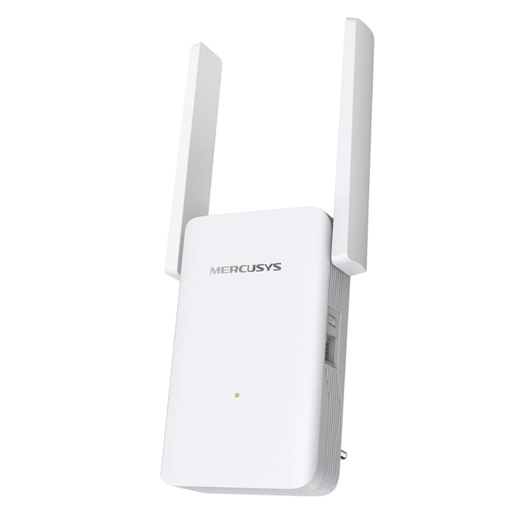
MERCUSYS ME80X Wi-Fi 6 Range Extender, AX3000 Dual Band
If you have a LAN connection on the floor you want to cover, Access Point mode may be suitable; according to the product description, this requires an Ethernet cable to the router.
Dual-band; 574 Mbit/s at 2,4 GHz and 2402 Mbit/s at 5 GHz; Gigabit port; signal indicator; app control.
View at Joybuy
 No image available
TP-Link RE235BE BE3600 Dual-Band Wi-Fi 7 Range Extender
For extending your Wi-Fi wirelessly when the router’s signal still reaches the chosen location. Before buying, check whether your router supports the EasyMesh features you need.
2.5 Gigabit multi-gigabit port; EasyMesh compatibility; WPS or app set-up.
View at Joybuy
Frequently asked questions
Where should I place an extender for lessons on another floor?
For a wireless connection, don’t put it straight in the dead zone. First, find a spot between the router and the area with poor coverage where the router’s signal is still good. Check the connection there, then check the signal at your study area. If the wireless connection is too weak, consider an access point connected via LAN.
Is a high advertised Wi-Fi speed enough for a video call?
No. The advertised wireless data rate doesn’t replace testing your actual connection and internet service. For group video in 720p through its web app, Zoom specifies 2,6 Mbit/s upload and 1,8 Mbit/s download; for other learning platforms, check their individual requirements.
Will any extender automatically work as a mesh device with my router?
No. Mesh features depend on the specific combination of devices. TP-Link requires an EasyMesh-compatible router to use EasyMesh with the RE705X; Deutsche Telekom says that Speed Home WLAN can operate as an extender without mesh when used with a router that doesn’t support mesh. Check your router model and the operating mode you want before buying.
What should I check if I have connection problems after set-up?
Check the connection indicator and make sure your device is connected to the intended access point. Deutsche Telekom also notes that failing to install firmware updates can cause malfunctions and security vulnerabilities.
What labelling and documentation should I check for a Wi-Fi extender?
New radio equipment placed on the market in Germany must meet the applicable EU requirements. As part of its market surveillance, the Federal Network Agency lists checks including CE marking, device identification, the required German-language instructions with usage and warning information, and a valid declaration of conformity. Check the labelling and documentation for the specific version of the device being offered.


