What should you look for when buying?
First, check whether you can find a good intermediate position for a wireless connection, or whether the link to the lesson room needs to run over Ethernet. Only then can you properly assess mesh compatibility and any additional features.
| What you need |
What to check before buying |
Who is this important for? |
| Stable wireless connection |
Check whether there is a location with a good connection to the router, and whether the signal reaches the study spot from there. |
If I need a reliable connection at my usual study spot, reception on both wireless links matters. Around 39% of consumers put Wi-Fi coverage first. |
| Ethernet connection |
Check whether there is a network socket or a practical way to run a cable to the room, and whether the device supports access point mode. |
If thick walls make a wireless connection to the room difficult, I want to use an existing network cable for the connection wherever possible. Around 31% of consumers prioritise a wired connection. |
| Mesh compatibility |
Check your router model against the mesh system explicitly supported by the extender and its setup requirements. |
If I want to manage my existing home network as one system, the mesh function needs to work with my router. Around 15% of consumers prioritise compatibility with their existing router. |
| Ports and features |
Check whether your lesson device and extender will connect over Wi-Fi or Ethernet, and which wireless bands your devices support. |
If I need particular ports or additional cabling, I want to compare the features before choosing a model. Around 15% of consumers focus on features and installation effort. |
Joybuy products for wireless and wired connections
The models below include wired access points, a mesh system and wireless range extenders. Check the CE mark and conformity documents for the specific product listing. A product listing alone doesn’t prove that an individual device is compliant.
 No image available
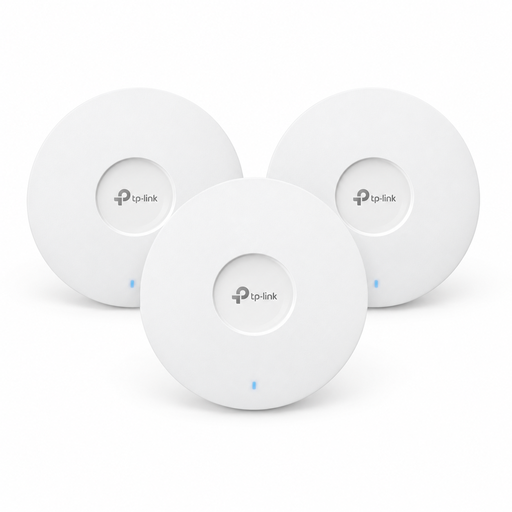
TP-Link Omada EAP653 Wi-Fi 6 access point, 3-pack
This access point set is an option for a lesson room with an Ethernet connection, if you plan to power it over PoE+.
Wi-Fi 6, AX3000, dual-band and PoE+; the 12 V DC adapter is sold separately, according to the product description.
View at Joybuy
 No image available
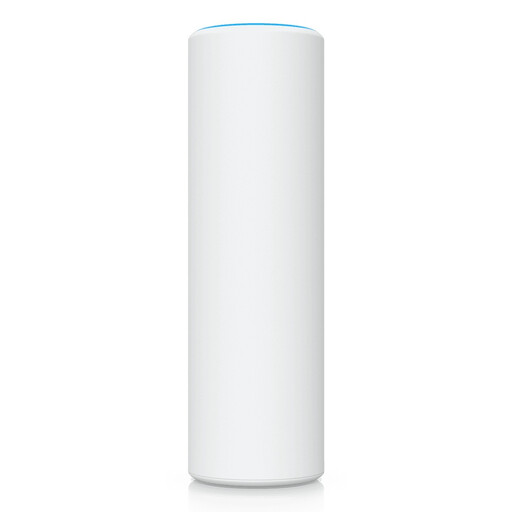
Ubiquiti U7 Mesh 5000 Mbit/s
This model is an option as an access point if there’s an Ethernet connection to the lesson room.
The product description lists 5000 Mbit/s and Power over Ethernet (PoE); you’ll need a compatible PoE power source.
View at Joybuy
 No image available
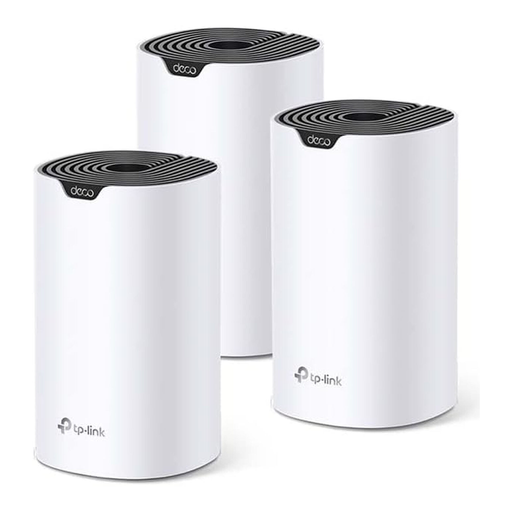
TP-Link Deco S4 AC1200 mesh Wi-Fi system, 3-pack
This three-unit mesh system is an alternative if you’re planning to use several devices across your home network rather than a single extender.
Dual-band Wi-Fi 5 with Gigabit Ethernet ports.
View at Joybuy
 No image available
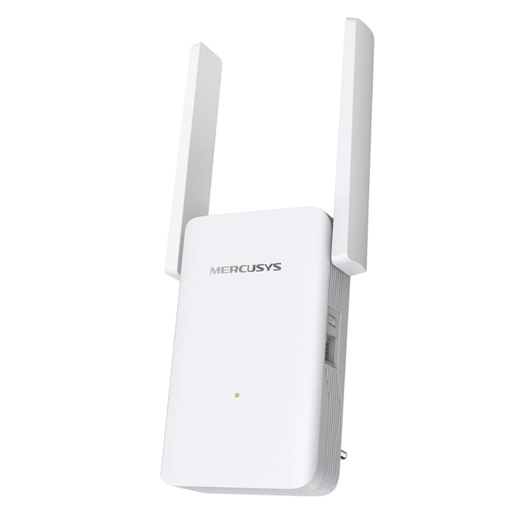
MERCUSYS ME80X Wi-Fi 6 AX3000 range extender
If an Ethernet connection is available at the destination, the ME80X can operate in access point mode, according to the product description. For wireless use, it needs a suitable location with good reception from the router.
Dual-band Wi-Fi 6, Gigabit LAN, signal strength indicator and access point mode.
View at Joybuy
 No image available
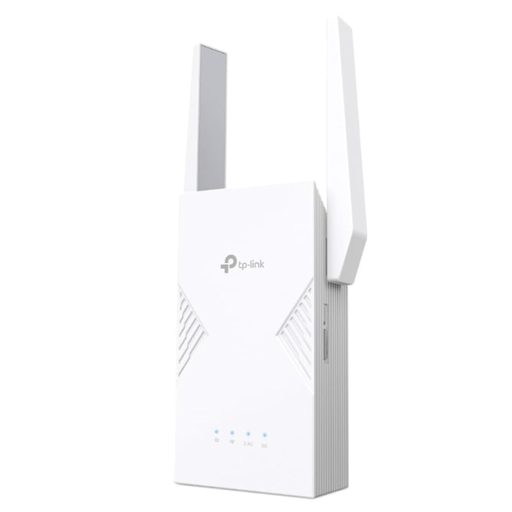
TP-Link RE235BE BE3600 dual-band Wi-Fi 7 range extender
This wireless range extender is worth considering if there’s a location within range of the router; the connection at your study spot will depend on where you place it.
Wi-Fi 7, EasyMesh compatibility and a 2.5 Gigabit Ethernet port. The router or mesh node must also be compatible to use mesh features.
View at Joybuy
Frequently asked questions
Where should I place an extender for lessons through thick walls?
Don’t place it where the router’s Wi-Fi signal is already very weak. For a wireless connection, choose a location that provides a good link both to the router and to your lesson device. A signal indicator or the relevant app can help you check.
Can I connect an extender over Ethernet instead of Wi-Fi?
Yes, if your chosen model supports access point mode and there’s an Ethernet connection to the router. The cable replaces the wireless link through the walls along the connection route; it needs to reach the installation location for this setup.
Will any device advertised as mesh work with my router?
No. The mesh function needs to be compatible with your existing router. For example, Telekom says Speed Home WLAN can be set up as a repeater without mesh with a router that doesn’t support mesh; FRITZ! lists additional mesh features when used with a FRITZ!Box.
What extra work should I expect when setting up a wired access point?
You’ll need a working Ethernet connection to the installation location. Check whether there’s already a network socket there or whether a cable can be run; the installation work will depend on the route.
Do I need an individual frequency allocation for a Wi-Fi extender at home?
The general allocations set out by the Federal Network Agency regulate the use of the Wi-Fi frequency bands specified; they don’t describe an individual frequency allocation for every private household. These include the general allocation for 2.4 GHz, Vfg. 128/2023, and the allocation for other wireless LAN bands, Vfg. 136/2022, as amended by Vfg. 49/2023. Devices and their use must comply with the applicable conditions; radio equipment must also meet the relevant conformity and marking requirements.


