Uploading photos from a Wi-Fi dead zone
If you want to upload photos from a room shielded by thick internal walls, an extender can extend your Wi-Fi to that room when placed somewhere that still gets a usable signal from the router.


A wireless extender can provide Wi-Fi in your upload room if you place it somewhere it can still get a reliable signal from your router. If the wall is blocking the wireless signal and there’s an Ethernet cable to the room, a wired access point or LAN bridge mode is the better option. Also check your actual internet upload speed and whether your router is compatible with mesh.
If you want to upload photos from a room shielded by thick internal walls, an extender can extend your Wi-Fi to that room when placed somewhere that still gets a usable signal from the router.
If there’s an Ethernet socket or cable near the place where you want to upload photos, look for an extender with the right access point or LAN bridge mode to get around the wall blocking the wireless signal.
If you want to add the upload room to an existing mesh network, check that the features you need are compatible with your specific router and extender. A WPS connection alone doesn’t confirm that a device supports mesh.
FRITZ! emphasises that both the connection between the router and extender and the connection to your device are important. If there’s an Ethernet cable to the place where you want to upload photos, a wired access point can get around the wall blocking the wireless signal, as devolo explains for this operating mode.
| What you need | What to check before buying | Who is this important to? |
|---|---|---|
| A usable wireless signal | Check possible locations between the router and the room, and the connection to the router. After set-up, test the signal where you want to upload photos, too. | If I want to upload photos from a room with a weak signal, I need a spot where the extender can still reach the router. Around 33% of consumers prioritise a usable wireless signal. |
| A wired connection | Check whether an Ethernet socket or cable is available and whether the specific device has an access point or LAN bridge mode. | If the wireless connection through the wall is unreliable, I want to connect the upload room via LAN if possible. Around 27% of consumers prioritise a wired connection. |
| Mesh compatibility with the router | Check the router model, extender model and mesh features you want to use. WPS alone doesn’t confirm mesh support. | If I want to extend my existing home network, the router and extender must both support the mesh mode I need. Around 20% of consumers prioritise compatibility with their router. |
| What’s slowing down uploads | Compare the connection by the router with the one where you want to upload photos, and check your internet connection’s actual data rate separately from your Wi-Fi. | If photos upload slowly despite a good Wi-Fi signal, I want to find out whether it’s the internet connection or the wireless signal that’s the problem. Around 20% of consumers prioritise finding the cause of slow uploads. |
The connection between the extender and router also needs to work. Placing the extender somewhere without a usable signal from the router won’t fix a weak wireless connection.
Try a spot where the router is still within range, then test the connection in the room where you want to upload photos. FRITZ! also highlights the importance of both connections.
Advertised Wi-Fi data rates don’t automatically tell you the speed of your internet connection or the strength of the wireless signal through your walls.
Check your internet connection, the extender’s connection and the connection to the device you’re uploading from separately. The Federal Network Agency’s broadband speed test lets you compare your actual connection speed with the speed agreed in your contract.
Setting up a Wi-Fi connection using WPS doesn’t automatically mean the extender uses your router’s mesh features. Telekom explains that Speed Home WLAN works as an extender without mesh when connected to a router that doesn’t support mesh.
Before buying, check that your specific router and extender support the mesh mode you want.
Powerline uses your home’s electrical wiring to carry the connection. devolo points out that electrical devices can affect data transmission.
Test the connection using the sockets you actually plan to use, rather than relying on the product specifications to predict upload performance.
A good option if you want to add a FRITZ!Repeater to a FRITZ!Box mesh network or use a model with a LAN port as an access point.
According to TP-Link, the RE705X is an option if you’d also like to use an extender as a wired access point when needed.
According to devolo, the WiFi 6 Repeater 5400 and 3000 can both be used as extenders or as wired access points.
According to Telekom, Speed Home WLAN is particularly relevant for homes that want to use it as a mesh extender with a compatible Speedport router.
This selection includes wireless Wi-Fi extenders and mesh systems. If you want to get around the wireless connection to the router by using a cable, look for a clearly stated access point mode and the LAN port it requires.
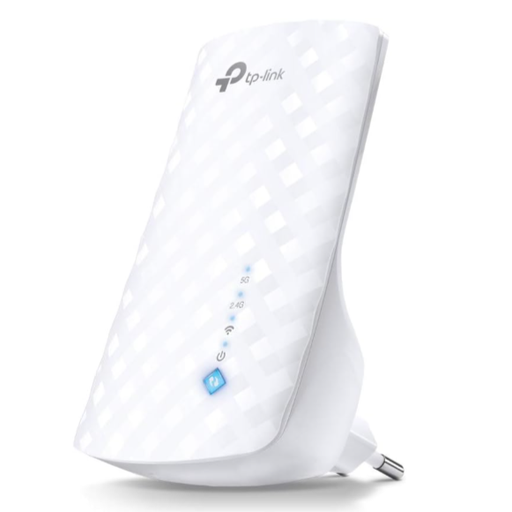 Image unavailable
For extending your Wi-Fi wirelessly when the router is still within range of the spot you choose.
Dual-band, with a signal strength indicator to help you choose where to place it.
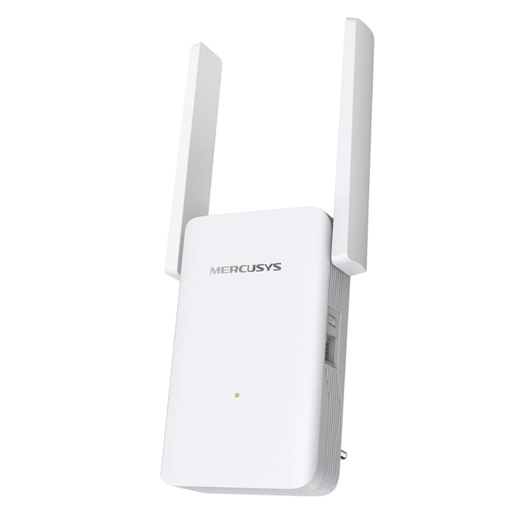 Image unavailable
For a wired connection near your router if you have an Ethernet cable available; the product description also lists an extender mode.
Gigabit LAN port and access point mode; this mode requires an Ethernet connection to the router. Includes a signal strength indicator.
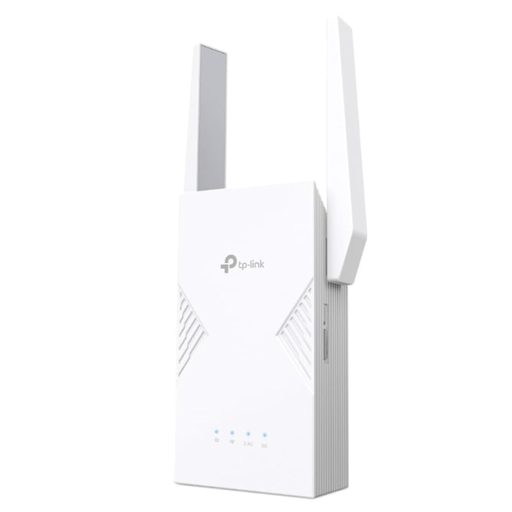 Image unavailable
For extending your Wi-Fi wirelessly if you can place the extender within range of your existing router.
Wi-Fi 7, dual-band, 2.5 Gigabit Ethernet port, MLO and EasyMesh compatibility, according to the product specifications.
 Image unavailable
For homes that want to cover several rooms with a mesh system; the description lists three units.
Dual-band Wi-Fi, Gigabit ports and access point mode, according to the product description. Set-up and management are via the Deco app.
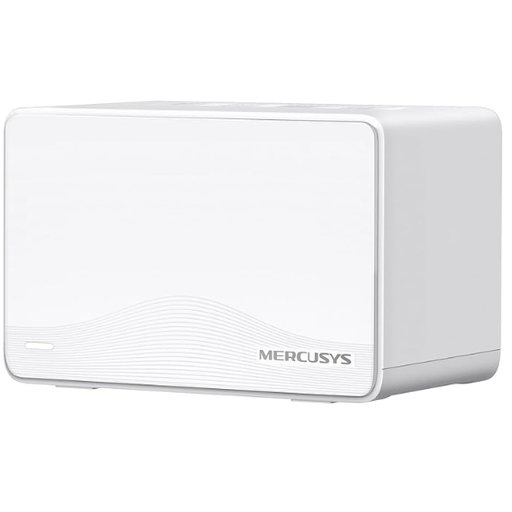 Image unavailable
For a mesh system with two units; according to the product description, the second unit should be placed within range of the first mesh node.
Wi-Fi 7, MU-MIMO and three Gigabit ports per unit, according to the product specifications.
Place it somewhere it can still get a reliable signal from the router while also providing Wi-Fi to your device in the upload room. FRITZ! explains that the connection quality between the router, extender and connected devices matters when choosing where to place it.
Yes, if the specific model has an access point or LAN bridge mode and there’s a network connection to the router. An access point connection via LAN is documented for the TP-Link RE705X and FRITZ!Repeater 1700.
Check your internet connection’s actual data rate separately from the Wi-Fi connection where you want to upload photos. The Federal Network Agency’s broadband speed test lets you compare your connection speed with the speed agreed in your contract; an extender won’t increase your internet connection speed.
Products covered by the relevant EU harmonisation legislation must carry CE marking in Germany. The Federal Network Agency explains that the manufacturer uses this marking to declare, on its own responsibility, that the product meets the applicable requirements. It isn’t independent proof that the product will get a good signal through your walls.