Video callers with a weak Wi-Fi signal
If you work away from your router, you’ll need a stable connection at your desk. The extender also needs to receive a strong enough signal from the router where you place it.


A Wi-Fi extender can help when reception is weak at your desk, provided the extender itself still gets a usable signal from the router where you place it. If you can run an Ethernet cable to your home office, a device with a supported access point or LAN bridge mode could be an option. But if your backup is using up your internet upload capacity, adding Wi-Fi hardware alone won’t increase it. In that case, it may be more useful to check your backup software’s upload settings.
If you work away from your router, you’ll need a stable connection at your desk. The extender also needs to receive a strong enough signal from the router where you place it.
If you’re on a call while uploading files, it’s important to work out whether the Wi-Fi signal in your home office is weak or your available internet upload capacity is being used up.
If you can run an Ethernet cable to your home office, a device with a documented access point or LAN bridge mode could be an alternative to a wireless connection to the router.
Suitable if: Wi-Fi reception is weak in your home office and you can find a spot between the router and your desk where the extender still gets a usable signal from the router.
Trade-off: The wireless link to the router remains part of the connection shared by your backup and video call.
Suitable if: You can run an Ethernet cable to a suitable location and the specific device supports wired operation.
Trade-off: You’ll need a cable and a way to install it. A LAN port alone doesn’t confirm that access point mode is supported.
Suitable if: Wi-Fi reception is already good, but your call gets worse while a cloud upload is running.
Trade-off: Limiting or rescheduling a backup can make it take longer. If you use a managed work account, your IT team may control the settings.
| What you need | What to check before buying | Who it matters most to |
|---|---|---|
| Stable video calls | Check the router connection where you plan to put the extender, as well as reception at your desk. | If my calls are unstable in a home office far from the router, I need a spot where the extender can still receive a signal from it. Around 33 % of consumers prioritise a stable connection for video calls. |
| Backing up files during a call | Check Wi-Fi reception and available internet upload capacity separately; if you use OneDrive, check its upload settings. | If my call mainly stutters while files are uploading, I want to work out whether the bottleneck is the Wi-Fi or the internet connection. Around 27 % of consumers prioritise uninterrupted cloud uploads. |
| Wired operation | Check that access point or LAN bridge mode is documented for the exact device version, and consider how you could run the cable. | If I can run an Ethernet cable to my home office, I want to know whether the device can actually operate as an access point. Around 20 % of consumers prioritise using a wired connection where possible. |
| Compatibility with your router | Check your router model against the device’s specifications for supported mesh features. | If connecting to my existing router system matters to me, the advertised mesh feature needs to be compatible. Around 20 % of consumers prioritise integration with their existing router. |
An extender needs a usable connection to the router itself. A spot without a strong enough signal from the router is unlikely to solve the problem.
Check the connection at the planned midway point and then at your desk before settling on a location.
The stated maximum Wi-Fi data rate isn’t a measured speed in your home office, nor does it tell you how much internet upload capacity is available. FRITZ! and TP-Link list maximum rates for their devices, but these figures aren’t a guarantee of the speed you’ll get when backing up files and making a call at the same time.
Check reception and available upload capacity separately. OneDrive’s upload controls may help; if you use a work account, your IT team may manage the settings.
An Ethernet port doesn’t confirm that a device can connect to the router by cable and operate as an access point.
Check the manufacturer’s information on operating modes and ports for the exact model and hardware version.
Worth considering if you want to add an extender to an existing FRITZ! mesh network.
The RE705X could be an option if you’re looking for a documented access point mode or an extender for an EasyMesh router.
The WiFi 6 Repeater 5400 may suit a setup that needs two Ethernet ports and access point mode.
Speed Home WLAN is most relevant if you have a compatible Speedport.
The devices below are described as ways to extend an existing Wi-Fi network; one model is also listed as having access point mode. Before buying, check the CE marking and required accompanying documents for the specific version on offer. The Bundesnetzagentur highlights these points in relation to placing products on the market.
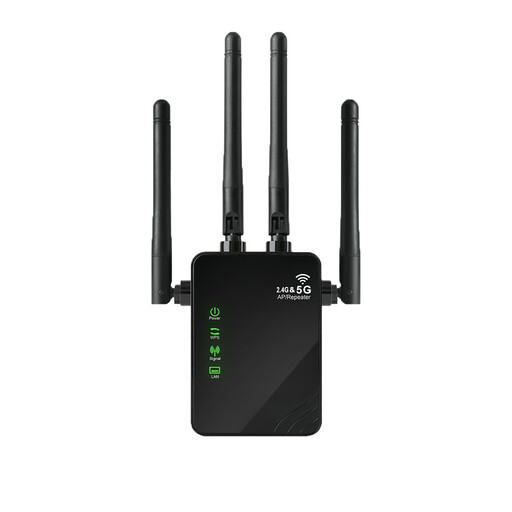 No image available
Described as an extender for an existing Wi-Fi network; the product description also lists access point mode.
Listed as supporting 2.4 and 5.8 GHz bands, with two RJ45 ports rated at 10/100 Mbit/s.
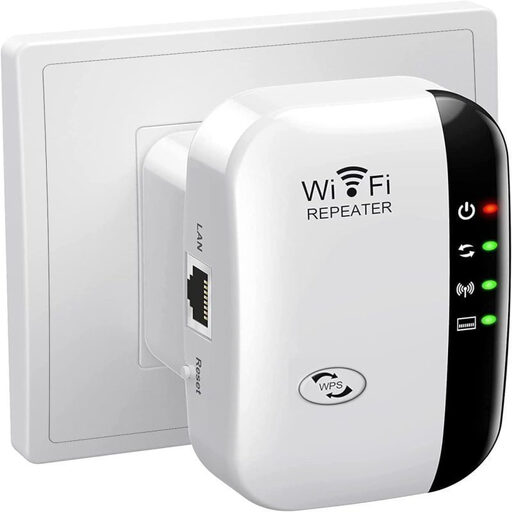 No image available
Described as a compact booster for extending an existing Wi-Fi network.
The product description lists plug-and-play set-up.
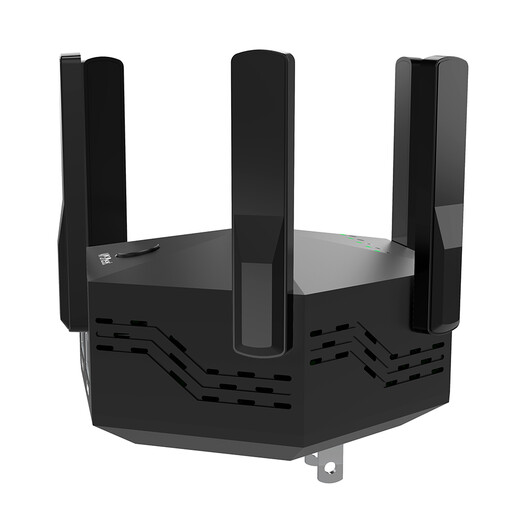 No image available
Described as a dual-band signal booster for extending Wi-Fi coverage.
The description lists six adjustable antennas and WPS set-up.
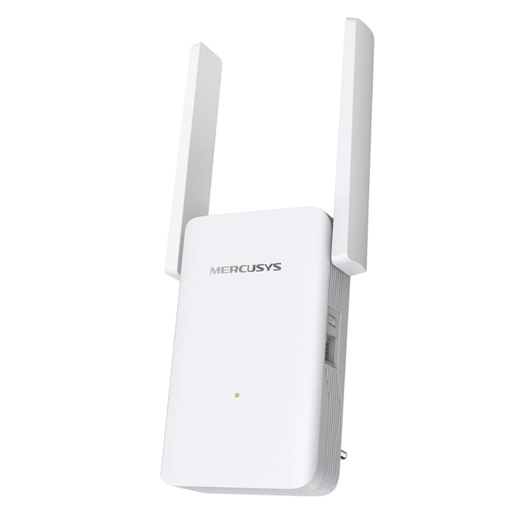 No image available
Described for use in a home office with weak Wi-Fi; the stated signal strength indicator may help you check where to place it.
Specifications include AX3000, dual-band speeds of 574 Mbit/s at 2.4 GHz and 2.402 Mbit/s at 5 GHz, a Gigabit LAN port and access point mode.
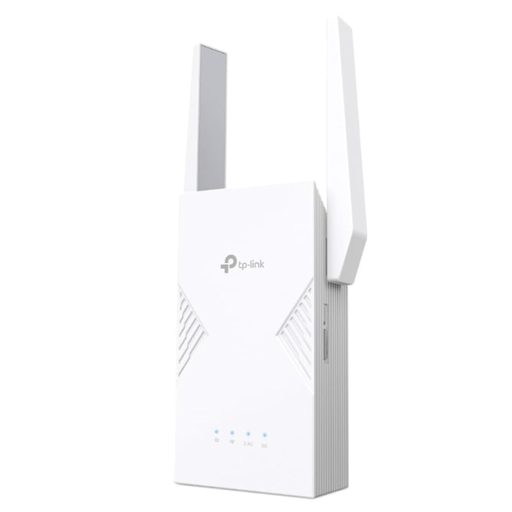 No image available
Described as a way to extend an existing Wi-Fi network; EasyMesh requires a compatible router.
Specifications include dual-band operation, a 2.5-Gigabit Ethernet port and EasyMesh compatibility. The advertised maximum rates don’t guarantee performance when backing up files and making a video call at the same time.
Don’t put it where the router signal has already dropped out. Check the connection between the router and extender at the planned spot, then check reception at your desk. Telekom says Speed Home WLAN has an indicator for a weak or missing connection.
Only if the Wi-Fi connection is also a bottleneck. Microsoft Support says OneDrive automatically adjusts its upload rate, using unused bandwidth in the background. If you use a work account, your IT team may manage the settings.
No. A LAN port alone doesn’t confirm that the device supports this mode. For the exact model and hardware version, check whether access point or LAN bridge mode is documented and what cabling you’ll need.
The Bundesnetzagentur lists CE marking and the required accompanying documents among the points retailers should check when placing products on the market. Check these details for the specific version on offer before you buy; the model name alone isn’t proof that they’re in place.