A wireless extender may be a good option if the Wi-Fi is weak only at your workshop spot and there is still a usable signal from the router where you plan to place the extender. If you can run an Ethernet cable nearby, an extender with an explicitly supported access point or LAN bridge mode could be an alternative. However, an extender cannot fix a bottleneck with your internet connection. Test the connection at the actual workshop spot using a similar video call.
Who might benefit from a Wi-Fi extender for a workshop?
Workshop participants in a Wi-Fi dead zone
If you’re joining a workshop in a room where the router’s Wi-Fi signal is weak, you’ll need a usable connection for both picture and sound. Walls and other obstacles can affect Wi-Fi reception, as devolo’s survey of home networks explains.
Households with several video calls
If other video calls or online activities are happening during your workshop, check Wi-Fi reception at your spot and the available internet connection separately.
Participants with an Ethernet connection nearby
If you can run an Ethernet cable close to your workshop spot, check whether a suitable extender can provide Wi-Fi access there in access point mode. devolo describes this operating mode for extenders with an existing network connection.
What should you check before buying?
Wireless extension
Suitable if: Reception is weak at your workshop spot, but the extender can still get a usable connection to the router from another location.
Consider: The extender still receives data wirelessly from the router, so where you place it matters.
Access point via Ethernet
Suitable if: An Ethernet cable reaches close to your workshop spot and the specific model supports access point or LAN bridge mode.
Consider: You’ll need a suitable cable route and the right setup. An Ethernet port alone does not mean there’s a wired connection back to the router.
Check your connection or existing network
Suitable if: Video calls drop out even when you’re near the router or using a direct Ethernet connection.
Consider: An extender improves local Wi-Fi coverage, but it doesn’t increase the capacity of your internet connection.
| What you need |
What to check before buying |
Who might find this especially important? |
| Wi-Fi at your workshop spot |
Find a spot with a usable connection to the router, then test the connection where you’ll actually be working. |
If I’m joining a workshop in a room with weak reception, I want a usable connection for picture and sound. Around 40% of consumers put Wi-Fi coverage at their workshop spot first. |
| Simultaneous video calls |
Compare Wi-Fi near the router and at your workshop spot, and check internet connection usage separately. |
If other video calls are happening during my workshop, I want to know whether Wi-Fi or the internet connection is the bottleneck. Around 30% of consumers prioritise the available connection when several people are online. |
| Ethernet cabling |
Check that the cable reaches your intended spot and that the model explicitly supports access point or LAN bridge mode. |
If there’s already an Ethernet cable near my room, I want to use it to provide Wi-Fi at my workshop spot. Around 20% of consumers prioritise a wired connection back to the router. |
| Router compatibility |
Check your router model and the mesh features you want against the extender manufacturer’s instructions. |
If I want to add the extender to my existing router and mesh system, I need to know exactly what’s required. Around 10% of consumers put router compatibility first. |
Common mistakes when choosing a Wi-Fi extender
-
Placing the extender right in the dead zone
Even when operating wirelessly, the extender itself needs a connection to the router.
Find a spot with usable reception from the router, then test a video call at your workshop spot.
-
Confusing an Ethernet port with a wired connection back to the router
You can connect a laptop to the extender by cable while the extender still receives its data wirelessly from the router.
Check whether the specific model supports access point or LAN bridge mode, and whether you have a cable running to the router.
-
Assuming ‘mesh’ means it works with every router
Mesh features and setup options can depend on the router and the product range.
Check your router model and the features you want against the extender manufacturer’s instructions.
-
Trying to fix an internet connection issue with an extender
An extender improves local Wi-Fi coverage, not the capacity of your internet connection.
Compare a similar call near the router or using a direct Ethernet connection with one at your workshop spot.
Key brands at a glance
FRITZ!
A good option for households looking to use a FRITZ!Repeater with a compatible FRITZ!Box, or over Ethernet as an additional Wi-Fi access point.
- The FRITZ!Repeater 1200 AX is described as having one Gigabit LAN port, while the 3000 AX has two Gigabit LAN ports.
- The right operating mode and the benefits of additional features depend on your router and where you place the extender. Manufacturer claims don’t guarantee uninterrupted video calls.
TP-Link
The RE700X is worth considering if you want to choose between wireless extension and access point mode using an existing cable route.
- The manufacturer lists a Gigabit port and access point mode for the RE700X.
- The EasyMesh setup described requires an EasyMesh-compatible router. Advertised Wi-Fi speeds aren’t measurements taken at your workshop spot.
devolo
The WiFi 6 Repeater 3000 is suitable for wireless extension or access point mode using an existing Ethernet cable.
- The manufacturer lists Gigabit LAN and an alternative access point mode.
- The mesh setup described applies to other devolo Wi-Fi products. Manufacturer claims about video calls aren’t independent confirmation of performance at your location.
Telekom
Speed Home WLAN is a good fit for households that want to use a compatible mesh base and the documented setup process.
- Telekom also explains how to set it up as a mesh base if you don’t have a mesh-capable router.
- For the wireless mesh setup described, Telekom specifies certain router settings. Check your specific router model before buying.
NETGEAR
The manufacturer describes the EAX15 as a Wi-Fi 6 mesh extender with a Gigabit Ethernet port.
- The manufacturer’s website lists a Gigabit Ethernet port for wired connections.
- Advertised data rates and claims about video calls don’t prove how well it will perform at your workshop spot. Check that it supports the operating modes you need before buying.
Joybuy products for extending your Wi-Fi wirelessly
The Joybuy products below are listed as Wi-Fi extenders for wireless coverage. If you need a wired access point instead, check whether the specific model supports the mode you need. Also check the applicable product labelling and documentation.
 No image available
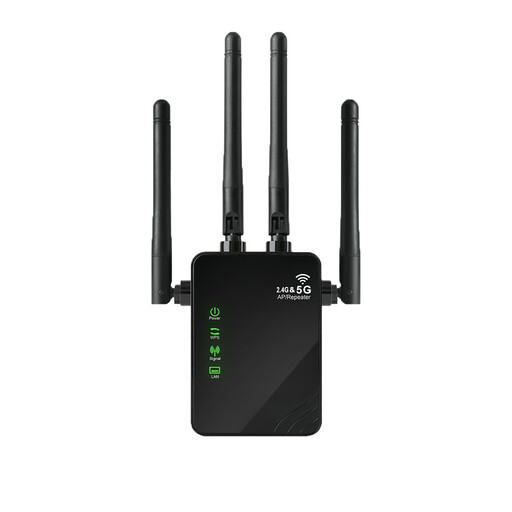
1200 Mbps Wi-Fi extender with 5 GHz support
For extending Wi-Fi wirelessly when you need better coverage at your workshop spot.
The product name lists 1200 Mbps and 5 GHz. The Ethernet ports are specified as 10/100 Mbps, so check whether they’re fast enough for your wired devices.
Joybuy
 No image available
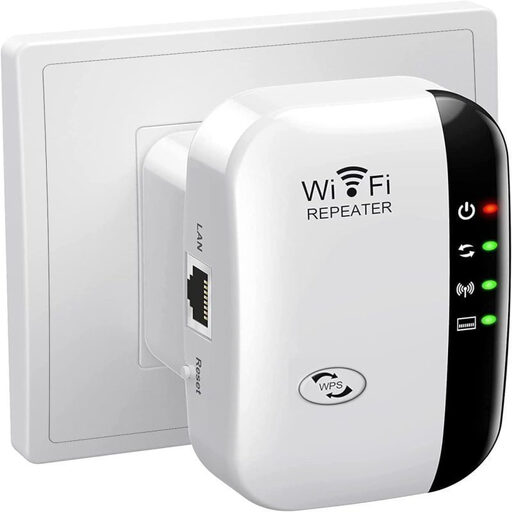
Compact Wi-Fi booster
For anyone looking to extend an existing Wi-Fi network in a room with weaker coverage.
The product name describes the device as a compact Wi-Fi booster. Before choosing it, check which operating mode you need and whether the connection will be strong enough where you plan to use it.
Joybuy
 No image available
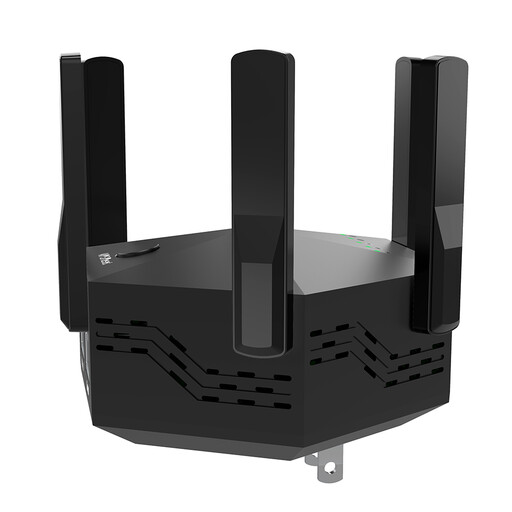
Dual-band Wi-Fi amplifier, 1200 Mbps, six adjustable aerials
For extending Wi-Fi wirelessly indoors, if this design suits your location.
The product name lists dual-band, 1200 Mbps and six adjustable aerials. The LAN ports are specified as 10/100 Mbps, so check whether that’s fast enough for your wired devices.
Joybuy
 No image available
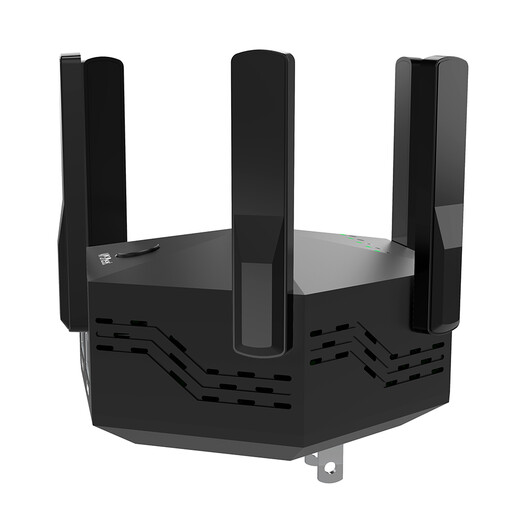
Dual-band Wi-Fi amplifier, 1200 Mbps, six adjustable aerials
For extending Wi-Fi coverage wirelessly indoors, provided there’s still reception from the router where you place the extender.
The product name lists dual-band, 1200 Mbps and six adjustable aerials. Test the connection at your workshop spot rather than assuming the rated speed guarantees call quality.
Joybuy
 No image available
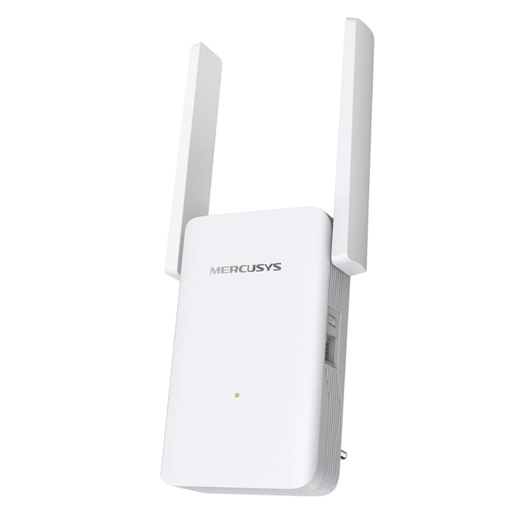
MERCUSYS ME80X Wi-Fi 6 Range Extender, AX3000 Dual Band
For anyone considering a Wi-Fi 6 range extender with wireless extension or access point mode using a wired connection.
The product name lists AX3000 Dual Band, 574 Mbps at 2.4 GHz, 2402 Mbps at 5 GHz, a Gigabit port, app control, a signal strength indicator and AP mode. For AP mode, connect the Ethernet port to the router with a cable.
Joybuy
Frequently asked questions
Is a high Wi-Fi speed on the box enough for several simultaneous video calls?
No. An advertised Wi-Fi speed doesn’t guarantee that several video calls will run smoothly at your workshop spot. Check your Wi-Fi and internet connection separately. For example, Zoom recommends 2.6 Mbps upload and 1.8 Mbps download for a 720p group call using its web app. These figures aren’t universal minimum requirements for other platforms, nor do they guarantee extender performance.
Where should I place a wireless extender?
Place it somewhere that still gets usable reception from the router, rather than in a room with no coverage at all. If the Speed Home WLAN has a weak connection, Telekom recommends moving it closer to the router or to another Wi-Fi booster. Then test a call at your actual workshop spot.
Does an Ethernet port automatically make an extender an access point?
No. An Ethernet port alone doesn’t show that the extender supports access point mode with a wired connection back to the router. Check whether the specific model explicitly offers access point or LAN bridge mode, and whether an Ethernet cable can reach the device.
Will mesh setup work with every router?
Not necessarily. The mesh features described may require specific routers and settings. For the EasyMesh setup described, TP-Link specifies an EasyMesh-compatible router. For a particular Speed Home WLAN setup, Telekom lists requirements including WPS being enabled and the 5 GHz band being visible. Check the instructions against your router model.
What should I look for on the labelling of a Wi-Fi extender for use in Germany?
Wi-Fi extenders placed on the market in Germany are subject to the applicable EU radio equipment regulations. Check for the required CE marking and product documentation. The Federal Network Agency notes that products covered by the relevant harmonisation legislation must be marked. A CE marking alone does not prove that an individual product is compliant or suitable for video calls.


