Students whose video calls keep dropping
If calls keep dropping at your usual study space, first check whether the Wi-Fi connection is weak there or whether the problem is with the router or internet connection itself.


If the main issue at your study space is a weak Wi-Fi signal from the router, a suitable extender may help – provided you place it somewhere that still gets good reception. If you have a usable network cable, a model with a specifically supported access point mode can replace the wireless link to the router; devolo and TP-Link describe this option for certain models. If you also get interruptions near the router, check the router and internet connection first. An extender can’t fix a bottleneck further upstream, and advertised maximum Wi-Fi speeds don’t predict how well your connection will perform during a video call.
If calls keep dropping at your usual study space, first check whether the Wi-Fi connection is weak there or whether the problem is with the router or internet connection itself.
If you’re downloading course materials while someone at home is on a video call, assess the connection where you’ll actually use it – don’t rely solely on an advertised peak Wi-Fi speed.
If your study space is outside the router’s strong coverage area, the right solution depends on whether there’s a suitable spot for a wireless extender or a usable network cable.
Suitable if: There’s a spot between the router and your study space where the router’s signal is still good.
Things to consider: It can only pass on the signal it receives, so a weak signal where you place the extender will remain weak. The advertised maximum speed doesn’t guarantee call quality.
Suitable if: There’s a network cable running to the area where you need Wi-Fi and the model supports access point or LAN bridge mode.
Things to consider: This removes the wireless link to the router, but you’ll need cabling and the right device settings. Your internet connection may still be the limiting factor.
Suitable if: You need coverage in several rooms or move between rooms during a call.
Things to consider: Shared mesh features require a compatible combination of router, extender and, in some cases, firmware.
| Priority | What to check when buying | Who considers this important? |
|---|---|---|
| Stable video calls | Test the connection during a call while downloading at the same time, then compare it with a connection near the router or via LAN. | If I need an ongoing call at my study space not to drop, I want to identify the cause of the problem first. Around 33 % of consumers are likely to prioritise call stability. |
| Downloads while on a call | Test both activities at the intended location at the same time; check whether a wired connection is possible. | When I download course files during a call, I want both to work at my study space. Around 27 % of consumers are likely to prioritise downloading while on a call. |
| Reception in a room further away | Find an intermediate spot with a usable router signal, or check whether LAN cabling is available for access point mode. | If my study room is further away, the main thing I want is a signal in that room. Room coverage is the top priority for around 20 % of consumers. |
| Router and mesh compatibility | Check the router model, extender version and, where applicable, firmware. Telekom lists certain mesh-capable Speedport models; TP-Link requires a compatible router for EasyMesh. | If I want to keep using my existing router system, the specific devices need to work together. Around 20 % of consumers are likely to prioritise mesh integration. |
Your connection also depends on the wireless link, router, device and internet connection. A high stated speed alone doesn’t tell you whether a video call will stay stable while you’re downloading.
Test both activities at your study space at the same time, then compare the result with a connection near the router or via LAN before choosing a higher-spec device.
A wireless extender needs a usable connection to the router itself. If you put it where reception is at its weakest, it may not solve the underlying problem.
First, find an intermediate spot and check the signal strength there. If there’s nowhere suitable, see whether you can use a LAN cable and access point mode.
Shared mesh management depends on the specific combination of devices and, in some cases, firmware. General Wi-Fi extension doesn’t automatically mean cross-brand mesh compatibility.
Check your router model and extender version against the manufacturer’s compatibility information rather than choosing based on the word “mesh” alone.
According to the model specifications, the FRITZ!Repeater 1200 AX, 3000 AX and 6000 offer dual-band or tri-band options. FRITZ! mesh is particularly relevant if you have a compatible FRITZ! router.
The RE705X is a dual-band Wi-Fi 6 extender. TP-Link also describes using it as an access point via its Gigabit Ethernet port.
Speed Home WLAN is an option for compatible Speedport setups; check the device generation and setup requirements.
As well as extending Wi-Fi, devolo describes an access point mode for the WiFi 6 Repeater 3000 and WiFi 6 Repeater 5400.
This selection includes wireless extenders, mesh devices and a wired access point. The right solution for you depends, among other things, on your existing cabling and router system.
 No image available
A wired access point option for a fixed study space with suitable Ethernet cabling.
Tri-Band WiFi 7 and 10GbE uplink. A compatible PoE+ switch or injector is required for operation; according to the product details, it’s not included. Management requires UniFi Network version 9.0.114 or later.
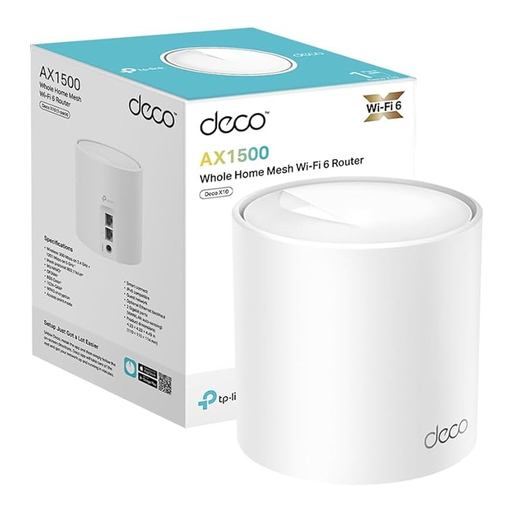 No image available
Described as an additional unit for an existing TP-Link Deco mesh network. Before buying, check that you already have a compatible Deco system.
Wi-Fi 6 AX1500 and two Gigabit ports.
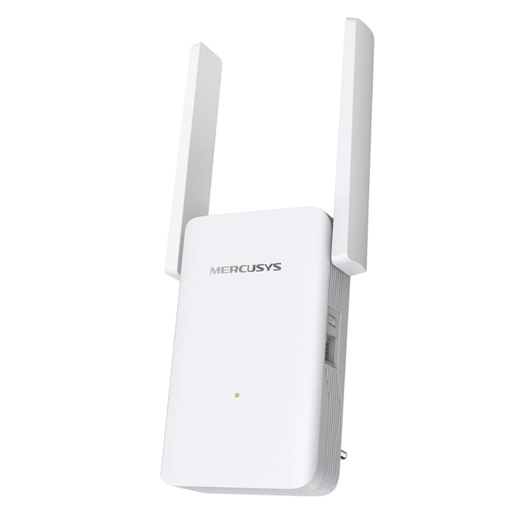 No image available
Designed as a wireless extender for an area with weak Wi-Fi. The extender still needs a usable connection to the router where you place it.
The product name lists 574 Mbps at 2.4 GHz, 2402 Mbps at 5 GHz and one Gigabit port. According to the product details, access point mode requires an Ethernet cable to the router.
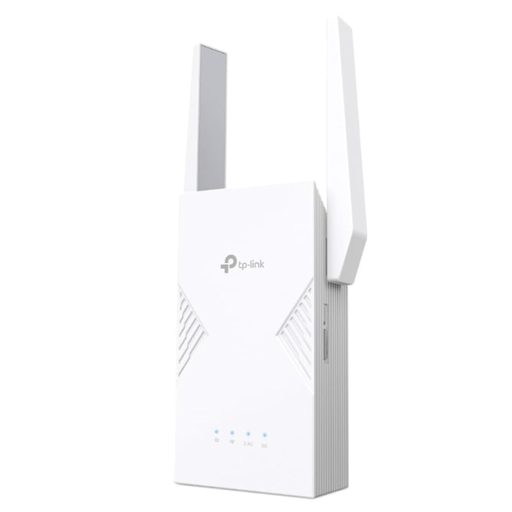 No image available
Designed to extend your Wi-Fi wirelessly. Check that the extender will still get a good signal from the router at the spot where you plan to place it.
The product name lists a 2.5 Gigabit Ethernet port and EasyMesh compatibility. According to the product details, EasyMesh requires a compatible router or extender.
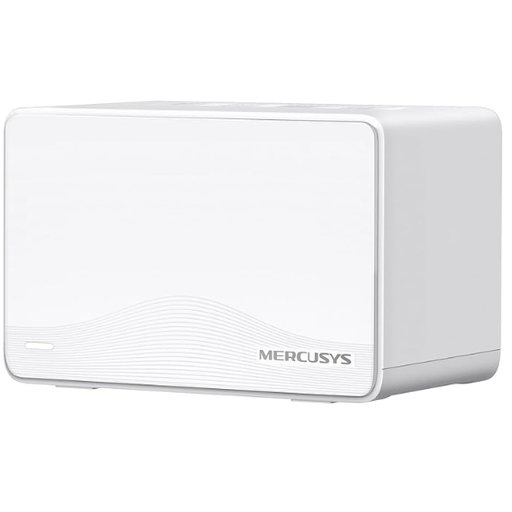 No image available
A mesh set with a router and extender unit to provide Wi-Fi coverage in several areas. According to the product details, one unit connects to the modem via Ethernet and is set up as the main router.
Wi-Fi 7 BE3600 Dual-Band, MU-MIMO and three Gigabit ports per unit.
No. An extender improves local Wi-Fi coverage, not the performance of your internet connection. If the problem also occurs near the router or over a wired connection, check the router and internet connection first.
First, choose a spot between the router and your devices where the extender can still receive a good signal. Check the signal strength there, then test the connection at your study space.
You need one if the extender is to connect to the router via LAN in access point mode. Check that you have a usable network cable and that your specific model supports this mode; having a LAN port alone doesn’t tell you which operating mode is available.
No. Shared mesh management depends on the specific combination of devices. Check your router model, extender version and any required firmware. TP-Link lists a compatible router as a requirement for EasyMesh.
Look for correct CE marking, clear product and manufacturer identification, and the required German-language documentation and conformity information. The Bundesnetzagentur includes these points in its market surveillance guidance; a CE claim on a shop page alone doesn’t confirm that a specific product is compliant.