What should you look for when buying?
Start by testing your connection and the Wi-Fi at your workspace. This will help you tell a slow uplink apart from a Wi-Fi dead spot. Then choose an extension that suits your existing cable routes and connection type.
| What matters |
What to check when buying |
Who it matters most to |
| Wi-Fi at your workspace |
Test the connection where you upload files; check possible locations for additional Wi-Fi access points. |
If I work on a faraway floor, I want a reliable connection there and a suitable spot for another access point. Around 25% of consumers put coverage across floors first. |
| Upload speed you can actually get |
Compare upload speeds at the connection point and workspace; for a fixed-line speed test, follow the required LAN measurement conditions. |
If file uploads are slow even near the router, I want to rule out the internet connection as a bottleneck before buying new equipment. Around 25% of consumers prioritise the upload speed they can actually achieve. |
| Connection compatibility |
Check whether you have DSL, cable or fibre broadband, and make sure your existing modem and planned router or access point are compatible. |
If I want to replace my router or extend my existing network, the solution needs to work with my connection and modem. Around 20% of consumers pay particular attention to compatibility. |
| Security and maintenance |
Check for available firmware updates and suitable Wi-Fi encryption; take the devices you use into account too. |
If I transfer work files over my home network, I want to set up access carefully and keep my router up to date. Around 15% of consumers put security and ongoing maintenance first. |
| Overall set-up effort |
Factor in the number of Wi-Fi access points you need and any existing cables between floors, or cables that still need to be installed. |
If I’m planning coverage across several floors, I want to consider the equipment and cabling costs together. Around 15% of consumers prioritise the total cost of a suitable solution. |
Wi-Fi access points and mesh systems at Joybuy
This selection at Joybuy includes mesh systems and additional Wi-Fi access points for extending a home network across different areas or floors.
 No image available
TP-Link Deco BE22, 2-pack, Wi-Fi 7 mesh system
The two-unit set is worth considering if you need several Wi-Fi access points.
Dual-band; Gigabit Ethernet.
Deco requires an external internet source; TP-Link specifies set-up via a mobile app.
View at Joybuy
 No image available
TP-Link Deco M4 AC1200 mesh Wi-Fi system, 3-pack
The three-unit set is an option if you need Wi-Fi access points in several areas.
Dual-band; Gigabit ports.
Deco requires an external internet source; TP-Link specifies set-up via a mobile app.
View at Joybuy
 No image available
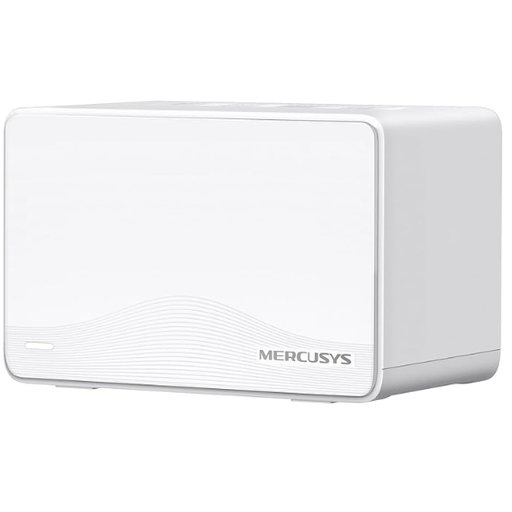
MERCUSYS Halo H25BE mesh Wi-Fi set, 2-pack, Wi-Fi 7
The two-unit set is an option if you need two Wi-Fi access points.
Dual-band; three Gigabit ports per unit.
This product is listed as a mesh set; before buying, check how you plan to connect it to your existing network.
View at Joybuy
 No image available
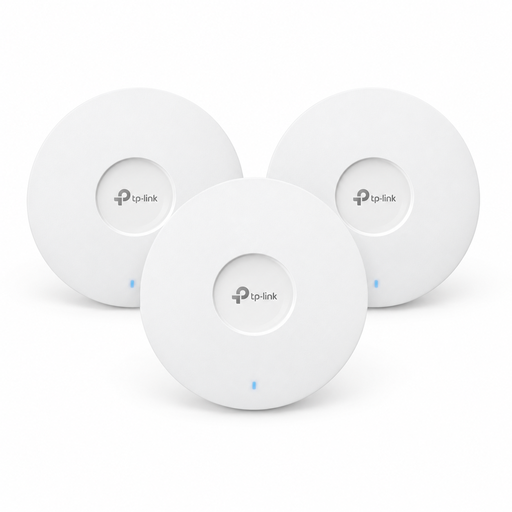
TP-Link Omada EAP653 AX3000 Wi-Fi 6 access point, 3-pack
These access points are an option for an existing or planned Omada network with multiple Wi-Fi access points.
Wi-Fi 6; according to the product specifications, power is supplied via PoE+ or a 12 V adapter, sold separately.
These are access points, not a broadband router.
View at Joybuy
 No image available
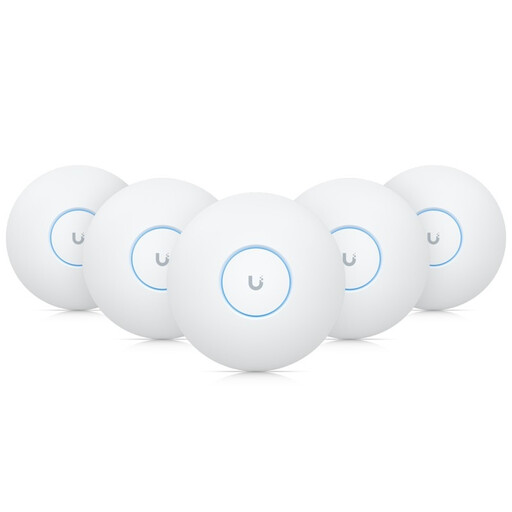
Ubiquiti UniFi U7-Pro tri-band WiFi 7 PoE+ access point
The five-access-point set is an option if you want to manage several Wi-Fi locations centrally.
Tri-band; WiFi 7; PoE+.
These are access points, not a broadband router. According to the product specifications, a PoE+ switch or injector is not included.
View at Joybuy
Frequently asked questions
How can I tell whether my connection or Wi-Fi is slowing down my uploads?
Compare your connection speed with the speed at your workspace. The German Federal Network Agency’s broadband measurement tool lets you compare your actual data rate with the speed set out in your contract; its formal fixed-line measurement procedure requires tests over LAN. A slow Wi-Fi test on another floor doesn’t, by itself, prove that your broadband connection is underperforming.
Can I use a Deco mesh system with my existing router?
Yes, as long as the specific set-up is compatible. As well as router mode, TP-Link describes an access point mode for Deco; the available ways to connect the nodes by cable vary depending on the mode. Deco needs an external internet source and, according to TP-Link, is set up using a mobile app.
What regular maintenance does my router need?
The German Federal Office for Information Security recommends changing generic default administrator passwords and keeping your router’s firmware up to date. Also check your Wi-Fi encryption and settings when you add more access points.
Which costs should I include in my comparison?
Consider the complete set-up you need: any additional mesh nodes, existing network cables or new ones that need to be installed, and any broadband router or modem you may require. The equipment and installation work you need will depend on your home and existing connection.
Do I have to use my internet provider’s router in Germany?
No. Your choice of provider alone doesn’t mean you have to use a particular router. On 22 January 2025, the German Federal Network Agency confirmed that the right to choose your own terminal equipment at the network termination point also applies to passive optical fibre networks. This doesn’t mean that every device is technically compatible with every connection.


