Presenters working behind thick walls
If you want to get Wi-Fi to a meeting room or workspace further away, the most important thing is the connection at the destination. PC-WELT notes that walls and other obstacles can affect Wi-Fi signals.


If the Wi-Fi is weak in your presentation room and you can run a cable, a LAN-connected access point is the first upgrade to consider. If cabling isn’t an option, you could use a wireless repeater or mesh node, provided it can still get a reliable connection to the router from its location. A new router alone won’t solve every connectivity problem: Microsoft says Miracast connects devices directly, and any router you choose must be compatible with your internet connection.
If you want to get Wi-Fi to a meeting room or workspace further away, the most important thing is the connection at the destination. PC-WELT notes that walls and other obstacles can affect Wi-Fi signals.
If you’re mirroring slides to a screen, check that your source device and display support the same projection method as well as checking your Wi-Fi. Microsoft Learn describes Miracast as a direct connection between the source device and display.
If you want to keep your main router and extend its coverage, consider where to place the additional node, whether you can run a cable and whether it’s compatible with your existing system. FRITZ!, TP-Link and Telekom describe different ways to extend a network.
A good fit if: The Wi-Fi is weak in your presentation room and you can run a network cable to it.
Keep in mind: You’ll need a cable route and a suitable access point; this won’t automatically solve any problems with the projection method.
A good fit if: You can’t run a LAN cable, but there’s a spot between the router and the room where the signal is still reliable.
Keep in mind: The node still needs a reliable wireless connection to the router; check that it’s compatible with your existing system too.
A good fit if: The router’s features or connection compatibility justify an upgrade, and a single, better-positioned router could work for the room.
Keep in mind: A higher advertised data rate doesn’t tell you how well the Wi-Fi will reach through your particular walls; check the connection type too.
| What matters | What to check before buying | Who is this important to? |
|---|---|---|
| Connection in the presentation room | Test the signal where you’ll actually use it; if the Wi-Fi is weak, check whether you can use a LAN-ready access point and run a cable. | If I want to show slides in a room further away, what matters to me is the connection there, not a speed rating on the router. That’s why around 36% of consumers put coverage at the presentation location first. |
| Projection method | Find out whether the connection uses Miracast, the local network or an online service; check that both devices support it. | If I want to mirror my screen wirelessly, I need to know whether my laptop and display support the same method. Around 29% of consumers prioritise using a compatible projection method. |
| Expandability | Check the model of your existing router and how it can be expanded; for a LAN connection, check which operating mode the node supports. | If I want to keep using my router, I need to know whether an additional node will work with it and where it should go. Around 21% of consumers prioritise expanding their existing network. |
| Purchase and running costs | Consider the router, any additional node and the cable route together; check the update and support information for the specific model. | If I don’t want to buy a router and an extra device unnecessarily, I factor in the cable route and ongoing support needs when making my decision. Around 14% of consumers focus on purchase and support costs. |
Walls and other obstacles can affect the connection. So, a router that works well somewhere else doesn’t prove that you’ll get a strong enough signal in your presentation room.
Test the connection where you’ll actually use it, and consider network extension as a separate option.
Depending on the location, you may also need an access point or a route for a cable.
A wireless repeater repeats the signal it receives. If its connection to the main router is weak where you place it, it may also struggle to connect back to the network.
Choose a location with a reliable wireless connection, or check whether you can connect the node via LAN.
A wireless node also needs to be set up and placed somewhere suitable.
Similar model names can refer to different devices and connection types. Choosing the wrong one could mean the router isn’t compatible with your existing internet connection.
Before you buy, compare the full model name and check that the device is intended for your type of connection.
A FRITZ!Box as your main router and a FRITZ!Repeater to extend an existing Wi-Fi network.
Deco mesh may be worth considering if you want to set up or expand a network with multiple access points.
AiMesh or ZenWiFi may be relevant for setups with compatible ASUS nodes and different backhaul options.
The Speedport Smart 4 with Speed Home WLAN is an option to explore if you have a compatible Telekom setup.
This selection includes mesh systems and wired access points for extending an existing Wi-Fi network. It won’t automatically replace a main router that’s compatible with your internet connection.
 No image available
These two mesh units are an option if you want to connect multiple rooms.
Wi-Fi 7, dual-band and Gigabit Ethernet.
 No image available
This access point is an option for extending Wi-Fi over a wired connection; it isn’t a main router.
Dual-band and 2.5 GbE. Requires PoE (802.3af) for power.
 No image available
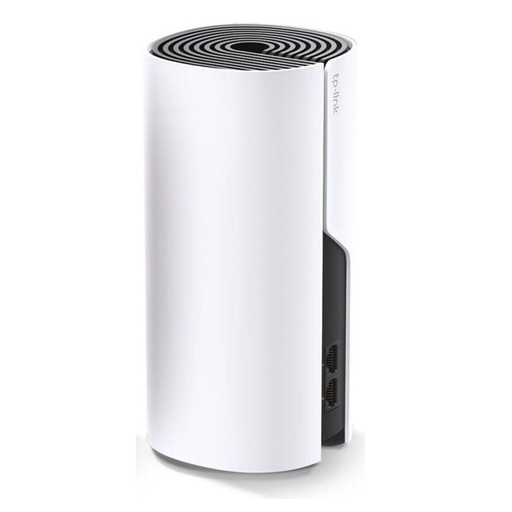
This model could work as an additional unit if you want to expand an existing Deco network.
AC1200, dual-band and Gigabit ports. Ethernet backhaul requires a wired connection.
 No image available
These three mesh units are an option if you want to connect multiple rooms to the same network.
Dual-band Wi-Fi 5 and Gigabit ports on each unit. Access point mode is specified.
 No image available
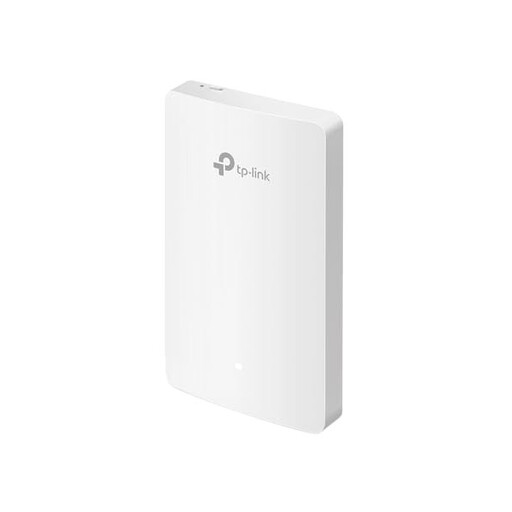
This wall-mounted access point may suit a fixed network extension; it isn’t listed as a main router.
Four Gigabit ports; stated LAN speed of up to 1167 Mbps.
Not necessarily. According to Microsoft, Miracast uses a direct Wi-Fi Direct connection between the source device and a compatible display. So first check the projection method and both devices; connecting to your home network is a separate consideration.
Don’t wait until you reach a spot where the router’s signal is very weak before placing a wireless repeater. For a wireless connection, FRITZ! recommends choosing a location within range where the wireless networks overlap; then test the connection in your presentation room.
A LAN-connected access point is an option if the Wi-Fi is weak where you need it and you can run a cable there. TP-Link describes Ethernet backhaul as a connection between Deco units over Ethernet; check that your chosen devices support the operating mode you need.
Check whether you need an additional node and, if so, whether you’ll need to run a cable. Factor in the setup effort too. A comparison that only looks at the main router overlooks these different ways to extend your network.
For passive optical fibre networks, the Bundesnetzagentur confirmed on 22 January 2025 that users can freely choose their end device at the network termination point. The specific device must still be technically compatible with your connection.