When Wi-Fi is weak across several floors, well-placed additional access points are often more important than the advertised top speed of a single router. If there are LAN connections between floors, Ethernet backhaul may be an option; without cabling, test a wireless mesh system or powerline at the intended location. Before replacing your router, you should also check your connection type, existing modem and how you’ll connect to the presentation screen.
Who is this solution for?
Households with Wi-Fi dead spots on several floors
If you need to access your presentation from any floor, it’s worth checking possible locations for additional access points and how they’ll connect to the rest of the network. FRITZ! and TP-Link describe mesh and extension options for this purpose.
Hosts sharing content to a local screen
If you’re showing slides on a TV or streaming device, check that the presentation device is accessible on your home network as well as checking the Wi-Fi signal. Google and Microsoft outline different requirements for Cast and Miracast.
Households considering a new router
Before replacing your router, check your connection type and whether you have a modem connected upstream. The Bundesnetzagentur explains how to identify a DSL or VDSL connection.
What should you look for when buying?
First, check whether you can keep using your existing router and broadband connection. Then decide how the access points will connect across floors and whether the presentation device will be accessible on the network you choose.
| Consideration |
What to look for when buying |
Who is this important to? |
| Coverage across three floors |
Number and potential locations of access points; how each wireless node connects to the rest of the network. |
If I want to show slides on another floor, the connection at the presentation location matters. This is a priority for around 31% of consumers whose main concern is coverage across floors. |
| Sharing presentations reliably |
Connection method used; whether the screen and presentation device can communicate. |
If you’re sharing slides locally to a screen, check the requirements of the specific devices. Around 25% of consumers put the presentation connection first. |
| Connection type and existing devices |
Connection type and modem; whether the router will connect directly to the line or sit behind an existing device. |
If I need to replace my router, I want to avoid choosing a model that’s incompatible with my connection. Around 19% of consumers put connection compatibility first. |
| Guest access and software updates |
Guest network features available; ability to keep the firmware up to date. |
If I let guests use my Wi-Fi, I want to limit their access while still allowing them to view the presentation. Around 13% of consumers prioritise controlled guest access and up-to-date software. |
| Additional devices and set-up effort |
Whether the existing network can be expanded; usable LAN connections between locations. |
If I want to set up as few additional devices as possible, I’ll first check whether I can expand my existing network. Around 12% of consumers prioritise the number of devices and the effort involved. |
Common buying mistakes
-
Comparing maximum Wi-Fi speeds alone
An advertised data rate doesn’t tell you whether the signal will reach through floor slabs or make it to the presentation location.
Plan where to place the access points and how they’ll connect before choosing a single router based only on its stated wireless data rate.
-
Assuming mesh functionality means it’s compatible with your broadband connection
Mesh features and suitability as a router that connects directly to the internet are separate things. The connection type and existing modem need to suit how you plan to use the router.
Before switching, check whether your connection uses DSL, cable or fibre, and whether you still need an upstream modem.
Depending on your connection, you may need additional connection hardware.
-
Enabling guest isolation and assuming local casting will still work
With Google Cast, client isolation can prevent communication with the screen device.
Test the specific connection method before your event and limit access to the devices you need, rather than opening up all your network settings.
-
Assuming powerline data rates are guaranteed on every floor
devolo notes that individual sockets and electrical interference can affect powerline data rates.
Test the connection at the sockets you actually plan to use. If the results aren’t good enough, keep wireless mesh or LAN as alternatives.
Testing several sockets may take extra set-up time.
Key brands at a glance
FRITZ!
FRITZ! offers routers with expandable FRITZ!Mesh, as well as mesh kits for households that need several access points.
- The manufacturer describes the FRITZ!Mesh Set 4200 as a kit containing three FRITZ!Repeater 3000 AX units, which can be used with a router or fibre modem.
- If you already have a FRITZ!Box, adding repeaters where needed may be an option; choosing the right locations is still essential.
TP-Link
The Deco X50 mesh range is designed for households that want to spread several Wi-Fi points around the home and, if needed, connect them via Ethernet.
- TP-Link lists optional Ethernet backhaul for the Deco X50, as well as a three-unit version.
- The manufacturer’s data-rate and coverage figures aren’t measurements taken in a specific three-storey house.
ASUS
ZenWiFi XD5 is a multi-point Wi-Fi system that can be configured for Ethernet backhaul if suitable LAN connections are available.
- ASUS describes Ethernet backhaul and compatibility with AiMesh-compatible routers.
- You’ll need to check whether your existing router is compatible and whether the access point locations will cover each floor of your home.
devolo
Magic powerline with Wi-Fi may work as an access point if the wireless signal between floors is poor and no LAN connection is available.
- devolo also offers the Magic 2 WiFi 6 next with three adapters.
- The manufacturer notes that sockets and electrical interference can affect data rates. Test the connection in your home’s actual electrical installation.
Telekom
Telekom offers Wi-Fi boosters and Wi-Fi packages for households looking to get their home network through a Telekom broadband connection.
- Additional Wi-Fi boosters may be suitable for larger or awkwardly laid-out homes.
- A Telekom broadband connection is required to access all the features of Telekom’s Wi-Fi packages; this isn’t a general requirement for mesh Wi-Fi.
Suitable products at Joybuy
This selection includes mesh systems with two or three units, as well as a single Wi-Fi extender for expanding an existing network.
 No image available
TP-Link Deco BE22 (2-pack) mesh system, Wi-Fi 7
Two mesh units may be suitable for several Wi-Fi locations; check that their planned positions cover the floors and the presentation area.
Wi-Fi 7, dual-band and Gigabit WAN/LAN ports are listed. The system offers router and access point modes.
View at Joybuy
 No image available
TP-Link Deco M4 AC1200 (3-pack) mesh system
The product description says the three units form a single mesh network; check for suitable locations on each floor beforehand.
AC1200 dual-band Wi-Fi; two Gigabit ports per unit. Router and access point modes are listed.
View at Joybuy
 No image available
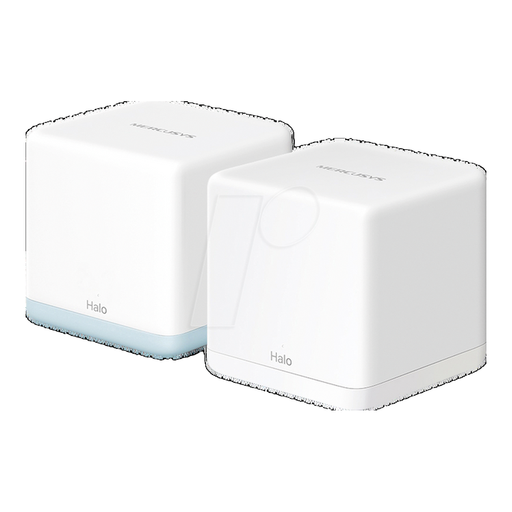
MERCUSYS Halo H1200G AC1200 (2-pack) mesh system
Two mesh units can create a distributed Wi-Fi solution; make sure the connection to your existing modem and the second location will work with your planned set-up.
AC1200 dual-band Wi-Fi and Gigabit Ethernet ports are listed.
View at Joybuy
 No image available
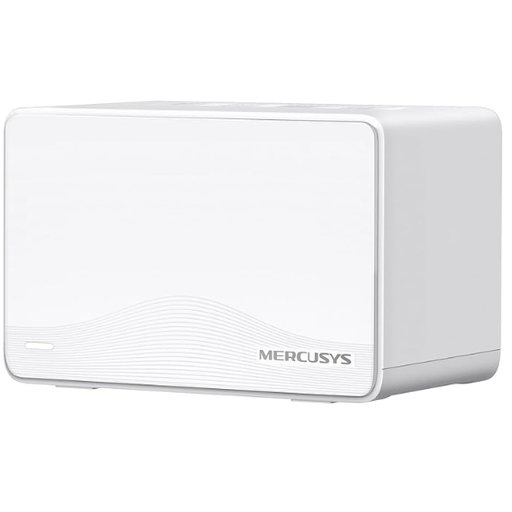
MERCUSYS Halo H25BE BE3600 (2-pack) mesh system, Wi-Fi 7
The two mesh units can be placed in different locations; the description says the second unit should be within range of the first.
Wi-Fi 7, dual-band, three Gigabit ports per unit and WPA3 are listed.
View at Joybuy
 No image available
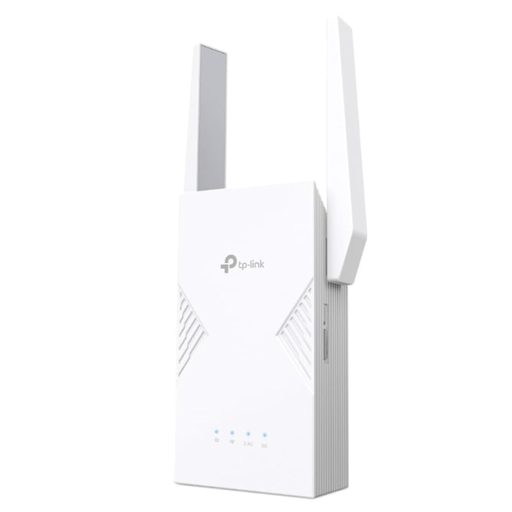
TP-Link RE235BE BE3600 dual-band Wi-Fi 7 range extender
This single extender can expand an existing Wi-Fi network. It needs to be placed within range of your existing router.
EasyMesh compatibility and a 2.5 Gigabit Ethernet port are listed.
View at Joybuy
Frequently asked questions
Do I need to replace my router if the Wi-Fi is weak only on the top floor?
Not necessarily. If your connection and router are otherwise working, first try adding an access point in a suitable location and check how it connects to the rest of your network.
How can I test powerline before a presentation?
Test the adapters in the wall sockets you actually plan to use. devolo recommends plugging them directly into wall sockets and notes that nearby power supplies or dimmers may affect performance. Then test the connection in the conditions you’ll be presenting in.
Why can’t my laptop find the screen on the guest Wi-Fi?
With Google Cast, different Wi-Fi networks or client isolation can prevent communication. Check the requirements of your specific screen device. Miracast-enabled displays use a separate connection method, which both your laptop and display must support.
What additional devices and provider requirements should I plan for?
Check how many access points and power sockets you’ll need, and whether the services you want come with any conditions. Telekom requires a Telekom broadband connection for all the features of its Wi-Fi packages; this isn’t a general requirement for other mesh systems.
Can I use my own router with a fibre broadband connection?
Yes. On 22 January 2025, the Bundesnetzagentur confirmed that customers can freely choose their end devices at the network termination point, including on passive optical fibre networks. However, the specific fibre modem must still be technically compatible with your connection.


