First, check that the router is compatible with your DSL, cable or fibre broadband connection. If you want to make video calls while downloading, the speed available from your broadband connection and the signal where you take calls also matter; a high Wi-Fi data rate alone won’t tell you whether the setup is right. If problems keep recurring, traffic management, a wired LAN connection or better Wi-Fi coverage could help, depending on where the bottleneck lies.
Who should consider their options?
Households making video calls and downloads at the same time
If you need to make a call while something is downloading, the connection to your calling device and your broadband upload and download speeds are key. Zoom provides bandwidth guidelines for specific types of calls, while Ofcom lets you compare your actual broadband speed with the speed agreed in your contract.
Anyone switching broadband provider or connection type
If you’re switching between DSL, cable and fibre, check whether the router connects directly to your line or works with an external modem. FRITZ! model specifications show that connection options vary between routers.
People with a weak Wi-Fi signal at their workspace
If you take calls in a different room from your router, check the connection in that room. Ofcom recommends distinguishing between your broadband speed and how it performs in practice. Depending on your setup, a wired LAN connection or a compatible mesh extension may help.
What should you look for when buying?
| What matters |
What to check when buying |
Who is it important to? |
| Reliable video calls |
Check your available broadband speed and the connection where you take calls. If you often run into problems, consider a wired LAN connection or suitable traffic management. |
If I need to make a video call while downloading a magazine, I want the connection to remain usable. Around 25% of consumers prioritise reliable calls while downloads are running. |
| Connection compatibility |
Check whether you have DSL, cable or fibre, and make sure the connections on the exact model match your existing modem or ONT. |
If I have DSL, cable or fibre, I want to know before buying whether the modem and router are compatible with my connection. Around 25% of consumers prioritise connection compatibility. |
| Wi-Fi coverage |
Check the connection where you’ll actually use your devices. If needed, consider a wired LAN connection or compatible mesh extensions. |
If my workspace is some distance from the router, the connection in that room matters most to me. Around 20% of consumers prioritise coverage where they take calls. |
| Security and maintenance |
Check the update options and supported security settings for the specific model. |
If I plan to use the router for a long time, I want to know how to keep it up to date and configure it securely. Around 15% of consumers prioritise security and maintenance. |
| Ongoing support |
Check which updates, support and, where applicable, replacement services are included with the specific offer. |
If reliable support matters to me, I want to be able to see clearly in advance what’s included. Around 15% of consumers prioritise support and maintenance. |
Common buying mistakes
-
Assuming the advertised Wi-Fi data rate is the same as your broadband speed
The Wi-Fi specification doesn’t automatically reflect the internet speed available to you. Video calls and downloads share the same broadband connection, and Zoom provides bandwidth guidelines for specific types of calls.
Check your actual broadband speed and the connection where you take calls before comparing router features. Ofcom provides a broadband speed test so you can compare your speed with the one agreed in your contract.
-
Choosing a router based on Wi-Fi features alone
DSL, cable and fibre connections have different requirements. For example, a built-in DSL modem isn’t a cable modem, and a router with a WAN port isn’t necessarily designed to connect directly to a fibre line.
Make a note of your connection type and any existing modem or ONT, then check these against the exact model. FRITZ! provides connection details for each specific model.
-
Blaming the main router alone for weak Wi-Fi in a distant room
A weak connection at your workspace and limited broadband speed are two different potential bottlenecks. Mesh extensions also require compatible devices and suitable placement.
Check the connection where you take calls. Depending on your setup, you could consider a wired LAN connection or a compatible mesh extension. Telekom specifically lists compatible mesh extensions for the Speedport Smart 4.
Brands to consider
FRITZ!
The model ranges mentioned cover different connection types and setups, including DSL, cable and use with an external modem.
- According to the manufacturer, the FRITZ!Box 6670 Cable is a cable router with DOCSIS 3.1, while the FRITZ!Box 5690 Pro supports DSL and certain fibre connections.
- According to the manufacturer, the FRITZ!Box 7690 doesn’t support 6 GHz Wi-Fi. Before buying, check the connection type and features of the specific model.
TP-Link
According to TP-Link, the Archer AX55 is a Wi-Fi 6 router with Gigabit ports, designed for a setup with a compatible Ethernet WAN connection.
- TP-Link lists features including 160 MHz support, OneMesh and USB 3.0 for this model.
- This doesn’t confirm that it has the modem needed for a direct DSL, cable or fibre connection. Check how your connection is set up before buying.
ASUS
According to ASUS, the RT-AX58U is a Wi-Fi 6 router with several operating modes and Gigabit WAN.
- ASUS lists router, access point and AiMesh modes for this model.
- The manufacturer’s website distinguishes between hardware versions V1 and V2. Check the features and update details for the exact version on offer; there’s no confirmation that it has a built-in modem.
Telekom
Telekom positions the Speedport Smart 4 for use with its IP-based broadband connection, and says it can be used with an external fibre modem for fibre broadband.
- Telekom lists Wi-Fi 6, compatible mesh extensions and automatic firmware updates for the Speedport Smart 4.
- These details apply to the specified device and offer. Check that they’re suitable for your connection and the extensions you want to use.
Routers and mesh systems at Joybuy
The Joybuy products below cover a range of router and mesh setups, from DSL and mobile broadband to Wi-Fi for multiple rooms. Before buying, check that the model is compatible with your existing connection and modem.
 No image available
TP-Link Deco BE22 (2-pack) mesh Wi-Fi 7 system, dual-band, Gigabit Ethernet
This set is designed to provide Wi-Fi in multiple rooms and, according to the product description, can be used in router or access point mode.
Wi-Fi 7; two units; dual-band; Gigabit Ethernet.
View at Joybuy
 No image available
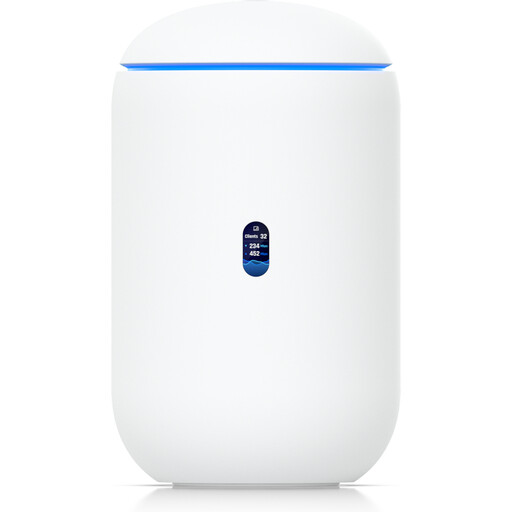
Ubiquiti UniFi Dream Router 7, Wi-Fi 7 gateway
This device is an option if you want routing and built-in Wi-Fi 7 in a single gateway, provided it’s compatible with your connection setup.
10G SFP+; 2.5 GbE PoE; 64GB microSD; according to the product description, four 2.5 GbE RJ45 ports. The product description says 6 GHz operation is subject to local regulations.
View at Joybuy
 No image available
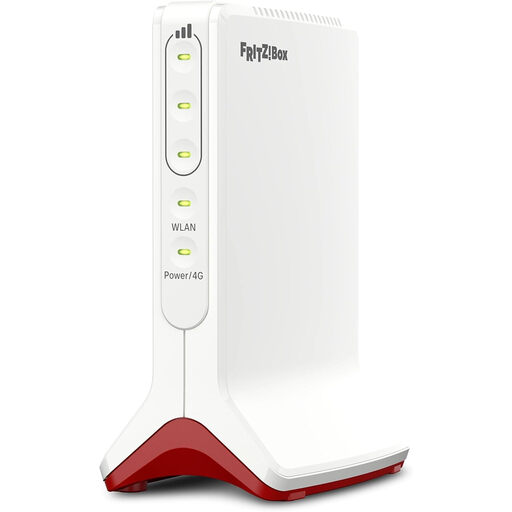
AVM FRITZ!Box 6825 4G LTE Wi-Fi router
For mobile broadband, the device is designed for use with a Nano-SIM, according to the product description.
4G LTE Cat 6, 300 Mbps; Wi-Fi 6 AX 600 Mbps; 1× Gigabit LAN; USB-C power supply. A Nano-SIM is required for the mobile broadband setup described.
View at Joybuy
 No image available
TP-Link Deco M4 mesh Wi-Fi system AC1200 (3-pack)
According to the product description, this three-unit set is designed to provide Wi-Fi in multiple rooms and can be used in router or access point mode.
AC1200 dual-band Wi-Fi; three units; Gigabit Ethernet ports on each unit.
View at Joybuy
 No image available
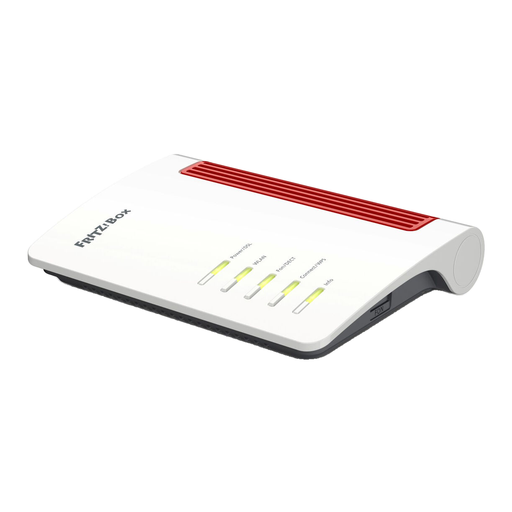
FRITZ!Box 7530 AX, Wi-Fi 6 router with VDSL Supervectoring 35b
For a compatible DSL connection, the product description lists ADSL and VDSL. Check the connection standard included in your contract.
Wi-Fi 6; VDSL Supervectoring 35b; up to 300 Mbps according to the product name; four Gigabit LAN ports.
View at Joybuy
Frequently asked questions
Do I need Wi-Fi 7 for magazine downloads and video calls?
No. This use alone doesn’t mean you need a particular generation of Wi-Fi. First, check your broadband speed and the connection where you take calls. Zoom’s bandwidth guidelines apply to specific call settings; they’re not a minimum requirement for a Wi-Fi 7 router.
What should I check first if my connection drops while downloading?
Check the connection to your calling device separately from your broadband speed. Ofcom’s broadband speed test lets you compare your connection speed with the one agreed in your contract. Testing the connection where you actually use it can also help identify a Wi-Fi issue. You can then decide whether to adjust your router settings, use a wired LAN connection or improve coverage.
How can I keep a new router secure?
The German Federal Office for Information Security recommends changing any default, generic administrator passwords, keeping the firmware up to date and configuring your Wi-Fi securely. Your Wi-Fi password is different from the password you use to manage your router.
Can I use my own router in Germany instead of the one supplied by my provider?
In principle, you’re free to choose your own end device at the network termination point. Ofcom confirms this for VDSL and cable networks, as well as passive optical fibre networks. However, that doesn’t mean every router model is technically compatible with every connection.


