First, check whether the issue lies with your internet connection, the Wi-Fi in your study or the number of devices being used at the same time. A new router won’t fix every problem. Then choose a device that’s compatible with your connection. If the signal is weak, placement or a suitable mesh extender may help; if several people are online at once, look for a prioritisation feature available on the specific model. Google Meet recommends checking bandwidth and latency if you’re having call problems, and trying Ethernet instead of Wi-Fi.
Who should consider these options?
Households with simultaneous video calls
If you’re taking a language lesson while at least one other person is on a video call, you’ll need to consider both your internet connection and how many people are using it at once. FRITZ! / AVM lists reliability as an important router criterion, while Google Meet recommends checking bandwidth and latency if you’re having call problems.
Learners with a weak Wi-Fi signal in their room
If your connection drops off mainly when you’re further away from the router, you could try moving it, using a wired connection or adding Wi-Fi access points. Google Meet recommends trying Ethernet as a comparison; TP-Link says the Deco X50 supports optional Ethernet backhaul between units.
Buyers choosing their own router
If you want to replace your provider’s device, check your connection type and whether you already have a modem. You should also factor in the time needed to set up and update your new router. The Verbraucherzentrale notes that with your own router, you’ll need to install and configure it yourself, and your provider won’t be able to maintain it remotely.
What should you look for when buying?
First, work out whether the bottleneck is your internet connection, Wi-Fi coverage or several people using the network at once. This will help you decide whether you need a compatible connection device, a standalone router or a targeted extension.
| What you need |
What to check before buying |
Who is this most relevant to? |
| Reliable performance when several people are online |
Check how busy your connection gets and how good call quality is during typical use. Find out whether the specific model has a suitable prioritisation feature. |
If a video call is running alongside my language lesson, I want to know whether the connection can handle both. Around 36% of consumers put reliability during simultaneous use first. |
| Wi-Fi where you study |
Compare reception near the router with reception in your study. Check where the router is placed and whether you can connect mesh units using Ethernet. |
If the Wi-Fi is weak in my study, I want to improve the connection there without rushing to change my internet package. Around 29% of consumers focus on reception where they study. |
| Compatibility with your internet connection |
Find out whether you have DSL, cable or fibre broadband and whether you already have a modem or ONT. Check that these match the device’s connections. |
If I want to replace my router, the new device needs to work with my connection and existing setup. Around 21% of consumers prioritise compatibility when changing their connection. |
| Security and ease of setup |
Check update options and support for the exact model version. Find out what you’ll need to set up yourself. |
If I use my own router, I want to be able to manage updates and setup easily. Around 14% of consumers are particularly keen to keep day-to-day upkeep to a minimum. |
Common buying mistakes
-
Confusing Wi-Fi speed with internet speed
The router’s advertised Wi-Fi data rate and the data rate actually available through your internet connection are two different things.
Check your connection and the signal where you study separately. If you’re having call problems, try Ethernet as a comparison with Wi-Fi.
-
Replacing your router without checking your connection type and modem
DSL, cable and fibre broadband each need a different connection setup. A standalone Wi-Fi router won’t necessarily replace an existing modem.
Make a note of your connection type and existing connection device before choosing a model.
Depending on your connection, you may also need a suitable modem or ONT.
-
Choosing a mesh system based on coverage figures alone
The stated coverage doesn’t tell you how well the signal will pass through the walls in your home. For the Deco X50, TP-Link describes both wireless connections and optional Ethernet backhaul.
Plan where to place the units and check whether you can connect them with a cable.
Extra mesh units mean more setup and power requirements.
Key brands at a glance
FRITZ!
For choosing a connection device, the FRITZ!Box 7690 is worth considering as a model with a DSL modem or for use behind a fibre modem.
- The documented connection options for the 7690 include DSL and use behind a fibre modem.
- These features apply to the 7690 and don’t automatically apply to other FRITZ! models. Check that the device is compatible with your connection and existing setup.
TP-Link
The Archer AX55 and Deco X50 offer different approaches: a standalone Wi-Fi router or an expandable mesh system.
- TP-Link lists Wi-Fi 6 and OFDMA for the Archer AX55, and optional Ethernet backhaul for the Deco X50.
- These details apply to the models named. Advertised data rates or coverage figures don’t guarantee call quality in a particular home. You’ll also need to check whether you need a modem.
ASUS
The RT-AX58U is worth considering as a standalone Wi-Fi 6 router to use behind a suitable connection device.
- The German specification lists one Gigabit WAN port and four Gigabit LAN ports.
- According to ASUS, you’ll need compatible devices to benefit from Wi-Fi 6. Check the hardware version rather than assuming features from other models apply.
Joybuy products
The Joybuy range in this category includes mesh systems, standalone Wi-Fi routers and a 4G LTE router. Check that the connection type and Wi-Fi coverage suit the way you plan to use your device.
 No image available
TP-Link Deco BE22 (2-Pack) Wi-Fi 7 mesh Wi-Fi system, dual-band, Gigabit Ethernet, white
This 2-pack mesh system is an option if you need Wi-Fi in several rooms.
The product name lists Wi-Fi 7, dual-band and Gigabit Ethernet.
View at Joybuy
 No image available
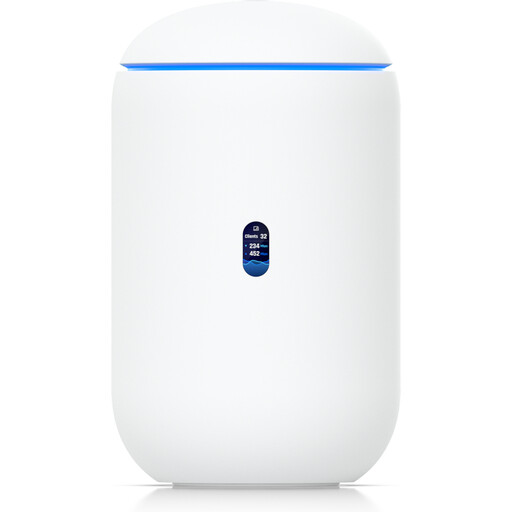
Ubiquiti UniFi Dream Router 7 WiFi 7 Cloud Gateway, 10G SFP+, 2.5 GbE PoE, 64GB microSD, White
This device is an option for a home network with Wi-Fi 7 built in. Management requires an active internet connection and UniFi Network version 9.0.108 or later.
The product name lists 10G SFP+, 2.5 GbE PoE and 64GB microSD.
View at Joybuy
 No image available
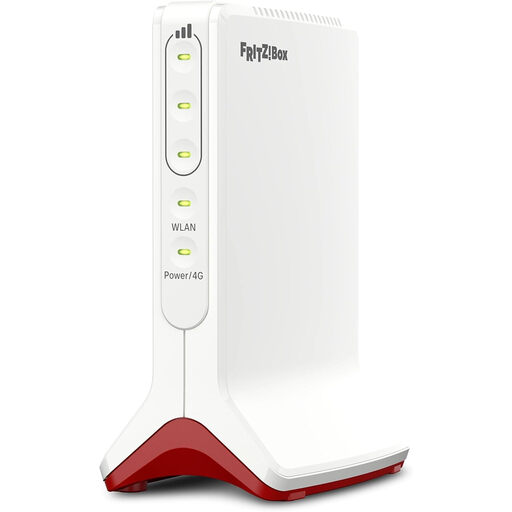
AVM FRITZ!Box 6825 4G LTE, Cat 6 300 Mbps, Wi-Fi 6 AX 600 Mbps, 1× Gigabit LAN, USB-C power supply, Nano-SIM, FRITZ!OS, white
This model is worth considering if you plan to access the internet via mobile broadband; internet access is provided through a Nano-SIM and mobile network.
The product name lists Cat 6 300 Mbps, Wi-Fi 6 AX 600 Mbps, 1× Gigabit LAN and USB-C power supply.
View at Joybuy
 No image available
TP-Link Deco M4 AC1200 mesh Wi-Fi system (3-Pack), dual-band, Gigabit ports
This 3-pack mesh system is an option if you want to extend Wi-Fi to several rooms.
For setup, one unit is connected to a modem using Ethernet.
The product name lists AC1200, dual-band and Gigabit ports.
View at Joybuy
 No image available
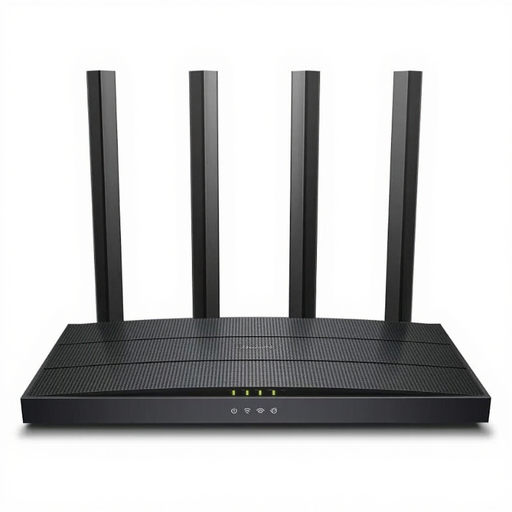
TP-Link Archer C6 V3.2 Wi-Fi router, 4-port switch
This model is an option as a standalone router if you already have a suitable modem; according to the description, it doesn’t have a built-in modem.
The product name lists a 4-port switch.
View at Joybuy
Frequently asked questions
Should I check my router or internet connection first?
Compare your connection during typical simultaneous use with a wired connection, and check your actual internet speed. If you’re having quality issues, Google Meet recommends checking bandwidth and latency and trying Ethernet; the Bundesnetzagentur offers tests to compare your speed with the data rate agreed in your contract.
Can I use my own router instead of the one provided by my internet provider?
For passive optical fibre networks, the Bundesnetzagentur confirmed the freedom to choose your own end device on 22 January 2025. Your device still needs to be compatible with your connection type and setup. As the Verbraucherzentrale explains, if you use your own router, you’ll need to manage setup and updates yourself.
What should I do to keep my network secure after setup?
Install any available router updates and check whether an automatic update feature is available for your specific device and has been enabled. The Verbraucherzentrale recommends installing updates for your router and network devices as soon as they’re available.
Does a Wi-Fi router need to include a modem?
No. You can use a standalone Wi-Fi router behind an existing modem or ONT. If you want to replace your connection device, the new model must be explicitly compatible with your connection type. Also check your existing setup and any login details you’ll need.


