First, check whether you need a DSL, cable or fibre-optic modem that’s compatible with your connection, or whether you already have a modem or ONT. For simultaneous video calls, your internet connection’s upload speed and the signal at the places where you work also matter. Zoom recommends 2.6 Mbit/s upload and 1.8 Mbit/s download for a single 720p group call. These app-specific figures shouldn’t be assumed to apply to other apps. A higher advertised peak Wi-Fi speed won’t fix a limited upload speed or dead zones. You should also factor in setup, updates and any additional equipment you may need.
Who this router guide is for
Households with several video lessons running at once
If a learning platform and several video calls are running at the same time, your internet connection’s upload speed should also be taken into account. Zoom publishes app-specific requirements for group calls.
Students with weak Wi-Fi in their study
If the connection works well near the router but struggles where you study, coverage in that room and, if necessary, a suitable extender are important things to consider.
Anyone changing their connection or router
If you’re changing your router or internet connection, check whether you need a built-in modem, what setup will be involved and who is responsible for updates. The Verbraucherzentrale notes that buyers of their own device need to keep an eye on updates themselves.
What to look for when buying
Start by checking your connection type and any equipment already installed. Then check your upload speed and the connection where you work, before comparing router features or possible extensions. For a single 720p group call, Zoom recommends 2.6 Mbit/s upload and 1.8 Mbit/s download. These figures apply to Zoom and aren’t a performance guarantee for other apps or for a router.
| What matters |
What to check before buying |
Who should pay particular attention |
| Simultaneous calls and upload speed |
Check how many calls will run at once, which video app you use and how much upload speed is available. |
If several video lessons and calls are running at the same time, I want to know whether my connection has enough upload speed. Around 25% of consumers prioritise simultaneous calls. |
| Connection and modem |
Check whether you have DSL, cable or fibre, and whether you already have a modem or ONT. |
When changing routers, I want to be sure the device is compatible with my connection and existing equipment. Around 25% of consumers prioritise connection and modem compatibility. |
| Wi-Fi where you study |
Check the connection in the room where you actually work. If needed, consider a mesh extender or Ethernet. |
If I have a weak signal in my study, the connection right there matters more to me than a high advertised data rate. Around 20% of consumers put coverage where they study first. |
| Security and updates |
Check the update options and who is responsible for them, whether you use your own device or one supplied by your provider. |
When setting up my router, I want to know how to keep it up to date and secure. Around 15% of consumers prioritise maintenance and security. |
| Total costs and ongoing support |
Weigh up buying or renting, any additional equipment you need, and the time required for setup and updates. |
When comparing ongoing costs and the work involved in looking after the router myself, I want to factor in any additional equipment. Around 15% of consumers prioritise total costs and ongoing support. |
Common buying mistakes
-
Confusing peak Wi-Fi speeds with the upload speed needed for video calls
The advertised Wi-Fi data rate doesn’t tell you the upload speed of your internet connection. Several video calls will share that upload capacity.
Check your actual upload speed and the requirements of the video app you use. Zoom’s figures apply only to the call types and resolutions described there.
-
Buying a router without the right modem as a replacement for any connection
An Ethernet WAN port isn’t a substitute for a built-in modem that’s compatible with your line.
Make a note of your connection type and the equipment already installed before choosing a model.
Depending on your connection, you may also need a compatible modem or ONT.
-
Trying to fix a dead zone simply by buying a router with a higher data rate
Your connection needs to work where you study. Technical specifications alone don’t guarantee coverage through walls or on other floors.
Check the room with the problem and compare replacing your router with a suitable extender or a wired connection.
A mesh extender may require additional compatible devices.
-
Overlooking the work involved in managing your own router
If you buy your own router, you may need to handle setup, troubleshooting and updates yourself.
Check the update features, support and contract terms before comparing buying with renting.
Setting it up yourself and keeping it maintained takes time.
Router brands at a glance
FRITZ!
The FRITZ!Box 7690 is a specific model for DSL or use with a separate fibre-optic modem.
- FRITZ! lists a DSL modem, Wi-Fi 7, mesh and telephony features for the 7690.
- Its built-in modem isn’t automatically compatible with other connection types, and Wi-Fi 7 alone doesn’t guarantee coverage in every room.
TP-Link
The Archer AX55 Pro is an example of a Wi-Fi 6 router with Ethernet WAN and EasyMesh compatibility.
- TP-Link lists a 2.5-Gbit/s WAN/LAN port and OFDMA for this model.
- These manufacturer specifications aren’t independent measurements of call quality. The modem and any mesh devices you want to use need to suit your setup.
ASUS
The RT-AX58U is a Wi-Fi 6 Ethernet WAN router with access point mode and AiMesh support.
- ASUS lists one Gigabit WAN port and four Gigabit LAN ports.
- The specifications show different processors for V1 and V2. Check which version is being offered; no built-in DSL or cable modem is listed.
Telekom
The Speedport Smart 4 is an example of a DSL router that, according to Telekom, can also be used with an external fibre-optic modem.
- Telekom lists support for ADSL, ADSL 2+ and VDSL, including Vectoring and Super Vectoring, as well as expansion using compatible Telekom mesh devices.
- According to Telekom, fibre requires an external fibre-optic modem. A listed Wi-Fi data rate doesn’t demonstrate the speed you’ll get from a learning platform or end device.
Joybuy products for different connection types
The selection below includes DSL and 4G LTE routers, other home network routers and a mesh system. Check your connection type, existing modem and work area before choosing.
 No image available
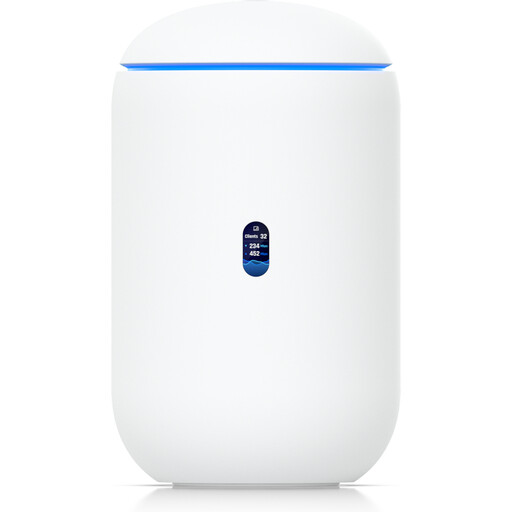
Ubiquiti UniFi Dream Router 7, WiFi 7, 10G SFP+, 2.5 GbE PoE, 64GB microSD, White
If you can use UniFi Network in your home network, this Cloud Gateway is an option. Management requires UniFi Network version 9.0.108 or later.
Specifications include WiFi 7, 10G SFP+, 2.5 GbE PoE and 64GB microSD.
View at Joybuy
 No image available
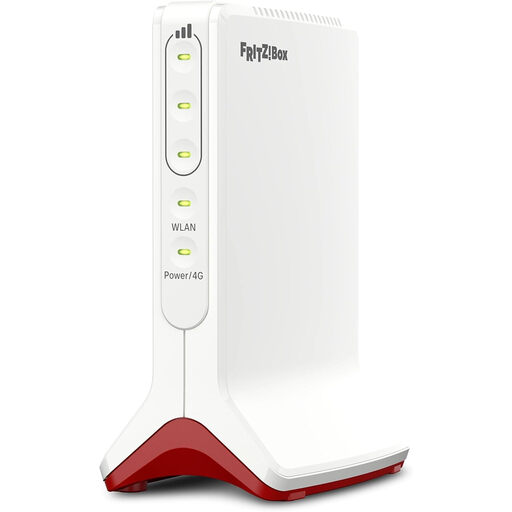
AVM FRITZ!Box 6825 4G LTE, Wi-Fi 6, Nano-SIM, White
If you want your internet access to run over 4G LTE, this model is designed for mobile connectivity with a Nano-SIM.
Specifications include Cat 6 at 300 Mbps, Wi-Fi 6 AX 600 Mbps, 1× Gigabit LAN and USB-C power.
View at Joybuy
 No image available
TP-Link Deco M4 AC1200 mesh system, 3-pack
If you want to cover several rooms, a mesh system could be a good option. According to the product details, one unit connects to a modem via Ethernet.
Specifications include dual-band Wi-Fi, AC1200 and Gigabit ports on each unit.
View at Joybuy
 No image available
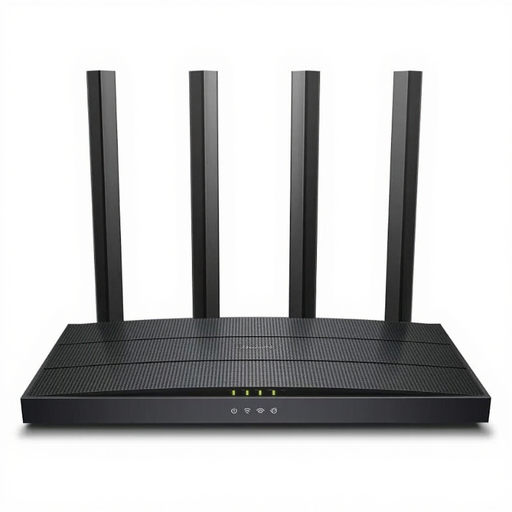
TP-Link Archer C6 V3.2
If you want to use a modem you already have, this router could be an option as it doesn’t have a built-in modem.
The product name specifies a 4-port switch.
View at Joybuy
 No image available
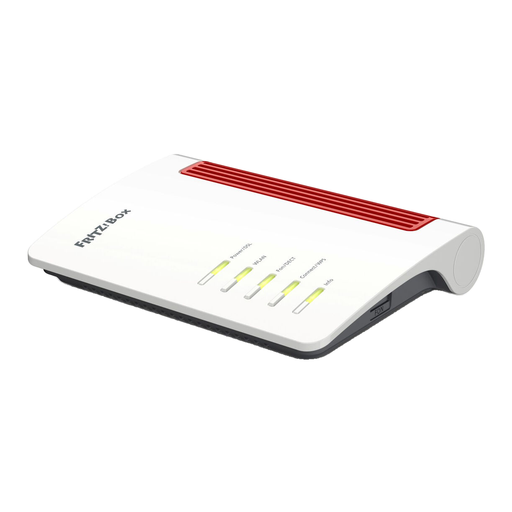
FRITZ!Box 7530 AX, Wi-Fi 6, VDSL Supervectoring 35b
This model could suit an ADSL or VDSL connection. According to the description, you can extend it with FRITZ! mesh products.
Specifications include Wi-Fi 6 up to 2400 Mbps, VDSL Supervectoring 35b up to 300 Mbps and 4× Gigabit LAN.
View at Joybuy
Frequently asked questions
Do I need a particular Wi-Fi standard for a learning platform?
You can’t determine a specific Wi-Fi standard from an unspecified learning platform. First, you need a working internet connection and a good connection on the device you use. Video calls also depend on the requirements of the app in question. Zoom’s figures apply only to the call types and resolutions described there.
How do I set up a router I’ve bought myself securely?
Have your login details ready, set up the router to suit your connection and change any default passwords. The Federal Office for Information Security recommends keeping the firmware up to date and using automatic updates where available.
Is buying your own router always cheaper than using one from your provider?
Not necessarily. Buying your own device may mean you avoid rental fees, but you’ll need to handle setup and updates yourself and may need a modem or mesh devices. Compare these points with the terms of your specific contract.
Can I use my own router in Germany?
The Federal Network Agency confirms that you can choose your own end device at the network termination point, including on passive optical fibre networks. You also have this freedom of choice on VDSL and cable networks. That doesn’t mean every device will work with every connection, so check the modem, network termination point and operating mode for your specific connection.


