Households with simultaneous uploads and video calls
If someone is on a video call while other people are uploading photos, the connection’s actual upload speed and how it handles simultaneous traffic are crucial.


First, check the upload speed your internet connection actually delivers: faster Wi-Fi won’t give you more upload capacity. When photo uploads and video calls are happening at the same time, the right type of connection, a reliable signal where you use your devices and sensible traffic prioritisation all matter. Before you buy, also check the exact device version and the conformity documents it requires.
If someone is on a video call while other people are uploading photos, the connection’s actual upload speed and how it handles simultaneous traffic are crucial.
If your device is a long way from the router or behind walls, check the connection exactly where you use it. You could also consider repositioning the router, using Ethernet or adding Wi-Fi access points.
If you’re buying your own device or changing your internet package, make sure the router, modem and WAN connection are right for your specific service.
First, find out the upload speed your connection actually provides and what type of connection you have. Then check the signal where you use your devices and whether the router in question lets you prioritise video call traffic.
| What matters when buying | What to check | Who should pay particular attention |
|---|---|---|
| Actual connection upload speed | Measure your connection’s upload speed and compare it with the demands of photo uploads and simultaneous calls. | If several people are uploading photos and making video calls at the same time, I want to know whether my connection can handle it; around 36% of consumers say upload speed is their main concern. |
| Priority for video calls | Check whether the exact model lets you prioritise the device used for calls over devices uploading files. | If an upload disrupts a call, I want to be able to give the video call device priority; around 29% of consumers focus mainly on prioritisation. |
| Wi-Fi where you use your devices | Check the connection where you make calls and upload files; consider Ethernet, router placement and, where appropriate, mesh Wi-Fi. | If my video call device is in a room further away, I need a reliable connection there; around 21% of consumers focus mainly on Wi-Fi coverage. |
| Connection compatibility | Check that the device’s connections match your DSL, cable or fibre broadband service, as well as any existing modem or ONT. | If I change my internet service or connect my own device, the router or modem needs to work with that connection; around 14% of consumers say compatibility is their main concern. |
Your photo album and outgoing video both use your connection’s upload capacity. A router with a higher advertised Wi-Fi data rate won’t increase that capacity.
Measure your connection’s upload speed first and check whether that’s the bottleneck before planning to replace your router.
DSL and cable models with built-in modems do a different job from a Wi-Fi router connected behind a modem or fibre ONT.
Find out what type of connection and upstream equipment you have, then check these against the requirements of the exact model.
According to the manufacturer, the FRITZ!Box 7690 supports Wi-Fi 7 on 2.4 and 5 GHz; the FRITZ!Box 5690 Pro is available with a 6-GHz band.
Check the frequency bands supported by the exact model and whether your devices can use them, rather than choosing based on the Wi-Fi generation alone.
The models mentioned here support different connection types: according to the manufacturer, the FRITZ!Box 7690 is designed for DSL or use behind a fibre modem, the 6670 Cable for cable broadband, and the 5690 Pro for DSL and fibre.
The Archer BE550 is an option if you’re looking for a Wi-Fi router with Ethernet WAN and have a compatible modem or ONT to connect it to.
The RT-AX86U Pro is worth considering if you’re looking for a router with configurable Ethernet WAN and a specified QoS feature.
The Speedport Smart 4 is a Wi-Fi 6 option. Check whether it’s suitable for your specific Telekom setup.
The Nighthawk RS300 is a Wi-Fi 7 router to consider for a setup with suitable upstream connection equipment.
The devices below cover router options for existing modems or ONTs, multiple Wi-Fi use points and DSL connections. Before buying, check the connection type and make sure the specific version on offer has the required EU conformity documents and CE marking. Germany’s Federal Network Agency explains these requirements for radio equipment in Germany.
 No image available
This 2-pack is an option if you want Wi-Fi in several places around your home.
Two units; dual-band Wi-Fi 7; Gigabit WAN/LAN ports. Supports router and access point modes.
 No image available
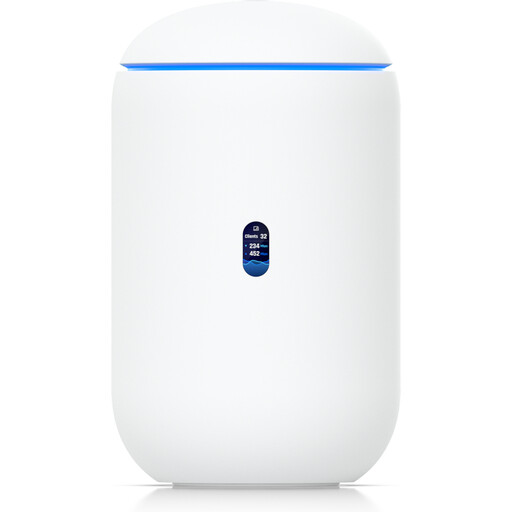
An option if you want to keep using an existing modem or ONT with one of the specified WAN options.
Tri-band Wi-Fi 7; 10G SFP+ port; four 2.5 GbE RJ45 ports. Management requires an active internet connection and UniFi Network version 9.0.108 or later.
 No image available
This 3-pack is an option if you’re looking for a mesh system for several areas of your home and can connect a modem via Ethernet.
Router and access point modes; QoS listed as a feature. Setup involves connecting one Deco unit to a modem via Ethernet.
 No image available
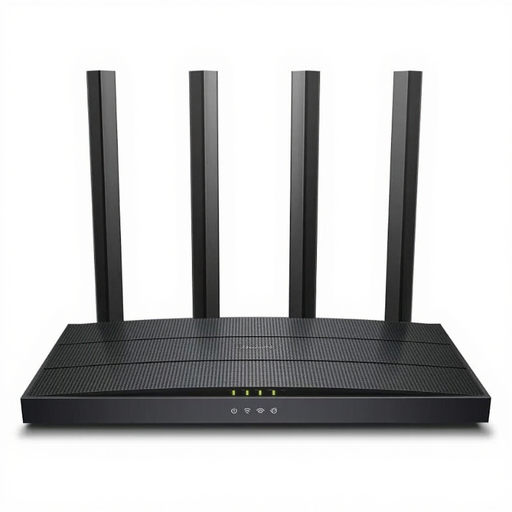
This device may be suitable if you’re looking for a router without a built-in modem and already have compatible upstream equipment.
Dual-band Wi-Fi; four external aerials; Gigabit Ethernet ports. The description states that it doesn’t have a built-in modem.
 No image available
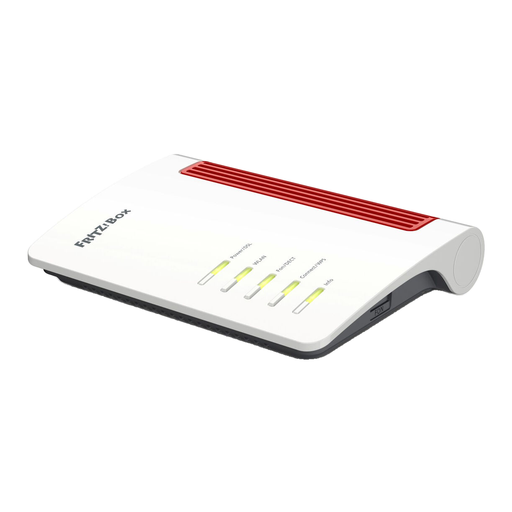
This option is designed for a compatible ADSL or VDSL connection; check the connection requirements for your service.
VDSL Supervectoring 35b; ADSL and VDSL support; mesh; four Gigabit LAN ports.
No. The advertised Wi-Fi data rate isn’t the upload speed of your internet connection. First, measure the connection’s actual performance; Microsoft recommends checking both download and upload speeds for video calls.
First, check the router’s location and possible sources of wireless interference. If you can, try connecting your call device via Ethernet. Keep your router firmware and network adapter up to date. The manufacturer also explains how to prioritise individual devices on supported FRITZ!Box models; check whether your specific model has this feature.
Compare the costs and effort involved in setup, support and updates under your specific contract. The consumer advice centre notes that if you use your own device, you’re responsible for keeping it up to date; which option is cheaper depends on your contract.
In principle, you’re free to choose your own end device at the network termination point, including on passive optical fibre networks. Germany’s Federal Network Agency confirmed this on 22 January 2025; the device still needs to be technically compatible with your connection.
The radio equipment must meet the relevant conformity requirements, including the required EU declaration of conformity and CE marking. Germany’s Federal Network Agency also explains which accompanying documents are required, such as instructions and safety information. This marking isn’t independent evidence of performance on video calls while photos are being uploaded at the same time.