Uploading files during client calls
If you’re uploading large portfolio files while a conference device is using the same connection, prioritising call traffic may be useful. FRITZ! describes this feature for the 6670 Cable.


Start by checking the upload speed actually available from your internet connection: faster Wi-Fi can’t make up for a limited connection upload speed. If a file upload and video call are running at the same time, it’s worth checking whether you can prioritise devices in the router’s current operating mode. And if reception is poor where you work, a wired LAN connection or a well-placed additional Wi-Fi access point may matter more than a higher advertised Wi-Fi data rate.
If you’re uploading large portfolio files while a conference device is using the same connection, prioritising call traffic may be useful. FRITZ! describes this feature for the 6670 Cable.
Check whether your internet connection can handle a file upload and video call at the same time. The Bundesnetzagentur provides a tool to compare your actual connection speed with the rate agreed in your contract.
If the connection at your desk is weaker than near the router, a usable LAN connection there and suitable options for extending your Wi-Fi may be important. So check reception where you actually work.
| What to consider | What to check before buying | Who is this most relevant to? |
|---|---|---|
| Video calls while uploading | Check whether your router can prioritise devices in the operating mode you use, and whether you can select your conference device. According to FRITZ!, prioritisation isn’t available on the FRITZ!Box 6670 Cable in Mesh repeater or IP client mode. | If I need to be heard clearly on a client call while uploading a portfolio, I look for device prioritisation that works when the router is in router mode. Around 36% of consumers rank call priority as their top consideration. |
| Available connection upload speed | Measure your actual connection speed and compare it with your contract; the Bundesnetzagentur provides a broadband measurement tool. Zoom recommends an upload speed of 1.8 Mbit/s for 720p HD video in its web app; a simultaneous file upload needs additional capacity. | If my contract offers only limited upload speed, I check the actual connection speed first rather than a Wi-Fi figure. Around 29% of consumers give the available connection upload speed the most weight. |
| Connection at your workspace | Compare reception at your desk with a measurement near the router. Check whether a LAN connection is practical or an extension is compatible with your existing network. | If reception is weaker in a home office further away, I need a reliable connection there, for example through LAN or a suitable Wi-Fi extender. Around 21% of consumers prioritise reception at their workspace. |
| Security and support | Check the device’s security options, firmware updates, and the specific support and warranty terms offered. The Federal Office for Information Security recommends changing default passwords and keeping firmware up to date. | If secure set-up and ongoing support are especially important to me, I look for clear security options and available updates. Around 14% of consumers put these points first. |
The advertised Wi-Fi data rate doesn’t automatically tell you the upload speed of your internet connection. The Bundesnetzagentur lets you compare your actual connection speed with the rate agreed in your contract.
First, measure your connection’s upload speed, then check whether the bottleneck is your Wi-Fi or your internet connection.
A new router may be unnecessary if your connection’s upload speed remains the limiting factor.
Routers vary in whether they include a DSL, cable or fibre modem, or need to be connected behind an existing modem or ONT. So a device with the right Wi-Fi features may still not work directly with your connection.
Before choosing a model, identify your connection type and check which modem or ONT you already have.
The documented models are designed for different DSL, cable and fibre connections; check the specific access technology supported by each device.
The Archer BE550 is an example of a Wi-Fi router that can be used behind a suitable internet connection point.
The RT-BE88U may be worth considering if you need a router to use behind a suitable internet connection point, with several wired connections.
This selection includes mesh systems for multiple rooms, Wi-Fi routers with QoS or wired connection options, and a DSL router. Before buying, check whether each model connects directly to your internet service or requires a modem or ONT.
 Image unavailable
The set includes two mesh units to provide a connection across multiple rooms.
Dual-band Wi-Fi 7; two Gigabit WAN/LAN ports per unit.
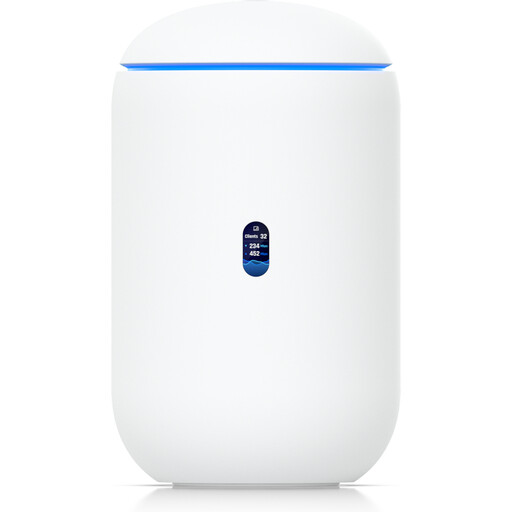 Image unavailable
For Wi-Fi and several wired devices, the listed features include integrated tri-band Wi-Fi 7 and four 2.5 GbE RJ45 ports.
Also listed are 10G SFP+ and 2.5 GbE WAN options, as well as a PoE output. Management requires an active internet connection and UniFi Network version 9.0.108 or later. According to the product information, the 6 GHz band is subject to local conditions.
 Image unavailable
The 3-pack is an option for covering several rooms with mesh units; QoS is listed as a feature.
Dual-band Wi-Fi; router and access point modes; two Gigabit LAN/WAN ports per unit. The set-up guide explains how to connect a Deco unit to a modem in router mode.
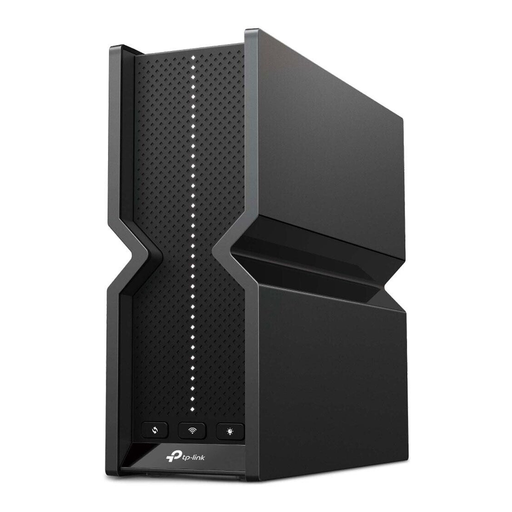 Image unavailable
Four 2.5-Gbit/s LAN ports are listed for wired devices at your workspace, and QoS is included as a feature.
One 2.5-Gbit/s WAN port; the product guide describes connecting the router to a modem. QoS features don’t guarantee a particular level of video call quality.
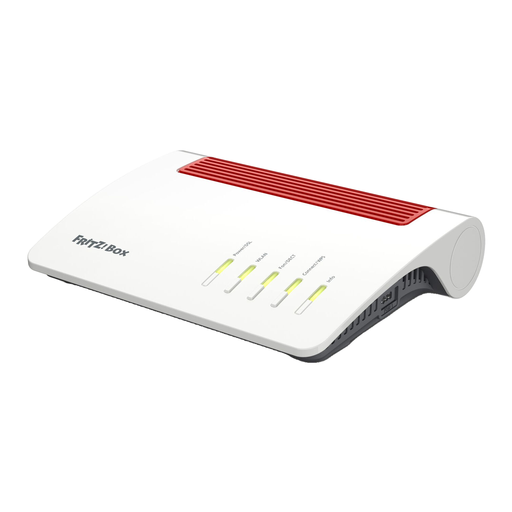 Image unavailable
This model is described as a router for DSL connections, with an integrated VDSL Supervectoring 35b modem.
Dual-band Wi-Fi; four Gigabit LAN ports; FRITZ! Mesh Master function.
No, not just for file uploads. First check your actual connection upload speed and the connection where you work; an advertised local Wi-Fi data rate doesn’t tell you how quickly your internet connection can upload.
For the FRITZ!Box 6670 Cable, FRITZ! explains how to set your conference device to “prioritised” under “Home Network” and “Network”, in the network connections. If the box is running as a Mesh repeater or IP client, you can’t prioritise devices there; set it up on the main router responsible for managing your connection.
The Federal Office for Information Security recommends changing the default password and keeping firmware up to date, ideally with automatic updates enabled. Also check the security options for your specific model.
FRITZ!’s manufacturer pages list a five-year warranty for both models, while the corresponding Joybuy product pages state a two-year manufacturer’s warranty. Check the warranty terms for the specific offer before buying.
The Bundesnetzagentur confirms that you can choose your own end device at the network termination point for VDSL and cable, and still for passive optical fibre networks. That doesn’t mean every device will work with every connection, so check your connection type and whether you need a modem or ONT.