Start by choosing a router whose modem or WAN mode suits your internet connection. Then check the signal at your workspace and the file-sharing features you actually need. If you’ll be uploading files and making video calls at the same time, your available upload capacity and Wi-Fi connection matter too. A USB port alone doesn’t guarantee suitable file sharing or mean the router can replace dedicated project storage.
Who this router guide is for
Teams making video calls at the same time
You’re transferring files while other people are talking or presenting. Check the connection at your workspace, available upload capacity and, if relevant, traffic management features. No single router specification can guarantee uninterrupted calls.
Project teams sharing files
You want to share files across your local network and need to decide whether a supported router-based file share will do, or whether dedicated storage is a better fit for your access and backup requirements.
Home offices with patchy Wi-Fi coverage
Your work device is a long way from the router or separated from it by several walls. Check the signal where you make calls rather than relying solely on advertised maximum Wi-Fi speeds.
What to look for when buying
| Priority |
What to check before you buy |
Who it matters most to |
| Video calls during simultaneous uploads |
Check upload capacity during typical use, signal strength where you take calls, the option of a wired LAN connection and any model-specific QoS features. |
If you need to take calls reliably while uploading files, pay attention to your connection’s capacity and the signal at your workspace. Consumers who prioritise stable calls are likely to make up around 28%. |
| Shared file access |
Check the file-sharing features, storage connection, access permissions and backup options for the specific model. Don’t assume the USB version tells you the transfer speed. |
If several people need to access project files, you’ll need sharing features that suit your workflow and backup requirements. Consumers whose main priority is shared file access are likely to make up around 22%. |
| Compatibility with your internet connection |
Check the connection type, whether you need a modem or ONT, and whether the exact router model’s WAN mode meets your connection’s requirements. |
If you’re changing your internet connection, or aren’t sure which device needs to act as the modem, check how everything needs to be set up first. Consumers who mainly need to check connection and modem compatibility are likely to make up around 17%. |
| Wi-Fi where you work |
Test the signal at your actual desk and consider whether you could position the router centrally, use a LAN connection or add a suitable Wi-Fi extender. |
If your study is a long way from the router or there are walls in between, the connection where you work is what matters. Consumers whose main concern is poor Wi-Fi coverage at their workspace are likely to make up around 17%. |
| Protecting shared files |
Check update options, Wi-Fi encryption, separate passwords, guest network features and the access permissions you need. |
If guests or several people use the same network, you’ll want to be able to manage network access and file permissions. Consumers who prioritise protecting shared files and keeping their router up to date are likely to make up around 16%. |
Common router-buying misconceptions
-
Assuming advertised Wi-Fi speeds mean better-quality calls
A high theoretical Wi-Fi data rate won’t fix a weak upload speed, wireless interference or poor signal at your workspace.
First, check your internet connection and the signal where you actually use it. Then choose suitable ports and wireless technology, and consider a supported QoS feature if needed.
-
Assuming a USB port provides complete project storage
The USB version doesn’t tell you how well file sharing performs in practice, what access permissions are available or whether there’s a backup solution.
Check the file-sharing protocols, user permissions and backup options for the specific model. Also consider whether a router-based file share can handle the number and type of access requests you expect.
-
Assuming DSL, cable and routers without a modem are interchangeable
A Wi-Fi standard doesn’t tell you whether a device can connect directly to your existing internet service.
Before choosing a model, check that its connection type, modem function and WAN mode meet the requirements of your internet service.
-
Expecting a single router to provide coverage in every room
Walls and distance affect the wireless connection, so a single device can’t guarantee suitable coverage in rooms further away.
Test the connection at your desk and, if needed, consider a LAN connection or a suitable Wi-Fi extender.
Brands to consider
FRITZ!
The specific DSL and cable models matter when choosing a router for your connection. According to the manufacturer, the FRITZ!Box 7690 is a DSL model that can also be used behind a separate fibre-optic modem.
- According to the manufacturer, the FRITZ!Box 7690 has two 2.5 Gbit/s ports, two Gigabit LAN ports and USB 2.0. It supports Wi-Fi 7 on 2.4 and 5 GHz.
- This model doesn’t use the 6 GHz band. Its connection specifications don’t measure file-sharing performance or performance during simultaneous calls.
TP-Link
The Archer AX55 is a specific Wi-Fi 6 model to consider for use behind a suitable separate access device.
- TP-Link lists Gigabit ports and USB 3.0 for the Archer AX55.
- The manufacturer’s claims about video chats aren’t an independent test of simultaneous file transfers. Check that the connection setup and file-sharing features suit your particular installation.
ASUS
The RT-AX88U Pro is worth considering if you’re keeping your modem or ONT and need extra LAN ports or traffic management features.
- ASUS lists a 2.5 Gbit/s WAN port, a 2.5 Gbit/s LAN port, USB 3.2 Gen 1 and Adaptive QoS for this model.
- These specifications confirm the available features, but don’t guarantee better performance for particular video calls or file transfers.
Joybuy routers and mesh Wi-Fi
This selection includes mesh systems and routers for use behind a suitable modem or ONT, as well as a DSL router with a built-in modem.
 No image available
TP-Link Deco BE22 Mesh Wi-Fi 7 System, 2-pack
An option if you want Wi-Fi coverage across several areas and plan to use the router behind a suitable modem or ONT.
Wi-Fi 7, dual-band and two mesh units. According to the product details, the system supports router and access point modes, and each unit has two Gigabit WAN/LAN ports.
View at Joybuy
 No image available
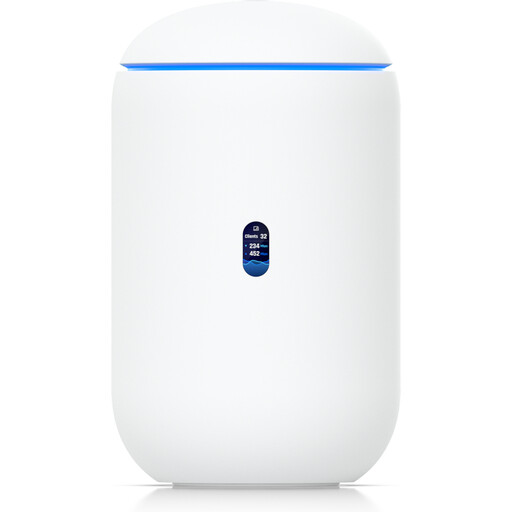
Ubiquiti UniFi Dream Router 7
Consider this gateway if you want to connect several wired devices or manage a UniFi network. It’s designed to be set up with an internet connection already in place.
The product details list tri-band Wi-Fi 7, four 2.5 GbE RJ45 ports, one 10G SFP+ port and VLAN segmentation. An active internet connection and UniFi Network version 9.0.108 or later are required for management.
View at Joybuy
 No image available
TP-Link Deco M4 Mesh Wi-Fi System, 3-pack
A mesh option if you want Wi-Fi coverage across several rooms and already have a suitable access device.
Dual-band Wi-Fi and three units. According to the product description, the system can be used as a router or access point. Each unit has two Gigabit ports and supports QoS.
View at Joybuy
 No image available
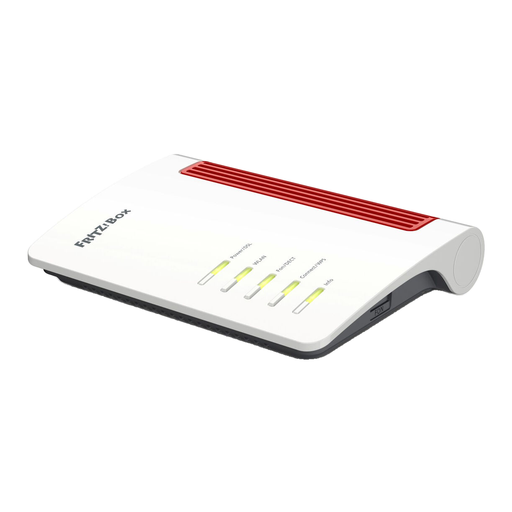
FRITZ!Box 7530 AX Wi-Fi 6 DSL Router
Consider this model if you’re looking for a suitable DSL router with a built-in modem.
The product details list VDSL Supervectoring 35b, dual-band Wi-Fi, four Gigabit LAN ports, mesh support, USB and VPN. If you want to use USB for file sharing, check the features supported by the specific model.
View at Joybuy
 No image available
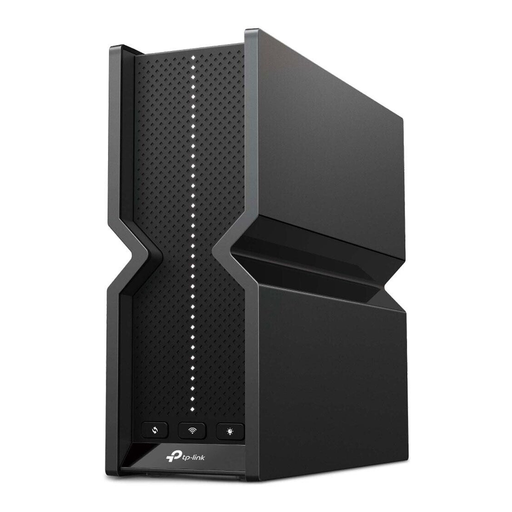
TP-Link Archer BE550 Wi-Fi 7 Router
An option if you want to connect a router to a modem over Ethernet and check whether it has a USB storage port.
Tri-band Wi-Fi 7, one 2.5 GbE WAN port, four 2.5 GbE LAN ports and USB 3.0. The product description lists USB storage and media sharing, as well as QoS. It’s designed to be set up with a modem over Ethernet.
View at Joybuy
Frequently asked questions
Can I share project files directly through a router?
Yes, if the specific device and its setup support suitable file sharing. A USB port alone doesn’t guarantee appropriate access permissions or enough performance for simultaneous access. Check the backup options too.
What should I check if file uploads affect my video calls?
Check your upload and download speeds during typical use, as well as the Wi-Fi signal at your workspace. Microsoft Support also recommends considering sources of interference and your router’s position. Replacing your router can’t make up for a lack of bandwidth from your internet connection.
Can I use my own router in Germany?
According to the German Federal Network Agency, end users are free to choose their own device at the network termination point for VDSL, cable and passive optical fibre networks. You’ll still need to check that the device is technically compatible with your specific connection and that you have any required login details.
Does every Wi-Fi 7 router have a 6 GHz band?
No. The Wi-Fi 7 label alone doesn’t confirm that a router has a 6 GHz radio. According to the manufacturer, the FRITZ!Box 7690 uses the 2.4 and 5 GHz bands. The current German general frequency allocation is also relevant to 6 GHz Wi-Fi: the Federal Network Agency’s Decision 76/2025 replaced Decision 12/2025 for 5945–6425 MHz. Check the model’s capabilities and applicable operating conditions before you buy.
What should I look for in router security and file access?
The German Federal Office for Information Security recommends keeping your firmware up to date and using a separate guest network for visitors’ devices. Also check how to set access permissions for file sharing and whether a separate storage device or another storage solution would suit your workflow.


