What should you look for when buying?
First, check your connection where you study, then identify your connection type. This will help you work out whether you need a new router or better Wi-Fi coverage.
| Priority |
What to check when buying |
Who it matters most to |
| Reliable calls |
Check upload and download speeds where you study; for the specific model, look for a feature that prioritises video calls and check which firmware version it requires. |
If I’m downloading something during a course call, I want to keep the connection as stable as possible. Around 33% of consumers put call reliability first. |
| Connection compatibility |
Check your connection type and existing modem, and consider which phone features you need. |
If I’m replacing my main router, it needs to work with my DSL, cable or fibre connection. Around 27% of consumers prioritise connection compatibility. |
| Coverage where you study |
Check the signal where you make calls; compare the router’s position, Wi-Fi band and the option of an Ethernet connection. |
If my Wi-Fi is weak at my desk behind walls, the connection in that exact spot matters to me. Around 20% of consumers put coverage where they study first. |
| Updates and device security |
Check the update options for the specific model and set up secure login details. |
If I want to use my router for the long term, I look for ongoing firmware updates and secure login details. Around 20% of consumers prioritise these maintenance features. |
Joybuy products for Wi-Fi and connectivity
These models cover Wi-Fi extension behind an existing connection device, as well as 4G LTE internet access. Before choosing, check which connection type you have and what coverage is available where you study.
 Image unavailable
TP-Link Deco BE22 (2-Pack), Mesh Wi-Fi 7 system
For a mesh network across several rooms, while keeping your existing connection device.
Wi-Fi 7, dual-band and Gigabit Ethernet; the set includes two units.
View at Joybuy
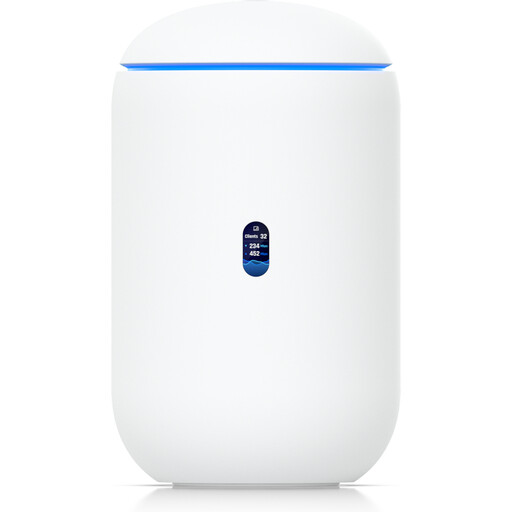 Image unavailable
Ubiquiti UniFi Dream Router 7, Wi-Fi 7 Cloud Gateway
An option for a home network with a compatible Ethernet connection device and wired connections where you study.
The product name lists 10G SFP+, 2.5 GbE PoE and 64GB microSD. An active internet connection and UniFi Network version 9.0.108 or later are required for management.
View at Joybuy
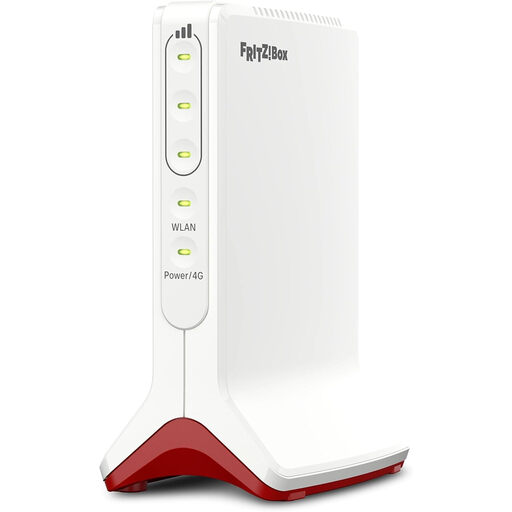 Image unavailable
AVM FRITZ!Box 6825 4G LTE, Cat 6, Wi-Fi 6, Nano SIM
For internet access over 4G LTE, provided there’s mobile coverage where you plan to use it.
The product name lists Wi-Fi 6, 1× Gigabit LAN and Nano SIM. LTE access requires a Nano-SIM; Wi-Fi is listed as 2.4 GHz.
View at Joybuy
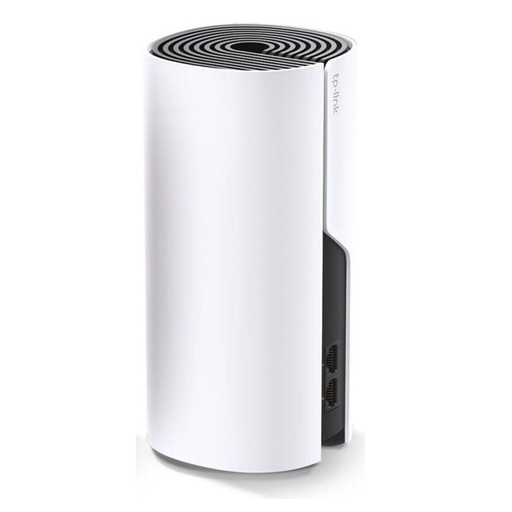 Image unavailable
TP-Link Deco M4, 1-Pack, Wi-Fi 5 AC1200
A single unit for a smaller area or to extend an existing Deco network.
Dual-band and Gigabit ports. You’ll need additional Deco units to create a mesh network with several nodes; the product description specifies an Ethernet connection to a modem and setup using the Deco app.
View at Joybuy
 Image unavailable
TP-Link Deco M4, 3-Pack, Wi-Fi 5 AC1200
For Wi-Fi across several rooms, while continuing to use your existing connection device.
The set includes three units and offers Gigabit Ethernet. It’s designed for the main unit to connect to a modem via Ethernet, with setup through the Deco app.
View at Joybuy
Frequently asked questions
How can I tell whether my router or internet connection is slowing down my video call?
Check download and upload speeds, as well as Wi-Fi coverage where you actually study. Microsoft Support also recommends considering your location, Wi-Fi band and possible interference if call quality is poor. So one call freezing doesn’t automatically mean you need a new router.
What can I change before or during a video lesson without buying a new router?
Position the router as well as you can for your study area and check whether you can use a wired connection there. If bandwidth is limited, Microsoft recommends measures for Teams in education such as reducing live video and making course materials available in advance.
What should I look for when maintaining my router and installing updates?
Check how to update the firmware on your particular model, and set secure router and Wi-Fi login details. The Federal Office for Information Security recommends keeping firmware up to date and using secure login details for your router and Wi-Fi.
Can I connect my own router in Germany?
Yes, as long as the device is suitable for your specific connection. The Bundesnetzagentur explains that consumers can connect a suitable router of their choice, bought from a retailer, and that the provider must supply the necessary login details. In 2025, the Bundesnetzagentur also confirmed the right to choose your own end device for passive fibre networks; the device must still be technically suitable.


