Who needs to think carefully about their choice

Households with simultaneous video calls

If you’re taking part in a workshop while other people at home are on video calls, the available upload speed and the connection for several active devices are important things to check. Zoom notes that bandwidth requirements depend on factors including resolution and the number of participants.

Workshop participants working away from the router

If your workspace isn’t close to the router, check the connection where you’ll actually be joining the call. An Ethernet cable or a suitable Wi-Fi extender could be an alternative to replacing an otherwise suitable router.

Buyers choosing their own router

If you want to replace your current device, the router must be compatible with DSL, cable or fibre broadband – or suitable for use behind an existing modem or ONT. The Bundesnetzagentur also describes the right to choose your own end device for passive optical fibre networks; you’ll still need to check that it’s technically compatible with your connection.

What to look for when buying

DSL router with built-in modem

A good fit if: you have a DSL connection and want to replace your current device directly.

Things to consider: Check that the specific model supports your DSL connection. FRITZ! says the FRITZ!Box 7690 is designed for DSL and can also be used behind a compatible ONT.

Cable router with built-in modem

A good fit if: your contract includes cable internet and you want to connect a device directly to the cable socket.

Things to consider: A DSL router isn’t a direct replacement. Check that the specific model supports the right cable standard and connection method. According to FRITZ!, the FRITZ!Box 6670 Cable supports DOCSIS 3.1.

Fibre router or router behind an ONT

A good fit if: you want to connect fibre directly to the router or keep using an existing ONT.

Things to consider: For a direct connection, the modem technology must be compatible with the network. Behind an ONT, the router needs a suitable WAN port. According to FRITZ!, the FRITZ!Box 5690 Pro is designed for GPON/AON and DSL.

Wi-Fi router behind an existing modem

A good fit if: you plan to keep your modem or ONT and mainly want to connect Wi-Fi devices or provide coverage for a workspace.

Things to consider: You’ll still need the device that connects to your broadband line. The TP-Link Archer AX55 and ASUS RT-AX58U are examples of Wi-Fi 6 routers; their wireless features won’t increase the upload speed included in your broadband package.

Buying priority What to check Who this matters most to
Connection and upload speed Check your contract, connection socket, existing modem or ONT, and the upload speed actually available when several people are online. For a 720p group call, Zoom recommends 2.6 Mbit/s upload and 1.8 Mbit/s download per desktop or mobile app as a guide. If several cameras are sending video at the same time, I want to know whether my connection has enough upload speed. Around 31% of consumers say their main priority is their connection and upload speed.
Several active devices Check how many devices will be in use at the same time, which Wi-Fi standards they support and how many Ethernet ports you need. You may also want to check whether QoS features are available and easy for you to set up. If other devices are online during the workshop, I want to account for the demands on my home network. Around 25% of consumers say connections for several active devices are their top priority.
Coverage at your workspace Test the connection where you’ll actually be sitting and consider whether a wired connection, moving the router or adding a suitable Wi-Fi extender would work for you. If my workspace is further from the router, I need a reliable connection right there. Around 25% of consumers prioritise Wi-Fi coverage where they take part in workshops.
Secure set-up and maintenance Check for firmware updates, use separate router and Wi-Fi passwords, and set up a guest network if needed. The BSI recommends keeping your router’s firmware up to date. If I want to use my router for a long time, I want to consider updates and secure everyday access. Around 19% of consumers say secure set-up and ongoing maintenance are their main priority.

Avoiding common buying mistakes

  • Choosing based only on the advertised Wi-Fi speed

    An advertised wireless data rate doesn’t tell you how much upload speed your broadband connection provides or how good the connection will be where you’re taking part in the workshop.

    First check your connection and upload speed, then test the connection at your actual workspace. If practical, consider using an Ethernet cable instead of relying on Wi-Fi.

  • Assuming DSL, cable and fibre routers are interchangeable

    The built-in modem technology must match your connection. Alternatively, a router with an Ethernet WAN port can be used behind a compatible modem or ONT.

    Compare your contract, connection socket and existing equipment with the specifications for the exact router model.

    Key brands at a glance

    The examples below refer to specific product ranges and don’t replace checking your connection type, model version and intended use.

    FRITZ!

    Examples for different connection types: DSL, cable, fibre and router use behind an ONT.

    • FRITZ! lists the 7690 for DSL and use behind an ONT, the 6670 Cable for DOCSIS 3.1, and the 5690 Pro for DSL and GPON/AON. These models are designed for different connection types.
    • The 7690 uses Wi-Fi 7 on 2.4 and 5 GHz, not 6 GHz. Advertised Wi-Fi speeds aren’t a measure of call quality at your workspace.

    TP-Link

    The Archer AX55 is an example of a Wi-Fi 6 router that can be used behind suitable connection equipment.

    • TP-Link lists dual-band Wi-Fi 6 and OFDMA for the AX55, which helps serve several devices at the same time.
    • Its Wi-Fi features don’t guarantee uninterrupted video calls. You may still need an upstream device that’s compatible with your internet connection.

    ASUS

    The RT-AX58U is an example of a Wi-Fi 6 router with configurable network features for use behind suitable connection equipment.

    • The German ASUS spec sheet lists one Gigabit WAN port, four Gigabit LAN ports and Adaptive QoS.
    • The spec sheet gives different processor details for versions V1 and V2. Check which hardware version is being sold before you buy.

    NETGEAR

    The Nighthawk RAX30 range is another example of a Wi-Fi 6 router for home networks with several devices.

    • NETGEAR’s spec sheet lists an advertised wireless speed of up to 2.4 Gbit/s for the RAX30.
    • This manufacturer’s figure isn’t a measurement taken at your workshop space and says nothing about the upload speed of your internet connection.

Joybuy product selection

This selection includes an LTE router, routers for use with an existing modem, a mesh system for several rooms and a DSL router. The right choice depends on your connection, whether LTE is a suitable option and the signal at your workspace.
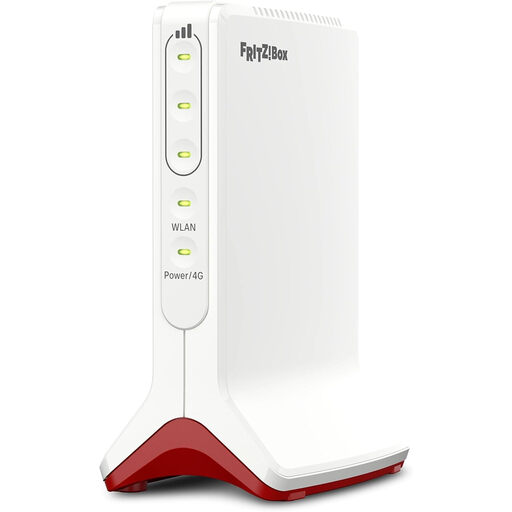
AVM FRITZ!Box 6825 4G LTE wireless router

AVM FRITZ!Box 6825 4G LTE, Cat 6

An option if you want to connect to the internet over LTE and have a suitable mobile signal where you plan to use it.

Cat 6, Nano-SIM, Wi-Fi 6 on the 2.4 GHz band and one Gigabit LAN port. A Nano-SIM is required for LTE access.

View at Joybuy
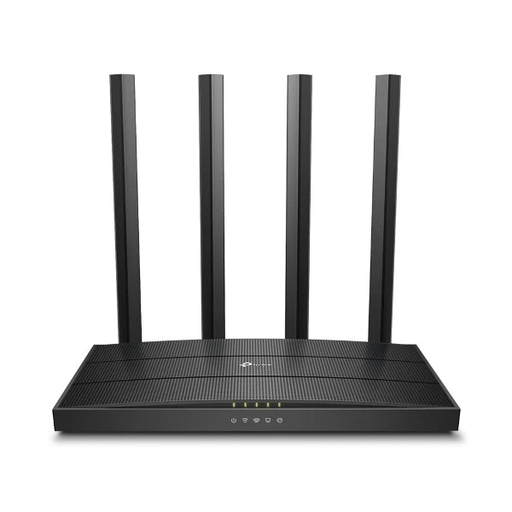
TP-Link Archer C80 AC1900 router

TP-Link Archer C80 AC1900

Could be suitable if you already have a compatible modem or gateway and want to connect your workshop computer using Ethernet.

Dual-band Wi-Fi and 3×3 MIMO. There’s no built-in modem and DSL isn’t supported.

View at Joybuy

TP-Link Deco M4 mesh Wi-Fi system with three units

TP-Link Deco M4 mesh Wi-Fi system, 3-pack

A mesh system could be a good fit if you need coverage in several rooms and want to check the connection at your workshop space.

Dual-band Wi-Fi 5. According to the description, the set includes three units, each with two Gigabit LAN/WAN ports. It’s designed to connect to a modem during set-up.

View at Joybuy
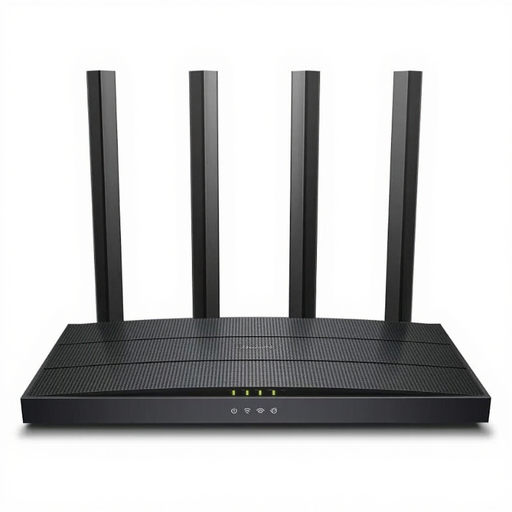
TP-Link Archer C6 V3.2 wireless router

TP-Link Archer C6 V3.2

Could suit a home network with an existing modem if you want to connect your workshop computer using a wired connection.

Dual-band Wi-Fi, MU-MIMO, access point mode and a four-port Gigabit Ethernet switch. There’s no built-in modem.

View at Joybuy
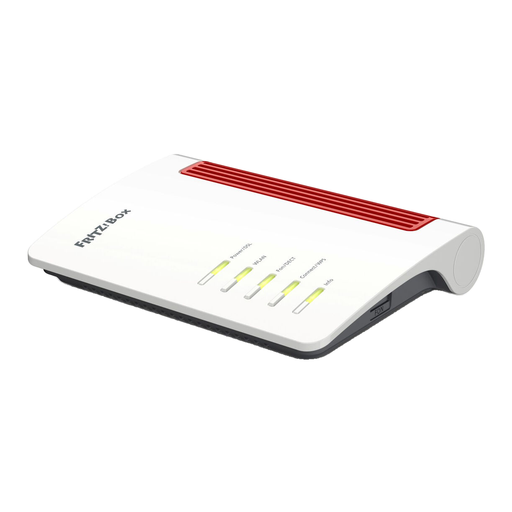
FRITZ!Box 7530 AX Wi-Fi 6 DSL router

FRITZ!Box 7530 AX Wi-Fi 6

An option if you’re looking for a DSL router and want to connect your workshop computer using Ethernet.

According to the product specifications, it supports ADSL and VDSL, including Supervectoring 35b. It also offers Wi-Fi 6, mesh networking and four Gigabit LAN ports.

View at Joybuy

Frequently asked questions

Is a particularly fast Wi-Fi connection enough for several video calls?

Not necessarily. First check the upload speed of your internet connection and the signal at your workspace. Zoom explains that its bandwidth requirements depend on factors including resolution, features and the number of participants. The router’s advertised wireless data rate can’t make up for limited broadband capacity.

Can I use a router without a DSL, cable or fibre modem?

Yes, provided you have a modem or ONT that’s compatible with your connection and can connect it to the router’s suitable WAN port. If you want to connect the router directly to the socket, its modem technology must be compatible with your connection.

What should I check before the workshop when setting up and maintaining my router?

Test the connection at your intended workspace and keep your router’s firmware up to date. The Federal Office for Information Security also recommends using secure login details and automatic updates, if this feature is available. These are security recommendations, not additional legal requirements for buying a router.

Can I use my own router in Germany?

The Bundesnetzagentur confirms the right to choose your own end device at the network termination point, including for passive optical fibre networks, and refers to the freedom of choice already familiar from VDSL and cable networks. You’ll still need to check that the specific device is technically compatible with your connection.

What extra costs should I consider when changing routers?

Check whether your connection needs a separate modem or ONT, and whether you’ll need extra equipment to extend your Wi-Fi or want to keep using an existing device. Any costs will depend on your connection and the equipment you choose.