Uploading portfolios from a room with poor signal
If you work in a room behind thick walls, what matters is the connection where you actually work. Check whether a suitably connected access point could improve the Wi-Fi signal there.


For portfolio uploads through thick walls, first work out whether the bottleneck is your internet connection or the Wi-Fi in your home office. A new router won’t increase the upload speed of a slow broadband connection. If the Wi-Fi is the main issue and you can run an Ethernet cable, a wired access point can bypass the wireless signal path through the walls. If running a cable isn’t an option, consider a wireless mesh system, provided the additional node can still get a usable connection to the rest of the network.
If you work in a room behind thick walls, what matters is the connection where you actually work. Check whether a suitably connected access point could improve the Wi-Fi signal there.
If large files take a long time to upload, check the actual upload speed of your internet connection before buying a router.
If you need a new main router as well as better Wi-Fi, make sure the device is compatible with your connection type and planned access points.
First, separate broadband issues from Wi-Fi issues. Compare your internet connection’s upload speed with the connection in your home office before choosing new Wi-Fi hardware.
| What you need | What to check before buying | Who is it important to? |
|---|---|---|
| Connection through thick walls | Check whether you can connect an access point via LAN. If you can’t run a cable, the planned mesh location should still have a usable connection. | If I work in a room with poor signal, the connection where I work is what matters. Around 36% of consumers prioritise reliable coverage. |
| Broadband upload speed | Compare the speed in your contract with a suitable test of your connection before replacing your Wi-Fi hardware. | If large portfolio files are already slow to upload at the router, I want to check whether my broadband connection could be the bottleneck first. Around 29% of consumers focus on actual upload speed. |
| Connection type and existing devices | Check whether you use DSL, cable or fibre, and whether you have a modem or ONT. Make sure the router supports the right operating mode. | If I need to replace my main router, I want a device that works with my connection and existing equipment. Around 21% of consumers give this switch top priority. |
| Security and expansion | Check how firmware updates are provided, and how many mesh nodes and LAN ports you’ll need. | If I’m setting up a home network for the long term, I want to factor in updates and any extra equipment from the start. Around 14% of consumers prioritise security and straightforward upkeep. |
An advertised Wi-Fi speed doesn’t tell you the actual upload speed of your internet connection. Replacing your router won’t fix a bottleneck with the broadband connection itself.
Test your broadband connection first, then compare it with the connection in your home office. The Federal Network Agency’s broadband speed test lets you compare actual speeds with those agreed in your contract.
An additional node still needs a usable connection to the rest of the network. If it’s already in a spot with poor coverage, the connection to your home office may remain inadequate.
Test the planned location before settling on it. If running an Ethernet cable is practical, Ethernet backhaul can replace the wireless link between nodes.
Routers vary in whether they have a built-in DSL modem or are designed to work behind an existing modem or ONT. Not every model will connect directly to every type of broadband.
Before choosing a router, check your connection type, existing equipment and the operating mode you need.
FRITZ!Box mesh models may be worth considering if you want to extend an existing FRITZ! router’s coverage or replace your main DSL router.
Deco X50 is a mesh system with one or more access points. It may suit you if you want to improve Wi-Fi coverage or set up a network behind existing broadband equipment.
ZenWiFi BT8 offers router and access point modes, as well as LAN backhaul. It may be an option for a network connected to a separate modem or ONT.
These wireless mesh systems are designed for households looking to extend Wi-Fi coverage with multiple units. The pack sizes and ports listed can help you choose, but they don’t guarantee that an additional node will have a suitable connection where you place it.
 No image available
For setting up a mesh network with two units.
Dual-band; two Gigabit WAN/LAN ports per unit, according to the product description.
 No image available
For extending Wi-Fi coverage across several rooms with three mesh units.
Dual-band; Gigabit ports. The product description lists router and access point modes.
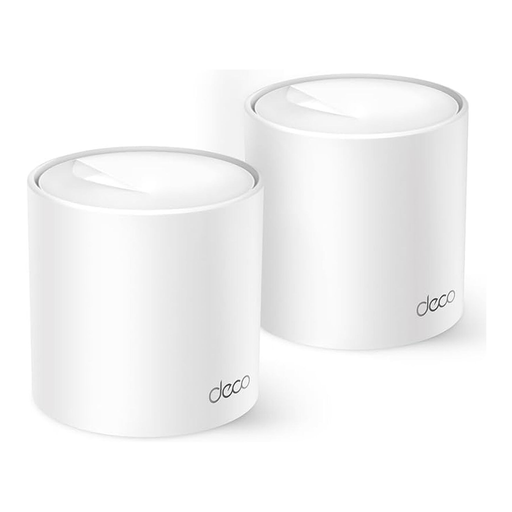 No image available
For a two-unit mesh network when you want to extend Wi-Fi coverage to several areas.
Wi-Fi 6, dual-band; two Gigabit ports per unit.
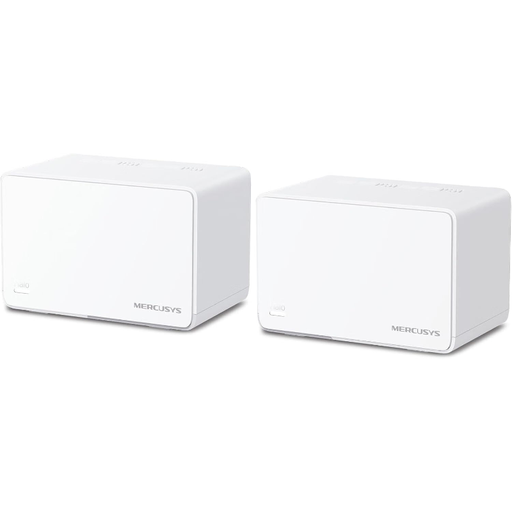 No image available
For a two-unit mesh network; the product title recommends the set for households with two to four bedrooms.
Wi-Fi 6, dual-band; three Gigabit ports per unit.
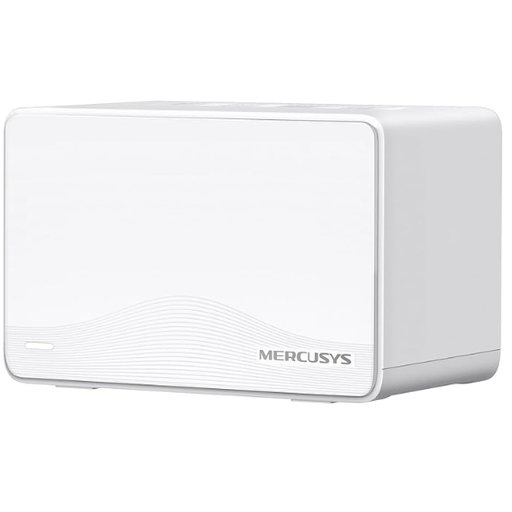 No image available
For a two-unit mesh network when you want to extend Wi-Fi coverage with an additional device.
Wi-Fi 7, dual-band; three Gigabit ports per unit. According to the product description, the second unit should be placed within range of the first.
Yes. Compare the upload speed listed in your contract with a suitable test of your internet connection, then check the connection in your home office. The Federal Network Agency’s broadband speed test compares actual speeds with those agreed in your contract. Testing at your desk can also help you identify a possible Wi-Fi issue.
With a wireless connection, the node itself needs a usable link to the rest of the network. So test the location rather than placing it solely in the spot with the worst reception. If you have an Ethernet cable, Ethernet backhaul can replace the wireless link between nodes; follow the cabling guidance for your system.
In Germany, you’re free to choose a suitable, freely available router. The Federal Network Agency also confirms that you can choose your own end device at the network termination point in passive optical fibre networks. Even so, check that the specific device is compatible with your connection type and existing equipment.
Check whether you’ll need additional mesh nodes or Ethernet cables to reach the room in question. Keep your router’s firmware up to date, too; the Federal Office for Information Security recommends checking regularly for updates.