Learners with a Wi-Fi dead spot
If you stream your language class in a room behind thick internal walls, first check whether there’s still a usable connection to the router at a potential location for a wireless repeater.


If your router and internet connection are still suitable, a targeted Wi-Fi extension is usually the obvious first step for a single room with poor coverage. Replacing the whole router won’t automatically solve the problem of thick walls. If there’s an Ethernet cable at your study spot, a wired access point or mesh node can avoid the wireless backhaul; without a cable, a wireless repeater still needs to be placed somewhere it can get a usable connection to the router. Consider replacing the main router if it genuinely needs replacing and is compatible with your connection.
If you stream your language class in a room behind thick internal walls, first check whether there’s still a usable connection to the router at a potential location for a wireless repeater.
If you can connect an access point at your study spot using an Ethernet cable, you can avoid the tricky wireless backhaul through the walls.
If you also want to replace the main router, assess the connection type and compatibility with your existing devices separately from the Wi-Fi route to your study spot.
First, check reception at your study spot and at any potential intermediate locations. Then decide whether a wireless extender will do the job, an Ethernet connection would make sense, or you really need to replace the router.
| Your priority | What to check before buying | Who it matters most to |
|---|---|---|
| Reception at your study spot | Check reception at your study spot and at possible locations for a wireless node; make sure it’s compatible with your existing router. | I mainly need a usable connection where I take my language class. Around 36% of consumers put reception first. |
| Backhaul through or around the walls | Check for an existing Ethernet socket or cable route, as well as the device’s Ethernet connection and operating mode. | If the wireless connection through the walls is unreliable, I want to connect the study area to the network by Ethernet if possible. Around 27% of consumers prioritise a wired backhaul. |
| Compatibility with your home network | Check that the router model and the mesh features you want are compatible; if replacing the router, take DSL or an external modem into account too. | I don’t want to buy an extender that isn’t compatible with my existing router or internet connection. Around 19% of consumers put network and connection compatibility first. |
| Setup and maintenance | Check how many devices you’ll need, the cable route, update options and secure device settings. | I want setup and ongoing maintenance to be straightforward. Around 18% of consumers prioritise ease of use and upkeep. |
Manufacturers’ claims don’t prove that the signal will be strong enough at your study spot behind thick internal walls.
Check reception at your study spot and at possible locations for an additional node, rather than relying on a figure on the box.
If the connection at your study spot isn’t strong enough, you may need an additional access point or a cable run.
The additional node needs a usable connection to your home network of its own. Placing it somewhere with poor reception won’t fix the weak backhaul.
Try an intermediate location with reception, or connect the study area by Ethernet.
A new router won’t automatically solve the problem of a difficult wireless connection through internal walls. If your current device is still suitable, a separate extender may be the more targeted solution.
Consider the internet connection and main router separately from reception at your study spot. If replacing the router, check the connection type supported by the new model.
Replacing a router unnecessarily can mean extra work; and if the wireless connection is still weak, you may also need another Wi-Fi device.
Worth considering if you want to add a FRITZ!Repeater or replace your main router with a compatible model.
Worth considering if you’re planning Wi-Fi coverage in several locations and may be able to use a wired connection between Deco units.
Worth considering if you’re looking at a multi-node setup with Ethernet ports you can use between your planned Wi-Fi locations.
Worth considering if you want to look at a router and Wi-Fi extender together as part of a provider’s package.
This selection includes mesh systems and Ethernet access points for extending your Wi-Fi, as well as DSL routers if you also want to replace your main router. Before buying, check that the connection type and planned backhaul to your study spot are suitable.
 No image available
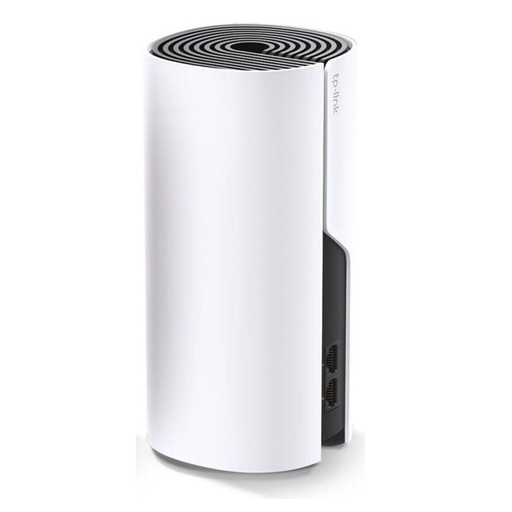
A good option if you want to extend a Deco network or use a single node with a wired backhaul.
The 1-pack offers dual-band Wi-Fi, two Gigabit Ethernet ports, and router and access point modes. To create a multi-node Deco network, you’ll need additional compatible units unless you already have them.
 No image available
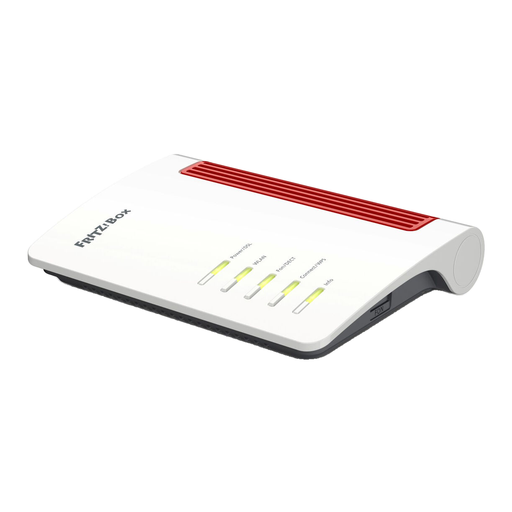
An option if you want to replace your main DSL router and its built-in modem is compatible with your connection.
The product details list VDSL Supervectoring 35b, Wi-Fi 6 and four Gigabit LAN ports. The built-in modem is specified for ADSL/VDSL, so check the connection type you have before replacing your router.
 No image available
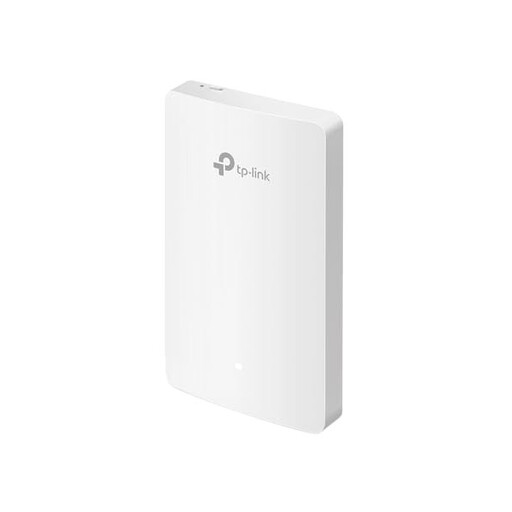
A good option if you want to extend your existing network with a wired access point in your study area.
The product details list Wi-Fi 6, dual-band operation and four Gigabit ports. The access point is designed to extend an existing network in access point mode.
 No image available
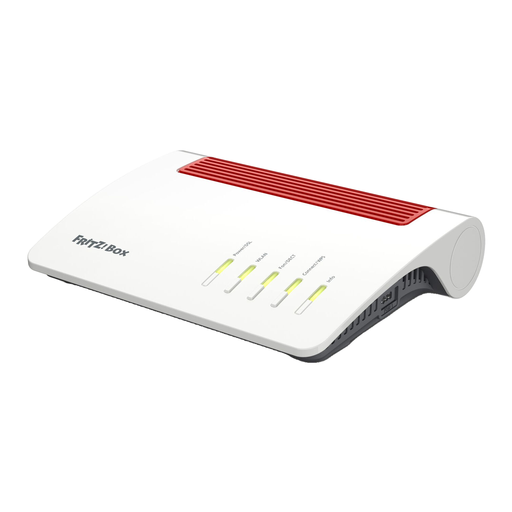
An option if you want to replace your DSL router. However, replacing the router alone doesn’t prove that the Wi-Fi signal will reach your study spot through thick walls.
The product details list a DSL modem, Wi-Fi 6, mesh functionality and four Gigabit LAN ports. According to the product description, an external modem is required for fibre or cable connections.
 No image available
A possible choice for a wired access point in your study area, provided its power supply and management requirements are compatible with your existing setup.
The product details list tri-band Wi-Fi and a 10GbE uplink. This is an access point, not a router; a compatible PoE+ switch or injector is required and isn’t included. UniFi Network version 9.0.114 or later is also specified.
First, check reception at your study spot and at possible locations for an extender. If your connection and main router are still suitable, extending your Wi-Fi is a separate decision from replacing your router; a wireless node still needs a usable backhaul to your home network.
Choose a device with a suitable LAN bridge or access point mode, and check the cabling requirements for the mode you plan to use. TP-Link says that in router mode, Deco satellite units should be connected behind the main Deco; different connection options apply in access point mode.
The German Federal Office for Information Security recommends changing default passwords where necessary, using a sufficiently long Wi-Fi password and updating your router’s firmware regularly. These security measures don’t tell you anything about the range at your study spot.
Check how many devices you’ll need for your planned Wi-Fi locations, and whether an Ethernet cable is available or can be installed. For a Telekom package, a Telekom internet connection is required to use all the features of the Wi-Fi package, according to Telekom.
The German Federal Network Agency confirms the right to choose your own terminal device at the network termination point, including on passive optical fibre networks. The device still needs to be compatible with your connection configuration. No individual frequency allocation is needed to use Wi-Fi in the generally allocated 2.4 GHz band, but you must still comply with the applicable conditions for using the frequency.