Which solution is right for you?

Students with a Wi-Fi dead spot

If your learning portal is unreliable at your desk, first check whether a repeater placed between the router and your room can still pick up a usable signal. Your router’s location affects Wi-Fi reception, as explained by Bitkom e. V. and heise online.

Students with a LAN connection

If you can run a network cable to the room with poor reception, you can bypass the weak wireless connection to the router. You’ll need a device with a suitable access point or LAN bridge mode; TP-Link and FRITZ! describe these features for selected models, among others.

Households with an existing mesh system

If you want to connect your study room to your existing home network, check that your specific router and repeater are compatible with mesh. Deutsche Telekom notes that mesh functionality depends on the particular Speedport configuration.

What should you look for when buying?

Wireless repeater

A good fit if: There’s a socket between the router and your study room where reception is still usable.

Bear in mind: A repeater can’t make up for a weak signal if you put it in a Wi-Fi dead spot.

LAN-connected access point

A good fit if: You can run a network cable to your study room or to a conveniently located connection point.

Bear in mind: The device needs a suitable LAN or access point mode and a cable connection.

Powerline with Wi-Fi

A good fit if: There’s no suitable spot for a wireless repeater and you can’t run a LAN cable.

Bear in mind: Sockets and electrical devices can affect the connection, so you should test the setup in your home.

Multiple mesh nodes

A good fit if: You want to connect other separate areas of your home, as well as your study room, to the home network.

Bear in mind: Your router and nodes must support the mesh functionality you want to use; having the same Wi-Fi name isn’t enough.

What you need What to check before buying Who is this important to?
Reception where you study Find a possible midway location with reception from the router, then test access to the portal at your desk. If I need a reliable connection while studying, I check that the repeater itself can still reach the router properly. Around 36% of consumers put reception first.
Bypassing the connection through the walls For LAN, check for access point mode; for powerline, plan for the complete set and the sockets you intend to use. If I can run a cable to my study room, I want to avoid the weak wireless connection; if not, I might try powerline. Around 29% of consumers prioritise a wired backhaul.
Compatibility with your router Compare the router model and firmware with the mesh functionality explicitly supported by the repeater. If my home network already has a router and mesh nodes, I want to connect my study room in a compatible way. Around 21% of consumers prioritise compatibility with their existing mesh system.
Easy to get started Consider the connection indicator, setup process and, for powerline, how many adapters you’ll need. If I want straightforward access to my learning portal, I want to keep setup simple without having to put up with an unreliable connection where I study. Around 14% of consumers prioritise an easy setup.

Which buying and setup mistakes should I avoid?

  • Plugging the repeater straight into a Wi-Fi dead spot

    A repeater needs to receive data from the router before it can pass it on in your study room. If there’s no usable reception from the router where you place it, the connection may still be unreliable.

    First, check where your router is and look for a socket between the router and your study room where the signal is still usable. If that doesn’t work, consider LAN or try powerline.

  • Assuming the advertised Mbit/s is the guaranteed speed behind the wall

    An advertised peak wireless speed doesn’t tell you how much the walls in your home will weaken the signal or how reliably you’ll be able to access your learning portal at your desk.

    Assess the connection where you actually study. Alongside the product specifications, consider the available placement and setup options.

  • Confusing a single powerline adapter with a starter kit

    For this setup, you’ll need one adapter by the router and another in the room you want to connect.

    Check what’s included against any compatible adapters you already have, then test the connection at the sockets you actually plan to use.

  • Assuming WPS, the same Wi-Fi name and mesh are all the same thing

    A repeater can connect via WPS and still work without mesh functionality. Deutsche Telekom explicitly explains this difference for Speed Home WLAN setups with routers that don’t support mesh.

    If you want to use mesh, check that your router model, firmware and repeater are compatible.

Key brands at a glance

FRITZ!

Worth considering if you’re looking for a repeater with a LAN port or want to add a device to an existing FRITZ! Mesh network.

  • FRITZ! lists a Gigabit LAN port for the 1200 AX. According to its datasheet, the Repeater 1700 can also operate as a LAN-connected access point.
  • FRITZ! describes automatic transfer of mesh settings on the 1700 when used with a FRITZ!Box; this doesn’t mean it will work in the same way with every router. A higher quoted data rate won’t fix a poor wireless connection to the router.

TP-Link

The RE600X is an example of a repeater with a placement indicator, Gigabit Ethernet and access point mode.

  • TP-Link says the RE600X can be used with Wi-Fi routers from various manufacturers.
  • A OneMesh router is required for the specifically advertised OneMesh integration, according to TP-Link. The maximum wireless speed doesn’t prove you’ll get reception through the walls in your home.

Deutsche Telekom

Speed Home WLAN is worth considering if you want to check mesh compatibility with a suitable Speedport.

  • Telekom lists compatible Speedport models and explains how to set up Speed Home WLAN as a mesh base using LAN.
  • According to Telekom, Speedport Smart and Smart 2 are not mesh bases themselves. Your router model and firmware help determine whether the setup will provide mesh or just a repeater connection.

devolo

The signal-level indicator on the WiFi 6 Repeater 5400 can help you find a suitable location; Magic Powerline is a different technical option.

  • devolo describes a powerline setup with one adapter by the router and another in the room you want to connect.
  • Electrical devices can interfere with data transmission over your home’s wiring. An advertised data rate doesn’t tell you how well it will perform with your specific electrical installation.

NETGEAR

The EAX15 is an example of a Wi-Fi 6 plug-in repeater with Gigabit Ethernet for an existing home network.

  • NETGEAR describes using the device with your existing Wi-Fi network and a single Wi-Fi name.
  • An advertised maximum speed doesn’t prove that the router signal will be strong enough where you place the repeater behind thick walls.

Joybuy products for wireless, LAN and mesh

The products below include wireless repeaters, access points for a LAN connection and a mesh system. Check the specific listing for the required CE marking; a product name alone doesn’t prove compliance.
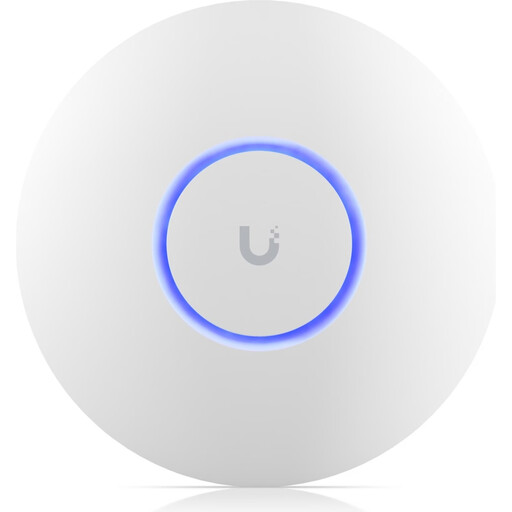
Ubiquiti UniFi U6+ WiFi 6 Access Point, Dual-Band, Gigabit PoE, White

Ubiquiti UniFi U6+ WiFi 6 Access Point, Dual-Band, Gigabit PoE, White

For a study room with a LAN connection, if you want to bypass the wireless connection through the wall to the router.

Wi-Fi 6, dual-band and Gigabit Ethernet. It requires an Ethernet connection and PoE to 802.3af; setup is handled through the UniFi Network application.

Joybuy
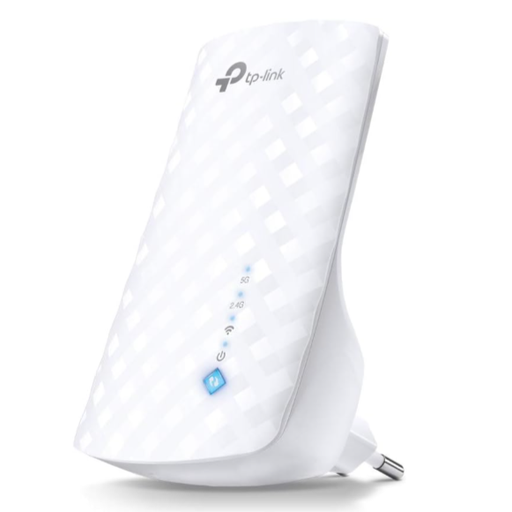
TP-Link RE190 AC750 Wireless Repeater 433Mbps White

TP-Link RE190 AC750 Wireless Repeater 433Mbps White

For a midway location where the repeater can still get a usable signal from the router.

Dual-band; the product name specifies AC750 and 433Mbps. A signal strength indicator helps you find a suitable location, and the described setup includes WPS.

Joybuy
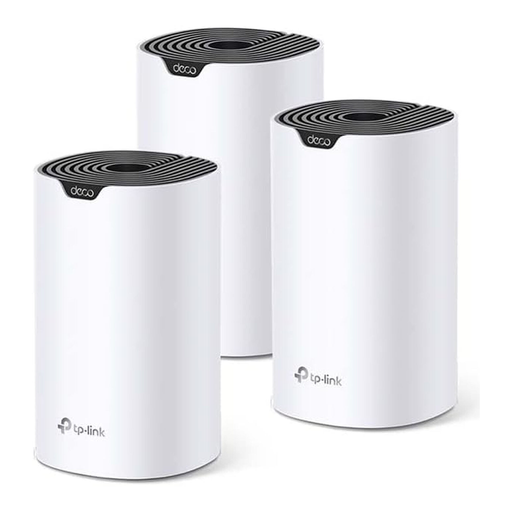
TP-Link Deco S4 AC1200 Mesh Wi-Fi System, 3-Pack, Gigabit Ports, Dual-Band

TP-Link Deco S4 AC1200 Mesh Wi-Fi System, 3-Pack, Gigabit Ports, Dual-Band

For households looking to connect several areas to their home network and wanting a mesh system rather than a single repeater.

The set includes three units, each with dual-band Wi-Fi and Gigabit ports. According to the product description, setup and management are handled through the Deco app.

Joybuy
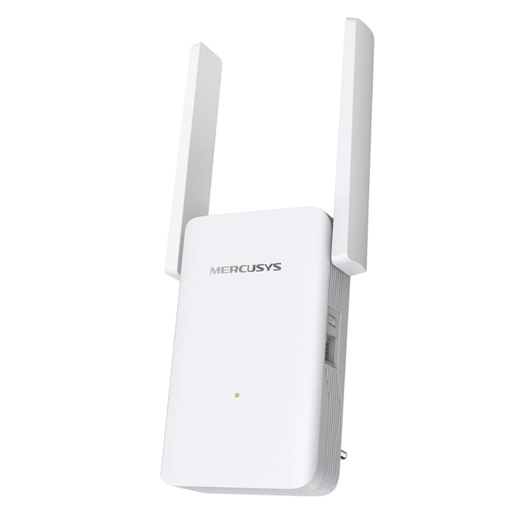
MERCUSYS ME80X Wi-Fi 6 Range Extender AX3000 Dual Band, Gigabit Port, AP Mode

MERCUSYS ME80X Wi-Fi 6 Range Extender AX3000 Dual Band, Gigabit Port, AP Mode

For a study room where you can either find a suitable midway location for wireless reception or use access point mode over LAN.

Wi-Fi 6, dual-band, Gigabit LAN and access point mode. A signal strength indicator helps you position it.

Joybuy
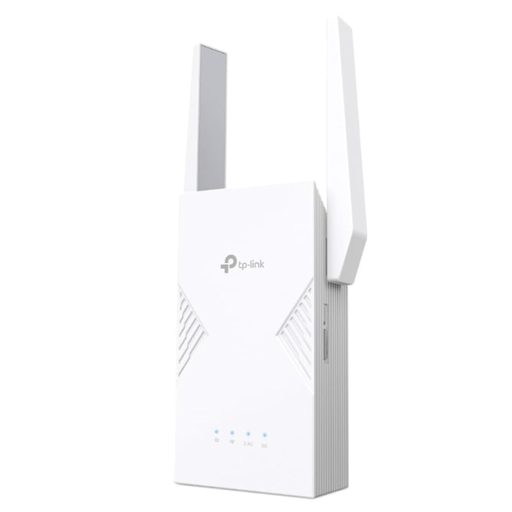
TP-LINK RE235BE BE3600 Dual-Band Wi-Fi 7 Range Extender, 2.5G Multi-Gigabit Port, MLO, EasyMesh

TP-LINK RE235BE BE3600 Dual-Band Wi-Fi 7 Range Extender, 2.5G Multi-Gigabit Port, MLO, EasyMesh

For a midway location with wireless reception, provided the router is still reachable there and its EasyMesh functionality is compatible with the repeater.

Wi-Fi 7, dual-band and a 2.5-Gigabit Ethernet port; the product description also lists MLO and EasyMesh. Check compatibility before relying on mesh features.

Joybuy

Frequently asked questions

Where should I place a wireless repeater for my study room?

Not right where there’s no reception from the router. Find a socket where the repeater can still get a usable connection to it. Then check reception where you study and, if possible, see whether moving the router would help. A device indicator can help you find the right spot.

Can I connect a repeater to the router using a network cable?

Yes, if the specific device supports access point or LAN bridge mode. TP-Link describes this mode for the RE600X and FRITZ! for the Repeater 1700; the cable then provides the connection to the router.

How can I tell whether powerline will work in my home?

Plan to use one adapter by the router and another in the room you want to connect, then test the connection at the intended sockets. devolo notes that electrical devices, extension leads and certain power supplies can interfere with data transmission.

Does mesh work automatically as soon as the repeater and router are connected via WPS?

No. Deutsche Telekom describes a WPS setup in which Speed Home WLAN works as a repeater without mesh when connected to a router that doesn’t support mesh. So check that your router model, firmware and repeater support the mesh functionality you want.

What should I look for in the CE marking on a Wi-Fi repeater?

Products covered by the relevant EU harmonisation legislation must carry the required CE marking when placed on the EU market. The Bundesnetzagentur also identifies product traceability and correct manufacturer details as aspects of market surveillance. Check the information on the specific listing rather than assuming compliance from the product name alone.