If downloads are slow only at your reading spot, behind walls, extending your Wi-Fi is often a more obvious solution than replacing your router just for a higher advertised speed. First, check the router’s position and signal strength. A wireless node needs a decent connection to the router itself, while Ethernet between devices can avoid sending the signal through walls. A new main router must also be compatible with your existing internet connection.
Who is this relevant to?
Readers in a Wi-Fi dead zone
If you regularly download magazines in a room behind solid internal walls, signal strength where you read and the route the signal takes matter more than a router’s advertised speed. Deutsche Telekom points out that certain materials can absorb or reflect Wi-Fi signals.
Households with an existing router
If your internet works near the router but is unreliable where you read, check whether a suitable extension will do the job before replacing the main router. The Verbraucherzentrale stresses that a replacement device must be compatible with your existing internet connection.
Households with an Ethernet cable
If you can connect an access point behind the walls using Ethernet, the devices can communicate over a wired connection. TP-Link and ASUS describe Ethernet backhaul for certain mesh devices; support depends on the specific model and setup.
What to look for when buying
Check your router’s position
When it makes sense: If your router is hidden away or poorly positioned, which may be affecting signal strength where you read.
Trade-off: A better position may help, but it won’t reliably overcome a wireless connection passing through several solid walls.
Extend your Wi-Fi wirelessly
When it makes sense: If there’s a nearby spot with a decent signal from the router where you can place a repeater or mesh node closer to where you read.
Trade-off: A wireless repeater relays the signal it receives; it can’t fix a connection that’s already too weak where it’s placed. This is explained in FRITZ!’s guide to using a repeater.
Connect via Ethernet
When it makes sense: If you already have an Ethernet cable running to the area behind the walls, or can install one.
Trade-off: The connection between access points won’t need to pass through the walls wirelessly, but the cable route and device ports must be suitable.
Replace the main router
When it makes sense: If you’re having problems even near the router, it lacks features you need, or you’re changing your internet connection.
Trade-off: Check the connection type, existing modem and setup. A new router alone doesn’t guarantee better reception behind thick walls.
The percentages refer to consumers looking for a suitable Wi-Fi solution to download magazines behind thick internal walls.
| Priority |
What to look for when buying |
Who it matters most to |
| Signal where you read |
Compare reception and download speeds where you read with those near the router; check possible locations for the router and access point. |
If I download magazines behind thick walls, I need a decent connection where I read above all. Around 36% of consumers say Wi-Fi reception in that spot is their main concern. |
| Connection between the router and extender |
Check Ethernet cabling and backhaul support for the specific devices. Without a cable, choose a location with a decent signal from the router. |
If your downloads depend on the connection between the router and an additional access point, its reliability is especially important. Around 29% of consumers say the connection between their router and extender is their main concern. |
| Keep or replace the router |
Identify your connection type and existing modem. If extending your network, check repeater, mesh or access point compatibility for the specific model. |
If I want to keep my existing router or choose a replacement that works with my internet connection, compatibility comes first. Around 21% of consumers say keeping their router and connection compatibility are their main concerns. |
| Setup and ongoing maintenance |
Plan the devices and cables you’ll need together, and check update support and who will be responsible for setup. |
If you want to keep extra hardware, setup and ongoing maintenance manageable, consider the overall effort involved. Around 14% of consumers say the effort and cost of devices are their main concerns. |
Common misconceptions
-
Assuming the advertised top speed is the download speed behind the wall
Materials and positioning affect wireless connections. The advertised Wi-Fi speed doesn’t tell you what you’ll get where you actually read.
Compare reception where you read with reception near the router, and plan the signal route before choosing a device.
-
Putting a wireless repeater straight in a dead zone
A wirelessly connected repeater needs a decent connection to the main router itself before it can relay the signal.
Look for a midway spot with good enough reception, or check whether you can connect an access point using Ethernet.
-
Assuming a mesh system and an internet router are interchangeable
Mesh devices and main routers don’t necessarily do the same job. The connection type and modem must suit your specific setup.
Before buying, decide whether you want to replace the main router or extend your existing network, then check the ports and operating modes of the devices you’re considering.
Brands to consider
FRITZ!
DSL main routers and mesh extenders for households considering a router replacement or adding to an existing network.
- FRITZ! describes the FRITZ!Box 7690 as a DSL router with mesh features.
- The FRITZ!Mesh Set 2700 consists of repeaters and isn’t automatically a replacement for every internet modem. Check the connection type and operating mode of the specific device.
TP-Link
Archer standalone routers and Deco mesh systems offer different ways to extend a home network.
- TP-Link lists optional Ethernet backhaul for the Deco X50 and describes the Archer AX55 as a dual-band router.
- A model’s features and advertised Wi-Fi speeds don’t guarantee the same features on other models or the download speed where you read.
ASUS
ZenWiFi mesh systems and AiMesh-compatible routers for households looking to connect access points flexibly.
- ASUS describes Ethernet backhaul for ZenWiFi XD5 and AiMesh.
- You’ll need compatible devices and suitable ports. This doesn’t guarantee reception in a particular home.
Telekom
Speedport routers and Speed Home WLAN as a possible extension for compatible home networks.
- Telekom describes how to set up Speed Home WLAN mesh with a mesh-compatible router.
- Telekom says that with a router that isn’t mesh-compatible, the device can instead be set up as a repeater without mesh.
Devolo
Mesh systems are another option for households considering extending their Wi-Fi.
- Comparing a specific mesh model can give you another option to consider.
- Choosing a brand in general doesn’t guarantee reception where you read. The signal route, what’s included in the set and the connection type must suit your setup.
Joybuy products for extending Wi-Fi and replacing your router
This selection includes mesh systems for extending an existing Wi-Fi network and routers for replacing your main router. Before buying, check that the connection, modem and operating mode you need are compatible with your home network.
 No image available
TP-Link Deco BE22 (2-pack), dual-band Mesh Wi-Fi 7 system
For households looking for a mesh system with two units to extend Wi-Fi across several rooms.
Features listed in the product name: Wi-Fi 7, dual-band and Gigabit Ethernet.
View at Joybuy
 No image available
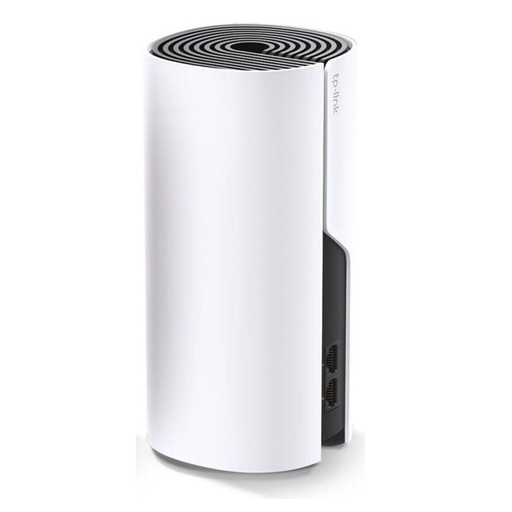
TP-Link Deco M4, 1-pack, AC1200 dual-band mesh node
Described as a single add-on for an existing Deco network. Check that it’s compatible with your current system first.
Features listed in the product name: dual-band, AC1200 and Gigabit ports.
View at Joybuy
 No image available
TP-Link Deco M4 (3-pack), AC1200 dual-band Mesh Wi-Fi system
For households considering a mesh system with three units to cover several rooms.
Features listed in the product name: dual-band, AC1200 and Gigabit ports.
View at Joybuy
 No image available
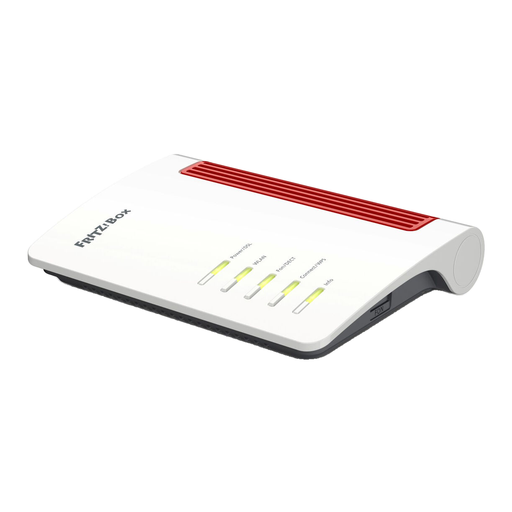
FRITZ!Box 7530 AX, Wi-Fi 6 router for ADSL and VDSL
A potential replacement for an ADSL or VDSL connection. Check that the connection and your existing setup are compatible with the device.
Features listed in the product name: dual-band, mesh, VPN and four Gigabit LAN ports. The advertised Wi-Fi speed of up to 2,400 Mbit/s isn’t a measurement of performance where you read.
View at Joybuy
 No image available
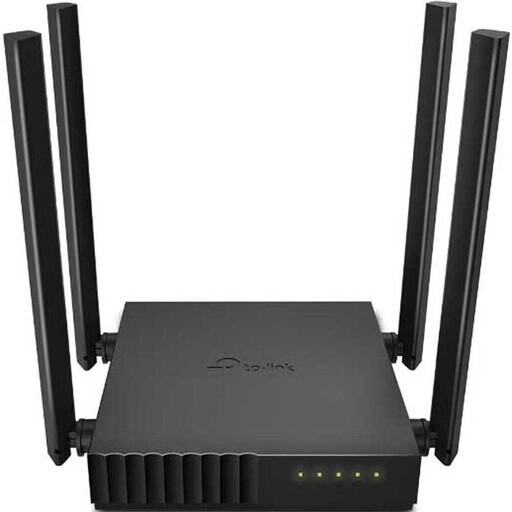
TP-Link Archer C54 Wi-Fi router
Described as a router for use with an existing modem. Check that this setup is compatible with your internet connection.
View at Joybuy
Frequently asked questions
How can I tell if I need a new router?
Compare the connection where you read with the one near the router, and check the router’s position. If only rooms behind the walls are affected, first look into extending your Wi-Fi. If you’re also having problems near the router, consider your connection and existing hardware too.
Where should I put a wirelessly connected repeater?
Place it somewhere it can still receive a decent Wi-Fi signal and reach the spot where you read – not beyond the last wall where there’s no reception. FRITZ!’s guide recommends placing a wireless repeater somewhere within range of the existing Wi-Fi network.
Can I replace my provider’s router with my own device?
Your own router must be technically compatible with your existing internet connection. The Verbraucherzentrale also points out that if you use your own device, you’ll be responsible for setup and updates in particular.
What does the CE marking mean on a Wi-Fi device?
For products covered by relevant EU harmonisation legislation and placed on the EU market, the applicable marking requirements apply. According to the Bundesnetzagentur, the manufacturer uses the CE marking to declare conformity; it isn’t independent proof of good Wi-Fi range.


