Presenters behind solid walls
Your main priority is a stable connection in the room further away, and you may be able to connect an access point there.


For presenting in a room behind thick walls, a Wi-Fi access point connected via LAN in or near the room is often the more practical first option to explore than simply buying a new router: it bypasses the wall on the connection between access points. If you can’t run a cable, a mesh node may help, provided it still has a good enough connection to the main router where you place it. Also check which transmission method your presentation devices actually use.
Your main priority is a stable connection in the room further away, and you may be able to connect an access point there.
You’ll need to find a suitable location for a wireless mesh node or look into another way to connect it back to the router.
If you want to replace the router connected to your internet service, the new device must be compatible with your existing connection type.
Best suited when: you can run a network cable into or near the presentation room and your existing router otherwise does the job.
What to consider: You’ll need a suitable cable route, compatible ports and the right operating mode.
Best suited when: there’s no route for a LAN cable, but a node placed between the main router and the room can still get a good enough wireless connection.
What to consider: The node needs a good connection to the main router. If it’s placed straight behind the wall that blocks the signal, the backhaul may be too weak.
Best suited when: you need to replace your existing broadband router and the new device is compatible with your DSL, fibre or other connection type.
What to consider: A new Wi-Fi standard alone doesn’t guarantee a reliable connection through thick walls; you may still need an additional access point.
Best suited when: neither a LAN cable nor a reliable wireless backhaul is possible, and you can test a connection over your mains wiring.
What to consider: Performance can depend on your electrical wiring and sources of interference. Some VDSL setups may also experience interference.
First, check the cable route and the connection at the planned location. Only then can you decide whether a LAN extension, wireless mesh or replacement broadband router is the right option.
| What you need | What to check when buying | Who is it most relevant to? |
|---|---|---|
| A stable connection through the wall | LAN cable route, suitable ports and connection at the presentation location | If I need to present in a room further away, a reliable connection there is my main priority. Around 42% of consumers put a stable connection through a wall first. |
| Extending the network without a LAN cable | Possible locations for the mesh node and its connection to the main router | If there’s no cable route, I need a spot where the node can still reach the main router wirelessly. Around 33% of consumers prioritise extending their network without a LAN cable. |
| Compatibility with your internet service | Connection type, existing modem and any login details required | If I want to replace my broadband router, the new device needs to be compatible with my internet connection. Around 17% of consumers put replacing their broadband router first. |
| Presentation technology | Transmission method used and support from both devices | If screen sharing isn’t working, I first need to check what my chosen method requires. Around 8% of consumers prioritise compatibility with presentation technology. |
A high advertised data rate doesn’t tell you whether the connection between your router and access point will be strong enough to pass through the building structure.
Check the connection at the planned access point location and, if possible, consider a wired LAN connection.
With wireless backhaul, the node itself needs a good enough connection to the main router. A strong signal between the node and your presentation device won’t automatically make up for a weak backhaul.
Try an intermediate location or use a wired backhaul if one is available.
A mesh router without a built-in modem can’t replace a DSL or cable modem on its own.
Before buying, check which connection devices you already have and which connection types the new device supports.
Data transmission over your mains wiring can be affected by the electrical installation and connected devices. Some VDSL setups may experience interference.
Check the sockets you plan to use and, if you have VDSL, the manufacturer’s guidance for your specific connection setup.
Worth considering if you already use a FRITZ!Box or are looking for a compatible broadband router.
Deco mesh systems are worth considering if you want to use several Wi-Fi access points.
The ZenWiFi XD5 is a mesh option if you have Ethernet connections between the locations where you plan to place the units.
Orbi and compatible Nighthawk mesh devices offer options for a wired backhaul.
Magic Powerline with Wi-Fi is an alternative to consider if the room is hard to reach wirelessly and there’s no route for a LAN cable.
The products below include wired access points and Wi-Fi extenders. If you’re using a wireless extender, it still needs a good enough connection to the main router where you place it.
 No image available
An option if you want to extend Wi-Fi to several rooms using two mesh units.
The product name lists Wi-Fi 7, dual-band and Gigabit Ethernet.
 No image available
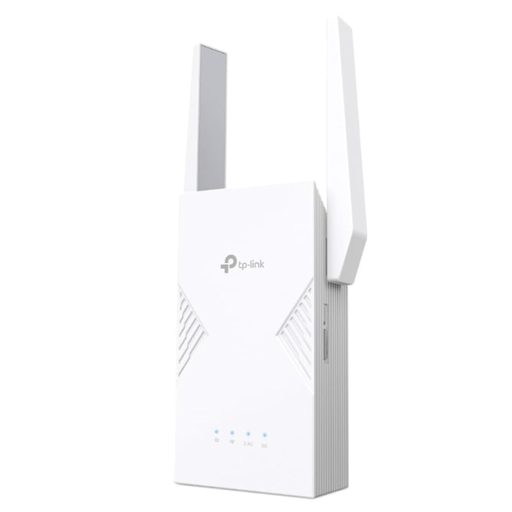
Access point mode is an option if you can connect the device to your router over Ethernet.
The product name lists dual-band, AX3000, a Gigabit port, access point mode and a signal strength indicator.
To use access point mode, you’ll need to connect the Ethernet port to your router with a cable.
 No image available
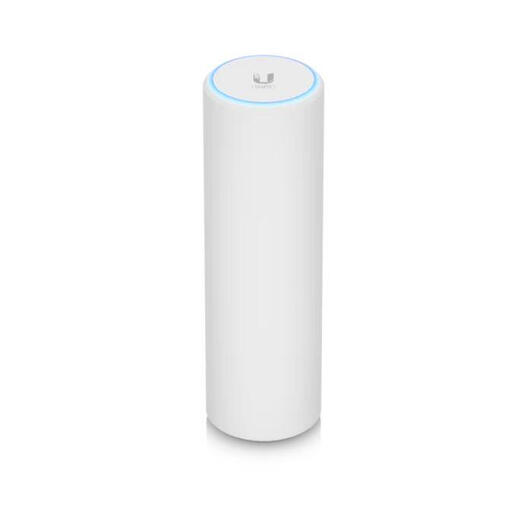
An option for a wired access point if Ethernet and a suitable PoE power supply are available where you plan to install it.
The product name lists six spatial streams and an included PoE adapter.
PoE power and an Ethernet uplink are required for operation.
 No image available
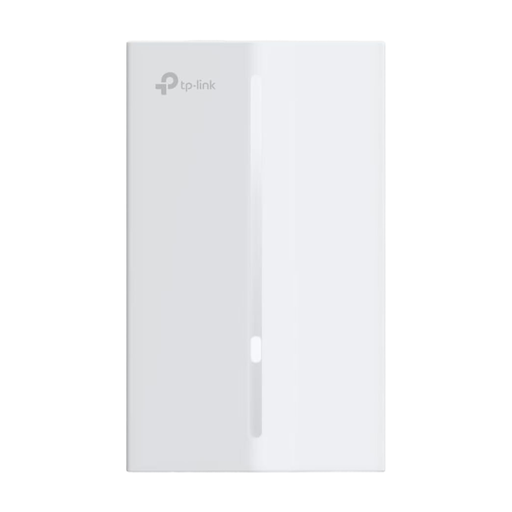
This wall-plate access point is designed for setups with an Ethernet cable and suitable PoE power at the installation point.
The product name lists Wi-Fi 6, PoE, four Gigabit ports and wall mounting.
The installation described requires an Ethernet cable and suitable PoE power; this model is designed for a wall socket.
 No image available
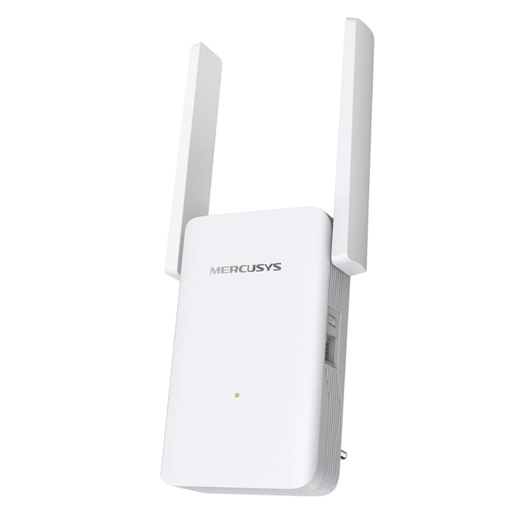
An option for extending a compatible EasyMesh network if there’s no route for a LAN cable.
The product name lists dual-band, a 2.5 Gigabit Ethernet port and EasyMesh compatibility.
The extender needs to be within range of your existing Wi-Fi router.
Choose a location where both the connection to the main router and the connection to your presentation device are good enough. Check the connection quality shown by the device; placing a node directly in a dead spot won’t automatically fix a weak backhaul.
Yes, if you can connect and configure your chosen extension device appropriately. TP-Link describes an access point mode for Deco; FRITZ! describes a repeater connected over LAN as an additional Wi-Fi access point. Check the features of the specific model.
No. For the wireless projection method described by Microsoft, the external display must support Miracast. Before buying, check which transmission method your devices actually use.
Check whether the presentation device you’re using can be reached on the guest network as it’s actually configured. Germany’s Federal Office for Information Security recommends setting up a separate guest network; whether shared devices can be accessed depends on the specific configuration.
Yes. According to Germany’s Federal Network Agency, you can choose a router that’s freely available and suitable for your connection; your provider must give you the necessary login details. Still, check that the specific device is compatible with your connection type.