For a small desk, a mini PC with a separate monitor is a space-saving starting point if you already have a suitable screen or want to choose one yourself. A compact or larger desktop may be a better fit if ports or future upgrades matter more; an all-in-one combines the computer and screen, but ties you to its built-in display. Before you buy, check the exact specification, the requirements of your photo-editing software and the space needed for your monitor, cables and photo archive.
Which form factor is right for you?
Photographers with limited desk space
You want to set up a dedicated spot for cropping your photos without using too much desk space for the computer. A mini PC with a separately chosen screen is one option; remember to measure the space needed for the monitor stand and cables, too.
Photographers with larger photo collections
If you regularly import and edit lots of photos, plan for enough RAM, archive storage and a separate backup of your originals. Germany’s Federal Office for Information Security explains why backups matter if a drive fails or files are accidentally deleted.
Photographers focused on image quality
If you judge cropping and colours on screen, the monitor should be part of your decision. Adobe recommends calibrating your monitor before working in Lightroom Classic.
What should you look for when buying?
Mini PC with a separate monitor
A good fit if: desk space for the computer is limited and you want to keep using a suitable monitor or choose one specifically for your needs.
Consider: Depending on the deal, you may need to budget separately for a monitor and peripherals. Check the ports and exact specification.
Compact or larger desktop
A good fit if: potential storage upgrades or specific ports matter more than keeping the computer as small as possible.
Consider: The case size alone doesn’t confirm that a computer can be upgraded; check the upgrade options for the exact configuration.
All-in-one PC
A good fit if: you want to set up the computer and screen as a single unit.
Consider: You can’t choose the screen independently of the computer, so check the display and upgrade options for the exact model.
| What to consider |
What to look for |
Who is this important for? |
| Desk space and set-up |
Compare the dimensions of the exact computer and allow for the monitor stand, cables and easily accessible ports. |
If I need to fit the computer, monitor and peripherals on a small desk, I want to plan the whole set-up. Roughly 36% of consumers put desk space first. |
| Specification for your photo software |
Check the RAM actually installed, the operating system and your software’s requirements. For Photoshop 27.x, Adobe lists 8 GB RAM as the minimum and 16 GB or more as recommended. |
If I want to edit photos using specific software, I need to compare its requirements with the configuration on offer. Roughly 29% of consumers prioritise getting the right software specification. |
| Screen and colour assessment |
Check that the screen size, ports and adjustment options suit your workspace. Adobe recommends calibrating your monitor before working in Lightroom Classic. |
If I want to judge the crop and colours on screen, I include the display in my decision. Roughly 21% of consumers prioritise this. |
| Archive, backup and what’s included |
Compare the installed SSD and what’s included; plan a separate backup of your original photos. An internal SSD is no substitute for a backup. |
If I’m building a photo archive, I want to consider storage, backups and any other equipment I still need. Roughly 14% of consumers focus on this. |
Which mistakes should you avoid?
-
Assuming the computer is the complete photo set-up
A computer bought on its own doesn’t necessarily come with a monitor or the peripherals you need. With an all-in-one, by contrast, the screen is part of the design.
Check what’s included and make a note of which devices you already have and which you still need for your set-up.
Depending on the deal, you may need to buy a monitor, keyboard, mouse or card reader separately.
-
Assuming every configuration in a model range has the same specification
Processor, RAM, storage and operating system can vary within a range. The product name alone doesn’t always tell you which configuration is on offer.
Check the model number, installed RAM, SSD and operating system for the exact configuration you’re choosing.
You may need to buy and set up missing components separately.
-
Treating a large internal SSD as a backup
An internal SSD gives you storage space, but it won’t protect your original photos if a drive fails or files are accidentally deleted. Germany’s Federal Office for Information Security describes backups as a way to restore data in these situations.
As well as storage for your working files and archive, plan a separate backup of your original files.
Which brands can help you choose a compact photo PC?
GEEKOM
Mini PCs for a workspace with a separately chosen monitor.
- For one configuration of the A5 Pro 2026, GEEKOM Germany lists a Ryzen 5 7530U, 16 GB RAM and a 1 TB SSD.
- These manufacturer specifications don’t confirm a particular cropping speed; check the configuration of the exact deal.
MSI
The Cubi NUC 1M range is a mini PC option to compare for ports and storage options.
- MSI lists a card reader and several drive bays for the range.
- The range includes different processor and operating system options; check the specification of each configuration.
Lenovo
ThinkCentre M75q Gen 5 Tiny configurations are a Windows option if you want the computer to sit separately from the screen.
- Lenovo describes tool-free access to the SSD and memory modules.
- Check the storage in the exact configuration rather than assuming it comes with a particular SSD.
HP
The Elite Mini 800 G9 is a Windows mini PC option for compact workspaces.
- For the CP9H2EA#ABD configuration, HP lists 16 GB RAM and a 512 GB SSD.
- Compare the exact specification with your photo software’s requirements and the files you plan to work with.
Apple
The Mac mini (2024) is a compact macOS option used with a monitor you already have or buy separately.
- Apple lists M4 and M4 Pro configurations with different storage options.
- The technical specifications for the 2024 model don’t automatically confirm what’s included in a particular retailer’s deal.
Joybuy PCs for a compact photo workspace
The Joybuy options below include mini PCs used with a separately chosen monitor, as well as compact slim and SFF desktops; they are not a selection of all-in-one PCs.
 No image available
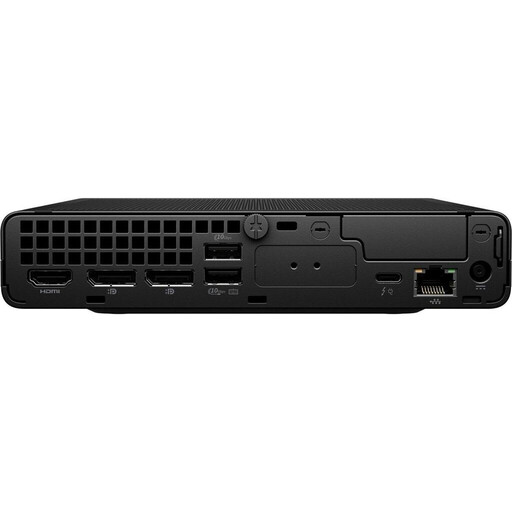
HP EliteDesk AI Mini 8 G1i 623K2ET
As a mini PC, this model suits a set-up with a separately chosen monitor; check that its ports work with your screen and that it meets your photo software’s requirements.
Intel Core Ultra 9 285T, 64 GB DDR5 at 5600 MHz, 1 TB M.2 SSD, Intel Graphics and Windows 11 Pro.
View at Joybuy
 No image available
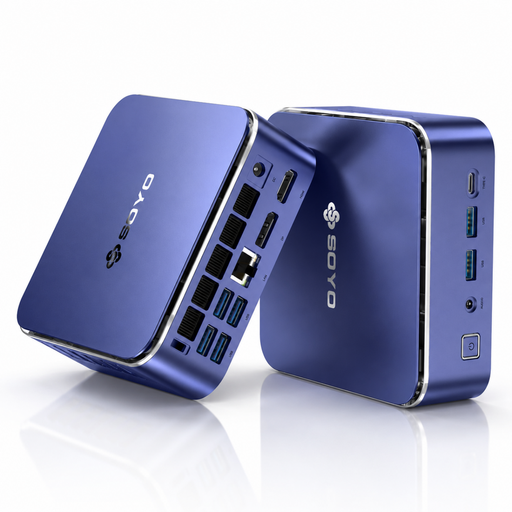
SOYO S5Air mini PC
The mini PC form factor suits a workspace with a separately chosen monitor; check that its ports match your screen.
AMD Ryzen 5 7535HS, 16 GB LPDDR5, 512 GB NVMe SSD, AMD Radeon 660M and Windows 11 Pro. Adobe recommends 16 GB or more for Photoshop; suitability also depends on the software you use and your files.
View at Joybuy
 No image available
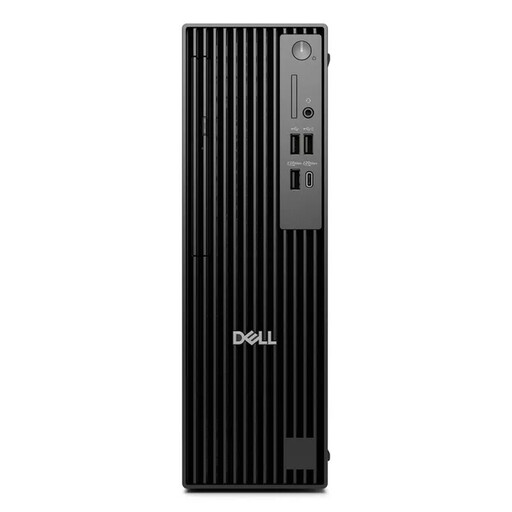
Dell Pro Plus SFF QBS1250 Slim
This compact desktop is an option if you’ll be using a separate monitor; check its footprint against the space available on your desk.
Intel Core Ultra 7 265, 32 GB DDR5 RAM, 512 GB NVMe SSD, Intel Graphics and Windows 11 Pro.
The listed dimensions are 9,5 × 30,4 × 29,3 cm; remember to allow space for the monitor stand, cables and peripherals, too.
View at Joybuy
 No image available
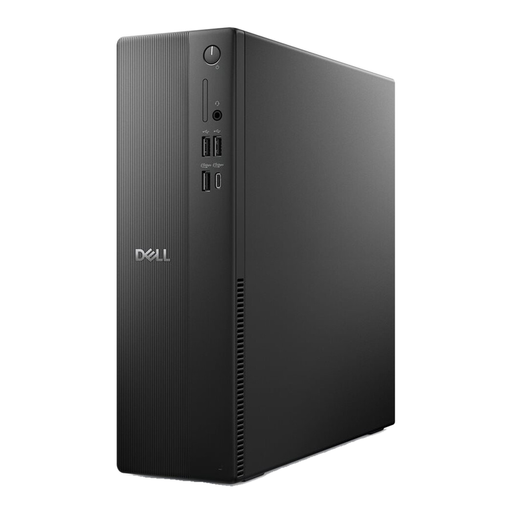
Dell Pro Slim Essential desktop QVS1260 KNJR2
The slim design is intended for a workspace with a separately chosen monitor; check that the case dimensions fit on your desk first.
Intel Core i5-14400, 16 GB RAM, 512 GB SSD and Windows 11 Pro.
The listed dimensions are 9,5 × 30,35 × 29,30 cm.
View at Joybuy
 No image available
SOYO Y5Pro mini PC, Intel Core i5-8250U/8350U
The compact design suits a set-up with a separately chosen monitor; check which processor configuration is on offer.
8 GB DDR4 RAM, 256 GB SATA SSD and Windows 11. Adobe lists 8 GB as the minimum for Photoshop and recommends 16 GB or more; meeting the minimum doesn’t guarantee smooth performance with your files.
View at Joybuy
Frequently asked questions about desktop PCs for wildlife photos
Is 8 GB RAM enough to crop a photo?
It depends on the software you use and your files. For Photoshop 27.x, Adobe lists 8 GB as the minimum but recommends 16 GB or more. Meeting the minimum doesn’t guarantee smooth performance.
Do I need to buy a special monitor for Lightroom Classic?
Not necessarily: Adobe describes calibrating your existing monitor as a way to prepare for using Lightroom Classic. Also check that the screen’s size, features and ports suit your workspace.
How do I back up my original photos on my new computer?
Plan a backup that’s separate from your internal storage. Germany’s Federal Office for Information Security explains that backups can help you restore files, for example after a drive fails or files are accidentally deleted.
What are my rights when buying a desktop PC online in Germany?
For consumer purchases from a retailer, the statutory guarantee generally applies for at least two years from the date you receive the goods. For online distance contracts, you generally have 14 days from delivery to withdraw from the contract; European Union guidance lists exceptions, such as goods made to the customer’s specifications. A voluntary manufacturer’s warranty is separate from this.


