
Lieferung heute & morgen

Qualitätsgarantie

Willkommens-Angebote freischalten: KOSTENLOSE Lieferung | Bis zu 80 % RABATT | Kostenlose 30-Tage-JoyPlus-Testphase
App herunterladen
A wired mouse seems like a simple purchase. You plug it in, and it works—a reliable connection with no worries about dead batteries or signal interference. In reality, however, exaggerated marketing claims and unclear technical specifications often lead to an unsatisfactory result. Many users only realise after weeks of use that their new mouse is uncomfortable, the clicks are disturbing colleagues, or the cursor movement feels imprecise.
Before you make a decision, you should know the three most common traps that can lead to a bad buy:
To avoid these traps, it's helpful to focus on the essential technical parameters that directly impact a mouse's comfort and longevity.
The DPI number indicates how sensitively a mouse reacts to movement. A high DPI means the cursor travels a long way across the screen with only a small hand movement.
The shape of the mouse is critical for a healthy hand posture. An unsuitable shape can lead to discomfort over time.
The sound of mouse clicks is an often-underestimated criterion. In a quiet setting, a loud click can be very distracting.
Here are some recommendations tailored to different needs and work styles.
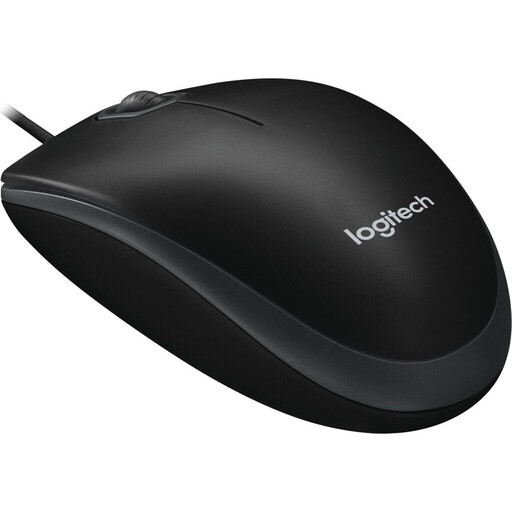
Why This Fits Their Persona: Ideal for users looking for a straightforward and durable USB mouse for everyday tasks on a PC or laptop. Its simple plug-and-play functionality and ambidextrous design make it a practical choice for immediate use with no setup required.
This mouse avoids the DPI trap by focusing on a field-tested value of 800 DPI, which ensures smooth and precise cursor control for office applications.
Reliable Core Features: Focuses on the essentials: precise tracking and a robust build. Ambidextrous Design: Suitable for both left- and right-handed users.
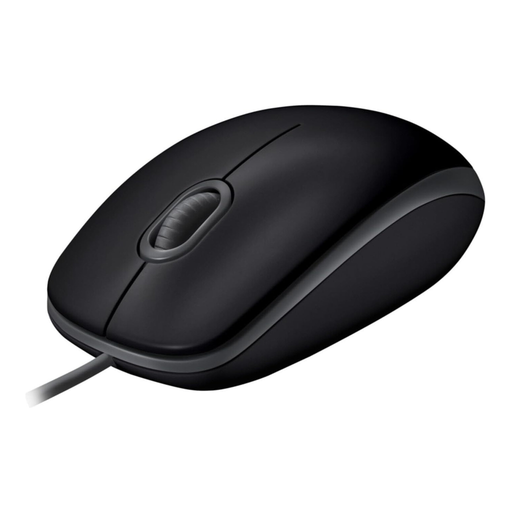
Why This Fits Their Persona: Perfect for users in open-plan offices or home offices who value a quiet work environment. The silent buttons minimise distracting noise without sacrificing tactile feedback, promoting focused work.
This model directly solves the noise problem. According to Logitech, the click volume is reduced by over 90%, making it a verifiably silent mouse for distraction-free work.
Silent Clicks: Reduces noise for a quiet work atmosphere. Full-Size Comfort: The standard-size design provides a comfortable hand rest, even during extended use.
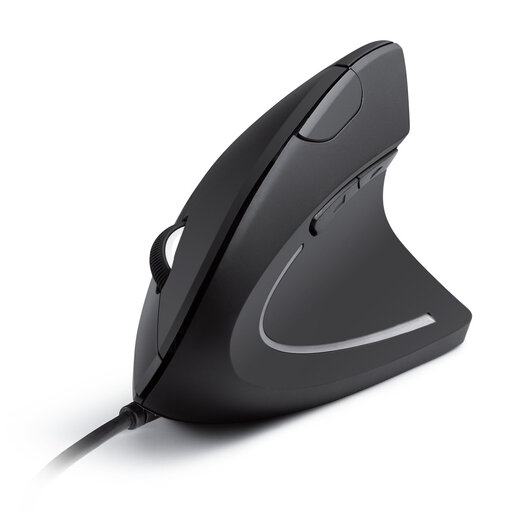
Why This Fits Their Persona: Designed for users who spend long hours at the computer and prioritise healthy posture. The vertical shape reduces forearm twisting and can help prevent strain and fatigue.
This mouse avoids the ergonomics illusion with a science-backed design. The "handshake position" is a recognised method for reducing muscle strain in the wrist.
Vertical Design: Promotes a natural hand and arm posture. Extra Buttons: Forward and back buttons simplify navigation in web browsers and folders.
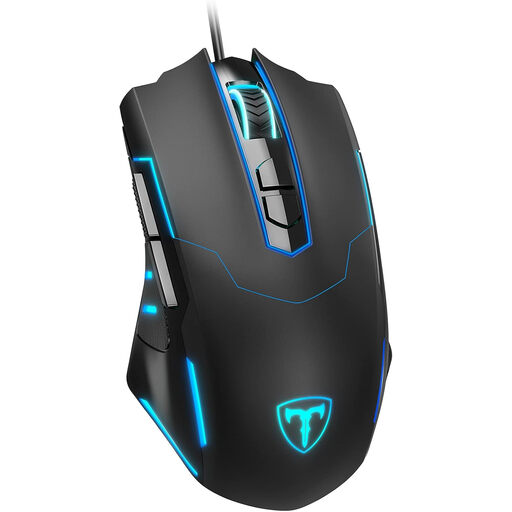
Why This Fits Their Persona: For users who need one mouse for work but also enjoy occasional gaming. It offers more features than a standard office mouse, like adjustable DPI and programmable buttons, without the price tag of a dedicated high-end gaming mouse.
This mouse avoids the DPI trap through flexibility. The adjustable DPI levels (1200–7200) allow you to select a lower sensitivity for office work and a higher one for gaming.
Customisable Performance: Adjustable DPI and programmable buttons offer flexibility for work and play. Ergonomic Shape: The design is built for comfort during long sessions.
We have compiled a complete, up-to-date list of products that fully meet these strict selection criteria and all relevant safety regulations.
Most wired mice, especially those designed for office use, are Plug-and-Play. This means you connect the USB mouse to your computer and it's ready to use immediately. Software is only necessary for specialised gaming mice to customise advanced features like programmable buttons or RGB lighting.
For most office applications and use on standard monitors, a DPI value between 800 and 1600 is optimal. This range offers a good balance of speed and precision, ensuring the cursor is easy and accurate to control without jumping across the screen with small movements.
First, disconnect the mouse from the computer. Use a dry, lint-free microfibre cloth to wipe down the body and cable. For more stubborn dirt, you can slightly dampen the cloth with water. Be careful to prevent any liquid from getting into the mouse's openings, especially the optical sensor. For hard-to-reach areas like the edges of the scroll wheel, a soft brush or a cotton swab can be helpful.