
Lieferung heute & morgen

Qualitätsgarantie

Willkommens-Angebote freischalten: KOSTENLOSE Lieferung | Bis zu 80 % RABATT | Kostenlose 30-Tage-JoyPlus-Testphase
App herunterladen
A wireless keyboard keeps your desk tidy, is handy when you’re on the move and can connect to several devices. However, unclear product details can often lead to the wrong purchase. There are three common pitfalls to watch out for: a keyboard looks compact but has an unfamiliar layout; the stated battery life only applies under certain conditions; or the connection isn’t compatible with your PC, tablet or smartphone.
This buying guide from the Joybuy Product Recommendation Officer takes an objective look at the key criteria and shows which models suit different needs.
For users in Germany, a QWERTZ keyboard is usually the straightforward choice. On a US layout, or QWERTY, the Y and Z keys are in different places, among other differences. Special characters, umlauts and the position of some function keys can also vary. You can change the keyboard layout in your operating system, but the labels on the keys then won’t match what you type.
Before buying, make sure you check:
A Bluetooth keyboard doesn’t need an additional receiver, but your device must support Bluetooth. A wireless keyboard with a 2.4 GHz receiver, on the other hand, usually connects via a USB dongle. Some models combine Bluetooth, 2.4 GHz and a USB cable in a tri-mode keyboard.
That’s useful, but only if your device has the right ports. Tablets and particularly slim laptops may need an adapter for a USB-A receiver. For a gaming PC, 2.4 GHz or a wired connection could be a good option, while Bluetooth may be all you need for a smartphone or tablet.
Manufacturers’ battery-life figures depend on factors including backlighting, connection type and how long you use the keyboard each day. A keyboard with RGB lighting will generally use more power than a model without backlighting. “Up to” figures should also be treated as a guide.
It’s useful to know the difference between:
If you switch between a PC, laptop, tablet and smartphone, check how many devices the keyboard can save. A multi-device keyboard with three or four channels saves you having to pair it again each time. Bluetooth versions such as 5.0 or 5.3 describe the technical interface, but on their own they don’t guarantee a reliable connection in every situation. Walls, sources of wireless interference and distance can all affect the range.
A compact keyboard saves space, but may not have a number pad, function keys or some navigation keys. Common formats include:
It’s worth checking the dimensions in millimetres before you buy. A slim keyboard may be suitable for travel, while a larger mechanical model is better suited to staying on your desk.
Scissor switches often feel similar to a laptop keyboard and are relatively quiet on many models. A mechanical keyboard has individual switches beneath the keys. This allows for different actuation points and can appeal to keen typists and gamers, but depending on the switch, it can also produce a noticeably louder typing sound.
“Ergonomic” shouldn’t be taken as a blanket promise. What matters is a comfortable angle, enough room for your hands, a pleasant key height and regular breaks. A curved shape or wrist rest may help you maintain a comfortable posture, but it can’t replace a workstation setup that suits you.
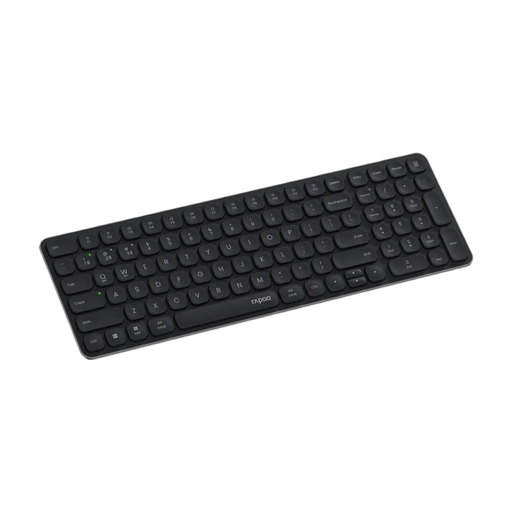
Why this product suits this profile: This slim keyboard has a 99-key layout with a number pad and, according to RAPOO, can connect to up to four devices via Bluetooth 4.0, Bluetooth 5.0 and 2.4 GHz.
The connection types are clearly listed. The power supply is also specified as two AAA batteries, so you won’t have to stop unexpectedly to recharge.
Scissor switches, multimedia keys, 363 × 119 × 20 mm and support for Windows, Mac OS and Linux.
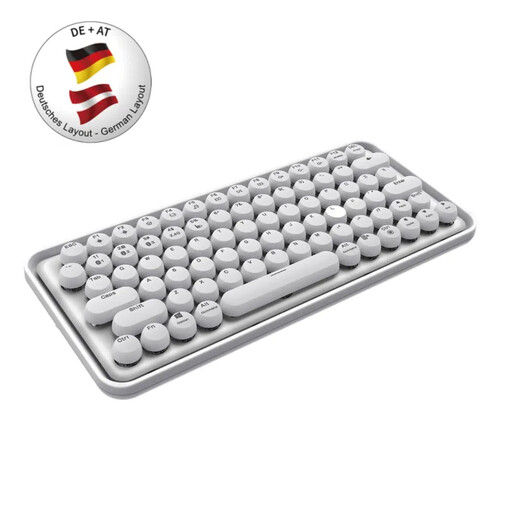
Why this product suits this profile: This model combines Bluetooth 3.0/5.0 and 2.4 GHz with a built-in lithium-polymer battery. According to RAPOO, you can switch between devices at the touch of a key.
The product description lists the supported operating systems and a range of up to 10 metres, making it easier to check compatibility before you buy.
Mechanical keys according to the product details, a built-in battery, backlighting and Windows/Mac support.
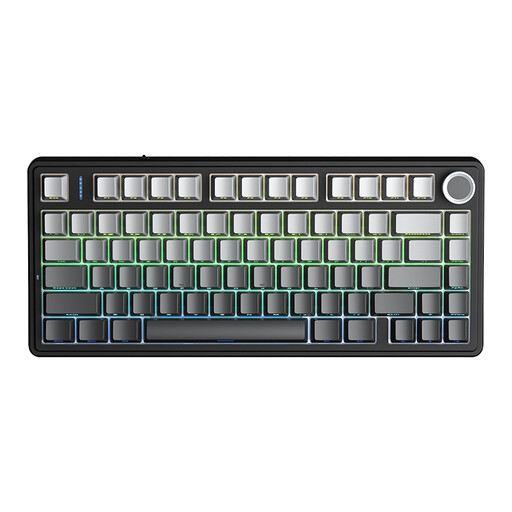
Why this product suits this profile: For gaming and customisation, this model offers tri-mode connectivity, a 75% layout, hot-swap support and RGB lighting, according to the manufacturer.
As well as Bluetooth and 2.4 GHz, it can be used with a USB cable. That means you can keep using it if the wireless connection or battery isn’t up to the job.
4000-mAh battery according to the product details, 16.8 million RGB colours, macro functions and the option to connect to five devices.
We’ve put together a complete, regularly updated list of products that meet these strict selection criteria and fully comply with the safety regulations in force in the EU.
It depends on the model. The product description should clearly list the supported operating systems. With a keyboard for Windows and Mac, function keys and special key assignments may differ. Models that support both systems are more practical for households or home offices that use a mix of devices.
Its lifespan depends on the switch type, how it’s used and cleaned, whether it uses a battery or batteries, and how much mechanical wear it’s exposed to. Some manufacturers specify key lifespans, such as five million keystrokes for some scissor-switch models. This isn’t a guaranteed period of use, but a technical guide. Keep liquids away from the keyboard unless its casing is specifically described as splash-resistant.
Battery-powered models require replacement batteries, which add to the cost. A built-in battery needs electricity to charge and may lose capacity over time. RGB lighting, high brightness and intensive use can all increase power consumption. If you want to keep running costs down, look for an off switch, an automatic sleep function and lighting you can turn off.