
Lieferung heute & morgen

Qualitätsgarantie

Willkommens-Angebote freischalten: KOSTENLOSE Lieferung | Bis zu 80 % RABATT | Kostenlose 30-Tage-JoyPlus-Testphase
App herunterladen
A wireless mouse can help keep your desk tidy and offers flexibility for use with a laptop, PC, home office setup or gaming system. However, technical marketing claims don’t always help you make the right choice. The key things to consider are connectivity, noise levels, shape, power supply and compatibility.
A high DPI figure only tells you the sensor’s maximum sensitivity. Lower settings, such as 800 to 1,600 DPI, are often enough for office work. Gaming may call for extra sensitivity levels, but how suitable a mouse is also depends on its sensor, the surface you use it on, polling rate and software. An optical mouse with lots of DPI settings isn’t automatically a better choice for every use.
A wireless mouse can connect via 2.4 GHz using a USB receiver, or via Bluetooth. A USB receiver often offers straightforward plug-and-play use, but takes up a USB-A port. Bluetooth is convenient for many laptops and tablets, but requires a compatible device and pairing.
If you need both options, look specifically for a multi-device mouse or one that supports both 2.4 GHz and Bluetooth.
The term quiet mouse usually refers to the sound of the clicks, not necessarily the scroll wheel or the mouse gliding across your desk. Battery life claims also depend on how you use the mouse, its lighting and its power-saving features. When choosing an ergonomic mouse, consider your hand size, grip style and preferred orientation. A shape designed for right-handed users won’t automatically suit every grip.
For a desktop PC, a mouse with a USB receiver is convenient if you have a spare USB-A port. Bluetooth is often the more space-saving option for slim laptops, tablets and devices with fewer ports. A dual-mode or triple-mode mouse combines several connection types, which you can switch between depending on the device.
Before you buy, check:
Models that take AA or AAA batteries are ready to use as soon as you insert one. A rechargeable mouse reduces the need for disposable batteries, but needs to be charged regularly using a cable. A gaming mouse with RGB lighting may have a shorter battery life than the manufacturer’s figures for standard use suggest.
Check the stated battery life, the charging port and whether you can continue using the mouse while it charges.
An optical sensor uses visual tracking to detect the surface beneath it. DPI settings control how far the cursor moves in response to a particular movement. Moderate settings are usually comfortable for word processing and spreadsheets. For gaming, finer adjustments and a higher polling rate may be useful.
A very high polling rate increases the number of position reports sent per second, but may use more power and require compatible hardware. For everyday tasks, a good balance of reliable connectivity, a comfortable shape and precise movement matters more than any single headline figure.
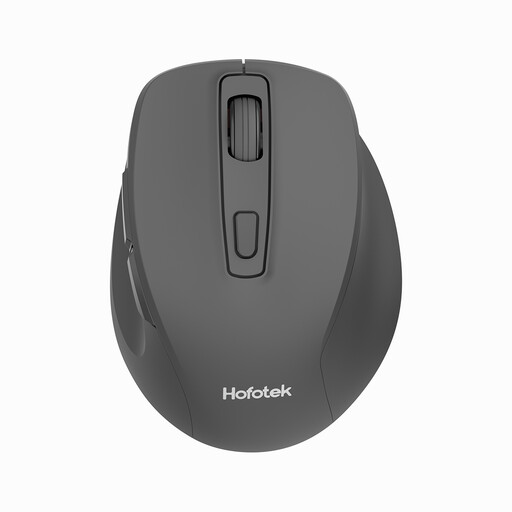
Why it suits this user: This compact 2.4 GHz mouse is a straightforward option for anyone looking for a simple solution for a laptop, PC, studying or office use.
The specifications clearly state that it has Silent-Touch clicks, optical tracking and four DPI settings from 800 to 1,600, rather than relying on a vague performance claim.
Weighs 55 ± 5 g, with a USB receiver, AA battery and compatibility with Windows, macOS and Android.
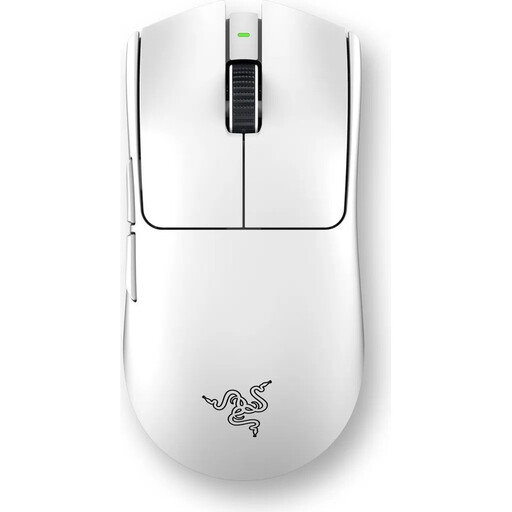
Why it suits this user: This model is aimed at gamers who want a wireless mouse with a low weight, adjustable sensor settings and USB-C charging.
The specifications list the connection type, polling rate, sensor model, number of buttons and battery life separately and clearly.
Weighs 54 g, with up to 35,000 DPI, an adjustable polling rate of 1,000 to 8,000 Hz, six programmable buttons and a USB-C rechargeable battery.
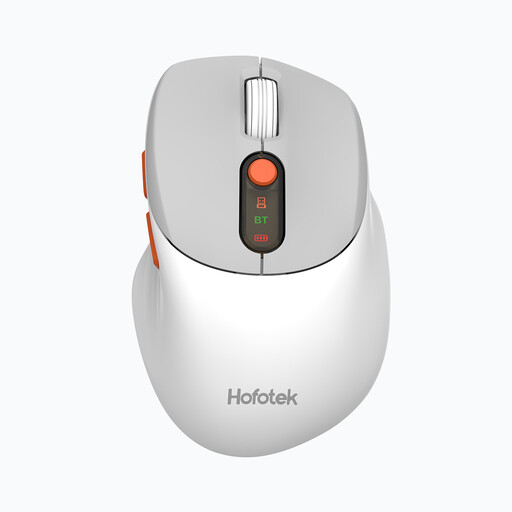
Why it suits this user: Combining Bluetooth and 2.4 GHz, this mouse is a good fit for anyone using several devices, such as a laptop, desktop PC and tablet.
The available connection types and the option to switch between up to three devices are clearly stated. This makes it easier to check compatibility before you buy.
Bluetooth 5.1 and 2.4 GHz, weighs 62 ± 5 g, with quiet clicks and DPI settings from 800 to 4,000.
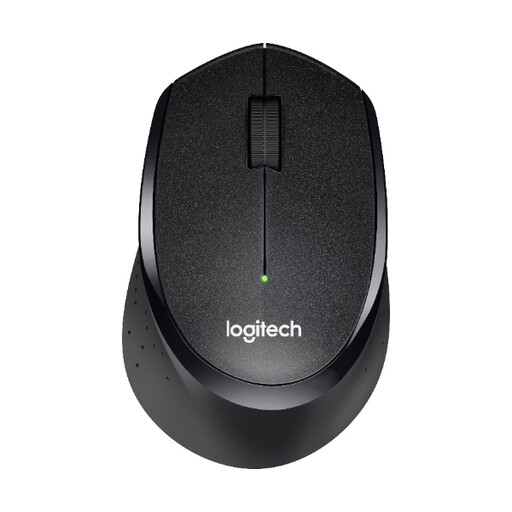
Why it suits this user: Its right-handed shape and reduced click noise make it a good choice for offices, libraries and shared spaces.
The product information distinguishes between SilentTouch technology, optical tracking, range and battery details.
USB nano receiver, range of up to 10 m, 1,000 DPI and a battery life of up to 24 months according to the supplier.
We’ve put together a complete, regularly updated list of products that meet these strict selection criteria and fully comply with the safety regulations in force in the EU.
For a 2.4 GHz mouse, plug the supplied USB receiver into a suitable port and switch the mouse on. Pair Bluetooth models through your system settings. If the mouse offers several connection types, select the right mode first. If you run into problems, try a fresh battery, move closer to the receiver and check that you’re using the correct USB port.
Lifespan depends on the switches, casing, use of batteries or a rechargeable battery, and how heavily you use it each day. For ongoing costs, specific battery-life information, a replaceable battery or USB-C charging is more useful than general marketing promises. Keep the USB receiver somewhere safe, and protect the mouse from liquids and excessive heat.
Neither connection type is the right choice for everyone. Bluetooth saves a USB port on your laptop, while 2.4 GHz often lets you connect directly using a receiver. If you switch between a PC, laptop and tablet, a multi-device mouse that supports both standards could be a good option.