
Lieferung heute & morgen

Qualitätsgarantie

Willkommens-Angebote freischalten: KOSTENLOSE Lieferung | Bis zu 80 % RABATT | Kostenlose 30-Tage-JoyPlus-Testphase
App herunterladen
A wireless mouse keeps your desk tidy and gives you the flexibility to use it with a laptop, tablet or PC. However, not every wireless mouse automatically makes for a better workspace. Small differences in connectivity, shape, sensor and power supply can determine whether a model suits your day-to-day needs in the long term.
A high maximum resolution can sound impressive at first. However, much lower settings are often perfectly adequate for office work, spreadsheets and web browsing. What matters is whether you can adjust the sensitivity and whether the sensor works reliably on the surface you use. A high DPI figure alone does not guarantee precise control.
A Bluetooth mouse connects directly to compatible devices and does not need a USB receiver. A 2.4 GHz wireless mouse, on the other hand, usually uses a small receiver. This can be handy with desktop PCs, but it takes up a USB port. Some models support both options, while others support just one.
Before you buy, check:
For a rechargeable mouse, claims such as “up to 70 days” are based on specific usage conditions. Lighting, wireless standard, frequency of use and power-saving features can all affect actual battery life. Models that use AA batteries do not need charging, but regular replacements add to the ongoing cost.
Requirements vary by model for Windows, macOS, Linux, ChromeOS, iPadOS and Android. A multi-device mouse can store up to three devices and let you switch between them at the press of a button. This is useful if, for example, you use a work computer, personal laptop and tablet side by side.
If you’re using a USB receiver, it’s also worth checking whether it’s USB-A or USB-C. Some receivers need an adapter if your laptop only has USB-C ports.
An ergonomic mouse should suit your hand size and preferred grip. Small, flat models are easy to carry, but may offer less support if you have larger hands. Models for larger hands usually have a longer, wider body. Left-handed users will need a symmetrical shape or a model specifically designed for left-handed use.
Look out for:
A specialist shape is no substitute for finding what works for you. During longer work sessions, take regular breaks and try to keep your wrist and forearm in as neutral a position as possible.
A quiet mouse with SilentTouch or Quiet Click technology may be a good choice for open-plan offices, libraries and shared spaces. Manufacturers’ noise-reduction claims refer to the clicking mechanism; the scroll wheel and movement may still make some noise.
Optical sensors with moderate resolution are usually enough for office applications. Creative work benefits from finely adjustable pointer movement. A gaming mouse such as the CHERRY XTRFY M64 Wireless is designed for users who prioritise low latency, high polling rates and light weight.
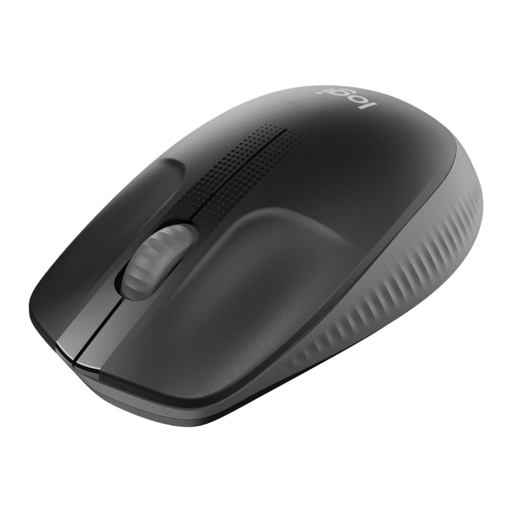
Why this product suits this user: The full-size design is made for medium to large hands and connects via a 2.4 GHz USB receiver, with no additional software required.
It keeps things simple, with an optical sensor, plug-and-play connectivity and a stated battery life of up to 18 months.
Full-size body, ambidextrous design, 18-month battery life and compatibility with Windows, macOS, ChromeOS and Linux.
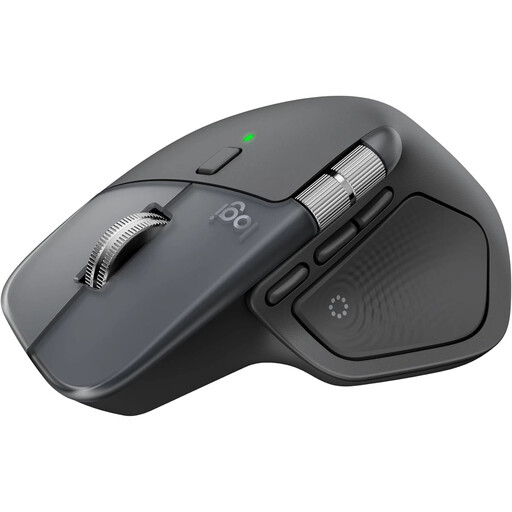
Why this product suits this user: For developers, creatives and frequent users, the larger right-handed design offers several controls and connects via Bluetooth or a Logi Bolt USB-C receiver.
You can choose how to connect. The specifications list 8,000 DPI, support for up to three devices and USB-C charging; the charging cable is not included.
MagSpeed scroll wheel, seven controls, customisable functions via Logi Options+ and a stated battery life of up to 70 days.
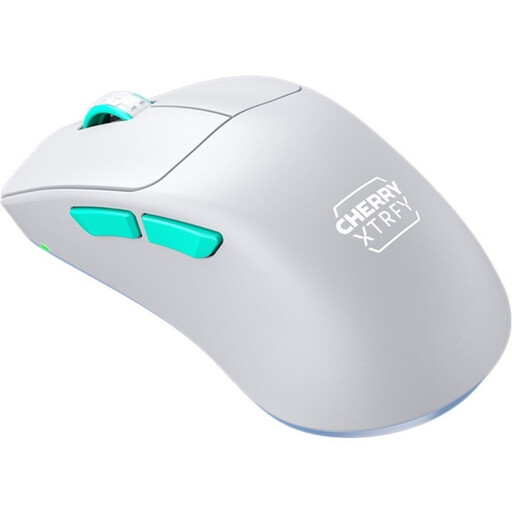
Why this product suits this user: This model is designed for right-handed gamers who prefer a lightweight mouse, a 2.4 GHz receiver and configurable sensor settings.
Rather than focusing on a single DPI figure, the product description gives specific details about the sensor, polling rate, weight, wireless standard and battery capacity.
Weighs 53 grams, PixArt 3395 sensor, polling rate of up to 1,000 Hz and battery life of up to 75 hours, according to the product details.
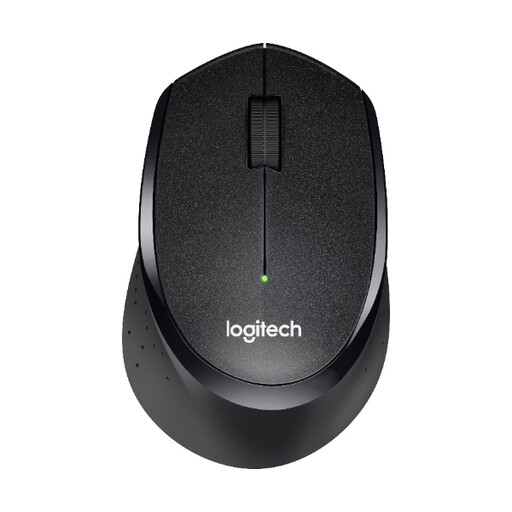
Why this product suits this user: Its right-handed shape, SilentTouch technology and nano USB receiver are designed for everyday office and home-working tasks.
The noise-reduction claim is backed up by a specific SilentTouch feature. Wireless range and power supply are also clearly stated.
Battery life of up to 24 months according to the product details, optical tracking, wireless range of up to 10 metres and compatibility with Windows, macOS, ChromeOS and Linux.
We’ve put together a complete, regularly updated list of products that meet these strict selection criteria and fully comply with the safety regulations in force in the EU.
For a Bluetooth mouse, open the Bluetooth settings on the device you want to connect to, turn on pairing mode and select the model when it appears. For a 2.4 GHz mouse, plug in the USB receiver; many models then connect automatically. If you use several devices, an Easy-Switch button or similar switching system makes it easy to move between them.
Its lifespan depends on the switches, scroll wheel, rechargeable battery or disposable batteries, and how often you use it each day. The stated battery life is not the same as the overall lifespan of the product. You can’t replace the rechargeable batteries yourself in many mice. In Germany, electronic devices and batteries should be disposed of separately from household waste, in line with local requirements.
That depends on the wireless standard, polling rate, sensor and weight. A versatile wireless mouse is often fine for occasional gaming. For fast-paced games, a gaming mouse designed for the purpose, with a 2.4 GHz connection, high polling rate and low weight, may be a better fit. Your grip style, the type of games you play and your preferred sensitivity all matter too.