
Lieferung heute & morgen

Qualitätsgarantie

Willkommens-Angebote freischalten: KOSTENLOSE Lieferung | Bis zu 80 % RABATT | Kostenlose 30-Tage-JoyPlus-Testphase
App herunterladen
A wireless mouse helps keep your desk tidy and makes it easier to switch between your laptop, desktop PC and tablet. However, not every mouse with Bluetooth, a high DPI rating or quiet clicks is automatically the right choice. What matters is whether its shape, connection, sensor and power supply suit the way you work.
A mouse with 8000 DPI can move the cursor very quickly. This is useful with large monitors, detailed workspaces or certain design and development environments. For everyday office tasks, however, a high resolution is not essential. A reliable sensor, finely adjustable pointer speed and consistent tracking are more important.
Also check whether the stated DPI rating refers to the actual adjustment range or merely the sensor’s maximum value.
A Bluetooth mouse does not require a USB receiver, making it a good choice for a MacBook, Ultrabook or tablet with few ports. With older desktop PCs or workstations that have USB ports, a receiver may be more practical.
Before buying, check the following:
A multi-device mouse can work with up to three devices, provided the particular model explicitly supports this feature.
An ergonomic mouse needs to suit your hand size, preferred hand and grip style. A heavily sculpted right-handed mouse is not automatically suitable for left-handed users. Compact models save space in your bag, but offer less room to rest your hand.
“Quiet” is not a consistent technical standard either. Manufacturers use different terms, such as Quiet Click or SilentTouch. The perceived noise level depends on the surface, how much pressure you apply to the buttons and the surrounding environment. When choosing a quiet mouse, look for specific, verifiable manufacturer information about click-noise reduction.
For office work, home working and studying, a sensor with a moderate, adjustable range is often sufficient. For large screens, CAD-related applications, image editing or data analysis, a range of up to 8000 DPI can offer greater flexibility. However, DPI adjustment cannot replace good handling. Tracking may be limited on transparent, reflective or highly uneven surfaces, depending on the sensor.
Bluetooth saves a USB port. A dedicated receiver can be a straightforward alternative with compatible devices. With business models, it is also worth checking whether the receiver supports an encrypted connection. The range of up to 10 metres stated in the product specifications assumes an environment with minimal interference.
Rechargeable models are usually charged via USB-C. Check whether a charging cable is included and whether the mouse can be used while charging. Battery-powered models do not need to be charged, but you will need to keep suitable AA or AAA batteries available. Figures such as “up to 70 days” or “up to 24 months” are usage estimates under specific conditions, not a guarantee for every situation.
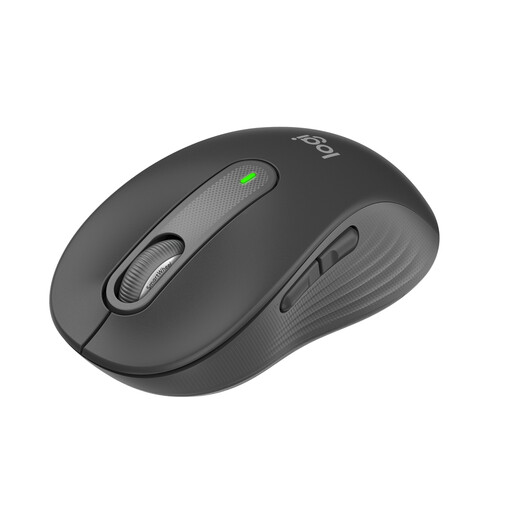
Why this product suits the profile: This mouse is aimed at users with small to medium-sized hands who want a straightforward solution for the office, studying and home working.
This version offers Bluetooth and Logi Bolt, along with a specific size recommendation rather than a vague claim of ergonomic design.
SmartWheel scroll wheel, two customisable side buttons and up to 24 months of battery life from one AA battery.
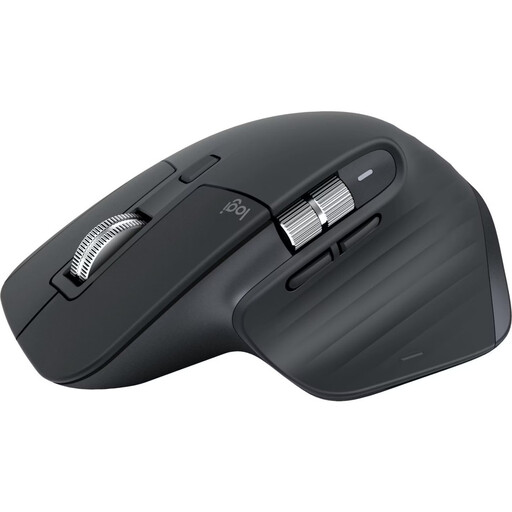
Why this product suits the profile: This right-handed mouse is designed for extended working sessions and complex workflows involving multiple devices.
The Bluetooth version does not require a dongle and supports up to three devices. Its 8000-DPI Darkfield sensor is designed to work on a wide range of surfaces.
MagSpeed scroll wheel, seven programmable buttons, USB-C charging connection and Bluetooth multi-device use with up to three devices.
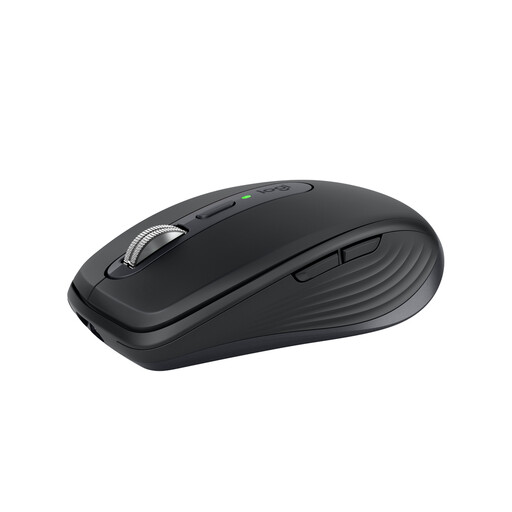
Why this product suits the profile: Its compact design is ideal for mobile users, changing workstations and carrying between the office, university and home.
The technical specifications state 200 to 8000 DPI, Bluetooth and an optional Logi Bolt receiver. This lets you adapt the connection to different devices.
Weight of 99 grams, up to three paired devices, MagSpeed scroll wheel, Quiet Clicks and USB-C charging with up to 70 days of battery life according to the product information.
We have put together a complete, regularly updated list of products that fully meet these strict selection criteria and the safety regulations applicable in the EU.
Switch on the mouse and open System Settings > Bluetooth on your MacBook. Activate the mouse’s pairing mode and select the model shown. If you are using a mouse with a USB receiver, you may need a suitable adapter if your device does not have a USB-A port.
Battery life depends on the sensor, lighting, connection and usage. According to the product information, rechargeable models can last for up to 70 days, for example. Depending on the model and how it is used, a mouse with an AA battery may last considerably longer without needing a battery change. The relevant manufacturer’s specifications are the key reference.
A wireless mouse can be useful for home working if you want to reduce cables on your desk or switch between several devices. Look for a suitable hand size, quiet clicks, a stable connection and a power supply that matches your working habits. Technical features should offer a clear, practical benefit for the applications you use.